
Recommended Services


Supported Scripts


What if the lag isn’t coming from your ARK server at all? Low frame rates and stuttering can point to a client-side problem, while rubber-banding or desync may involve the server or network. The symptoms can overlap, so changing settings before you know the cause can make the problem harder to solve. This ARK Ascended server performance guide starts with diagnosis, not guesswork.
It’s tempting to copy a hardware recommendation or adjust several settings at once. But advice that helped another community may not suit your server’s activity, world or configuration. A more reliable approach is to record what’s happening, test one likely cause at a time and compare the result.
You’ll learn how to distinguish client, server and network symptoms, then work through a measured process for checking performance. We’ll also cover when Australian game server hosting may suit your community. Hosting closer to Australian players can help reduce latency compared with a distant server, although results depend on player location, ISP and routing.
Key Takeaways
- Use the symptom pattern to decide whether to investigate a player’s device, the server or the network first.
- This ARK Ascended server performance guide explains how to check CPU, memory, storage and network factors without assuming which one is at fault.
- Compare reports from one player with reports from the whole group to choose a useful first test.
- Change one setting at a time, retest and record the result so you can identify what helped.
- Consider Australian ARK: Survival Ascended hosting if self-hosting constraints or ongoing server management are getting in the way.
ARK Ascended server performance: recognise lag and identify where it starts
A delayed action, a character snapping backwards or a world that stutters can all feel like “server lag”. But the same experience can come from a struggling game client, the server processing the world or the connection between them. In this ARK Ascended server performance guide, start by identifying the pattern before changing settings. Symptoms are clues, not proof, so compare reports and record what happens.
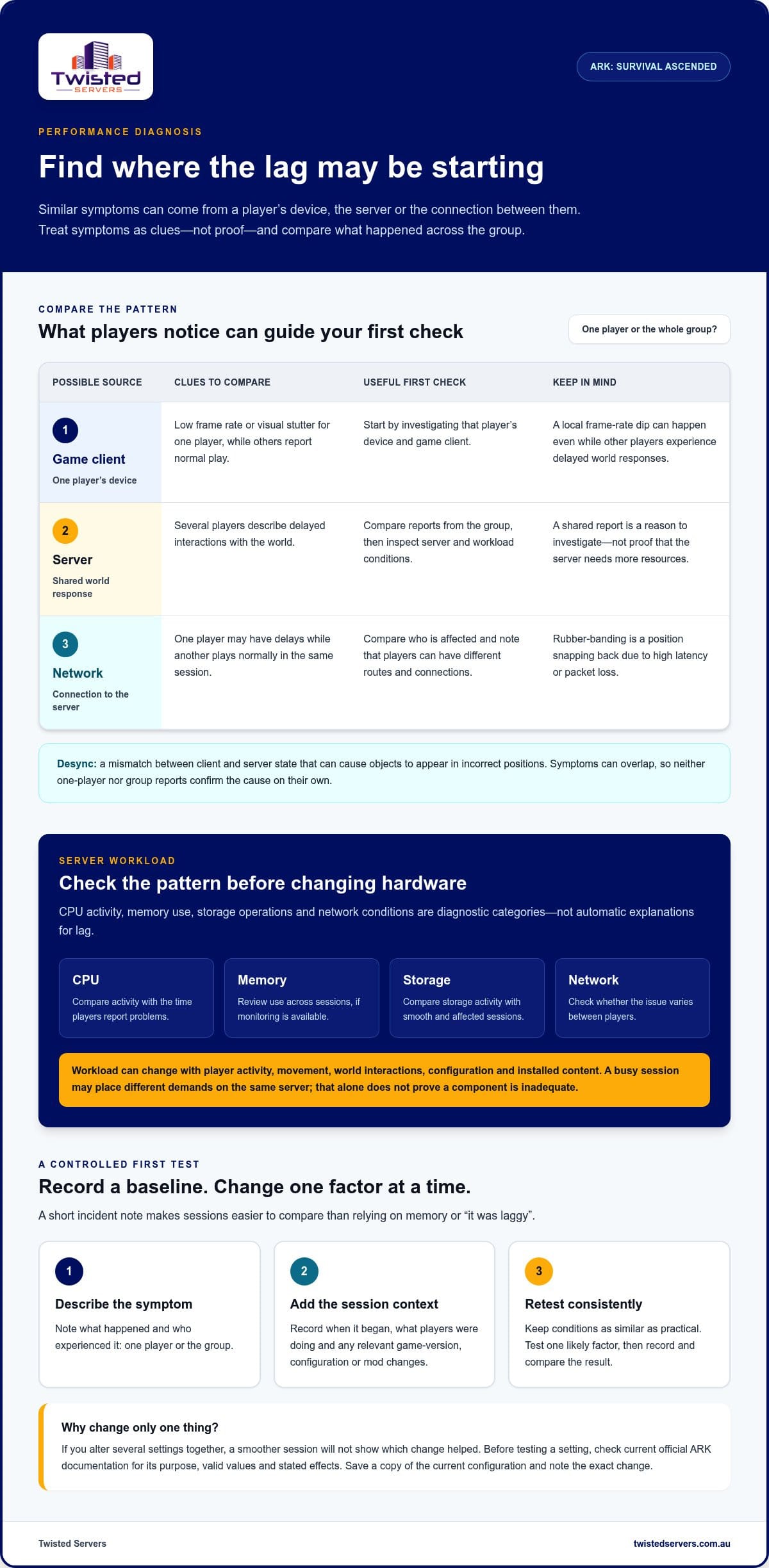
A useful distinction is: client problems affect how the game runs on a device, server problems affect how the shared world responds, and network problems affect how data travels between them. These causes can overlap. A player may see a local frame-rate drop while others experience delayed world responses.
Is it server lag, client performance or network latency?
Start with two questions: what changed on screen, and who else noticed it? If one player sees a low frame rate or visual stutter while others report normal play, investigate that player’s device and game client first. If several players describe delayed interactions with the world, the server or network is a more useful starting point. Neither pattern confirms the cause on its own.
Network symptoms can vary because players have different routes to the server and different connections. One person may experience a delay while another plays normally in the same session. Rubber‑banding is the visual effect of a player’s position snapping back due to high latency or packet loss. Desync is a mismatch between client and server state that can cause objects to appear in incorrect positions. For background on how a game server coordinates shared play, see Game server architecture and function.
Before adjusting server settings, ask players to describe the same event in their own words. Did everyone see it, or only one person? Did it happen during a particular activity or throughout the session? A shared report is a reason to inspect server and network conditions, not proof that the server needs more resources.
Record a baseline before troubleshooting
Make a short incident note while the problem is happening. Record when it began, what players were doing and whether it affected one player or the group. Note the symptom, such as a local frame-rate dip, delayed interaction or rubber-banding. A consistent record makes it easier to compare sessions than relying on memory or a broad description like “it was laggy”.
Also note changes that may help explain when the issue began. These might include game-version updates, configuration edits or mod changes, if your server uses mods. Don’t assume a recent change caused the problem. Include it in the timeline so you can test it rather than guess.
- Record the symptom and who experienced it.
- Note the session context, including the activity underway and when the issue appeared.
- List relevant changes since the last session without changing anything else yet.
Use that record as your baseline. In the next test, keep conditions as similar as practical and change only one factor. If you alter several settings together, even a smoother session won’t show which change helped. A repeatable process gives you a clearer path from symptom to cause.
How ARK Ascended server workload can affect performance
A server can feel overloaded for different reasons, and the symptom alone rarely identifies which resource is involved. CPU activity, memory use, storage operations and network conditions are useful diagnostic categories, not automatic explanations for lag. The aim is to compare what the server is doing with when players notice problems, then test the most plausible cause.
Workload can change as players join, move around the world or interact with its contents. Configuration and installed content can also affect what the software needs to process. A quiet period and a busy session may place different demands on the same server. That doesn’t prove any one component is inadequate; it gives you a pattern to investigate.
Assess the workload behind the symptom before changing hardware, or you may spend effort addressing a resource that isn’t causing the problem.
Check workload patterns before changing hardware
Compare a session when players report smooth play with one when they report a problem. Note whether the issue coincides with increased activity, a particular area or event, or a change in the world. These observations can help narrow down what to inspect, but they aren’t proof of a CPU, memory, storage or network bottleneck.
If you have access to resource monitoring or server logs, compare the relevant records across those sessions. Available tools and indicators depend on how the server is run, so don’t assume that a particular graph, counter or game-specific metric exists. Verify any ARK-specific indicator against current authoritative documentation before relying on it.
Review settings and server updates carefully
Settings can change how a dedicated server runs, but a name or community recommendation isn’t enough to establish what an option does. Check current official ARK documentation for the setting’s purpose, valid values and stated effects before testing it. Don’t copy a configuration change from another server without understanding what it controls and whether it suits your setup.
Before editing a configuration file, save a copy of the current version and record the exact change you’re testing. Make one change, then compare the result under similar conditions. Your notes will help guide the next step and make it easier to restore the original setup.
Game updates and dedicated-server software updates are separate parts of the picture. Check that the game version and server software are compatible before linking a new symptom to workload or a configuration edit. If you use mods, note their versions and recent changes, and check compatibility information from authoritative sources rather than assuming an update is the cause.
Keep the roles clear: ARK’s behaviour defines what the world asks the server to process, dedicated-server software runs the multiplayer session, and a hosting provider supplies the hosting environment. Twisted Servers offers Australian game server hosting for communities considering a hosted option. Diagnosis still depends on the symptoms and workload of your own server.
Compare ARK Ascended performance causes with a controlled test
A symptom is a starting point, not a diagnosis. This section turns player reports into safe checks, helping you decide what to investigate before changing server settings or hardware. Compare who is affected, what they experience and whether the pattern returns under similar conditions.
Compare reports from players and sessions
Ask players what they noticed, when it happened and whether others saw the same issue. Compare observations across sessions, including player location and ISP where relevant. A network route can affect one player differently from another, so neither a shared symptom nor an isolated one proves the cause.
| Symptom pattern | Likely area to investigate | Next safe test |
|---|---|---|
| One player sees low frame rate or visual stutter | That player’s device or game client | Ask another player on the same server to observe the same activity, without changing server settings. |
| One player experiences delays or position snapping | The player’s connection or route, among other possibilities | Compare their report with other players and note whether the symptom recurs in another session. |
| Several players report delayed world responses at the same time | Server workload or a shared network issue | Compare the reports with server activity and the timing of the event. |
| Reports vary between players and sessions | Different client, network or workload conditions | Record who was affected, where they were playing from and what was happening in the world. |
Use the table to choose a first check, not to label a cause. One player’s stutter makes their client a sensible place to start; several players reporting the same delayed response points towards a shared factor worth examining. Network symptoms can still vary with player location, ISP and routing. Australian hosting may offer a shorter route for some Australian players than a distant overseas server, but it can’t guarantee a particular ping.
Use a one-change-at-a-time test
Choose one repeatable activity and establish what happens before making an adjustment. Record the time, players affected, symptom and relevant conditions. Then test one change, keeping the activity and other settings as consistent as practical. This makes the comparison more useful than changing several things and relying on memory.
Repeat the test in a comparable session. If the result can’t be reproduced, treat it as inconclusive. If performance worsens, revert the change and record the outcome. When the evidence points to self-hosting constraints rather than a setting you can isolate, Australian game server hosting is another option for your community.
Steps to troubleshoot and optimise an ARK Ascended server
Once you have a clear symptom pattern, use a repeatable process rather than applying a batch of community tweaks. This ARK Ascended server performance guide focuses on changes you can trace, test and reverse. The goal is to learn whether an adjustment makes a difference, not simply to make the configuration look different.
- Observe the issue. Note what players are doing when it occurs, what they see and whether the problem affects one person or the group. Keep client frame-rate problems separate from delayed world responses where possible.
- Record the baseline. Write down the time, affected players, activity and relevant server details. Include recent changes to the game version, server software, settings or mods, if applicable. Before editing a configuration file, save a separate copy of its current contents.
- Isolate the likely area. Compare reports from affected and unaffected players. If only one player is affected, check their device and connection before altering shared server settings. If the whole group reports a similar issue, examine server activity and whether a shared network factor could be involved.
- Change one variable. Pick a single setting or component to test, record its previous value and make only that adjustment. Don’t apply settings copied from a forum or another server without checking what they do and whether they apply to your game and server software versions.
- Retest under similar conditions. Repeat the same activity where practical, with other settings unchanged. Compare the result with your baseline. If the change makes the issue worse, restore the previous value. If the result can’t be repeated, treat it as inconclusive rather than proof of an improvement.
- Document the outcome. Record the change, test conditions and what players experienced. Keep useful results, including tests that didn’t help, so you don’t unknowingly repeat them or lose track of the current configuration.
Updates and mods deserve the same care as settings. Check current official ARK information and relevant compatibility details before changing versions or attributing a new symptom to an update. A client update and a dedicated-server software update aren’t automatically interchangeable. ARK: Survival Ascended and ARK: Survival Evolved are different titles, so guidance for one shouldn’t be treated as confirmed instructions for the other.
Keep troubleshooting separate from data protection. A copy of your configuration file is a precaution before testing; it isn’t the same as a game-world backup or a claim about a hosting provider’s backup features.
Know when the issue may be outside the server
If the evidence points to one player, compare their device and connection with reports from others before changing shared settings. An Australian server may reduce latency for Australian players compared with a distant overseas server, but results depend on player location, ISP, routing and server location. If self-hosting constraints remain after diagnosis, explore ARK: Survival Ascended game server hosting as another option for your community.
When Australian ARK Ascended server hosting is the next step
Hosting may be worth considering when your tests point to limits in your self-hosting setup or ongoing administration is taking more time than your community can give. It isn’t a shortcut for every performance issue. A hosted server changes where the game server runs and who provides the hosting environment; it won’t automatically resolve a player’s low frame rate, a problematic setting or a device issue.
Twisted Servers is an Australian provider offering ARK: Survival Ascended game server hosting. Consider it if maintaining the server, its software and its configuration has become a burden for your community.
Decide whether self-hosting still suits your community
Consider the time required to keep the server available, maintain its software and manage configuration changes. Assess whether your home internet connection and power arrangements suit the way your community uses the server. Self-hosting gives you direct control, while hosted game servers move the hosting environment off your own setup. Neither option is universally faster; results depend on the server, workload and player circumstances.
Base your decision on the constraint you’ve identified. If a particular setting or player’s device is the cause, moving the server may not address it. If the limits are your hosting setup or the time needed to manage it, a hosted option may better suit your community.
Set realistic expectations for Australian hosting
Hosting changes the environment where the dedicated-server software runs, but it doesn’t change ARK: Survival Ascended itself or guarantee a performance outcome. Keep the roles distinct: the game defines the multiplayer experience, dedicated-server software runs the session, and Twisted Servers provides the hosting service.
If self-hosting constraints or ongoing management are the issue, Australian game server hosting may be a suitable next step for your community.
Choose your next step with confidence
Use your findings to decide what your community needs next: a clearer record of server behaviour, more time to test a suspected cause or a different way to manage the server. Keep the notes from each test. They’ll give you a useful reference if symptoms return or your community’s needs change.
A careful approach is the value of this ARK Ascended server performance guide: you can make decisions based on repeatable observations rather than a guess or a setting copied from another server. Twisted Servers hosts ARK: Survival Ascended, with hosting starting at $10.00 AUD per month. Dedicated expert support is available 24/7.
If hosting is the practical next step, explore Australian game server hosting with Twisted Servers.
Frequently Asked Questions
Can an Australian server fix ARK Ascended lag?
It may help if the problem is latency between Australian players and a distant server, but it won’t fix every kind of lag. A closer server can reduce the distance data travels, while ISP and routing still affect each player’s connection. If the game looks choppy on one computer or the server struggles to process its workload, changing location alone may not address the cause. Match the suspected issue to the possible benefit.
How can I tell if ARK Ascended lag is caused by my PC?
Your PC is a likely place to investigate if the game stutters or runs at a low frame rate while other players report normal play. Observe the same scene after closing other demanding applications, then compare the experience. If the problem continues, check whether it occurs in other games too. A PC-side symptom can coexist with network or server trouble, so treat it as a clue rather than a definitive diagnosis.
Does adding mods make an ARK Ascended server slower?
It can, depending on what the mods add and how they affect the server’s workload, but having mods doesn’t prove they’re causing lag. Check that each mod is compatible with the current game and server versions using authoritative information. If you need to test a suspected mod, do so cautiously and avoid changing a live setup without a recovery plan, since changing mod content can affect the community’s game experience.
Will increasing RAM stop ARK Ascended server lag?
Only if evidence shows that available memory is a constraint. More RAM won’t directly resolve high CPU load, a storage bottleneck, connection problems or low frame rates on a player’s PC. Review memory use during the period when symptoms occur and compare it with a smoother session. If memory isn’t under pressure, adding capacity may not address the reason players are experiencing lag.
Can map or world settings affect ARK Ascended server performance?
World activity and configuration can influence what a server needs to process, though the effect depends on the setup. A problem that appears only in a particular area or during a specific activity may be worth recording alongside the relevant world settings. Before changing a setting, confirm its meaning and effect in current official documentation. Avoid relying on settings copied from a different map, version or server configuration.
Should I restart an ARK Ascended server to improve performance?
A restart may temporarily help in some cases, but it doesn’t establish or remove the underlying cause. If you test one, note the symptoms before and after, and compare similar play conditions. Plan it so players know the session will end, and follow the server’s current shutdown and save guidance to reduce the risk of interrupting play. If the issue returns, use that pattern as evidence for further diagnosis.
Can server lag affect every ARK Ascended player equally?
No. A shared server issue may be noticeable to several players at once, but they can experience it differently because their devices and network routes vary. One player might report a delayed action while another notices little change. Ask players to describe the same event separately and note whether their reports line up in time. Consistent reports can help identify a shared factor, but don’t prove the server is the only cause.
Disclaimer
Game titles, trademarks, logos and related assets are the property of their respective owners. Twisted Servers is an independent hosting provider and is not affiliated with or endorsed by the developers or publishers of the games mentioned unless otherwise stated. Information is provided as a general guide and may change as games, software and hosting services are updated.

