
Recommended Services


Supported Scripts
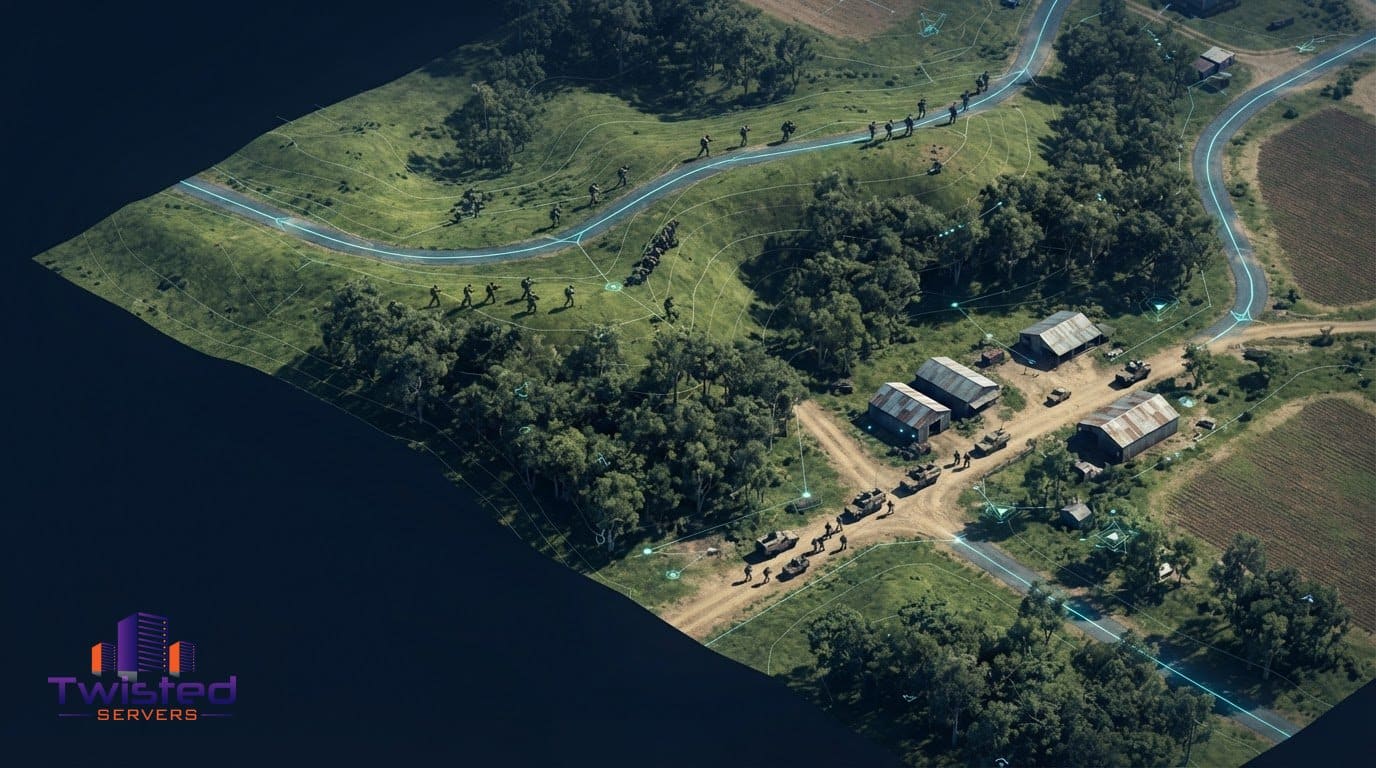

Hunters Valley is a custom terrain for Arma 2, and choosing it is only the first part of preparing a session. You also need a mission that suits the map and a setup that lets the server and players load the content they need. A little planning before launch can help your group spend less time sorting out files and more time getting into the operation.
Arma 2 custom maps can make a familiar game feel different by changing the setting available to missions. The practical challenge is matching the terrain, mission and required addons, then organising those files consistently for multiplayer. If you’re deciding whether Hunters Valley fits your group, its dimensions are a useful starting point, but the mission’s objectives and route choices also shape how you’ll use the terrain.
This guide looks at what map and mission addons do, how to plan around Hunters Valley, and where installation details matter. It also covers multiplayer compatibility and third-party dependencies, including what to consider before setting up a session with DayZ-related mods. Use the guidance to prepare a clear file list, understand the setup you’re aiming for and make your next Arma 2 session easier to organise.
Key Takeaways
- Learn how custom terrain differs from a mission addon, and how each changes your Arma 2 experience.
- See how to place map files in the right game or server folder, then apply changes that require a restart.
- Find out why multiplayer maps can depend on additional addons, including the prerequisite for installing other CUP mods.
- Understand how to prepare a server’s mod list and command line so players can load the same map setup.
- Discover why older maps such as Chernarus need mods when played in Arma 3.
ARMA 2 custom map and mission addons
Arma 2 custom maps add terrain for play, while mission addons define objectives, units or scenarios. ARMA 2 uses the Real Virtuality 3 engine and was released in 2009. Community addons extend the original game with content made for particular missions or settings. A mission may depend on a terrain and separate asset files, so identify each part before setting up a session.
What are the most popular Arma 2 custom maps? Custom maps can provide different terrain options for missions. Each offers a different terrain for missions, so choose based on the setting your group wants and the mission’s compatibility.
It helps to sort downloads by what they provide:
- Terrain: A playable landscape, such as Fallujah, created by Shezan74.
- Assets: Objects or other files a terrain or mission uses. CUP Core is required before installing other CUP mods.
- Missions: Scenarios that set objectives and gameplay on a selected terrain. A mission may need both its map and separate assets.
These are practical categories, not a fixed count of files. An archive may contain several folders, while a mission may depend on addons downloaded separately. Read the included notes and keep the addon names exactly as written. For example, if a mission lists a terrain and an asset pack as prerequisites, include both in your session plan. A map title alone doesn’t reveal everything the mission requires.
Where can I download custom maps for Arma 2? Look for the creator’s release page or a community archive that hosts the specific addon. Read the accompanying instructions and check whether the files are intended for ARMA 2 or Operation Arrowhead. Keep the readme with the download, since it may contain the installation details and dependency names needed later.
How do I create a custom map in Arma 2 using the Visitor editor? Visitor is the editor associated with creating ARMA 2 terrain; use its documentation to guide your project and prepare the resulting files for the game. Test the finished terrain in ARMA 2 before building a mission around it.
Before choosing a mission, compare its stated terrain and addon requirements with the files you have. Record the mission name and required content, then use the list during setup. This distinguishes the landscape from the scenario and its assets, making it easier to identify which component needs attention if the mission fails to load.
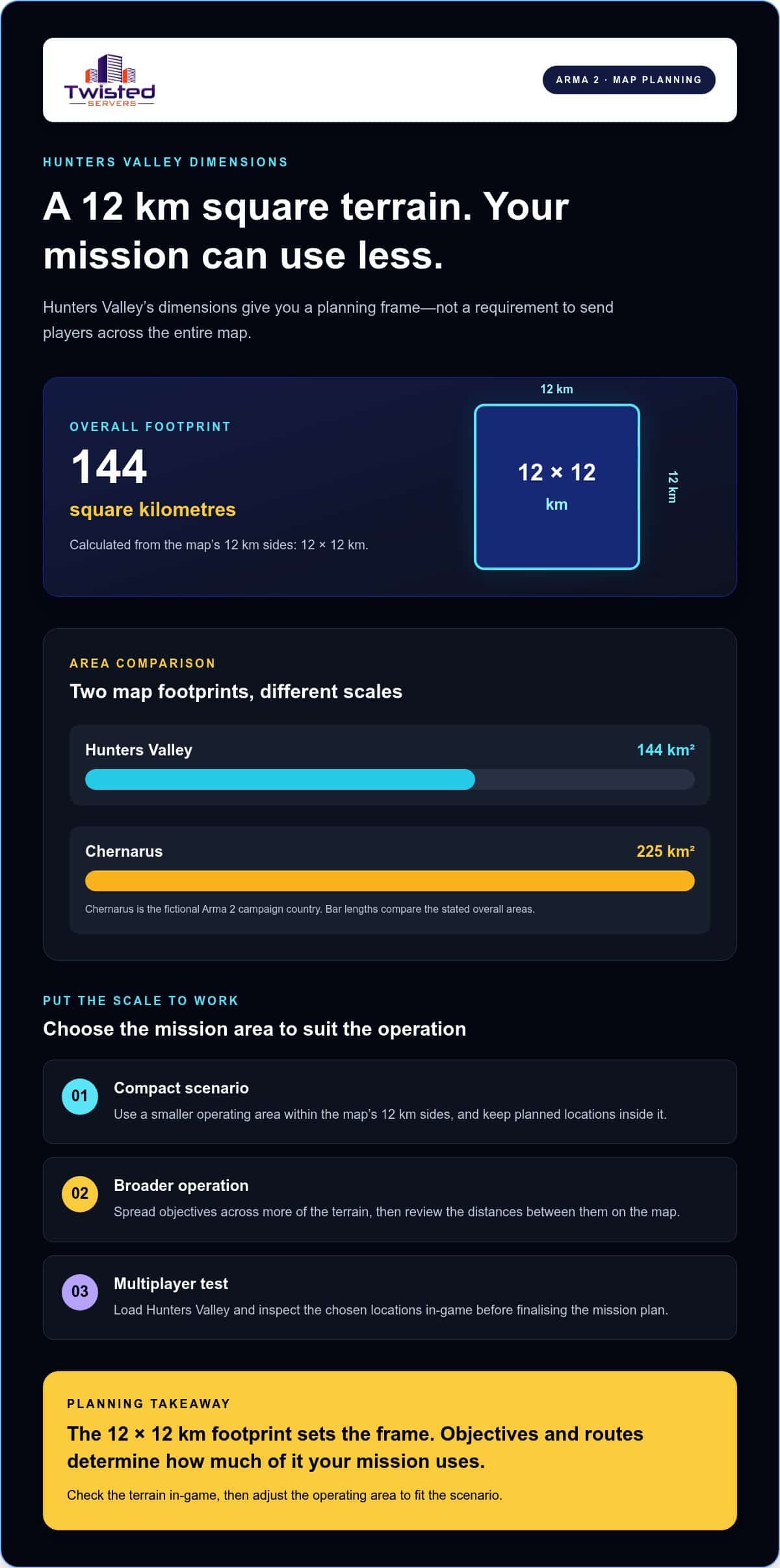
Chernarus, the fictional ARMA 2 campaign country, covers 225 square kilometres. That gives mission planners a concrete sense of the terrain’s extent when comparing it with other map choices. Keep the area in mind alongside the mission’s stated dependencies: the landscape does not replace any separate assets or files a scenario may require.
Hunters Valley map dimensions
Hunters Valley measures 12 by 12 kilometres, giving the terrain a square footprint. Multiply its sides to calculate an area of 144 square kilometres. That figure describes the map’s overall dimensions, not the distance every mission covers. A mission may use a smaller area, depending on its objectives and the locations chosen by its maker.
Use the 12-kilometre sides as a planning frame, rather than assuming every operation spans the whole terrain. Before setting mission objectives, sketch a square and mark a start point, the main objective and any planned destination. This gives you a simple way to compare route options without treating the map’s full area as the mission’s required play space.
For example, a mission maker could keep its start and objective within one part of Hunters Valley, or place them farther apart. Those are planning choices, not claims about the map’s actual layout. Check the terrain in-game before selecting locations. The 12 by 12 kilometre measurement provides scale, while the visible environment informs the specific route.
- For a compact scenario: Select a smaller operating area within the 12-kilometre sides and keep its planned locations within that boundary.
- For a broader operation: Spread objectives across more of the terrain, then review the distances between them on the map.
- For a test run: Load Hunters Valley and inspect each chosen location before finalising the mission plan.
These approaches help translate a map measurement into practical mission planning. A square measuring 12 kilometres on each side gives you a clear overall frame, but it doesn’t prescribe where objectives should go. Check whether the selected area suits the mission’s purpose, then adjust the layout if the intended route doesn’t fit the terrain you see in-game.
When preparing a session, distinguish the map’s overall dimensions from the area your mission actually uses. For instance, a briefing can name the intended operating area and identify the objective locations, rather than suggesting players must cross all 12 kilometres. This gives the group a useful sense of scale without confusing the map boundary with the mission route.
For a multiplayer test, note the planned starting area and objectives, then compare them against Hunters Valley in-game. If a route feels too broad for the scenario, bring the objectives closer together; if the mission needs more travel, expand the area used. The 12 by 12 kilometre footprint gives mission makers a consistent reference for those adjustments.
Map installation instructions
Install an ARMA 2 map by copying its addon files into the correct Operation Arrowhead directory, then enabling the addon. For a dedicated server, place the mod folders in the server root and add their names to the server’s command line. Keep the map’s folder name intact, especially when it begins with @.
How do I add custom maps to an Arma 2 dedicated server? Copy the map’s mod folder into the server root, then include its name in the command line used to launch the server. Check the map’s own instructions for required addons and restart the game or server when changes need to take effect.
For a local Operation Arrowhead installation, use the folder name to choose the destination. The installation notes distinguish between addon folders that begin with @ and other addon names. Don’t assume both types belong in the same directory.
- Extract the download. Open the map archive and locate its addon folder. Keep the folder structure and name, including any leading
@, as supplied. - Choose the destination. Put folders whose names begin with
@directly in theArmA 2 Operation Arrowheadfolder. Place addons without an@at the start of their names inArmA 2 Operation Arrowhead ExpansionAddons. - Prepare the dedicated server. For server installation, put the mod folders in the service root. Add each mod’s name to the server command line so the server loads it when launched.
- Keep client files aligned. Make sure players have the map and its required addons enabled for the same session. A server loading a map does not, by itself, install that map on each player’s computer.
- Restart and test. Restart the game after enabling a map expansion, since some changes only apply after a restart. Start the server and test the intended mission before inviting players.
For example, if a downloaded map folder begins with @, place it directly inside the Operation Arrowhead folder in the local game installation. On a dedicated server, put the mod folder in the server root and add its name to the launch command line. These are separate installation contexts, so don’t copy the local folder path into the server setup without checking which environment you’re configuring.
Before launching, compare the map’s readme with the installed folder names and command-line entries. If the map requires another addon, install that dependency too. After restarting, test the map with its intended mission. This can reveal a misplaced folder or missing file before the multiplayer session begins.
For this server setup, place mods in the service root and include their names in the command line used to launch it.
Multiplayer maps
Australian players can look for ARMA 2 sessions in the game’s multiplayer server browser. Search by the map name when the browser provides a suitable filter, or inspect a server’s displayed mission and map details before joining. A server name may also identify its map rotation or community, but the mission listing is the more direct clue.
Map compatibility depends on matching the server’s content. If a server runs Hunters Valley, your game needs that terrain installed and enabled. A mission may also require separate addons, so the map alone might not be enough. Compare the server’s addon requirements with your installed files before launching the session.
Use this sequence to find a suitable server and reduce avoidable loading problems:
- Open the multiplayer browser. Select the online server list in ARMA 2 or Operation Arrowhead, depending on the version used by the session.
- Search for a map or mission name. Try a known name such as Hunters Valley, then read the server’s mission details rather than relying only on its title.
- Review the addon requirements. Note any named map or mod dependencies, then install and enable the files the session requires.
- Join and check the mission. Confirm the displayed mission matches the intended session. If the game reports missing content, identify the named addon before trying again.
If your group is organising a session, share the map name, mission name and addon list together. For example, “Hunters Valley” identifies the terrain, while the mission title and required addons tell players what else to prepare. This short checklist gives everyone the same starting information and helps prevent confusion between similarly named files.
Australian players should also consider server location when choosing a session. A server closer to players in Australia can provide lower latency than a distant overseas server, though results depend on each player’s location, ISP, routing and the server’s location. The map itself doesn’t determine ping; network paths and server placement matter.
When testing a session, record what happens at each stage: whether the server appears, the mission loads and players can enter the terrain. If one player reaches the lobby while another sees a missing-addon message, compare their enabled files with the server’s requirements. If nobody can load the mission, check the server’s map and mission configuration first.
A server browser listing is a starting point, not a full compatibility check. For ARMA 2 custom maps, the useful details are the map name, mission, required addons and server location. Review those together before joining, and you’ll have a clearer picture of what the session needs.
Third-party map dependencies
Arma 2 custom maps can rely on addons that supply objects, buildings or other content used by a terrain or mission. Treat the map, mission and required asset packages as separate parts of the setup. For example, a mission may call on content that isn’t included in its terrain download, so installing only the map may leave the mission unable to load correctly.
Which Arma 2 custom maps work with DayZ mods? Use a map named by the specific DayZ mod and server setup, rather than assuming every ARMA 2 terrain works. Compatibility depends on the mod’s supported map, required addons and game version. Check the mod’s own instructions for its expected combination.
Are Arma 2 custom maps compatible with the latest game version and DLC? Compatibility depends on the game version, the map’s requirements and any mission or mod dependencies. Compare those requirements with the server’s setup before choosing files, especially when a session combines a terrain with a separate mod.
To assess dependencies, list each part of the planned setup separately. A DayZ session, for instance, may involve the game, the DayZ mod, a terrain and additional asset packages. The mod or mission instructions should identify the expected combination. A terrain’s name alone won’t tell you whether the other parts are compatible or which files players need.
Before installing a third-party terrain, read its notes alongside the mission or mod instructions. Record the addon names, installation order and relevant game version. If the setup includes CUP mods, install CUP Core before the other CUP mods. Use the same written dependency list for the server and each player’s installation.
- Read the map notes: Record required addons and any named game version or expansion.
- Review the mission or DayZ instructions: Compare their requirements with the terrain notes rather than assuming compatibility.
- Install prerequisites first: For CUP mods, install CUP Core before other CUP packages.
- Align server and player files: Use the required addon set on the server and for every participating player.
- Test the complete setup: Launch the intended mission with its terrain and dependencies before scheduling play.
Chernarus is a useful example of version-specific setup. Playing older maps such as Chernarus in Arma 3 requires mods, so don’t treat the original ARMA 2 files as a direct installation for another game. A DayZ configuration also needs to match the terrain and mod combination its instructions describe.
If a session fails to load, use the error message to identify a missing file or addon. Compare its name against the dependency list, then inspect the server and player installations separately. That approach helps distinguish a missing client file from a server-side setup issue. To plan a multiplayer environment around a defined addon set, plan your game server setup around the map and mod requirements.
Twisted Servers: Game Server Hosting
Twisted Servers offers Game Server Hosting for multiplayer communities that want a hosted environment for their sessions. For an Arma 2 setup, first identify the server software, map files and addon configuration your session needs, then choose an environment that suits those requirements. Game Server Hosting is the relevant option for a game-focused setup; VPS Hosting or Dedicated Server Hosting may suit you when you need broader server control. These are hosting options, not a guarantee that a particular game or addon configuration is supported.
If you’re organising an Australian community, server location can affect latency, alongside player location, ISP and network routing. Consider these factors as you plan your setup and session requirements. You can explore our Game Server Hosting to see whether it fits your needs, or contact Twisted Servers to discuss your hosting requirements.
Prepare your next Arma 2 session
Turn your map choice into a clear session plan. Before launch, set out the mission, required addons and server configuration in one place. That gives you a practical reference when testing the setup and helps players prepare the same files. For Arma 2 custom maps, a tidy record of the chosen terrain and its dependencies also makes it easier to repeat or adjust a session later.
If you’re planning a multiplayer environment and want to discuss hosting options, get in touch with Twisted Servers. Share what you want to run and the setup you have in mind, then decide on a sensible next step for your community.
Contact Twisted Servers about your hosting plans and move towards your next session with a clear plan.
Frequently Asked Questions
How do I install custom maps in Arma 2?
Install the map files as directed in the package’s readme, then enable the addon in your game setup. Before moving files, check whether the download contains a single mod folder or several nested folders, and preserve the creator’s structure. For a dedicated server, configure the server and player installations to use the same map. A local test session can help catch naming or launch configuration issues early.
What are the best Arma 2 maps for multiplayer and co-op?
The best choice depends on the mission and the style of play your group wants. Chernarus, Fallujah and Hunters Valley offer different terrain settings to consider, but a map is only suitable if the mission supports it. For Arma 2 custom maps, choose the terrain after deciding whether your session centres on exploration, objectives or co-operative play, then confirm the mission fits that choice.
Do custom maps require extra addons or dependencies?
Some do, and the map or mission instructions should identify the required files. Treat each listed addon as part of the session setup, not as an optional extra. For example, a mission might need an asset package in addition to its terrain. Arma 2 custom maps and their missions should be tested with the complete dependency set, so players encounter fewer missing-file errors when joining.
How do I create a custom map in Arma 2 using the Visitor editor?
Visitor is the editor associated with creating ARMA 2 terrain; use its documentation to guide your project and prepare the resulting files for the game. Test the finished terrain in ARMA 2 before building a mission around it.
Disclaimer
Game titles, trademarks, logos and related assets are the property of their respective owners. Twisted Servers is an independent hosting provider and is not affiliated with or endorsed by the developers or publishers of the games mentioned unless otherwise stated. Information is provided as a general guide and may change as games, software and hosting services are updated.

