
Recommended Services


Supported Scripts

A successful Arma 2 server setup starts with confirming which game edition your group plans to play. Choosing the wrong server files, or relying on outdated setup instructions, can leave you with a server that starts but won’t accept connections.
Arma 2 and Operation Arrowhead have different version details, and mods can add compatibility considerations. Work through the setup in order and test each stage before inviting players in. That makes it easier to identify where a problem starts.
This guide covers choosing the edition and server files, installing and configuring the server, checking network access, and testing a connection. It also explains which technical details to verify for your operating system, game version and mod setup, rather than relying on commands that may be out of date. You can follow the process for a self-managed server or use hosted game server hosting if you’d rather not manage the server environment yourself. By the end, you’ll have a practical plan for preparing your Arma 2 server for a first session.
Key Takeaways
- Plan your Arma 2 server setup around the game edition and setup method your intended players will use.
- Install in a controlled sequence, and verify current instructions for your server files and version before launch.
- Keep first-launch settings focused on server identity, access protection and mission selection. Check configuration syntax for your edition.
- Test the server process, review its logs and check network access before inviting players to connect.
- Complete a client test and save a copy of your working configuration. Then decide whether to manage the server yourself or use game server hosting.
Before Arma 2 server setup: confirm your edition and plan
Begin with the goal of preparing a server that your intended players can join. Before installing files, identify the game edition they use and the setup method you plan to follow. Server software, compatibility and requirements can differ, so instructions for one configuration may not apply to another.
A dedicated server is a separate programme that hosts a multiplayer game session for players to connect to. It is distinct from the game clients your group runs on their own computers.
Confirm the Arma 2 edition and server software
Check the game title shown in your library or launcher, then compare it with the edition your group expects to play. Arma 2, Arma 2: Operation Arrowhead and a Combined Operations installation are not interchangeable labels. Don’t assume your players have Combined Operations or that files for one edition will work with another.
Use current Bohemia Interactive documentation to verify the dedicated-server files and compatibility for your chosen edition. The Arma 2 Wikipedia page provides background on the game and its modding community, but it isn’t a substitute for current technical instructions. Keep the components distinct: game content supplies the playable assets, dedicated-server software runs the multiplayer session, and third-party tools may help manage the hosting environment.
Choose a setup environment and gather prerequisites
With self-hosting, you manage the computer or server, operating system, installation and network access. A hosted game-server environment shifts management of the hosting environment to the provider, while you still need to choose the right game edition and prepare the details your group will use. Twisted Servers offers Arma 2 game server hosting from A$1.50 per month. Australian hosting can provide lower latency for Australian players than a distant overseas server, but the result depends on player location, ISP, routing and server location. Compare the option with Australian game server hosting.
Before installing anything, record the details that will guide your plan:
- The exact game edition your group intends to use.
- The server software version and its source, once verified against current documentation.
- Whether you’ll self-manage or use a hosted game-server environment.
- Who needs administrator access and who will join the session.
- The operating system and hosting environment you plan to use.
Keep game requirements separate from environment requirements. The game’s documentation addresses what its server software needs, while your operating system and hosting environment have their own compatibility and access conditions. Verify both before selecting hardware or following installation steps. This preparation gives you a clear starting point without relying on old commands or assumptions about editions.
Install the Arma 2 dedicated server in a controlled sequence
Keep installation separate from configuration. First confirm that the files match the edition you plan to host, then install and update them using instructions for that version. Avoid copying commands, paths or filenames from an older guide. A mismatch can prevent the server from starting or make troubleshooting harder.
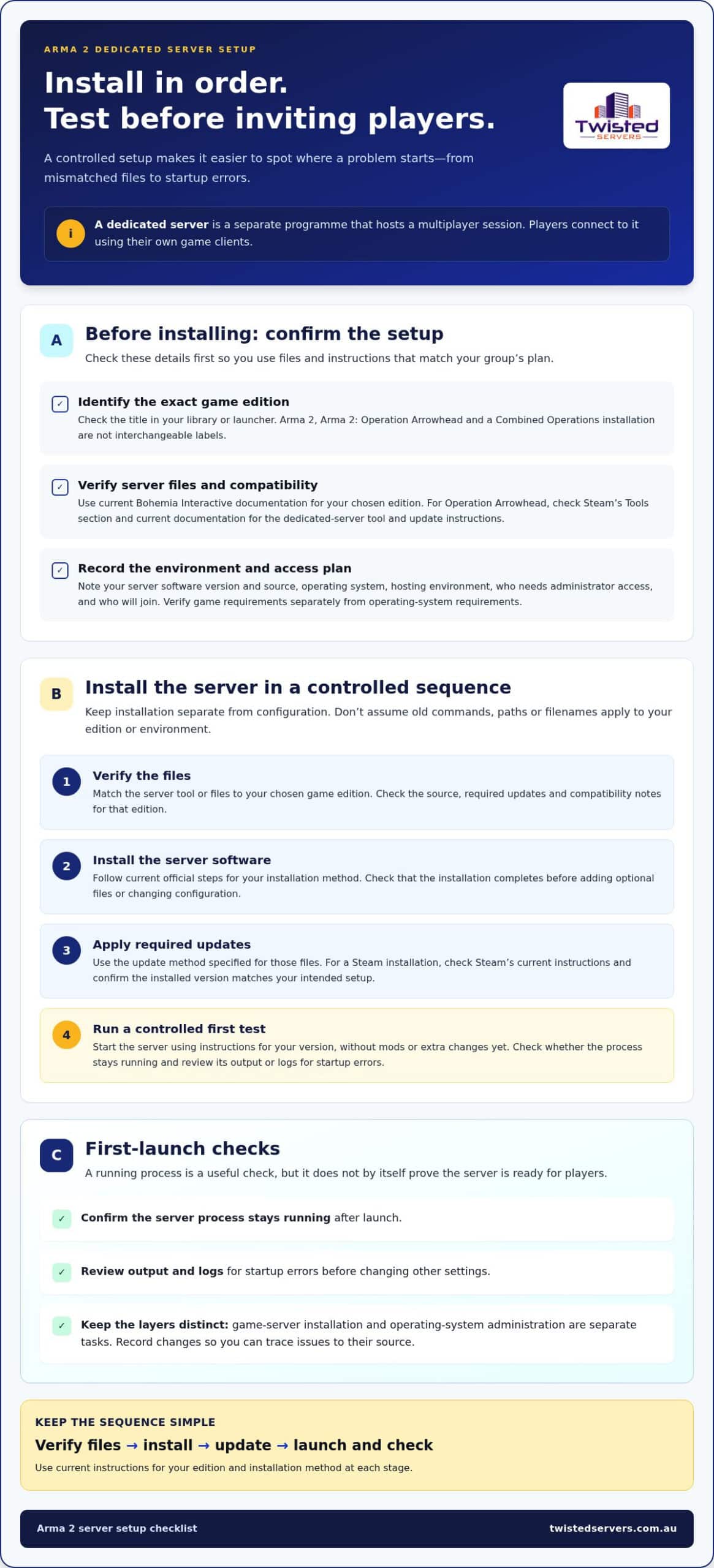
A controlled installation follows this order: verify the files, install the server software, apply required updates, then launch and check the server before changing settings.
Prepare the files and installation environment
Obtain server files through the official distribution method for your edition. For Operation Arrowhead, check Steam’s Tools section and the relevant current documentation for the dedicated-server tool, compatibility and update instructions. Don’t assume that a tool or process for one edition applies to every Arma 2 edition. Check current Bohemia Interactive documentation and the relevant Steam listing before downloading or running files.
Before you begin, make sure you can access the installation location and perform the tasks required by your chosen operating system. Permissions, prerequisites and installation steps vary by system and method. Keep downloaded files and installation notes organised, but use folder paths recommended by current documentation rather than assuming an example path applies to your environment.
Install and run an initial server test
Game-server software and operating-system administration are separate tasks. Installing or updating server files does not automatically configure operating-system permissions, and changing system settings does not update the game software. Follow the relevant instructions for each layer, and note the changes you make so you can trace a problem to its source.
- Verify the files. Match the server tool or files to your chosen game edition and check their source. Confirm that required game updates and compatibility notes apply to that edition.
- Install the server software. Follow current official steps for your installation method. Confirm the installation completes before adding optional files or changing configuration.
- Apply required updates. Use the update method specified for those files. For a Steam installation, check Steam’s current instructions and confirm the installed version matches your intended setup.
- Launch a controlled test. Start the server using version-appropriate instructions, without mods or extra changes yet. Check whether the server process stays running and review its output or logs for startup errors.
A running process alone doesn’t prove the server is ready for players. Treat a clean initial launch as a checkpoint, then move on to configuration and connection testing. If the launch fails, inspect the available logs and record the first relevant error before changing anything. Altering several settings at once can hide the original cause and make the next test less useful.
If you’d rather not manage the installation and server environment yourself, hosted game server options provide another way to set up an Arma 2 session.
Set only the Arma 2 settings needed for a first launch
Once the server launches, make only the changes needed to identify it, control access and select an initial mission. This keeps the first test manageable: if something goes wrong, there are fewer changes to trace. The exact configuration file, setting names and accepted values can depend on the Arma 2 edition and server software, so verify them in current Bohemia Interactive documentation before editing.
Set server identity and access deliberately
A server name helps your group recognise the session, while access controls determine who can join or administer it. Find current documentation for your edition and confirm the setting names, syntax and configuration location before making changes. Don’t assume examples for a different version apply, and avoid copying passwords, default values or player-slot counts from another guide.
Use this planning table, then fill in the exact file and setting names from the documentation for your edition:
| Setting to confirm | Purpose | Where to verify it |
|---|---|---|
| Server identity | Gives players a recognisable name for the session. | Current server configuration reference for your edition. |
| Access protection | Controls entry or administrative access according to the documented options. | Official guidance for access settings and their syntax. |
| Initial mission | Chooses the mission used for the first session. | Mission-selection instructions and requirements for the server version. |
The table deliberately leaves out sample values. Before changing a setting, check whether it belongs in a configuration file, a launch option or another documented location. Treat operating-system permissions and firewall controls separately from game-server settings: they are managed at different layers and need their own instructions.
Select an initial mission without over-configuring
Choose a mission that matches the game edition and files installed on the server, then verify its requirements and selection method in current documentation. A mission mismatch can prevent the intended session from loading, even if the server process starts. For the first test, use one documented mission rather than adding a rotation or custom content.
Keep a record of each setting you change and the source that confirmed it. If the server stops launching after an edit, review or restore that specific change before adding another. Don’t transfer configuration examples between versions or hosting environments without checking their syntax and effect. The goal is a clear identity, appropriate access and one compatible mission, not a fully customised server.
If you’d rather leave management of the server environment to a hosting service, Twisted Servers offers game server hosting for Arma 2. Whether you self-manage or use a provider, a careful Arma 2 server setup starts with settings verified for the edition you’re running.
Test Arma 2 server access before inviting the group
A server can start without being reachable by players. Test each layer in order so you can narrow down a failure instead of changing settings at random. Confirm the server is running, inspect its logs, check that the mission and edition match, verify network rules against current documentation, then try connecting from a client.
Check the server before troubleshooting the network
Confirm the server process remains active and review its current logs for errors. Check that the selected mission matches the installed game edition and server files. A process that stays open, or a particular log line, doesn’t prove on its own that players can join. Use the success indicators documented for your server version, then move on to a client test.
Diagnose connection failures one layer at a time
Before changing a firewall or router, compare the client and server editions, versions and required content. If they match, verify the ports, protocols and network rules in current authoritative documentation for your chosen setup. Don’t rely on familiar values copied from an older guide. The applicable instructions can depend on the game version and hosting environment.
- Confirm the process. Check that the server is still running and note any startup errors.
- Review the logs. Look for relevant warnings or errors, and compare them with documentation for your version.
- Check compatibility. Confirm the connecting client uses a compatible edition and required mission content.
- Verify network rules. Check the applicable firewall and router settings against current official guidance before editing them.
- Test a client connection. Record whether the server is visible or whether a direct connection succeeds, using connection methods documented for the game version.
Server visibility and direct-connection failures may point to different parts of the setup, but don’t assume how Arma 2’s server list behaves without checking current documentation. First establish which connection method your edition supports, then test that method consistently. Avoid changing multiple network rules at once. Make one documented change, retest and record the result.
| Symptom | First checks |
|---|---|
| Server process stops or reports errors | Review logs and check the server files, edition and mission selection. |
| Server runs but isn’t visible | Verify the supported discovery method and relevant network rules in current documentation. |
| Client can’t connect | Compare client and server versions, edition and required content, then test documented network settings. |
| Connection works but the session behaves unexpectedly | Check whether all clients use the intended mission and compatible content, then review server logs for related errors. |
Keep a record of the client’s exact error and the time of the failed attempt. If the problem persists, that information can help distinguish a compatibility issue from a server or network fault. If you’d rather have the hosting environment managed for you, explore Arma 2 game server hosting.
Launch your Arma 2 server and choose how to manage it
A successful client test gives you a useful baseline for your first group session. Before sharing access details, save the settings that worked and keep a copy you can refer to if later changes affect the server.
Prepare a controlled first session
Invite a small test group before announcing a wider session. Ask them to join using the intended game edition and mission, then confirm they can access the session and play as expected. This gives you a chance to spot setup issues while keeping the test manageable.
Before opening the session more broadly, check that you’ve:
- Confirmed a client connection with the intended edition and mission.
- Shared the correct access details with your test group.
- Saved a copy of the working configuration in a clearly labelled location.
- Recorded the server version and settings used for the successful test.
- Noted any test changes and their results.
Keep your saved configuration distinct from later versions. If you adjust a setting, update your notes and test the change before relying on it for a scheduled session. That record makes it easier to compare behaviour over time and return to a known-working configuration if needed.
As part of ongoing administration, plan how you’ll review updates and retain copies of important configuration and server data. Follow instructions that apply to your server version and environment, and keep those tasks separate from launch-day changes.
Use hosted Arma 2 server hosting when it fits
With self-management, you’re responsible for both the game setup and its underlying environment. Hosted game-server hosting is an alternative if you’d prefer to focus on coordinating players and sessions rather than managing that environment.
Consider which approach suits the way you want to run your community. Managing the server yourself leaves you responsible for its environment; hosting can reduce that workload while you concentrate on the game session and your group’s needs.
If hosted management suits your plans, explore Australian game server hosting for Arma 2. Keep your test notes and saved configuration accessible, and you’ll be better prepared to make considered changes as your sessions develop.
Build on your first successful session
Your first session gives you a starting point for shaping future games with your community. As players settle into a routine, note which arrangements work well and what they’d like to change. Plan adjustments around the group rather than making untested changes just before a session.
If you’d prefer hosted service for your Arma 2 server, Twisted Servers provides Australian game server hosting, with dedicated expert support available 24/7. Consider whether that approach fits the way you want to manage your community and its sessions.
Explore Arma 2 server hosting with Twisted Servers and choose a setup that suits your group. You’ve done the groundwork; now you can prepare for your next session with confidence.
Frequently Asked Questions
Can I run an Arma 2 dedicated server on my own computer?
Yes, you can run a dedicated server on a computer you manage, provided its operating system and hardware meet the requirements for your game edition and server software. The computer must stay on, and the server process must remain active and reachable while people play. If you also play on that computer, check the game and server requirements for your setup rather than assuming it can handle both tasks.
Which Arma 2 edition and server files do I need for a dedicated server?
Choose files that match the edition your group intends to play. For Operation Arrowhead, check Steam’s Tools section and current documentation for the dedicated-server tool. Don’t assume that it covers the original Arma 2 on its own. For Combined Operations, compare the required content and server files with current official guidance. Check the server files, client edition and any required mod content before installing.
Which ports does an Arma 2 server use?
The required ports depend on the edition, server configuration and services you’re using, so check current Bohemia Interactive documentation for exact values and protocols before changing network rules. Then make sure the relevant firewall and router rules match that guidance. Avoid opening a range copied from an unrelated guide. Keep a note of each rule you change so you can review it if connection testing fails.
Can players with different Arma 2 editions join the same server?
Don’t assume they can. A player’s edition and required content need to be compatible with the server setup. A Combined Operations session, for example, may rely on content from both Arma 2 and Operation Arrowhead. Before your group connects, compare the game edition, version and any mission or mod requirements on both sides. Ask players to share their exact edition if someone gets a compatibility error.
Why can’t my friends see or join my Arma 2 server?
Common causes include a server process that has stopped, incompatible client and server versions, a mission or mod mismatch, or network rules that don’t match current documentation. First note whether friends can’t see the server or can see it but fail to connect. Record the error and its time, then compare it with the server logs. This gives you a clearer starting point than changing several settings at once.
Does an Arma 2 server need to stay online for players to join?
Yes. Players can join only while the server software is running and the server is reachable through its network connection. If the host computer shuts down, loses connectivity or stops the server process, the session won’t be available until it’s running and reachable again. For a group that wants to avoid managing the underlying environment, a hosted game server is another option.
Disclaimer
Game titles, trademarks, logos and related assets are the property of their respective owners. Twisted Servers is an independent hosting provider and is not affiliated with or endorsed by the developers or publishers of the games mentioned unless otherwise stated. Information is provided as a general guide and may change as games, software and hosting services are updated.

