
Recommended Services


Supported Scripts


A restart schedule should do more than switch your server off and on. Automating game server restarts and updates can help keep server software current, give players warning before downtime and bring a server back after a crash. For Unturned, operators are advised to restart the server once every 24 hours.
It makes sense to handle routine maintenance without having to intervene each time. The key is to configure tasks for your game server so updates and restarts run in a controlled order, without surprising players.
This guide explains why scheduled tasks matter and how to configure them, from warning players before a restart to running update commands and preparing for crashes. You’ll also learn how tools such as cron fit into the process and what to consider when choosing hosting for a game server that needs regular maintenance.
Key Takeaways
- Set restart schedules around your server’s needs; Unturned operators are advised to restart once every 24 hours.
- Give players advance notice. An Unturned shutdown warning set to 30:00 is broadcast 30 minutes before shutdown.
- Use a restart loop to bring a server back after a crash, and configure it to run again after a machine reboot.
- Automate game updates with the relevant server tool, then check that the update and launch steps run in the right order.
- Choose a scheduling method that suits your setup, such as cron for recurring tasks on Linux servers.
Crash recovery and restarting after reboots
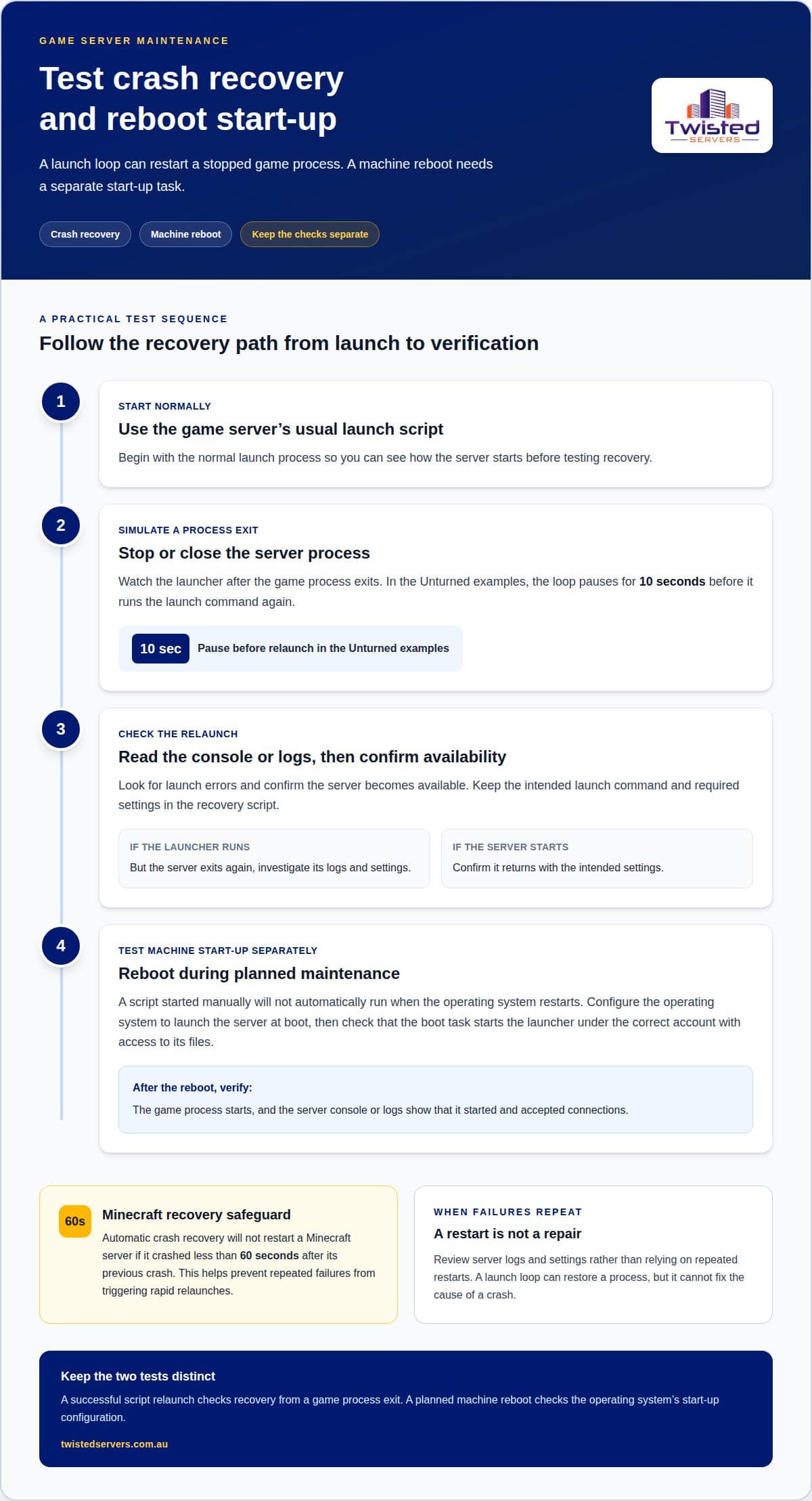
A recovery script can relaunch a game server when its process closes unexpectedly. The basic sequence is straightforward: start the server, detect when it exits, pause briefly, then run the launch command again. For an Unturned example, both Windows and Linux loops wait 10 seconds after the server exits before returning to the update-and-restart loop. That pause gives the process time to close before another launch begins.
On Windows, the Unturned example starts the server in batch mode without graphics. The launcher can keep checking for the server process and repeat its start command after an exit. On Linux, the example was tested on Ubuntu and follows the same general loop: launch, wait for the process to stop, pause for 10 seconds, then repeat. Keep the launch command and required settings in the script, so each recovery attempt uses the intended configuration.
Crash loops need safeguards. Minecraft automatic crash recovery will not restart a server if it crashed less than 60 seconds after its previous crash. This limit prevents repeated failures from triggering a rapid stream of relaunches. If a server repeatedly stops, inspect its logs and configuration rather than relying on restarts alone. A launch loop can restore a process, but it cannot fix the cause of a crash.
Recovery after a machine reboot requires a separate step. A script that you start manually won’t run automatically when the operating system restarts. Configure the operating system to launch the server at boot, then confirm that the game process starts under the correct account and can access its files. Test this during a planned maintenance window by restarting the machine. Afterwards, check the server console or logs to confirm it started and accepted connections.
Use this sequence to test crash recovery without confusing it with a full machine reboot:
- Start the game server using its normal launch script.
- Stop or close the server process, then observe whether the script waits 10 seconds before relaunching it.
- Review the console or log output for launch errors and confirm the server becomes available.
- Restart the machine during maintenance, then check whether its boot task starts the launcher.
These tests help distinguish a failed game process from a problem starting the machine. If restarting the server with a script works but rebooting the machine doesn’t, check the operating system’s startup configuration. If the launcher runs but the server exits again, investigate the server logs and settings. Make recovery deliberate: repeated retries can hide a fault, while a pause followed by a log check makes failures easier to diagnose.
Always review your server’s own logs and settings when troubleshooting persistent issues. A scheduled restart is another recovery path, so test it separately from a restart triggered by a crash. In the example warned restart schedule, the restart occurs 300 seconds after the schedule starts. Verify that the schedule begins, wait for its restart point, and check that the server returns with its intended settings. Separating these checks helps show whether a problem lies in crash handling or the scheduled restart.
Warning players before a restart
A scheduled restart should tell players when the server will close, not just leave them guessing. In Unturned, a scheduled-shutdown warning set to 30:00 is broadcast 30 minutes before shutdown. That gives players time to finish an activity, save progress where the game allows, and leave safely. The warning duration controls when the message appears, so match it to the disruption a restart creates.
Unturned also uses warnings when it detects an update. The server waits for the longest configured warning duration before shutting down. This matters when you configure both scheduled-shutdown warnings and update-shutdown warnings: the longest duration determines the notice period for an update-triggered shutdown. For example, an update-shutdown warning set to 2:30 means the server broadcasts in chat 2 minutes and 30 seconds before shutdown.
Keep maintenance messages direct. Tell players the server is restarting, give the reason if you know it, and say when the shutdown is expected. For routine maintenance, you could write: “The server will restart for routine maintenance. Please finish your current activity and reconnect after it comes back online.” For an update, name that as the reason. Avoid promising an exact return time unless your restart process supports it.
Before enabling a schedule, confirm that each warning is linked to the intended shutdown event. Use this sequence:
- Set the scheduled-shutdown warning duration, such as Unturned’s 30:00 example.
- Set the update-shutdown warning duration, such as 2:30, if update notices need separate timing.
- Review the configured durations together, because Unturned uses the longest warning before an update shutdown.
- Run a controlled test and watch the server chat for the message and its timing.
- Confirm that shutdown follows the warning, then check that the server returns as expected.
A test helps catch mistakes before players are online. If a warning appears too late, adjust its timing and test again. If players receive duplicate messages, review the active shutdown events and confirm that both schedules are needed. Keep the wording consistent for scheduled restarts and update shutdowns, so players recognise a planned maintenance notice.
Warnings work best as part of a complete restart sequence: send the notice before shutdown, close the server cleanly, then continue with the required maintenance steps. For Unturned, make sure the warning gives players useful notice while allowing the update process to proceed. Clear timing and a tested message make automated maintenance easier to understand.
Accessing the automated tasks menu
On Linux, cron runs commands at scheduled times, while systemd timers trigger services or scripts. For example, cron uses 0 */6 * * * to run a task every six hours.
Finding automated tasks
In a hosting control panel, open the relevant game server and look for task or scheduler controls. Labels and layouts vary, so identify the server first, then review the available commands and timing options. Before saving, confirm the task targets the intended server instance.
Review the available fields before entering a command. Check whether the task runs once or repeats, which time zone it uses, and whether it accepts a script path or requires a command directly. A restart should stop the game process cleanly before starting it again. Simply launching another process can leave the original server running.
Scheduling with cron or systemd
Cron suits recurring commands on Linux. Its five schedule fields represent minute, hour, day of month, month, and day of week. The expression 0 */6 * * * runs at the start of every sixth hour. Pair that timing with a script that performs the restart steps in order.
Systemd uses a timer unit to trigger a service unit. The timer sets when the service runs, while the service contains the restart command or script. Use the method already managing your server, and make sure the scheduled task doesn’t conflict with the manual launch process.
For either method, use a script if a restart requires more than one command. It can stop the server, allow it to close, and then launch it again. Store the script in a known location and use its full path in the task configuration. This helps prevent errors when the scheduler starts in a different working directory.
Configure one task at a time. Save the schedule, run the command manually, then inspect the server console or logs. Confirm that the game process stops and starts as intended. If the task fails, check the command path, file permissions, and scheduler account before changing the timing.
- Target: Select the correct server instance or service.
- Command: Use the full script path and required arguments.
- Timing: Confirm the schedule and time zone.
- Test: Review logs after a manual run and scheduled run.
A hosting control panel can simplify recurring tasks, while cron and systemd provide Linux-level scheduling. Choose based on how you administer the server. Keep the restart command clear, verify its target, and test the saved schedule before relying on it.
Automatic game updates
Run automated updates in sequence: stop the server, update its files, then launch it again. Back up saves first to give yourself a recovery point if the new version causes problems.
Automatic update setup
For Unturned, SteamCMD can update the Dedicated Server using app ID 1110390. The Windows example uses anonymous login, while the Linux example runs SteamCMD with the same app ID. Put the update command into the scheduled task or script that manages the server, then verify it completes before the launch command runs.
Unturned operators using the preview branch can set the beta name to preview; the default beta name is public. Check the selected branch before updating because it determines which version the server downloads.
When comparing automation software, focus on scheduling, update commands, player notices, backups, and recovery controls. Pricing varies by software and hosting setup, so compare the features with the way you manage your server.
Pre-update file and save backups
Back up both server files and game saves before applying an update. Store the backup separately from the live files, and record which game version it matches. This gives you a defined restore point if the update changes files or causes the server to fail.
One described setup allows five backups and recommends a daily backup at 03:00, followed by a restart at 04:00. The one-hour gap separates the backup task from maintenance. Check that the backup includes the world or save data, not only the server program files.
Failed update rollback
If an update fails, stop the server before restoring files. Keep the failed version’s logs, identify the backup made before the update, and restore the matching server files and save data. Avoid mixing files from different versions, which can leave the installation inconsistent.
After restoring, start the server and review its console or logs. Confirm that it loads the expected world and accepts connections before scheduling another update. This limits further changes while you identify the cause.
Restart and update frequency
Unturned operators are advised to restart their server once every 24 hours. Updates should follow the game’s releases and the server software’s update process, rather than an arbitrary repeat interval. Schedule maintenance when it fits your community, then keep backups and update tasks in the correct order.
Options for scheduled restarts and updates depend on how you manage your server. A control panel, cron, or systemd can run scheduled commands; use what’s available in your setup. To reduce downtime risk, back up first, run the update before launch, and check the logs after the server returns.
Best tools for scheduling game server restarts and updates
The right scheduler depends on your operating system and how you manage the server. Cron, systemd timers, Windows Task Scheduler, and a hosting control panel can all run scheduled commands.
Cron is a practical choice for recurring tasks on Linux. Its expression 0 */6 * * * schedules a command every six hours. A cron entry can call a script that stops the server, performs maintenance and starts it again. Keep the commands in a separate script when the task has several steps.
Systemd timers suit servers managed through systemd. A timer triggers a service, which runs the restart or update command. This separation makes it easier to inspect the schedule independently from the action. Choose systemd if the game server already runs as a systemd service, so the task fits your existing setup.
Windows Task Scheduler can run a script or program on a recurring schedule. Set the trigger, choose the action, and specify the script or command path. Test the task under the same account it will use when scheduled. This can reveal permission or file-path problems before maintenance begins.
A hosting control panel may provide a menu for creating scheduled tasks. Its controls can simplify recurring commands without requiring you to edit operating-system scheduler files. Check which server the task targets, what command it runs, and whether the schedule uses the expected time zone. Control-panel options vary, so use the fields available for your server.
Compare tools by the tasks they need to perform, not just by their names. A simple restart may need one command; an update workflow may require a script, player warnings, and a backup step. Consider whether you need recurring schedules, access to logs, task status, and a clear way to edit or disable a job. Software pricing also varies by tool and hosting arrangement, so assess the features against your requirements.
Before choosing, map the task sequence: notify players, stop the server, back up files, update, then launch. Choose a scheduler that can run those steps reliably in your environment. Test the command manually, run a controlled scheduled test, and check the logs afterwards. If the task starts but the server stays offline, inspect the launch command and output before adjusting the schedule.
- Linux with cron: Use a recurring cron expression to call the maintenance script.
- Linux with systemd: Connect a timer to the service that performs the task.
- Windows: Set a trigger and action in Task Scheduler.
- Control panel: Use its task menu when you want to manage schedules there.
A scheduled command does only what you configure it to do. Keep the task focused, confirm its target, and review its logs after each test. This helps you catch errors before relying on unattended maintenance.
Pricing varies by tool and hosting arrangement. Weigh the cost against features such as recurring schedules, log access, task status, and the ability to edit or disable jobs. Also check whether the scheduler can run your server’s full maintenance workflow.
Twisted Servers: Game Server Hosting
Twisted Servers offers Game Server Hosting for communities that need hosting for a multiplayer server. If your setup calls for a broader server environment, VPS Hosting and Dedicated Server Hosting are also available. The right fit depends on your game, how you manage server software, and how much control your setup requires.
Scheduled restarts and updates still depend on the game’s software and the tasks you configure. Choose an option that suits how you plan to maintain your server, then set up and test its maintenance process. If you’re ready to discuss hosting for your game server, contact Twisted Servers.
Make your maintenance plan work for your community
A dependable approach to automating game server restarts and updates starts with a clear maintenance plan. Decide who owns each task, where update logs are reviewed, and what to do if a launch fails. Keep those decisions in a short runbook alongside the commands and schedule, so another administrator can follow the process without guessing.
Next, test the routine under controlled conditions. Confirm that the maintenance sequence fits your game, server software, and community’s expectations. As your setup changes, review the schedule and update steps to keep them useful rather than letting them become background tasks no one checks.
Ready to plan the hosting side of your setup? Explore Twisted Servers’ hosting options and choose a next step that suits your server. A thoughtful setup gives you a clearer path to maintaining your server and keeping your community moving forward.
Frequently Asked Questions
Why Schedule Automated Tasks for Your Server?
Scheduled tasks can help coordinate maintenance across separate game instances without taking them offline together. For example, if you run a public survival world and a private test server, schedule their maintenance separately so testing doesn’t interrupt the public session. This gives administrators a repeatable way to compare changes across instances. Record which server each schedule controls to avoid applying a task to the wrong environment.
How to automate game server restarts and updates
To automate game server restarts and updates, connect the scheduler to a script that checks the result of each command before continuing. For example, make the launch step conditional on the updater finishing successfully. If the update command returns an error, the script can stop before launching the server with potentially incomplete files. This makes the sequence clearer and helps prevent a failed update from being treated as a successful maintenance run.
How to notify players before a scheduled server restart
Use a dedicated Discord announcement channel to make maintenance notices easy to find, and consider an opt-in role for players who want notifications. This avoids tagging everyone for routine maintenance. Keep the channel focused on server notices so players can distinguish maintenance information from general chat. If your community uses several game servers, name the affected server in each post to reduce confusion.
Disclaimer
Game titles, trademarks, logos and related assets are the property of their respective owners. Twisted Servers is an independent hosting provider and is not affiliated with or endorsed by the developers or publishers of the games mentioned unless otherwise stated. Information is provided as a general guide and may change as games, software and hosting services are updated.

