
Recommended Services


Supported Scripts

Basic Linux server commands for beginners become more useful when you combine them. A pipe passes one command’s output to another, helping you narrow results without searching through everything manually.
It’s normal to start with individual commands: rm removes files, ssh connects to a remote system, and df -h displays disk space in a readable format. Next, learn to combine commands to find the details you need. This guide covers file removal and searching, remote connections, disk space and running processes, with practical examples to adapt to server tasks.
You’ll also learn how pipes link commands, with reminders to take care when deleting files or changing a server. The aim is a practical reference to common Linux tasks, one command at a time.
Key Takeaways
- Use
rmdirfor empty directories, and take care when usingrmto remove files or folders. - Find files by name with
findand search their text withgrep. - Connect to a remote Linux server securely using
ssh. - Get a quick view of storage and running tasks with commands such as
df -handps aux. - Combine commands with pipes to filter output and make routine checks easier to follow.
Removing files and directories with rm and rmdir
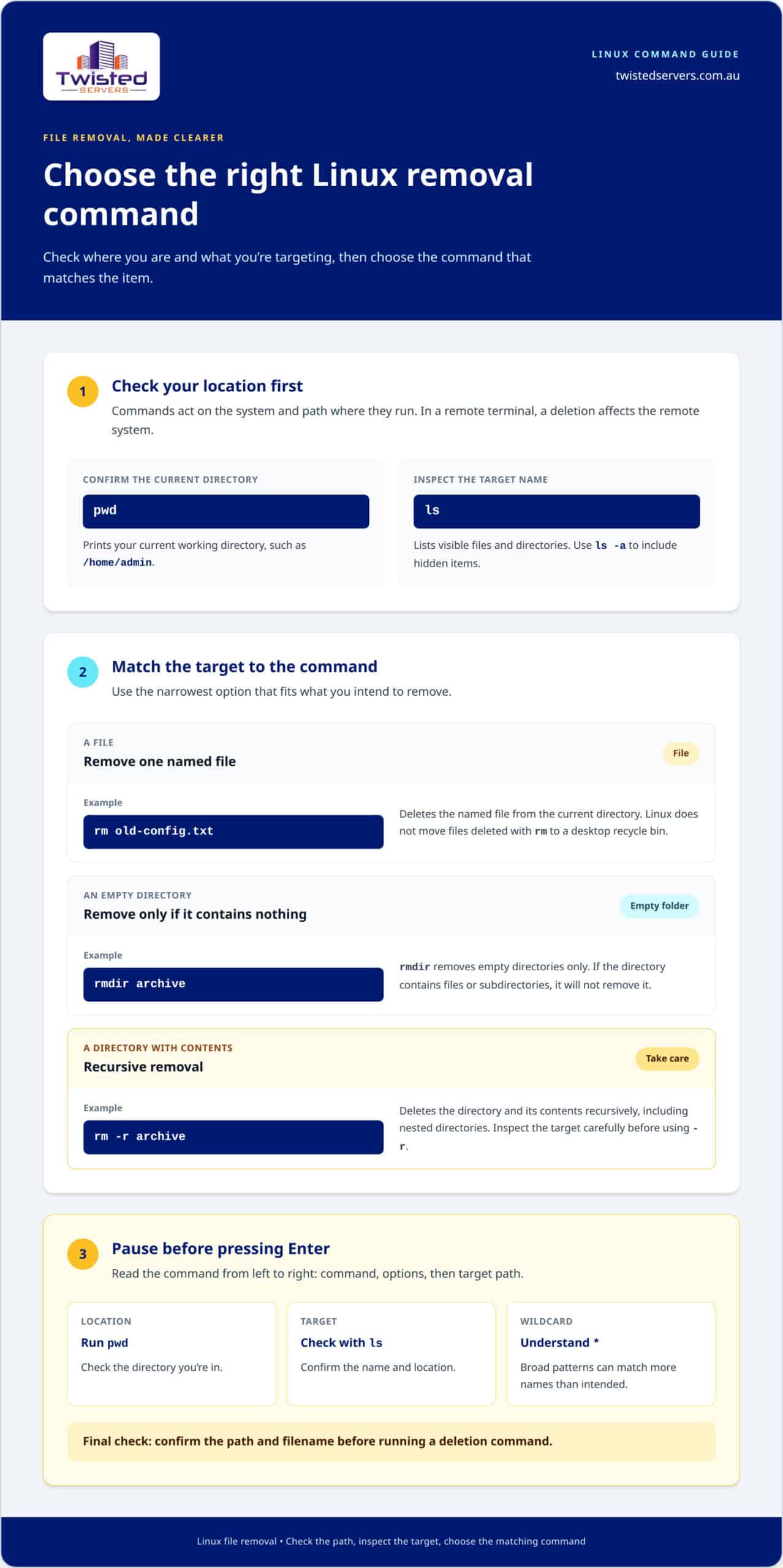
pwd prints the current working directory, showing where your commands will act. Run it before removing anything, especially in a remote terminal. For example, it might show /home/admin. That path gives context for relative names such as old-config.txt, which refer to the current directory rather than the whole system.
cd changes the current directory, letting you move to a specific location before working. Use cd /var/log to go to /var/log, or cd .. to move up one directory. Running cd without a path returns you to your home directory; cd - returns you to the previous directory. These shortcuts save you from repeatedly typing full paths.
ls lists files and directories in the current location, so you can inspect them before deleting anything. Run ls to see visible names, or ls -a to include hidden files and directories. To inspect a named directory, use ls /var/log. Check the names carefully: a command aimed at the wrong directory can affect files you didn’t intend to change.
rm deletes files, so treat its path as a precise instruction. For example, rm old-config.txt removes that file from the current directory. Linux does not move files deleted with rm to a desktop recycle bin. Confirm the current path with pwd and the target name with ls before running the command. Avoid broad patterns such as * unless you understand which names they match.
rmdir removes only empty directories, making it a narrower option for cleanup. Use rmdir archive when archive contains no files or subdirectories. If it contains anything, the command won’t remove it. By contrast, rm -r archive deletes the directory and its contents recursively, including nested directories. Inspect the target carefully before using -r.
Linux file permissions control who can read, change or run a file, while ownership identifies its owner and group. chmod changes permissions; for example, chmod 644 file.txt gives the owner read and write access, and others read-only access. chown changes a file’s owner or group, as in chown admin:admin file.txt. Use sudo before commands that need superuser privileges, rather than routinely using the root account.
Before pressing Enter, read the command from left to right: the command, its options, then the target path. A final check with pwd and ls can catch a wrong directory or filename. These checks are just as useful in a remote terminal as they are locally, because a deletion affects the system where the command runs.
Searching files and text
grep searches text files for a word or pattern. For example, grep "port" server.cfg displays lines containing “port”. Add -i to ignore letter case, as in grep -i "Port" server.cfg. This helps find settings even when capitalisation differs. To search several files, use a pattern such as *.cfg; review the filenames before running a broad search.
find searches directory trees for files or directories that match criteria. Run find . -name "*.cfg" -type f to locate configuration files beneath the current directory. The dot sets the starting location, while -type f limits results to files. Use -type d to find directories instead. You can also search by size or permissions when a filename alone isn’t enough.
cat displays a file’s contents in the terminal. For a short script, use cat start-server.sh to read it without opening an editor. Long output may scroll beyond the screen, so use less start-server.sh to read a file page by page. Check the path first: the same filename can exist in different directories on a Linux system.
Output redirection sends a command’s results into a file. Use grep "error" server.log > errors.txt to write matching lines to errors.txt. A single > replaces existing contents, so don’t use it if you need to preserve them. Use >> to append instead. For example, date >> admin-notes.txt adds the command’s output to the end of the notes file.
touch creates an empty file or updates an existing file’s timestamp. Run touch maintenance.txt to create a blank note before recording a task. If the file already exists, the command updates its timestamp without erasing its contents. Use cat maintenance.txt afterwards to display the file and confirm what it contains.
cp copies files or directories to another path. Use cp server.cfg server.cfg.bak to make a separate copy before editing a configuration file. For a directory and its contents, add -r, as in cp -r scripts scripts-backup. Choose a clear destination name so you can distinguish the original from the copy.
mv moves a file or renames it, depending on the destination. Run mv old.cfg configs/server.cfg to move a configuration file into configs. Use mv start.sh launch.sh to rename a script in its current directory. Check the destination to avoid unintentionally replacing a file with the same name.
rm deletes files, while rmdir removes empty directories. For example, rm temporary.log deletes that named file; it doesn’t send it to a recycle bin. Inspect the target with ls before deleting, particularly when using a wildcard. A command such as rm *.tmp applies to every matching file in the current directory, not just one item.
Connecting to remote systems with SSH
ssh opens a secure shell connection to a remote host, letting you interact with its operating system through a terminal. Connect with ssh admin@server.example, replacing admin with your account name and the example host with your server’s address. Enter your account password when prompted. Once connected, commands run on the remote system, not your local computer.
Your SSH account determines which server actions you can perform, while permissions control access to files and commands. A standard account can inspect accessible files, but administrative tasks may require sudo. For example, sudo systemctl restart service-name requests elevated permission to restart a service. Check the account and command target before applying changes.
ping tests whether a host responds across the network, while ip addr displays local network addresses. For example, ping -c 15 -i 2 google.com sends 15 packets at two-second intervals. Review the responses to see whether packets return. Use ip addr on the server to inspect its assigned addresses and identify the relevant network interface.
uname displays system information, including the operating system name. Run uname -a for a broader summary of the running system. This can help you identify the server environment before following operating-system-specific instructions. When diagnosing a configuration issue, record the output alongside the server name.
uptime shows how long a system has been running and reports load averages. The averages represent system load over the past 1, 5, and 15 minutes. Compare those periods to see whether load is rising or easing. For a repeating resource snapshot, vmstat 5 3 displays memory statistics at five-second intervals, three times.
systemctl manages services on Linux systems that use systemd. Check a service with systemctl status service-name before restarting it. The status output can show whether it’s active and provide recent service details. Use sudo systemctl restart service-name only when a restart is appropriate, since the service is interrupted while it restarts.
ps aux displays running processes, the active programs using system resources. Look for the process name and its process ID in the output. To search by name, use pgrep process-name, which returns matching process IDs. These checks help you determine whether a program is running before investigating its service or configuration.
shutdown schedules a system shutdown or restart, so use it carefully on a shared server. The command sudo shutdown -r +5 schedules a restart in five minutes. Tell affected users before initiating a restart, and make sure you’re connected to the intended host. A mistaken shutdown command can interrupt work across the remote system.
Checking disk space and running processes
Disk and process checks can show whether storage or active programs need attention. Commands such as df -h and ps aux provide practical starting points.
Disk usage
df reports disk space usage for mounted file systems, and its -h option makes figures human-readable. Run df -h to see each file system’s used and available space. Check the line for the mount point containing your server files, rather than assuming every folder uses the same disk.
du estimates the space used by files and directories, helping identify which folder is taking up storage. To get a summary of the current directory, run du -sh .; -s gives a total, while -h makes the output easier to read. To inspect a specific location, use du -sh /path/to/folder.
Compare df -h and du -sh when a file system is nearly full. The first shows the mounted file system; the second estimates the size of a selected directory and its contents. If a download or update is using space, inspect the relevant download folder before removing anything. A large folder may contain files the server still needs.
Running processes
ps aux lists running processes, including the user and process ID for each entry. Scan the output for the program you’re investigating, then use pgrep process-name to search for its process ID by name. A process ID helps distinguish a specific running program from similarly named entries.
lsof -i :80 shows processes using port 80, which can help identify what is handling traffic on that port. Replace the port in the command when investigating a different one. If a process looks unexpected, note its name and ID before taking action; avoid stopping a process solely because its name is unfamiliar.
whoami displays the account currently running commands, while who lists users logged in to the system. Use both when checking an administrative session: whoami identifies your account, and who shows other active logins. This can help establish whether someone else is working before you change a shared service or files.
Run pwd to identify your working directory before checking folder sizes with du. This makes a relative path such as downloads easier to interpret. For a focused check, use du -sh downloads from the directory containing that folder, or provide its full path. Knowing the location helps explain which files account for disk use.
For routine checks, save the exact command and its output alongside the date in an administrator’s notes. For example, record df -h before and after a large update or download. Comparing the results can show whether available space changed, while a separate du -sh check can point to the folder responsible.
Combining commands with pipes
A pipe, written as |, passes one command’s output directly to another. The first command produces information; the next can filter, sort or otherwise process it. This helps you build a focused result from simple steps instead of manually scanning a long terminal display. Basic Linux server commands for beginners become more useful when combined to answer a specific question.
For example, ps aux | grep '[s]erver' searches the process list for lines containing “server”. The first command supplies process details, and grep narrows the output. In many typical process listings, the bracket pattern avoids matching the search command itself. If you’re unsure what a pipeline returns, run its first command alone, then add the next stage.
A pipe can also help focus on storage information. Run df -h | grep '/dev/' to display matching device-backed file system lines from the readable disk-space output. The pattern may not match every system’s naming format, so inspect the unfiltered df -h output if results look incomplete. Pipes filter output; they don’t change disk contents.
To organise folder-size results, try du -sh * | sort -h. The first command reports a summary for each visible item in the current directory, and sort -h orders the output by human-readable size. The asterisk matches names in that directory, so hidden entries aren’t included. Run pwd first if you need to confirm where the command will operate.
You can add more stages when each has a clear purpose. For example, find . -type f | grep '.cfg$' | sort gathers file paths, selects names ending in .cfg, then sorts the matches. Here, find starts at the current directory, grep filters paths, and sort arranges them. This makes configuration files easier to review without opening each one.
A pipe differs from redirection: | passes output to another command, while > writes it to a file. In ps aux | grep '[s]erver' > server-processes.txt, the pipeline filters first, then redirection saves the result. A single > overwrites an existing destination file; >> appends instead. Choose the destination deliberately.
When learning basic Linux server commands for beginners, build each pipeline one stage at a time. Compare the output after adding each command, and remove a stage if it hides information you need. Don’t send passwords or other secrets through a pipeline, since command output may be displayed or saved. A useful pipeline has a clear purpose, predictable input and output you can interpret.
Twisted Servers
Twisted Servers provides hosting options for people who want to run game servers and manage their own server environment. The Linux commands in this guide can help you inspect files, monitor processes and handle routine administration tasks. For a game server, you can explore our game server hosting; VPS and dedicated server hosting are also options when you need a server environment for your own setup.
The right choice depends on what you plan to run and how much system administration you want to handle. The commands here are general Linux guidance, not title-specific setup instructions. If you’d like to discuss your hosting needs, contact Twisted Servers.
Put your Linux skills to work
Build confidence by making routine administration repeatable. Before changing anything, note what you intend to alter and the result you expect. Afterwards, record what happened. This gives you a useful reference when you revisit the task or need to understand when a setting changed.
As you practise, focus on understanding how commands work together rather than memorising long lists. The basic Linux server commands for beginners in this guide are a starting point; adapt them gradually to the systems and tasks you manage. Test unfamiliar operations in a suitable non-critical environment, and keep important configuration files separate from working copies.
Good server administration grows through careful, consistent decisions. Tackle one task at a time, learn from the output and keep notes to clarify your process. This approach helps you build Linux skills steadily and apply them with greater confidence.
Frequently Asked Questions
What basic Linux commands should beginners learn first?
Start with commands that identify your account, inspect data and explain command options: whoami, file and man. For example, file archive.tar reports the detected file type, while man tar opens the manual for archive options. Learning to read command help is useful before installing software or changing a server’s configuration, particularly because commands can behave differently across Linux distributions.
How do you navigate directories with pwd, ls, and cd?
Use these commands to move through a file path, then confirm where you landed before working. For a path containing spaces, enclose it in quotes, as in cd "server files". A tilde can represent your home directory, so cd ~/backups targets a backups folder there. These path forms are useful when directory names include spaces or when switching between personal and shared folders.
How do you create, copy, move, and delete files and directories in Linux?
Use mkdir, cp, mv and rm for these file tasks; add -p to mkdir when parent directories may also need to be created. To preserve the copied file’s ownership, permissions and timestamp, use cp -p source destination. This can help retain file details when preparing a configuration copy for review. Treat deletion as a separate, deliberate step.
How do you view and edit text files from the Linux command line?
Use a terminal editor, such as nano settings.conf, when you need to change a text file. To inspect only its ending, run tail -n 5 settings.conf; to follow new log entries as they appear, use tail -f server.log. These focused views can be more useful than displaying an entire large log. Press Ctrl+C to stop following live output.
How do you check disk space, memory, CPU, and system uptime?
Pair disk and uptime checks with free -h for a readable memory summary and top for changing CPU and process activity. If you need repeated memory snapshots, vmstat 5 3 reports statistics at five-second intervals, three times. A short sequence of checks can help distinguish a storage issue from memory pressure or sustained processor activity before you investigate a particular application.
How do you find and manage running processes with ps, top, and kill?
Use top to observe active processes, then identify a process ID before sending a stop signal. kill -15 PID requests a graceful termination; kill -9 PID sends a forceful signal. Replace PID with the actual process number, not the letters themselves. Prefer the graceful request first, since it gives the program an opportunity to finish its work and close resources.
How do you manage Linux services and view logs with systemctl and journalctl?
Check a service’s state with systemctl status service-name, then inspect its journal with journalctl -u service-name. If a service fails after a configuration change, read the relevant log entries before trying another restart. This helps connect the service’s reported state with its recorded messages. Use the same service name in both commands so you inspect the same component.
Which Linux commands are risky for beginners, and how can data loss be avoided?
Commands that recursively remove files, overwrite output or change system-wide settings need extra care. Before running one, read the full command and check its target, options and current account. Keep a separate copy of important configuration files, and test changes on a non-critical file when practical. Avoid pasting commands you can’t interpret, especially if they combine deletion, wildcards or elevated privileges.
Disclaimer
Game titles, trademarks, logos and related assets are the property of their respective owners. Twisted Servers is an independent hosting provider and is not affiliated with or endorsed by the developers or publishers of the games mentioned unless otherwise stated. Information is provided as a general guide and may change as games, software and hosting services are updated.

