
Recommended Services


Supported Scripts

To join a match, open Counter-Strike 1.6 and select a listing in the in-game server browser. If someone gives you connection details, use the game’s console to connect with the supplied address and port. Before joining, consider what matters for your session: a suitable map, a mode you enjoy, room for your group, and a connection that feels responsive. A server can be online without being the right fit, so take a moment to read its listing rather than choosing at random.
This guide explains how to read server status, player counts and map details, then compare Australian listings and game modes. You’ll also learn how to choose an active community, how self-hosting differs from joining an existing match, and what to consider before running your own game. Whether you want to join a quick public round or organise regular sessions with friends, these steps will help you decide what to do next.
Key Takeaways
- Join through the in-game server browser or use a server address, then review its map and current player count.
- Use recent activity and server status to distinguish a busy game from a listing that is online but quiet.
- Compare Australian listings by location, map and game mode to find a match for how you want to play.
- Classic and Dust 2 Only servers offer different ways to play, so check the server’s mode before joining.
- If you want to run a community server, learn the setup basics and consider whether game server hosting, VPS Hosting or Dedicated Server Hosting suits your needs.
Server status, player counts and maps
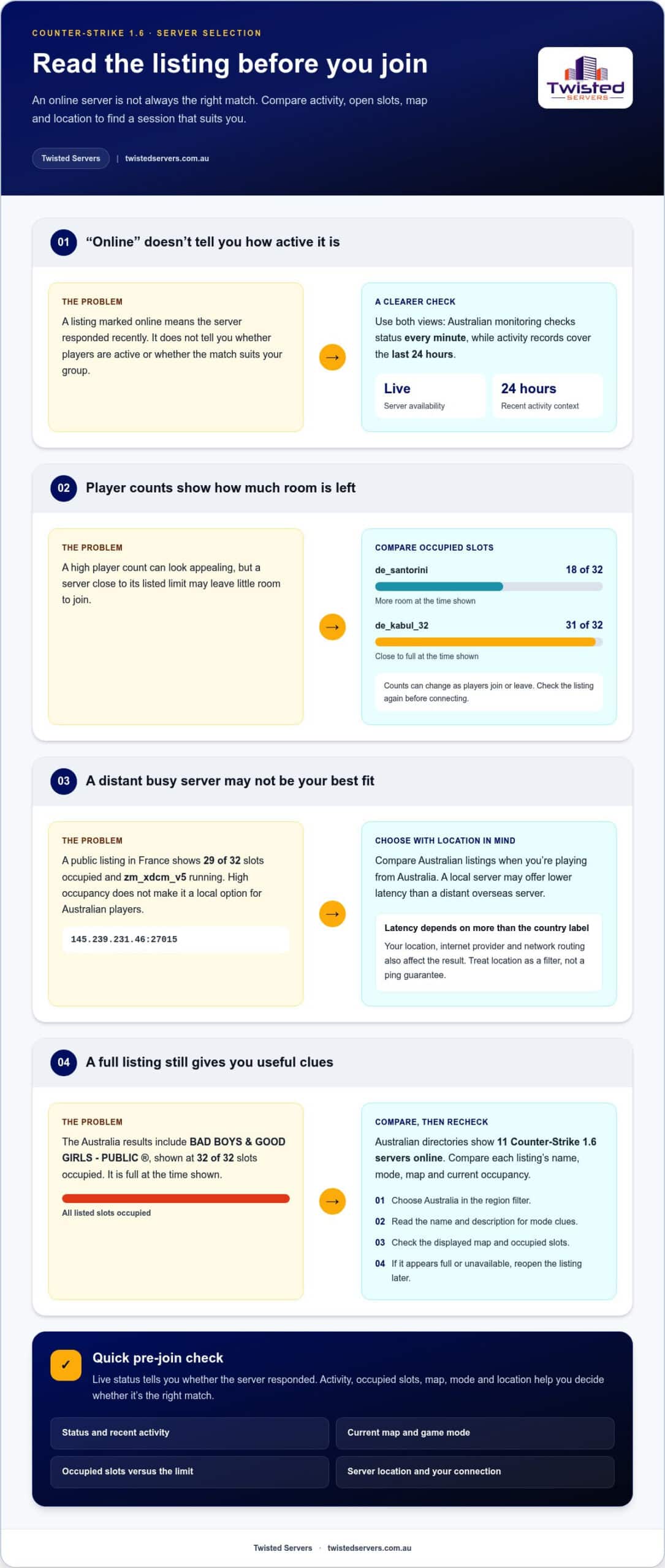
A listing marked online tells you the server responded recently. It doesn’t show whether the match suits your group. Australian monitoring checks server status every minute, while activity records cover the last 24 hours. Use both views: the live status shows availability, and the activity history adds context about play patterns.
Current figures help compare listings. Australian results show 6 players online across tracked servers and 9 maps online. One Australian listing shows de_santorini with 18 of 32 player slots occupied. Another shows de_kabul_32 with 31 of 32 slots filled. The first has more room; the second is close to full. Counts can change as players join or leave.
Map names make listings easier to assess. de_santorini and de_kabul_32 identify different play environments. A listed map tells you what’s running now, while a server’s description may explain its rotation. If you want a particular map, compare the live map with the listing name before connecting. A mismatch may mean the server rotates maps or its details have changed.
Location also affects your choice. A public listing in France appears at 145.239.231.46:27015, with 29 of 32 slots occupied and zm_xdcm_v5 running. Its high occupancy may look appealing, but it is distant for Australian players. An Australian server may offer lower latency, though your location, internet provider and routing affect the result.
How does hosting a CS 1.6 server compare with joining a community server? Joining lets you play without managing server settings. Hosting gives you control over maps, access and player limits, while you handle setup and operation.
What are the system requirements and bandwidth needs for a CS 1.6 server? They depend on server software, operating environment, player limit and plugins. Bandwidth use changes with concurrent players and activity.
How do I configure CS 1.6 server settings, maps, and player limits? Use the server’s configuration tools to set its name, map rotation and player limit. Then review the listing to check the displayed map and slots.
How can I secure a CS 1.6 server against cheats, exploits, and DDoS attacks? Keep server software current, restrict administrator access and apply suitable anti-cheat controls. Network-level DDoS filtering can help reduce attack traffic reaching the server.
Before joining, compare the details that matter:
- Check live status and the current map.
- Compare occupied slots with the listed limit.
- Review activity from the last 24 hours.
- Consider server location alongside your connection experience.
Australian Counter-Strike 1.6 server listings
Australian directories show 11 Counter-Strike 1.6 servers online. That count gives you a quick view of local listings, but it doesn’t identify the right match for your session. Open each result and compare its name, mode, map and connection details. A useful listing makes clear what players can expect before they join.
For example, the Australia results include BAD BOYS & GOOD GIRLS – PUBLIC ®, shown with 32 of 32 player slots occupied. The listing is full at the time shown. If you want to join, look for an entry with space or return later. Its name and public label still help identify a community you may want to revisit.
Start by selecting Australia in the directory’s region filter. Then compare each listing rather than choosing by name alone. Look for labels such as public, classic or Dust 2 Only. A Dust 2 Only title suggests a focused map choice, while a public label suggests an open community match. Read the description and check the current details before connecting to a Counter-Strike 1.6 server.
Server location can affect connection quality for Australian players. A local listing may offer lower latency than a distant overseas server, but your location, internet provider and network routing also matter. Use the country label as a filter, not as a guarantee of a particular ping. If your friends are spread across Australia, compare their connection experiences too.
What are the rules for running a public Counter-Strike 1.6 server? Set clear rules for player conduct, chat and moderation, then make them visible. Use a server name and description that accurately reflect its mode and community. Consistent details help players understand what they’re joining.
Before connecting to a public listing, use these checks:
- Choose Australia in the directory’s region filter.
- Read the server name and description for mode clues.
- Review current occupancy and the displayed map.
- Use the connection details shown in that listing.
- Reopen the entry if it appears full or unavailable.
Listings can change between the time you view them and the time you try to join. A player may leave and free up a slot, or the server may become unavailable. If the game browser can’t connect, compare the address and port with the listing. Don’t guess or copy details from another entry: each server has its own connection information.
For organisers, a clear public listing sets expectations. Match the title and description to the mode and maps actually in use. If you run a Counter-Strike 1.6 server for a community, accurate details help players find the right session and avoid confusion. Update the listing when the mode or map selection changes.
Choosing an active server
A useful listing shows more than “online”. Check player activity, map and mode before joining. A busy server may still be a poor fit if its map rotation or rules don’t suit you. For example, if you want a familiar public match, look for a clear public label and a map you recognise. Choose for the session you want, not occupancy alone.
Read activity as a pattern, not a promise. A player count is a snapshot; recent activity gives extra context. If the listing shows activity across the last 24 hours, compare that record with the current count. A server that regularly attracts players may be more suitable than one showing a brief spike. The map also matters: a server running a map you enjoy can feel active even when its population is modest.
Use this order to compare candidate servers:
- Check the mode: identify public, classic or map-specific play.
- Review occupancy: allow for full slots and changing player numbers.
- Read the map: match it to your preferred style of round.
- Test the connection: join and observe latency during play.
For Australian players, a nearby server may reduce latency compared with a distant overseas location. Your location, internet provider and routing also affect the connection, so don’t rely on the country label alone. After joining, look for delayed actions or players snapping between positions. These can indicate latency or packet loss, though other network issues may also be responsible.
Server names provide clues, not proof. “Dust 2 Only” suggests a restricted map choice, while “Public” suggests open community play. Check the listing details against the actual server once connected. If the map differs, the server may rotate maps or its listing may have changed. Use the in-game browser again to compare current information before switching.
Community fit matters too. A clear description can outline the rules, language expectations and whether casual play is welcome. Read it before joining. If the mode or map isn’t for you, leave and choose another listing. Follow the server’s stated rules, particularly those covering chat and conduct.
Save suitable entries to your favourites and make a short note of each server’s name, location and map preferences. Revisit them at your usual play times to see which communities are active when you are. This is more useful than judging a listing at a glance. Over time, your connection tests and preferred maps can help you narrow down the options.
Classic, Dust 2 Only and other game modes
Server labels describe the kind of session a community intends to run. “Classic” generally signals familiar, objective-based Counter-Strike play. “Dust 2 Only” points to a server centred on de_dust2. Other labels may describe altered rules or custom modes. These names help you narrow the choice, but the server’s description is the best guide to its actual setup.
Classic play suits players who want standard team rounds and objectives. It rewards communication, careful positioning and coordinated decisions. Your group can choose a familiar map and focus on teamwork rather than learning extra rules. Check whether the server uses standard settings or community changes, such as different round options or map choices.
A Dust 2-focused server offers a more specific routine. If your group wants to practise the same layout, a fixed-map environment avoids adapting to a new map each session. It can also help returning players pick up where they left off. Still, read the listing carefully: a map-focused name may not explain whether other settings or community rules differ.
Other modes change the pace or objectives. Deathmatch servers generally focus on repeated combat, but rules vary by community. Zombie modes often add team or survival mechanics beyond standard rounds. These configurations aren’t uniform across listings, so read the description for details such as team roles, respawning and required custom content.
Use these questions to find a mode that fits:
- How do you want to play? Choose objective rounds, focused combat or a custom experience.
- How much change suits your group? Standard rules need less adjustment than custom modes.
- Does the server explain its settings? Clear descriptions make expectations easier to judge.
- Can everyone join comfortably? Consider whether players need extra files or instructions.
If you’re organising a game, decide on the experience before inviting players. Choose a mode, explain any house rules and set up the session accordingly. If you use a custom configuration, describe how it differs from standard play. Clear expectations help new arrivals settle in without interrupting the match to ask questions.
When trying a new mode, join during a low-pressure session first. Read the rules, observe a round and ask an administrator if anything is unclear. If the game doesn’t match its label, check the server description again. The right mode for your group is one whose rules, pace and expectations suit the way you want to play.
How do I set up and host a CS 1.6 game?
Begin with a clear plan for your Counter-Strike 1.6 server. Decide whether it’s for friends or a public community. Choose a hosting environment, then install compatible dedicated server software using its documentation. The game software runs matches and applies settings. Your computer or hosting plan supplies the environment and network connection.
Work through setup in a deliberate order:
- Prepare the environment: select an operating system supported by the server software.
- Install server files: follow the software’s documented installation steps.
- Set core options: choose a server name, starting map and player limit.
- Choose access: decide whether the match is private or public.
- Test the setup: connect, check the map and invite players.
Keep a record of your settings. Note the map rotation, game mode and access controls. For example, a community advertising Dust 2 Only should configure its map selection accordingly. Save changes, restart if required by the software, then test again. If the wrong map loads, review both the startup option and rotation list.
Players outside your home network need a reachable connection. Firewall rules, network settings and your internet connection can all affect access. Follow the server software’s instructions for connection details, and share the correct address and port with your group. Don’t copy details from another listing: servers can use different connection information.
Resource needs depend on the player limit, software and any added plugins. More concurrent players increase network activity, and plugins can also affect system use. Run a test session and monitor the computer’s load. If performance becomes inconsistent, review the active plugins and server settings. Australian hosting may suit players in Australia, but latency still depends on each player’s location, provider and routing.
Secure the Counter-Strike 1.6 server with controlled access. Use a strong, unique administration password. Give administrative privileges only to trusted people. Keep software and plugins maintained, and review server logs for unusual activity. Configure available anti-cheat measures carefully. Firewall rules can restrict unwanted access, while DDoS filtering can help mitigate disruptive network traffic.
Running a public server also takes ongoing effort. Someone needs to moderate conduct, maintain settings and keep public details accurate. Test privately before sharing the listing: confirm invited players can connect and that the selected map loads as expected. Then publish accurate server information. Self-hosting may suit a small community, while a group seeking a continuously available game may prefer hosted infrastructure.
Choose your approach based on control and ongoing tasks. Self-hosting means managing the computer, network and updates yourself. A hosted environment shifts the physical server operation to a hosting arrangement—whether through managed game servers or data centre facilities like 3EX Hosting—while you still decide which settings and community rules to use. Compare those responsibilities before launching your Counter-Strike 1.6 server.
Twisted Servers: Game Server Hosting
Twisted Servers offers Game Server Hosting for communities that want a hosted home for multiplayer play. If you’re moving from public matches to managing a community, hosting can give you more control over the server environment and its configuration. The right setup depends on the game, software and options you plan to run.
For projects that need broader control over the hosting environment, Twisted Servers also offers VPS Hosting and Dedicated Server Hosting. These options suit different levels of administration and resource planning. Consider how much configuration you want to manage yourself when choosing an approach.
Explore Australian game server hosting to see how hosting could fit your plans, or contact Twisted Servers to discuss your hosting needs.
Plan the next match around your community
Moving from public listings to a community you manage gives you room to shape the experience. Before choosing a setup, decide who will play, whether access should be private or public, and which maps and rules suit your group. A Counter-Strike 1.6 server works best for your community when its settings reflect how you want to play.
Note your preferred mode, map rotation and moderation approach, along with who will manage configuration and routine server tasks. These decisions clarify how much control you want over the hosting environment. Twisted Servers offers Game Server Hosting, VPS Hosting and Dedicated Server Hosting for different hosting approaches.
Explore the hosting options and decide which one fits your plans. Contact Twisted Servers to discuss your hosting needs. With a clear idea of your community’s goals, you can take the next step with confidence.
Frequently Asked Questions
How do I connect to a CS 1.6 server?
Open Counter-Strike 1.6 and choose the server browser to find available games. Select a listing, review its details, then use the game’s join option. If a friend shares an address, use the in-game console’s connect command with the supplied address and port. If connection fails, check for typing errors and try again from the server browser.
What is a Counter-Strike 1.6 server?
A Counter-Strike 1.6 server runs the multiplayer match and coordinates players, maps and game settings. It can be a public community game or a private session for invited players. The person running it chooses settings such as the map and access rules. Players connect through the game browser or supplied connection details, rather than hosting the match on each player’s computer.
How do I find Counter-Strike 1.6 servers in Australia?
Use a server directory or the in-game browser, then filter for Australia if that option is available. Open each result to check its location details, mode and connection information. A community name alone may not show where its server is hosted. If your friends are in different parts of Australia, compare connection quality from each player’s location before choosing a regular meeting place.
How do I join a Counter-Strike 1.6 server by IP address?
Copy the server’s complete IP address and port from its listing or from the person inviting you. In Counter-Strike 1.6, open the console and enter the connect command followed by that address and port. Check for missing digits or punctuation if the attempt fails. The server must be running and reachable, and the address must belong to the correct game server.
How much does it cost to rent a Counter-Strike 1.6 server in Australia?
The cost depends on the hosting arrangement and the server setup you need. Factors include the hosting type, expected player activity and any configuration requirements. Twisted Servers provides pricing after a quote request, rather than quoting a general market rate here. When comparing plans, consider the ongoing management involved as well as the hosting itself, so the option fits your community’s needs.
Which CS 1.6 server hosting providers offer Australian locations?
Twisted Servers offers Counter-Strike 1.6 game server hosting with Australian infrastructure. An Australian server can offer lower latency for local players than a distant overseas location, although player location, internet provider and routing affect the connection. Compare hosting options based on the game supported, server location and the level of control you need. Twisted Servers also offers VPS Hosting and Dedicated Server Hosting.
Disclaimer
Game titles, trademarks, logos and related assets are the property of their respective owners. Twisted Servers is an independent hosting provider and is not affiliated with or endorsed by the developers or publishers of the games mentioned unless otherwise stated. Information is provided as a general guide and may change as games, software and hosting services are updated.

