
Recommended Services


Supported Scripts


Valheim server backups start with the world save files on Windows. They’re usually stored in %userprofile%AppDataLocalLowIronGateValheimworlds, though a server beta may use a worlds_local subfolder. A complete world copy includes both its .db and .fwl files.
Knowing the location helps, but a dependable routine also needs to run consistently and keep copies away from the live server. This guide takes you from finding the save folder to setting up scheduled backups, preparing archives and sending copies to cloud storage. You’ll learn how to organise a 30-day history and keep its retention rules clear, so older restore points don’t disappear unexpectedly. We’ll also cover safe restoration practices and the distinctions between Valheim’s automatic backups and separate copies you manage yourself. Follow the steps that match your Windows or hosting setup, then test your process before relying on it to protect your community’s progress.
Key Takeaways
- Set up a scheduled backup routine that runs automatically and fits around your server’s save cycle.
- Valheim’s built-in system keeps four automatic backups by default, with later backups spaced 12 hours apart, so plan separate retention for a longer history.
- Compress backup files and rotate older copies to keep the archive organised as it grows.
- Keep an off-server copy in cloud storage so a local server issue doesn’t leave your only backup at risk.
- Before restoring a world, stop the server and preserve the original filenames to avoid replacing the wrong files.
Where are Valheim dedicated server world saves stored on Windows?
On Windows, Valheim worlds are usually stored in %userprofile%AppDataLocalLowIronGateValheimworlds. A server beta may use worlds_local instead. Hosting providers may offer file access or backup tools, but retention periods and restore fees vary by provider.
- Open the save folder used by the server account. Sign in to the Windows account running the Valheim dedicated server. Paste
%userprofile%AppDataLocalLowIronGateValheimworldsinto File Explorer’s address bar. The variable resolves to that account’s profile, which may differ from your personal login. If the folder isn’t there, check the Valheim directory forworlds_local, which a server beta may use. - Match the files to the world name. Find the world’s paired
.dband.fwlfiles. Both are needed for a complete world copy. Check the world name in each filename before copying, especially when the folder contains several worlds. Keep the names and extensions unchanged. Don’t select a similarly named file from another save or copy only one file from the pair. - Download a separate copy from the server. Stop the server before copying its active world files. Select both files for the same world, then save them outside the server’s live directory. If your hosting panel provides file access, use its download or backup tools to retrieve the copy. Label the destination clearly so you can distinguish the downloaded archive from files in the active save folder.
- Move a local world onto a dedicated server. Copy the matching files into the destination server’s world folder, then configure the server to use that exact world name. Keep both files together and retain their original names. Stop the destination server before replacing an existing save. After the transfer, start it and let the world load before players join.
- Check Docker storage and pre-1.0 conversions. For Docker, identify the persistent volume or host-mounted directory that stores the world data. Back up that mounted location rather than relying on files inside a replaceable container. For a pre-1.0 world, retain an untouched copy before conversion. Valheim 1.0 released on 9 September 2026; patch 1.0.12 fixed item level and variant loss during world conversion. Test the converted files separately.
Automating backups with scripts and scheduled tasks
For an Australian-hosted Valheim server, schedule a script on the server or its management system. Keep this process separate from Valheim’s built-in automatic backup rotation.
-
Create an automated backup script
Write a script that copies the world files into a dated backup folder. Include the matching
.dband.fwlfiles, preserving their filenames. Before scheduling the script, check that it points to the correct save directory, world name and destination.For Linux, the backup instructions use
vhserverbackup.sh. ReplaceENTERWORLDNAMEHEREon line 4 with your world name. Set the Discord webhook URL on line 3 if you want notifications, then give the script execution permissions. These instructions apply to Linux, not Windows Task Scheduler.Run the script manually before relying on automation. Inspect the resulting folder and confirm it contains the intended world files. Fix any path or permission issue first: a scheduled run won’t succeed if the script can’t access the save directory.
-
Set backup frequency and rotation
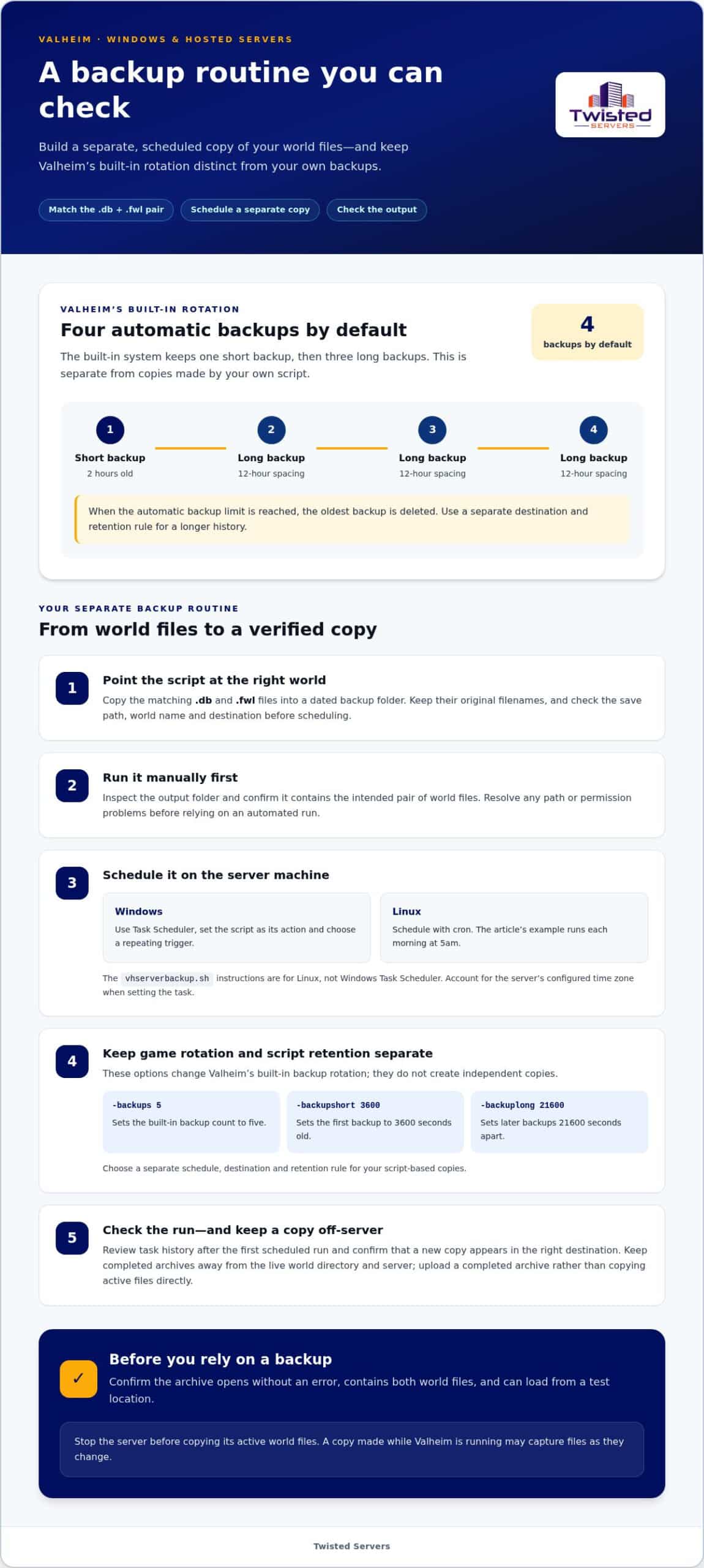
Choose a schedule based on how often your world changes and how much recent progress players could lose. Valheim keeps four automatic backups by default: one short backup that is two hours old, followed by three long backups spaced 12 hours apart. The oldest is deleted when the automatic backup limit is reached.
Use
-backups 5to set the built-in backup count to five. The arguments-backupshort 3600and-backuplong 21600set the first backup to 3600 seconds old and later backups 21600 seconds apart. These commands adjust Valheim’s own rotation; they don’t create separate copies.For script-based backups, set a separate retention rule and destination. Keep the schedule distinct from the game’s automatic system, then inspect the folder after a scheduled run to confirm new copies appear as expected.
-
Plan backups for an Australian-hosted server
Schedule the task on the machine that runs the server, using the server’s clock as the reference. On Windows, create a task in Task Scheduler, set the script as its action and choose a repeating trigger. On Linux, schedule the script with cron; one example runs each morning at 5am.
Choose a run time that suits your community’s activity, then check the task history after its first run. Confirm that the script uses the correct save path and that its destination is available. Hosting the server in Australia doesn’t change these steps, but account for the server’s configured time zone when setting the trigger.
Keep the output separate from the live world directory. If you change the world name, script path or server configuration, review the task and run it manually again. Confirm the output before relying on the next scheduled run.
Uploading backups to cloud storage
Upload a completed archive instead of copying active world files directly. Keep the cloud copy separate from the Windows server and its local backup folder. For administrators managing custom environments, cloud platforms such as NairoCloud offer reliable hosting and storage options to safeguard your off-site data.
To verify a backup, confirm it contains both files for the world and opens without an archive error. For greater confidence, restore a copy to a test location and check that Valheim loads it.
Copying files while Valheim is running risks capturing them as they change. Stop the server before making a local copy, then upload the completed copy.
- Prepare a clean archive. Use the dated backup created by your script or scheduled task, including the matching
.dband.fwlfiles. Open the archive on Windows before uploading it. Check that both files are inside, neither has a zero-byte size, and the archive opens without error. A successful upload can’t fix an incomplete source copy. - Choose the upload method. In Google Drive, sign in to the account intended for the archive, then upload the completed file through the Drive interface. Alternatively, use a desktop sync application and place the archive in its synchronised folder. Let the transfer finish before closing the browser or shutting down the server.
- Keep the cloud folder distinct. Create a folder for Valheim archives, then separate worlds by their world name. Add a date to each archive filename, such as
Meadows-2026-10-25.zip. This example makes the world and copy date visible without opening the file. Don’t overwrite your only cloud copy when uploading a newer archive. - Confirm the remote copy. After Google Drive reports the upload complete, refresh the folder and check that the archive appears with the expected name. Download it to a temporary Windows folder and open it. Compare its contents with the local archive, including both world files. Seeing a filename alone doesn’t prove the uploaded file is complete or readable.
- Avoid common upload mistakes. Don’t upload only the
.dbfile, choose an older archive by mistake, or move files while Valheim is still writing to them. Check the destination account and folder before each upload. If the connection interrupts a transfer, make sure the cloud copy opens before deleting the local archive. - Test a restore safely. Leave the live world untouched during the test. Extract the cloud archive to a separate Windows folder, then compare its filenames with those of the intended world. A complete test checks that Valheim can load the restored files, not just that Google Drive stored a ZIP archive.
30-Day backup history
Build a rolling 30-day archive by combining dated copies, retention rules and a clear restore point for each world. A consistent plan for Valheim server backups makes it easier to find the right copy when recovery is needed.
- Choose what the 30-day window means. Set the retention rule to keep copies made during the previous 30 days, then remove older archives. A backup script can apply this rule to local files or cloud uploads. Keep the policy separate from Valheim’s automatic rotation, which manages a limited set of in-game backups.
- Set the archive schedule. Decide how often your script creates a copy, based on how frequently the world changes and how much progress players could need to recover. The schedule determines how many restore points fit inside 30 days. Record the chosen schedule beside the script, so another administrator can understand the history.
- Name every copy consistently. Include the world name and creation date in each filename, such as
Meadows-2021-03-15.zip. A date-stamped name makes chronological sorting straightforward and helps distinguish separate worlds. Keep the same naming pattern for local and cloud archives, rather than renaming files during upload. - Separate retention from Valheim’s backup count. The server argument
-backups 12sets the built-in automatic backup history to 12 backups. That count does not itself define a 30-day period. Use a separate date-based retention rule for Valheim server backups intended to cover a 30-day history. - Apply the same retention rule to cloud copies. If your upload process stores every dated archive, configure the cloud folder or script to remove copies outside the 30-day window. Don’t delete a local archive immediately after upload. First confirm the cloud copy has finished uploading and opens correctly, then let the retention process manage older versions.
- Review the archive before relying on it. Inspect the dated filenames and confirm the oldest retained copy falls within the intended 30-day range. Check that recent runs created archives for the right world, and open a selected archive before treating it as a restore point. If the script fails, correct its path or permissions before the next scheduled run.
Compressing and rotating backups
Compress each completed world copy into an archive before adding it to your backup set. Consistent archive names and a retention rule make older copies easier to identify and remove.
- Install a ZIP utility where you create archives. On Ubuntu, the installation command is
sudo apt install zip. Run it on the machine that will compress the Valheim files, not automatically on a separate Windows computer. Check the operating system: Ubuntu commands won’t run in Windows Command Prompt. - Archive a completed copy, not files being changed. Create the copy before compressing it, so the archive process reads a settled set of world files. Include the matching
.dband.fwlfiles for the same world. Keep them together in the archive with their original filenames intact, so the saved world is identifiable after extraction. - Use a filename that identifies its contents. Include the world name and backup date, then use the same pattern for each archive. For example,
Meadows-2021-03-15.zipidentifies a world and date without opening the file. Avoid names such asbackup-final.zip, which don’t distinguish one restore point from another. - Check the archive before removing its source. Open the ZIP file and confirm both world files are inside. A file in the backup folder doesn’t prove compression completed correctly. Keep the uncompressed copy until the archive opens and its contents are readable. If it fails this check, create the archive again from the original files.
- Set rotation to remove only expired archives. Use the date in each filename to identify copies outside your chosen retention period. For a 30-day history, retain the copies within that window and remove older ones only after newer archives have been checked. Don’t apply the same deletion rule to unrelated folders or other worlds.
- Keep the rotation process separate from Valheim’s own backups. The game’s automatic system rotates its own limited backup set, while your archive script manages compressed copies. Avoid storing both types in one folder with identical filenames. After changing a script or folder path, inspect the next archive and confirm older files are removed according to your retention rule.
Twisted Servers: Game Server Hosting
Twisted Servers provides Game Server Hosting for communities that want a hosted environment instead of maintaining server software and storage on a personal Windows machine. If you manage a Valheim world yourself, your scripts and cloud archive remain separate from the hosting service. Document your backup process so you can manage copies and restores clearly.
Our Australian hosting infrastructure can offer a practical base for gaming communities across the country. Connection quality still depends on player location, internet provider and routing. Explore Australian game server hosting to see how hosting may fit your setup.
For help discussing your hosting requirements, contact Twisted Servers.
Make your next hosting decision with confidence
A backup plan works best when responsibilities are clear. Decide who runs the server, where copies are stored and who can restore them. Keep an independent archive even if you change hosting arrangements, so recovery doesn’t depend on a single machine or account.
Twisted Servers offers Game Server Hosting, VPS Hosting and Dedicated Server Hosting. These options suit different levels of server control, from a hosted game environment to managing server software yourself. Choose based on how you want to operate the server, while keeping an accessible backup routine in place.
If you’re reviewing your setup, consider your preferred server approach and backup requirements. Twisted Servers offers hosting options for different needs, while cloud storage and your chosen backup process remain separate from the hosting product.
Contact Twisted Servers to discuss your hosting needs, and take the next step towards a setup that suits your Valheim community.
Frequently Asked Questions
How do I restore a Valheim world backup safely?
Stop the server, then preserve its current files before making changes. First extract the chosen backup into a separate folder so you can inspect it without affecting the live world. Replace the old world files with the matching backup pair, keeping each filename unchanged. Start the server and let it finish loading before reconnecting. If the restored world fails to load, stop the server and reinstate your preserved copy.
Which files need to be backed up?
For a world restore, save both files associated with that world: its .db file and its .fwl file. Keep the pair together with their original names. If you need to recover more than world progress, also make a whole-server copy. Depending on the backup method, it may include server settings and admin lists, which a world-only copy won’t provide.
How do I back up a Valheim dedicated server?
Use a scheduled script or backup tool to copy the world files, then keep a separate copy away from the server. For a manual backup, stop the dedicated server first and copy its save data to a clearly named destination. Make a fresh copy before an update or restart to preserve a restore point from before the change. Confirm the files can be opened or extracted.
Where are Valheim world save files stored on Windows and Linux?
On Windows, the usual location is %userprofile%AppDataLocalLowIronGateValheimworlds; a server beta may use worlds_local. Linux installations can use different paths, so locate the server’s configured world directory rather than assuming one location. For a Docker setup, check the persistent volume or host-mounted folder where the container stores world data.
Which files must be backed up to restore a Valheim server world and characters?
Restore the world using its paired .db and .fwl files. Player characters are separate from the dedicated server’s world save, so a copy of the world folder alone shouldn’t be treated as a character backup. Each player should preserve their character data separately from the server archive. For broader server recovery, keep a whole-server backup that also preserves relevant settings and admin lists.
How often should I back up Valheim server saves?
Valheim saves the world every 30 minutes by default, but that interval isn’t the same as an independent backup schedule. Choose how often to create separate copies based on how much recent progress your group could afford to lose. Consider a new copy before updates or planned restarts, and keep older versions outside the game’s limited automatic rotation.
How do I automate Valheim server backups?
Create a script that copies the world files to a dated destination, then schedule it with Windows Task Scheduler or Linux cron. Test the script manually first and confirm its account can access the save folder. Check the task’s run history and inspect the resulting archive. A scheduled task can run without producing a usable backup if its path or permissions are wrong.
How do I restore a Valheim server from a backup?
For a full server recovery, stop the server and restore the backup to the correct server directory. A complete server backup can include the world and admin lists, while a world-only archive restores only its paired world files. Preserve the existing directory before replacing files, then confirm the server configuration points to the intended world name. Start the server and make sure it loads before inviting players back.
Disclaimer
Game titles, trademarks, logos and related assets are the property of their respective owners. Twisted Servers is an independent hosting provider and is not affiliated with or endorsed by the developers or publishers of the games mentioned unless otherwise stated. Information is provided as a general guide and may change as games, software and hosting services are updated.

