
Recommended Services


Supported Scripts

The strongest Valheim server hosting options aren’t defined by hardware alone. Choose a setup that suits your group and places the server near its players, which can improve their chances of getting better connectivity. CPU, RAM and storage matter, but so do backups, DDoS protection, uptime terms and support.
It makes sense to focus on specifications first: lag or an unavailable world can disrupt a session. But the right Valheim server hosting option also depends on how you plan to host, how your world is protected, and what help is available when something goes wrong.
This guide explains how to assess server hardware for your group, compare self-hosting with hosted options, and weigh backups, protection, uptime claims, support, and community resources. You’ll have a clearer way to decide what matters for your Valheim world, rather than choosing based on a headline specification alone.
Key Takeaways
- Match CPU, RAM and storage to your world, player activity and any planned customisation rather than choosing by one headline specification.
- Keep independent copies of your world files: Valheim’s dedicated server saves the world every 1800 seconds by default, but built-in saves are not a substitute for a separate backup.
- Choose a server location near your players to improve their chances of good connectivity; actual latency also depends on their location, ISP and network routing.
- Compare DDoS protection by what it covers, and read uptime terms for their measurement period, exclusions and remedy if the target is missed.
- Look for clear support channels and useful community resources so you can troubleshoot server issues and maintain your world with confidence.
Backups and DDoS protection
- Compare hosting models before deciding who manages recovery. Managed Valheim hosting handles server operation through a hosting service; VPS hosting gives you a virtual server to configure and maintain; self-hosting runs the server on your own computer and internet connection. A virtual private server hosting setup suits admins who want operating-system control and can manage updates, security and backups themselves.
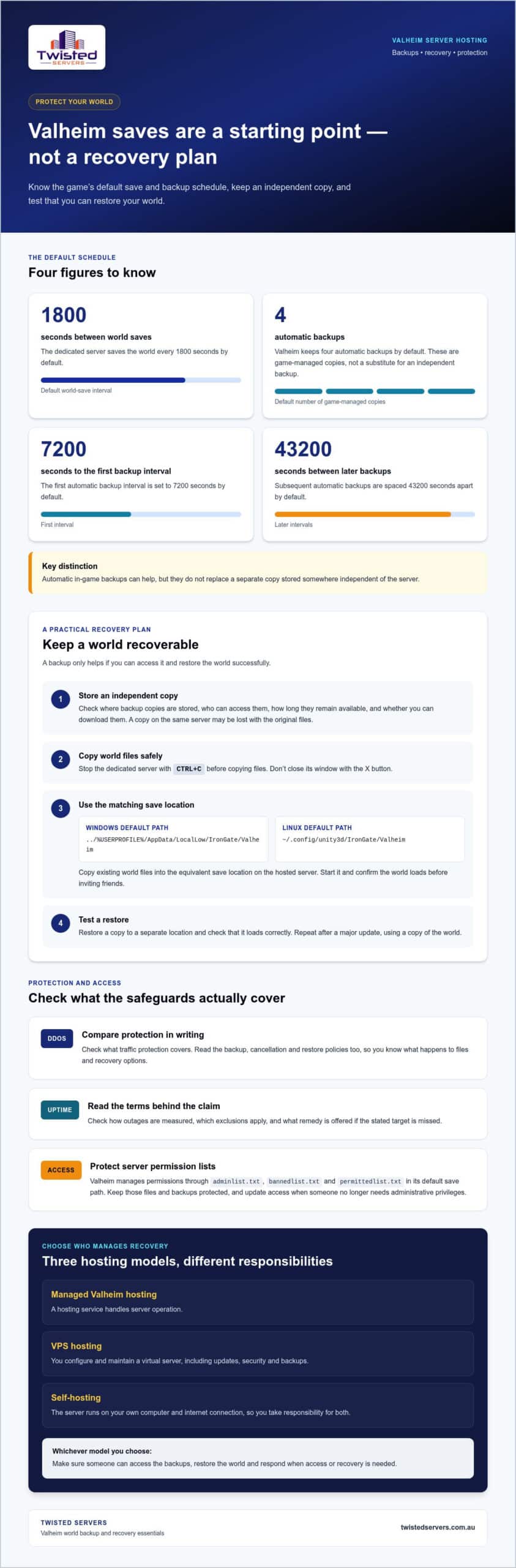
- Check Valheim’s save and backup schedule, then add a separate recovery plan. The dedicated server saves its world every 1800 seconds by default. It keeps 4 automatic backups by default, with the first interval set to 7200 seconds and subsequent backups spaced 43200 seconds apart. These game-managed copies help, but don’t replace an independent backup.
- Confirm where backup copies are stored, who can access them, and how long they remain available. A backup on the same server may be lost along with the original files, so prioritise a separate location. Compare backup frequency, retention, restoration steps, and whether you can download copies before changing or updating the server.
- Manage world files carefully during updates or transfers. Stop the dedicated server with CTRL+C before copying files, rather than closing its window with the X button. The default Windows save path is
../%USERPROFILE%/AppData/LocalLow/IronGate/Valheim; Linux uses~/.config/unity3d/IronGate/Valheim. Copy the existing world files into the equivalent save location on the hosted server, then start it and confirm the world loads before inviting friends. - Compare DDoS protection, uptime, backup, and cancellation policies in writing. Look for what traffic protection covers, how outages are measured, which exclusions apply, how restores work, and what happens to files after cancellation. These terms explain what protection means in practice, rather than relying on broad uptime or security claims.
- Review access controls alongside network protection. Valheim manages server permissions through
adminlist.txt,bannedlist.txt, andpermittedlist.txtin its default save path. Keep those lists and backups protected, and update access when a friend no longer needs administrative privileges. - Test a restore before relying on it. Use a copy of the world, restore it to a separate location, and check that it loads correctly. Repeat this after a major update: a backup is useful only if you can recover the world and resume play.
A commenter said that hosting Valheim at home could suit someone who already has space for a second computer, a wired router, and battery backup. That is a particular fit, not a universal recommendation. Consider whether you have room for the equipment and are comfortable taking responsibility for the computer and its connection. A battery backup is part of the suggested setup, but it does not replace keeping a separate copy of the world or knowing how to restore it. If you’re considering home hosting, weigh that hands-on responsibility against a managed service or VPS, and decide in advance who will act when access or recovery is needed. The right arrangement is one whose protection and recovery responsibilities you can maintain consistently.
Which server hardware is best for your Valheim Server?
- Start by matching the server location to your players. A host location near the group can improve their chances of good connectivity. If your friends play from across Australia, consider where most players connect from before choosing a location. Distance is only one factor: each player’s location, internet provider, and network routing also affect latency, so no location guarantees identical results.
- Compare the plan’s stated player limit with your group size. Ask what CPU, RAM, and storage the plan allocates, then consider how those resources fit your expected activity. A small group playing on one world has different needs from a community with frequent sessions and several worlds. Don’t treat a player limit as a guarantee of smooth play under every workload.
- Assess CPU, RAM, and storage together rather than choosing by one specification. CPU capacity affects the server’s ability to process game activity; RAM supports the running server and its world data; storage holds the server files and saves. Check whether storage is solid-state and whether capacity can grow if your world files or server needs increase.
- Set up a hosted dedicated server in a clear sequence. Choose a plan, install Valheim dedicated server software, configure the world and server settings, then start the game server. Test access before inviting friends. Keep the server name and connection details consistent with your chosen backend, and apply updates during a planned maintenance window.
- Check the connection method before changing firewall settings. Valheim’s default dedicated server port range is 2456-2457. With the Steam backend, the server’s port range must be forwarded for internet access. The Crossplay backend uses a relay server and doesn’t require port forwarding for access from outside the local network.
- For a Steam server, allow the required incoming traffic through the host firewall and forward the matching port range through the router. Valheim uses port 2456 by default when the port argument is set, and also uses the next port. Keep firewall rules limited to the server’s required traffic rather than opening unrelated ports.
- Test access from outside the server’s local network. Ask a friend on a different connection to join, then check for connection errors or unexpected latency. Repeat the test if you change the server location, port settings, or backend. This helps identify whether an issue comes from the server configuration, network path, or player’s connection.
Home hosting is another option to compare with a hosted plan, but account for its operating costs as well as the hardware. Self-hosting a Valheim server at home may increase data usage and electricity costs, especially in a hot location. Consider whether those added costs fit your budget before choosing to run the server yourself. If they’re a concern, compare the trade-off with the resources allocated by a hosted plan, then choose the setup that best fits how you expect to use the world.
Customer support and community resources
- Choose a host whose plan clearly states its support for mods, crossplay, backups, and automatic restarts. These features vary between services, so check each one separately rather than assuming a game server plan includes them all. Valheim Plus and BepInEx also need compatible server files and game versions.
- Before installing Valheim Plus or BepInEx, identify the exact mod version and its dependencies. Read the installation notes, confirm the server and clients use compatible files, then test the change with a copy of your world. A mismatch can prevent players from joining or cause unexpected behaviour.
- Check how support handles mod-related issues. A useful support process should let you provide the error message, server log, mod list, and steps that triggered the problem. For example, note whether an issue began after updating BepInEx or changing a Valheim Plus configuration.
- Assess responsiveness by looking for stated support hours, contact channels and how urgent server faults are handled. If your group plays outside standard business hours, consider whether 24/7 customer support matters for your schedule. A clear process for reporting an outage is more useful than a general promise of fast replies.
- Use community resources to solve common setup questions without blindly changing live files. Search Valheim guides for the exact error text, check mod documentation for version notes, and compare advice with your server’s current configuration. Save a working copy before applying community fixes.
- Plan updates with your players. Record the current Valheim version, installed mods, and configuration before updating, then apply changes to a test copy where possible. If a new version breaks a mod, that record helps you identify the change and restore the previous setup.
- Make a short support checklist before reporting an issue: server version, platform, mod names and versions, recent changes, error details, and whether crossplay is enabled. Specific information helps support staff distinguish a connection problem from a mod conflict or configuration error.
- Keep community instructions separate from provider-specific guidance. A forum post may explain how to customise a Valheim server, while the host’s documentation covers its own control panel and restart process. Follow instructions for your actual setup, and avoid applying commands written for a different platform.
- Test recovery and restart behaviour after setup changes. Confirm that the server starts correctly, your world loads, and friends can reconnect. Keep a record of the working mod list and settings so you can reproduce the setup after an update or troubleshooting session.
DDoS protection and uptime claims
- Understand what a DDoS attack can disrupt. It floods a server or network with unwanted traffic, making a Valheim world harder for players to reach. Protection aims to detect and filter harmful traffic before it affects the game server. Ask whether coverage applies to the network and server traffic your world uses, not just the hosting account or website.
- Separate protection claims from performance promises. DDoS filtering can help keep unwanted traffic from disrupting access, but it won’t prevent every server fault. Hardware problems, software updates, and network issues can also interrupt survival sessions. Compare the provider’s explanation of what its protection covers with the causes of downtime listed in its service terms.
- Read an uptime guarantee as a written service commitment, not a prediction that your server will never go offline. A published 99% uptime guarantee gives you a figure to assess, but the calculation period, maintenance exclusions and remedy for missed targets matter too. Check how the terms define an outage and whether planned maintenance counts.
- Look for a clear measurement method. A provider might measure server availability at the network level, while players experience a Valheim connection or software failure. Find out what monitoring records, how outages are reported, and what evidence is used to assess a claim. These details help distinguish a server outage from a local connection problem.
- Compare the response process for an attack or outage. Find the reporting channel, the information support needs, and how status updates are shared. For example, record when the issue began, the error players see, and whether the server remains reachable through its management interface. Clear incident steps help you report a problem accurately.
- Check what happens to your world during an incident. Network protection does not replace backups, and restoring world files won’t stop an active traffic attack. Treat these as separate safeguards: DDoS mitigation addresses disruptive traffic, while backups help recover game data after loss or corruption.
- Compare cancellation terms before committing. Check when billing ends, how you can retrieve server files, and how long account data remains accessible after cancellation. Include these points alongside DDoS coverage and uptime terms in your decision notes. That way, you can weigh day-to-day protection against your ability to leave with your Valheim world intact.
RAM, CPU, and storage requirements
- Assess the workload before selecting a Valheim server plan. Count the players who may join at once, note how often the world runs, and list any planned mods. A lightly used world with a small group places different demands on hardware than a busy community server. Treat the expected workload as your starting point, not a single advertised specification.
- Compare RAM allocation with the work the server will handle. RAM holds active data while Valheim is running, and other processes on the same machine also consume memory. If you plan to run monitoring tools or additional server software, include those in your estimate. Watch memory use during a typical session, then review it again during busier play.
- Consider CPU capacity when several players explore, build, or fight at once. The processor handles game activity and server tasks, so a CPU that is already busy has less capacity for new work. Test during a session with your usual group, and record whether slowdowns happen during particular activities rather than assuming every issue comes from RAM.
- Choose storage for both the server program and world files. Check available space, storage type, and whether the plan can accommodate growth. A larger world, logs, and additional files all need room. Keep some capacity free instead of filling the drive, and review storage use after updates or changes to your server setup.
- Check the Valheim server version before matching hardware or troubleshooting. A game update can change server files, mod compatibility, or the resources used during play. Keep the server and player clients on compatible versions, and note the version number when recording performance issues. That record helps distinguish an update-related change from a hardware limit.
- Measure performance under real conditions. Record CPU and RAM use while the server is idle, then compare it with a session when players are active. Check storage space and server logs at the same time. For example, if CPU use rises during combat but RAM remains steady, investigate processor load before adding memory.
- Plan capacity changes around observed pressure. If RAM stays near its limit or CPU remains heavily loaded during ordinary play, reduce unnecessary processes or select a plan with more suitable resources. If the server has ample headroom, upgrading hardware may not address unrelated lag caused by player connections or network routing.
- Protect the server from avoidable security and performance risks. Apply Valheim updates, use strong account credentials, and limit access to server controls. DDoS attacks target network availability, not just hardware capacity, so more RAM or CPU alone is not a defence. Consider network protection separately from the machine’s specifications.
Twisted Servers: Game Server Hosting
Twisted Servers offers Game Server Hosting for players and community organisers who want a hosted environment instead of running a game server at home. For a Valheim world, use the hardware, location, backup and protection criteria above to define what your group needs. Then compare those requirements with our Game Server Hosting information to understand the hosting option available through Twisted Servers.
If you prefer greater control over the server environment, VPS Hosting or Dedicated Server Hosting may suit your technical setup. These options involve different levels of server management, so consider how much configuration and maintenance you want to handle yourself.
Contact Twisted Servers to discuss your hosting needs, or visit twistedservers.com.au.
Choose a setup that fits your next stage
Choose among Valheim server hosting options by deciding how much server management you want to handle. Twisted Servers offers Game Server Hosting, VPS Hosting, and Dedicated Server Hosting. Game Server Hosting suits a hosted game environment, while VPS Hosting or Dedicated Server Hosting may suit you if you want more control over server administration.
When you’re ready to discuss your hosting needs, contact Twisted Servers about hosting. You can take the next step with a clearer view of what your world needs and how much management you want to take on.
Frequently Asked Questions
What are the best Valheim server hosting providers available in Australia?
There’s no single best provider for every Valheim group. Twisted Servers is an Australian provider to consider; choose based on how much administration you want to handle and how the plan fits your group. For example, compare the game’s supported version, mod setup process, backup access, and support channels. Prioritise the details that affect how your friends play and how you’ll manage the world.
How much does Valheim dedicated server hosting cost in Australia per month?
That listing is for game server hosting, not a dedicated hardware server. Dedicated Server Hosting is a separate option, so compare its specifications and pricing independently if you need a whole server for Valheim. Before choosing, decide whether you need a managed game server or want to configure and maintain the server environment yourself.
Which Valheim hosts offer Australian server locations and low-latency connections?
Twisted Servers offers game hosting on Australian infrastructure, which can suit groups playing from Australia. For example, a group spread across different states should consider where most players connect from, rather than choosing a location based on one person. Latency also depends on each player’s internet provider and network routing, so an Australian location can help but cannot guarantee the same connection quality for everyone.
How many players can Valheim hosting plans support, and what hardware do they provide?
Player limits and hardware vary by plan. Check the stated player limit and the CPU, RAM, and storage allocated, then compare them with your group size and expected activity.
Disclaimer
Game titles, trademarks, logos and related assets are the property of their respective owners. Twisted Servers is an independent hosting provider and is not affiliated with or endorsed by the developers or publishers of the games mentioned unless otherwise stated. Information is provided as a general guide and may change as games, software and hosting services are updated.

