
Recommended Services


Supported Scripts

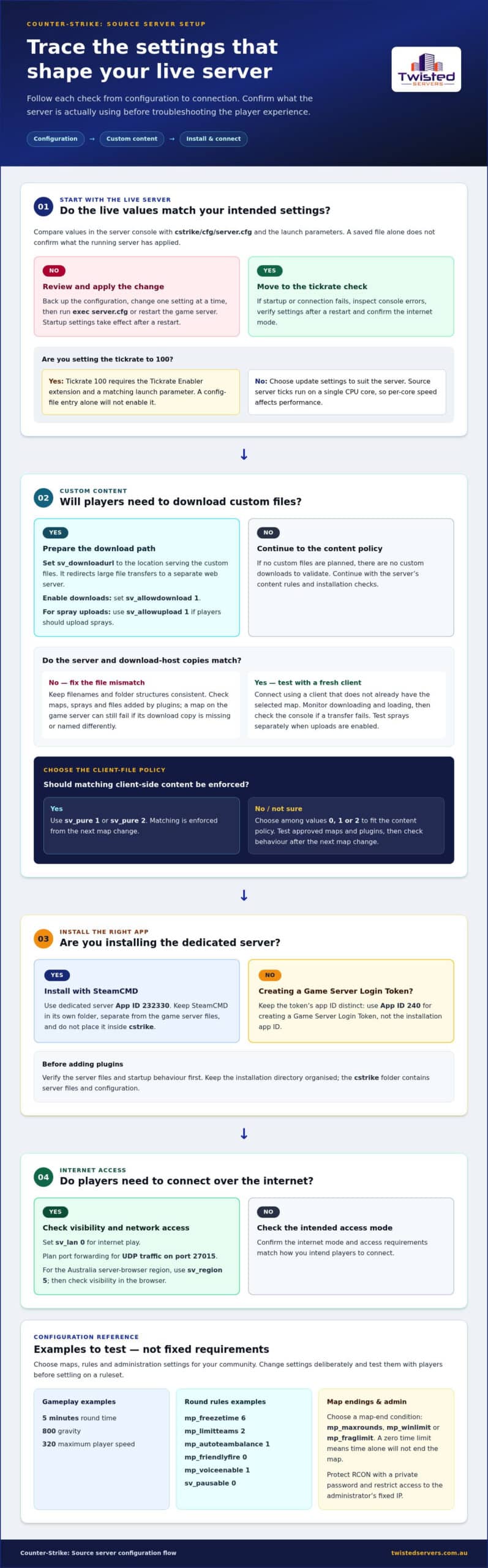
The effective Counter-Strike Source server configuration is the value used by the running server, not just the text saved in a file. Compare live settings with the configuration file and launch options to see what is actually applied. This matters because a setting may be controlled in more than one place.
Setting up a server involves more than choosing gameplay rules. Plan how players will connect, how maps and custom content will be handled, and which parts of the setup you will maintain. Each choice affects server operation and the player experience.
Work through the setup in a practical order: inspect and adjust settings, prepare custom-content downloads, install the dedicated server, and check network access. Keep Steam application IDs straight by distinguishing installation from public server listing. Treat examples as starting points, then choose maps, rules and administration settings that suit your community. A methodical setup is easier to test, maintain and troubleshoot.
Key Takeaways
- Check
cstrike/cfg/server.cfgand the launch parameters to see which settings are actually applied; startup settings take effect after a restart. - Choose tickrate settings with care: a tickrate of 100 requires the Tickrate Enabler extension and a matching launch parameter.
- Set up
sv_downloadurlto direct custom-content downloads, and understand howsv_pureaffects client-side files. - Install the dedicated server through SteamCMD using app ID 232330, and keep it distinct from the App ID 240 used when creating a Game Server Login Token.
- Plan port forwarding and server resources around your setup, including UDP traffic on port 27015 and the server’s CPU, memory and storage demands.
Server configuration and tickrate settings
Check live values in the console, then compare them with server.cfg and launch options. If startup or connection fails, inspect console errors, verify settings after a restart, and confirm the internet mode.
Edit server.cfg settings
Open cstrike/cfg/server.cfg and review each command before editing. Save a backup, change one setting at a time, then execute exec server.cfg or restart the game server. Example gameplay values include a five-minute round time, gravity of 800 and maximum player speed of 320. Treat these as sample choices, not fixed requirements for every community.
Set server visibility and region
Choose sv_region to match how you want the server shown. Value 5 identifies Australia; values 0 through 7 represent named regions and appear under that region or the <All> browser filter. An example uses 255 to report worldwide. Pair the region setting with sv_lan 0 for internet play, then check visibility in the server browser.
- Choose tickrate and related update settings.
Source server ticks run on a single CPU core, so per-core speed affects performance. A tickrate of 100 requires the Tickrate Enabler extension and a matching launch parameter. Don’t expect a configuration-file entry alone to enable it. Example settings cap updates at 30 per second; set related rates to suit the server rather than copying unrelated values.
- Set gameplay rules deliberately.
Use
mp_freezetime 6for a six-second round-start freeze andmp_limitteams 2to cap the team-size difference at two players. Setmp_autoteambalance 1to enable automatic balancing. For other rules, an example usesmp_friendlyfire 0,mp_voiceenable 1andsv_pausable 0. Test changes with players before settling on a ruleset. - Review round endings and administration.
Choose a clear condition for ending each map:
mp_maxrounds,mp_winlimitandmp_fraglimitcan each trigger a map change. A zero time limit means the map will not end based on time alone. Protect RCON with a private password and restrict access to the administrator’s fixed IP. Failed-authentication protections can track attempts and apply a ban penalty; configure them to protect administrative access.
Custom content downloads with sv_downloadurl
Include custom files in the server’s release process from the start. Match each server file with the copy players download, then test access from a client that does not already have that content.
Prepare maps and custom content
List every custom map, spray and game-mode file the server uses. Keep filenames and folder structures consistent between the game server and download host. Review assets added by plugins as well. A map may exist on the server but still fail to download for a new client if its download copy is missing or named differently.
Configure sv_downloadurl downloads
Set sv_downloadurl to the location serving your custom files. This Fast-download redirect sends large file transfers through a separate web server instead of the game server. Enable downloads with sv_allowdownload 1; use sv_allowupload 1 when players should upload sprays. Test both settings with a client that has not already cached the files.
- Match the server and download-host files.
Start with one custom map and compare the server copy with the download-host copy. Keep the filename and relative folder structure consistent, then connect using a client without the map. This helps identify whether the issue is a missing file or the redirect. Repeat the test whenever you replace or update custom content.
- Decide how clients may customise content.
Choose whether players can upload sprays and whether the server supplies custom maps. The example configuration enables both upload and download settings with a value of 1. Consider the effect on your community before allowing uploads, especially if you want a consistent client experience. Test each setting separately so you can identify which option affects a failed transfer.
- Set sv_pure to match the content policy.
The
sv_puresetting accepts values 0, 1 or 2. Values 1 and 2 enforce matching client-side content from the next map change. Choose the setting based on whether custom files should be permitted, then plan a map change to apply the enforcement. A stricter content policy can prevent players from using mismatched files, so test approved maps and plugins before the change. - Test downloads through a real client.
Connect with a client missing the selected map and monitor downloading and loading. If the transfer fails, check the console and compare the requested filename with the copies on the server and download host. Test sprays separately if uploads are enabled. After changing
sv_pure, check the behaviour after the next map change instead of assuming the new rule has already reached connected players.
Installing SteamCMD and the Counter-Strike: Source server
Install the server with SteamCMD, then verify its files and startup behaviour before adding plugins. Keep the installation directory organised, especially the cstrike folder, which holds server files and configuration.
-
Install SteamCMD
Install SteamCMD in a dedicated folder, separate from the game server files, so it is easier to locate and maintain. In SteamCMD, set the server’s installation directory before downloading files. Do not place SteamCMD inside
cstrike, which contains the game server’s own content.Use anonymous login to download the dedicated server, then set the destination with
force_install_dir. Record the chosen path so you can find it later when updating the server or locating configuration files. If installation fails, review the SteamCMD output for errors before trying again. -
Install the Counter-Strike: Source server
Use SteamCMD’s
app_update 232330 validatecommand to install or validate the Counter-Strike: Source Dedicated Server. Allow about 5 GB of free disk space for the Linux server. Keep additional room in mind for custom maps and other content, which can add files beyond the base installation.After installation, confirm that the destination contains the server files and the
cstrikedirectory. Start the server with a valid map specified in the launch parameters, then check the console for startup errors. A successful start is only the first test: also connect from a client and look for the server in the browser.For a connection test, check the launch settings, network access and server status together. If the server starts but does not appear in the browser, confirm that it is configured for internet play. Keep the administrator password separate from public server details, and do not share console access with players.
-
Install Metamod and SourceMod
Install Metamod:Source before SourceMod, so SourceMod has the dependency it needs. Follow each project’s instructions for the server’s operating system and put files in the corresponding game-server folders. Avoid copying plugin files into arbitrary directories, where the server may not find them.
After installing Metamod, start the server and check the console to confirm it loaded. Add SourceMod and verify that it loads before installing plugins. Test one plugin at a time to identify which change causes any startup or gameplay problem. If the server fails after an addition, remove that change and inspect the console output.
Counter-Strike: Source Dedicated Server app ID
Keep the two Steam application IDs separate: the dedicated server uses 232330, while a Game Server Login Token uses App ID 240. Matching each ID to its task prevents installation and public-listing steps from being confused.
- Use 232330 to install the dedicated server.
In SteamCMD, use application ID 232330 for the Counter-Strike: Source Dedicated Server installation. This ID identifies the server software, not the App ID used to create a Game Server Login Token. If you are validating an existing installation, use the same server application ID. Check the SteamCMD output and destination folder so you can tell whether the server files were installed where you expected.
- Use App ID 240 when creating the login token.
Create the Game Server Login Token for App ID 240, not 232330. The token is a separate requirement from downloading the dedicated server. A Game Server Login Token may be needed for a Source server to appear on the public server list. Keep the token private, and make sure you use the token associated with the Counter-Strike: Source game when configuring the server.
- Set the launch options independently.
After installing the server and preparing its token, check the launch command for the intended map and player limit. Supply the startup map through launch parameters, so the server starts with a defined map rather than relying on a later console command. Example launch commands use maximum player counts of 16 or 24; the launch parameter supports a maximum of 64 players. A suggested cap is 16-32 players, depending on your intended server setup.
- Test map rotation after the first start.
Once the dedicated server starts, check its map and rotation separately from the application ID. The default file specified by
mapcyclefileismapcycle.txt. Every listed map must exist incstrike/mapsfor rotation to work. A map without an end condition or time limit will not end on its own. Set an appropriate condition, then test a map change and restart to confirm the launch settings still apply. - Diagnose failures by checking each identifier’s role.
If the server installs but doesn’t appear publicly, don’t reinstall immediately. Check that you used 232330 for installation and App ID 240 for the login token, then review the token setup and server launch parameters. If the server starts on the wrong map, inspect the launch map and
mapcycle.txt. Metamod and SourceMod are separate add-ons, not substitutes for either Steam application ID.
Which ports must be opened or forwarded for a CS:S server?
- Use port 27015 as your starting point.
For a self-hosted Counter-Strike: Source server, forward UDP and TCP port 27015, or another port you choose. The game and query port is 27015/UDP, and the server should allow inbound UDP traffic on that port. If you select a different port, keep the firewall, router and server launch settings aligned. A mismatch can leave the server running but unreachable through the expected connection.
- Allow the game and query traffic.
Create an inbound firewall rule for UDP port 27015 on the server machine. This supports the listed game and query port, which players and server listings use to reach or identify the game server. For a different port, change the rule to match your selected value. Avoid opening a broad range when one specific port serves the requirement.
On a home network, forward the server’s UDP port through the router to its local network address. A firewall rule on the server does not configure router forwarding. Make sure the forwarding destination is the machine running the dedicated server, not another device on the network.
- Keep RCON access separate and restricted.
RCON uses TCP port 27015 in the listed setup. Restrict that access to the administrator’s fixed IP address rather than allowing connections from every address. The game’s UDP traffic and RCON’s TCP traffic use different protocols, even when they share the same port number. Configure each firewall rule with the correct protocol and intended source.
Protect RCON with a strong password and do not share it with players. A firewall restriction provides an additional access boundary, but does not replace password protection. If the administrator’s fixed IP changes, update the allow rule to maintain authorised remote access.
- Check every layer after changing ports.
Review the server launch parameters, operating-system firewall and router forwarding together. For example, if the server listens on a chosen port other than 27015, update each relevant rule to that same port. Restart the server after changing startup parameters, then test a client connection. A port open in one place can still be blocked at another network layer.
- Diagnose visibility separately from reachability.
If players cannot connect, confirm that the server is running and listening on the intended port. Then check inbound UDP forwarding and the matching firewall rule. If the server runs but is missing from the browser, check its public-listing configuration too. Browser visibility and direct connection are separate checks, so test both before changing port rules again.
Twisted Servers: Game Server Hosting
Twisted Servers offers Game Server Hosting for communities that want a hosted alternative to maintaining a game server on their own network. If you’re planning a Counter-Strike: Source community, first confirm that the hosting option suits your intended game and setup; this guide’s installation steps remain useful for self-hosted servers. Australian infrastructure can help reduce latency for players nearby compared with distant overseas servers, though results depend on player location, ISP and routing.
Choose a hosted option if you’d rather not maintain the server environment yourself. If you want more control over the operating system and installed applications, VPS Hosting or Dedicated Server Hosting may better suit a self-managed setup. For details about hosting options, explore Game Server Hosting, or contact Twisted Servers to discuss your requirements.
Choose the right path for your server
A Counter-Strike Source server configuration is easier to maintain when you decide who will manage the server after setup. If you plan to manage the operating system and server files yourself, consider how much hands-on control you need and how you will handle updates, custom content and troubleshooting.
Twisted Servers offers Game Server Hosting, VPS Hosting and Dedicated Server Hosting. These options accommodate different approaches, from game-focused hosting to a server environment you manage more directly. Choose according to the control and ongoing management your community wants, rather than adding unnecessary complexity.
As your plans take shape, outline your preferred server setup and the support you’re looking for. Discuss setup help with Twisted Servers and take the next step with a clear plan. Your community can then focus on the matches ahead.
Frequently Asked Questions
How do I check a setting’s actual value?
Read the value from the running server’s console, then compare it with files and options that may override it. For example, check sv_region in the console against server.cfg and the launch command. If the values differ, review startup options and restart settings before editing. This is the practical way to verify a Counter-Strike Source server configuration instead of assuming a saved file is active.
Which convars should I set?
Choose convars that define the rules your players will experience. For team management, set mp_autoteambalance 1; to prevent spectator mode, use mp_allowspectators 0. Decide how maps end by setting a map limit or another end condition, such as mp_maxrounds or mp_winlimit. Avoid enabling several conflicting map-end conditions. Test the selected rules on a live map before inviting players.
Why Host Your Own CSS Server?
Hosting your own server gives you direct control over its rules, maps and community access. You decide when to change maps, which custom content to run and who gets administrative privileges. It can suit groups that want a consistent place to play together. The trade-off is managing installation, updates, configuration and network access yourself, or choosing a hosting arrangement to reduce that workload.
How do I create and configure a Counter-Strike: Source dedicated server?
Install the dedicated server files, then configure the server’s launch options and server.cfg. Set a startup map, choose the player limit, and prepare a Game Server Login Token using App ID 240. The server software itself uses application ID 232330. Start the server, inspect its console output, and connect as a player to test the actual experience before sharing its details with your community.
What are the minimum system requirements and network bandwidth for a CS:S server?
For manual hosting, the listed Windows requirements are a quad-core 2 GHz CPU, 2 GB RAM and 25 GB storage. The listed Linux requirements are a dual-core 1.5 GHz CPU, 1 GB RAM and 18 GB storage. A separate recommendation gives 2 GB RAM for a Linux dedicated server and 10 GB SSD storage. The recommended network capacity is 1 Gbps; actual traffic depends on activity and server settings.
How do I install CS:S Dedicated Server using SteamCMD?
Open SteamCMD and select a dedicated install directory with force_install_dir. Log in anonymously, then run app_update 232330 validate to install or validate the Counter-Strike: Source Dedicated Server. Check SteamCMD’s output for errors and confirm the destination contains the cstrike folder. Keep the install path handy for later updates, configuration changes and troubleshooting.
Which server.cfg settings control hostname, passwords, RCON, and player limits?
Use hostname for the public server name, sv_password for a join password, and rcon_password for remote administration. Set a player limit with the -maxplayers launch parameter. Keep the RCON password private and restrict TCP port 27015 to the administrator’s fixed IP address. A join password and an RCON password serve different purposes, so don’t use one in place of the other.
How do I configure maps, map rotation, and game modes for a CS:S server?
Set the startup map in the launch parameters, then list rotation maps in the file specified by mapcyclefile. Its default is mapcycle.txt, and every listed map must exist in cstrike/maps. Maps need an end condition or time limit to rotate automatically. Choose a sequence that suits your game mode, then test each transition to catch missing files or maps that do not end.
Disclaimer
Game titles, trademarks, logos and related assets are the property of their respective owners. Twisted Servers is an independent hosting provider and is not affiliated with or endorsed by the developers or publishers of the games mentioned unless otherwise stated. Information is provided as a general guide and may change as games, software and hosting services are updated.

