
Recommended Services


Supported Scripts

To move a Valheim server world save, copy the complete world folder from worlds_local for a current-format save. Older saves use a matching .db and .fwl pair. Set the dedicated server’s -world argument to the exact folder name or, for a legacy save, the filename stem. Stop the server before uploading or replacing files to prevent writes during the transfer.
World and character progress may be handled separately, so check which saves your transfer includes. This explains why a world can appear correctly on the server while a player’s character progress hasn’t moved. The steps below cover finding local saves, identifying the two formats, and backing up or restoring the right files. You’ll also learn how to match the save name to the server setting and avoid loading a different world by mistake.
Key Takeaways
- Identify whether your world uses the newer folder format or the older paired files before you move or restore it.
- Find local Windows saves in the correct location, and make cloud-saved worlds local before looking for their files.
- Protect your world by stopping the server and copying the complete save in its existing format.
- Match the server’s world setting to the save’s exact name to load the intended world.
- Remember that world progress transfers with the save, but character progress stays with each player.
Differences between pre-1.0 and 1.0 world save formats
Valheim 1.0 launched on 9 September 2026 and changed world saves from paired files to named folders. Cloud storage and local storage describe where a save is kept, not which format it uses; Xbox saves cannot currently be exported as files for dedicated-server transfer.
-
Identify the world save format
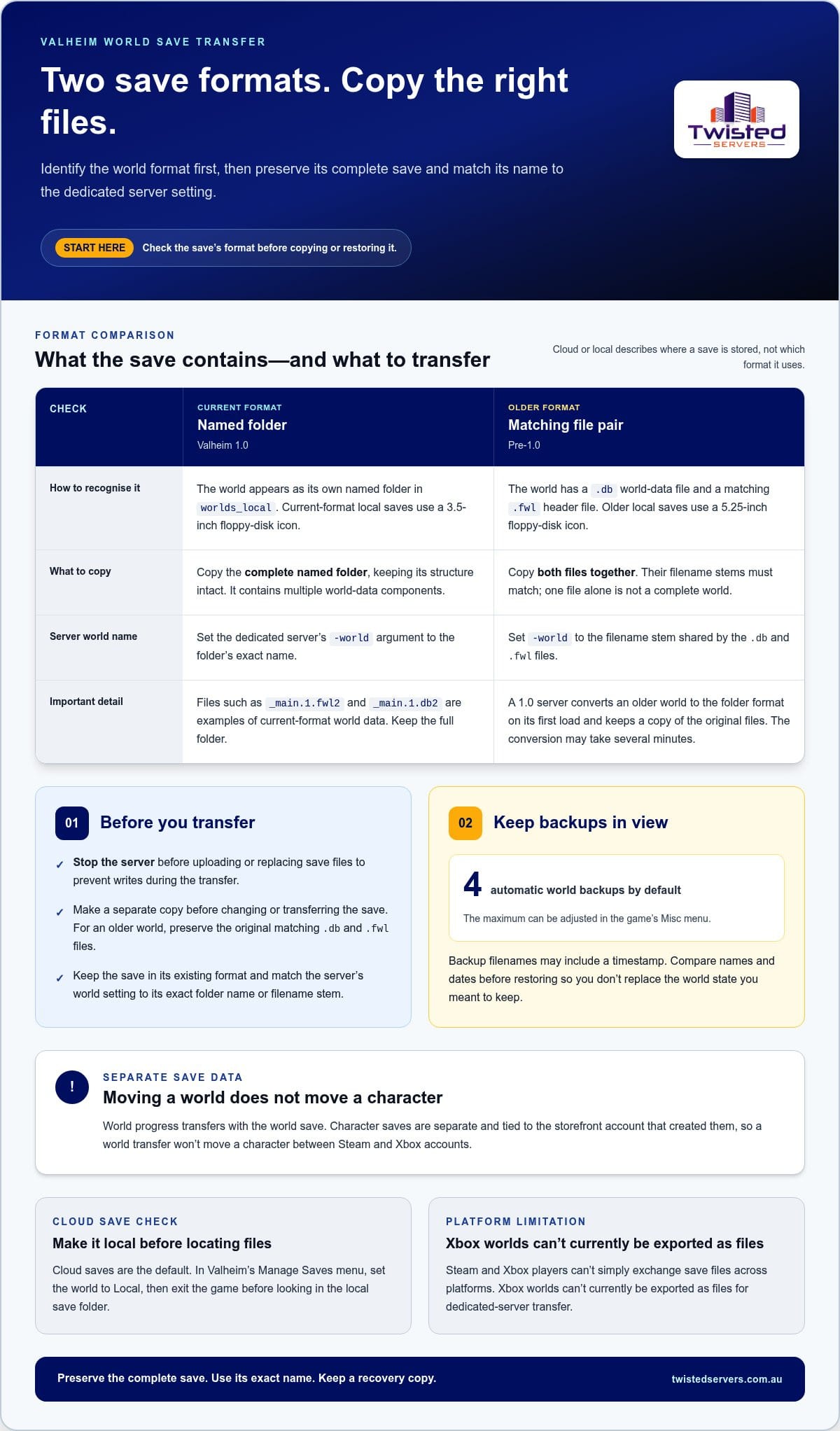
Check the save’s icon and contents before copying it. Valheim marks older local saves with a 5.25-inch floppy-disk icon; current-format local saves use a 3.5-inch floppy-disk icon. A pre-1.0 world has two essential files: a
.dbworld-data file and a matching.fwlheader file. Keep both together and preserve their shared filename stem. Don’t mistake one file for a complete world.If the older save is loaded by a 1.0 server, Valheim converts it into the newer folder format and keeps a copy of the original files. The first load may take several minutes during conversion. Allow it to finish before treating the new folder as the active save or starting another transfer.
-
Recognise the folder-based format
Open
worlds_localand check whether the world appears as a named folder. In Valheim 1.0, each world is stored in its own folder, named after that world. Transfer the complete folder to move the save; don’t select only a few files from inside it. The folder’s name also matters when configuring the dedicated server.Inside, current saves use files such as
_main.1.fwl2and_main.1.db2, alongside other world data. These files use a proprietary binary format, so a text editor won’t provide a readable way to inspect or change them. Keep the folder structure intact when copying, archiving or restoring the world. - Before searching your computer, check whether the world is stored in Steam Cloud or locally. Cloud saves are the default, and their files appear in the local save folder only after you set the world to Local in the in-game Manage Saves menu. After changing the setting, exit Valheim before locating the local files. This prevents you from copying an outdated or missing local version.
Steam and Xbox players can’t simply exchange save files across platforms. Xbox worlds can’t currently be exported as files for dedicated-server transfer. Character saves are separate from world files and tied to the storefront account that created them, so moving a world won’t move a character between Steam and Xbox accounts.
- Before migrating a pre-1.0 world, make a separate copy of its matching
.dband.fwlfiles. Valheim automatically backs up an older world before converting it when loaded, but an independent copy gives you a recovery point before you change or transfer anything. Keep the original pair untouched until you have confirmed the converted world loads.Valheim keeps a default maximum of 4 automatic world backups, adjustable in the game’s Misc menu. Backup filenames can include a timestamp, which helps distinguish earlier copies. Compare names and dates before restoring; selecting the wrong backup can replace the world state you intended to keep. Treat the complete folder as the unit to preserve after conversion.
Finding local world save files on Windows
- Open File Explorer and enter
%USERPROFILE%AppDataLocalLowIronGateValheimworlds_localin the address bar. This is the Windows folder for local world saves. The%USERPROFILE%part points to your Windows user profile, so there’s no need to replace it with your account name. Press Enter, then find the world folder or save files you want to copy.For an older local save, also check
%USERPROFILE%AppDataLocalLowIronGateValheimworlds. Valheim used this earlier folder for local saves. Don’t assume it’s empty just becauseworlds_localexists. Inspect both locations before deciding the save isn’t on your PC. - If the world isn’t in either local folder, check its location in Valheim’s Manage Saves menu. Worlds saved to Steam Cloud are the default, and their files appear in the local save folder only when set to Local. Use Manage Saves to move the relevant world to Local, then exit the game before returning to File Explorer.
Steam Cloud files are stored under the Steam userdata directory, in app ID
892970, followed byremoteworlds. That path helps you identify cloud data, but don’t treat it as a substitute for moving the world to Local. After the change and game exit, look in the appropriate local folder for the files you need. - Inspect the save contents rather than judging it by one visible file. A legacy world needs both its paired
.dbworld-data file and.fwlheader file. Keep them together with the same filename stem. Copying only the.dbfile leaves out the matching header, making the upload incomplete.A folder-based world contains multiple data components, including an index and terrain chunk files. In a tested new world,
_main.1.chunkswas 21 B, while00_00__0_1.chunkwas 1.4 KB. Those example sizes describe one freshly generated world, not a size check for every save. Don’t delete small files because they appear unimportant. - To prepare an upload, copy the complete save to a separate working location. For a legacy save, select both matching files; for a folder-based save, select the entire named folder. Leave the original unchanged while preparing the transfer. Valheim’s world files use a proprietary binary format, so a text editor can’t help you inspect or repair them.
Before uploading a legacy pair, compare the filenames and confirm their stems match. If they don’t, find the correct counterpart instead of renaming files to make them appear paired. A world seed alone won’t preserve buildings or boss progress. Those depend on transferring the world data files, not recreating a world from its seed.
Valheim world save locations on Windows, Linux and dedicated servers
Before transferring files between a computer and server, find the save directory. On a hosted server, current-format worlds belong in worlds_local.
-
Locate Windows and Linux saves
On Windows, current local world folders are in
%USERPROFILE%AppDataLocalLowIronGateValheimworlds_local. Older local saves may be in%USERPROFILE%AppDataLocalLowIronGateValheimworlds. These paths point to files on your computer, not necessarily the files used by a dedicated server.On Linux, find the directory specified in the Valheim server’s world-save configuration, then locate its
worlds_localfolder. Don’t use the Windows%USERPROFILE%path on Linux. If you manage the server, check its configured save location and match the folder name to the world you intend to move. -
Download hosted server saves
Use SFTP to access the hosted server’s files, find its
worlds_localdirectory, and download the complete named world folder to your computer. Preserve the folder structure during transfer. For a legacy save, keep the matching.dband.fwlfiles together instead of downloading only one.To move a world between hosting providers, download it from the old host before uploading it to the new host’s
worlds_localdirectory. Stop the server before uploading so Valheim doesn’t write to the save during transfer. Keep a separate copy of the downloaded folder or file pair as your working backup. - Confirm the destination before transferring. On a dedicated server, the world folder belongs inside
worlds_local; uploading it beside that directory won’t put it in the expected location. Transfer the entire folder for a current-format world. For a legacy world, transfer both files with the same filename stem.Large saves need a suitable transfer method. Valheim world saves larger than 100 MB can be uploaded using SFTP. Allow the transfer to finish before starting the server, then check that the destination contains the expected folder or paired files. A partial transfer can leave the server without all the world data it needs.
- When downloading from a hosted server, use its file access method to copy the world directory to a local folder. Keep the downloaded copy separate from files you plan to edit or replace. It gives you a source copy if you later move the world to another server or need to recover from a failed upload.
Check the server’s active world configuration before choosing a directory. A server may have multiple world folders, and a similarly named folder may contain the wrong save. Match the folder to the intended world, then preserve its name when placing it in the destination’s
worlds_localdirectory.
Backing up and restoring the complete world folder
Stop the Valheim server before copying or replacing files. Keep a separate backup as a recovery point in case the active world goes missing, becomes damaged, or fails to load.
-
Back up the complete world folder
Stop the server, then copy the complete named world folder from
worlds_localto a separate location. Preserve its name and internal structure. A Valheim server world save relies on the folder contents as a set, so don’t copy only the files that look familiar or large.Give the copy a clear label, such as
ValheimWorld-before-update, and keep it outside the live server directory. For a legacy world, keep its matching.dband.fwlfiles together. Never make your only backup by renaming or moving the live copy. - Inspect the backup before relying on it. Confirm the copied folder contains its world data, or check that both legacy files exist and share the same filename stem. A Valheim server world save copied before a version change gives you an unchanged reference if the active files are converted later.
For a migration, make a copy before starting the new server version. Valheim may convert an older world on its first load. Keep the original files untouched until you’ve confirmed the converted world opens and contains the expected progress.
-
Restore the complete world folder
Before restoring anything, stop the server and preserve its current files. Move the affected folder out of
worlds_localor rename it as a separate copy. Then place the backup folder in the save directory without changing its name or combining it with another world.For a legacy world, restore both matching files to the server’s save location. Compare their filename stems before starting the server. If a file is missing or the names differ, use another intact backup instead of trying to create a pair by renaming unrelated files.
- Start the server only after checking the restored save’s name and location. Confirm the configured world name matches the restored folder or legacy filename stem. If another world loads, stop the server and review the selected save and startup setting before changing any more files.
If the world is missing or damaged, replace it with a known-good copy. Don’t try to repair Valheim’s binary world data in a text editor. Keep the damaged version separate until the replacement loads and you’ve checked the expected locations and progress.
- Check version compatibility if the restored world won’t load or players can’t join. A mismatch between the world and server versions can prevent loading or connections. Update the server and clients to compatible versions, then try again with the intended save selected.
When a pre-1.0 world first loads on a 1.0 server, allow the conversion to finish. Avoid restarting the server or replacing files during that process. If the resulting world isn’t right, stop the server and restore the untouched pre-conversion copy.
Matching the server world name to the save
- Read the save’s actual name before changing the server configuration. For a Valheim 1.0 world, use the folder name inside
worlds_local. For a legacy world, use the shared filename stem from its.dband.fwlfiles. The name is the identifier the dedicated server needs to select the intended world.For example, if the folder is named
AshlandsRun, record that spelling exactly. Don’t use a name copied from a desktop shortcut, backup label, or community nickname. Those labels may differ from the folder name, leaving the startup setting pointed at another world. - Set the dedicated server’s
-worldstartup argument to the save name. For the example folderAshlandsRun, use-world AshlandsRun. The value must exactly match the uploaded folder name. Don’t use the folder path or a file extension in place of the world name.For a legacy save named
MeadowsBase.dbandMeadowsBase.fwl, use-world MeadowsBase. The shared filename stem identifies the pair. A value such asMeadowsBase.dbincludes an extension and doesn’t match the world name the server expects. - Before starting the server, compare the startup argument with the save name character by character. Check spaces, underscores, punctuation, and spelling. For example,
Meadows_BaseandMeadowsBaseare different names. Rather than renaming a folder to fit an old argument, update the argument to match the save you want to load.If the world name contains spaces, preserve the folder name in the server configuration and follow the startup syntax required by that server setup. Don’t guess how a particular launch script handles spaces. A simple name such as
NorthMeadowsmakes it easy to compare the folder with the-worldvalue. - After verifying the save location and
-worldvalue, start the server. If the expected world doesn’t load, stop the server and compare the active argument with the uploaded folder name or legacy filename stem. Also confirm that the save is inside the server’sworlds_localdirectory, not beside it.A familiar seed doesn’t prove that the correct save loaded. Valheim’s seed describes world generation, but it doesn’t preserve buildings or boss progress. To keep that progress, the server must load the actual transferred world data.
- If the server has multiple saves, keep a clear record of each world name. For example, note
AshlandsRunas the active folder and set-world AshlandsRunaccordingly. This simple pairing helps prevent an admin from selecting a similarly named backup or a newly generated world by mistake.After the server starts successfully, check that the loaded world contains the expected locations and progress. If it doesn’t, stop the server before changing files or arguments. Confirm the intended folder or file stem, correct the
-worldvalue, then start again.
Twisted Servers: Game Server Hosting
Twisted Servers offers Game Server Hosting for communities that want a hosted multiplayer environment. Hosting may suit your group if you’d rather play together without relying on one member’s computer to run the session. Before choosing an approach, consider who will manage the server, configure it, and oversee its ongoing operation.
For broader control over server administration, VPS Hosting and Dedicated Server Hosting are also available. The right option depends on how much technical management you want to take on and what your community needs from its setup. Explore our Game Server Hosting to see whether it fits your plans, or contact Twisted Servers to discuss your hosting needs.
Make world maintenance part of your server routine
Make save administration part of your community’s routine, not an improvised response to a problem. Assign responsibility for regular checks, document who can change server settings, and record important maintenance decisions. A consistent process helps new admins take over and gives moderators a shared reference when plans change.
As your community grows, review whether your setup still meets its needs. Consider who handles configuration, how much control administrators want, and whether volunteers can manage the workload. These practical questions can guide your hosting decision without assuming every group needs the same arrangement. Keep your Valheim server world save process clear, and make sure everyone responsible understands how changes are managed.
If you’re assessing the next stage for your community, compare hosting options with Twisted Servers as part of that planning. Choose a setup that fits the way your group is organised, then give your admins a clear process to follow. Small, deliberate improvements can make community management easier over time.
Frequently Asked Questions
What about character progress?
Moving a world and moving a character are separate tasks. Your character remains on the computer and storefront account where it was created, so players should plan to use their existing characters when joining the moved world. For example, an admin can move a community’s shared world while each player continues using their Steam character on that account. A world seed won’t transfer a player’s inventory or character progress.
Where does Valheim save world files on Windows, Linux, and macOS?
On Windows, the local save directory is %USERPROFILE%AppDataLocalLowIronGateValheimworlds_local. Steam Cloud data is under Steam’s userdata folder, app ID 892970, in remoteworlds. Linux server saves use the directory configured for that server. On macOS, use Manage Saves to identify whether a world is local or cloud-stored, then locate the corresponding files using macOS file search.
How do you manually back up and restore a Valheim world save?
Create a checkpoint before risky changes, such as changing server versions or replacing configuration. Keep it separate from live files and label it clearly so admins can identify the right recovery point later. When restoring, confirm the server selects the restored world rather than creating or loading another one. After startup, check familiar landmarks and progress before inviting players back.
How often does Valheim automatically save a world, and how can you trigger a save?
Valheim saves during play, but don’t plan maintenance around an assumed timer. For a deliberate checkpoint, an admin can enter save in the in-game console when it’s available. Let the save operation finish before stopping the server or copying files. The game’s automatic backup limit is a separate setting in the Misc menu; it controls how many backups are retained, not save timing.
How do you transfer a Valheim world save to a dedicated server?
Before transferring, record the intended world name and confirm the destination server’s startup configuration uses it. This helps distinguish a successful file transfer from the server loading a different world. After startup, check a recognisable base or explored area before sharing the new address with players. Keep the source copy unchanged until the destination has loaded the expected world.
How do you move a Valheim world save between computers or platforms?
When moving between computers, use the same Steam account and check that Steam Cloud synchronisation has completed before opening the game on the other device. This reduces the risk of continuing from an older copy. Character transfers have a separate cross-platform restriction: characters are tied to the storefront account that created them, so moving world files won’t let Steam and Xbox accounts exchange characters.
What are the Valheim world save file extensions, including .db and .fwl?
The older format uses .db for world data and .fwl for its header; current folder-based worlds include files such as .db2 and .fwl2. Treat extensions as clues to the save format, not as files to edit manually. Valheim uses a proprietary binary format, so changing file contents in a text editor won’t provide a safe way to repair or customise a world.
Disclaimer
Game titles, trademarks, logos and related assets are the property of their respective owners. Twisted Servers is an independent hosting provider and is not affiliated with or endorsed by the developers or publishers of the games mentioned unless otherwise stated. Information is provided as a general guide and may change as games, software and hosting services are updated.

