
Recommended Services


Supported Scripts

Use the server’s Player Management controls to review and adjust access. Managing player permissions on a game server means making deliberate changes with the tools available, then checking that the result matches your intention.
As a server administrator, you’re responsible for making access decisions clear and consistent. A rushed change can affect the wrong account or create extra work for your admin team. A simple process helps you act confidently, explain decisions to other moderators, and align community expectations with how the server is run.
This guide covers practical decisions for administering a Project Zomboid server. You’ll learn how to review player records, choose the appropriate access control, and manage administrator privileges without assuming every game uses the same permission system. Use these steps to build a repeatable process, whether you’re handling a single request or coordinating an admin team.
Key Takeaways
- Use the Player Management tabs to distinguish online players from those who have previously joined.
- Choose carefully between kicking a player and wiping their data, as wiping removes server information and cannot be undone.
- Understand how bans and IP bans affect access, including when the whitelist is enabled.
- Review the Opped tab to see which players have operator permissions.
- Add players by username and manage their whitelist status to control access when the whitelist is enabled.
Accessing the player manager
Audit permissions by comparing each player’s status with your change log. Record the username, action, reason, and responsible administrator.
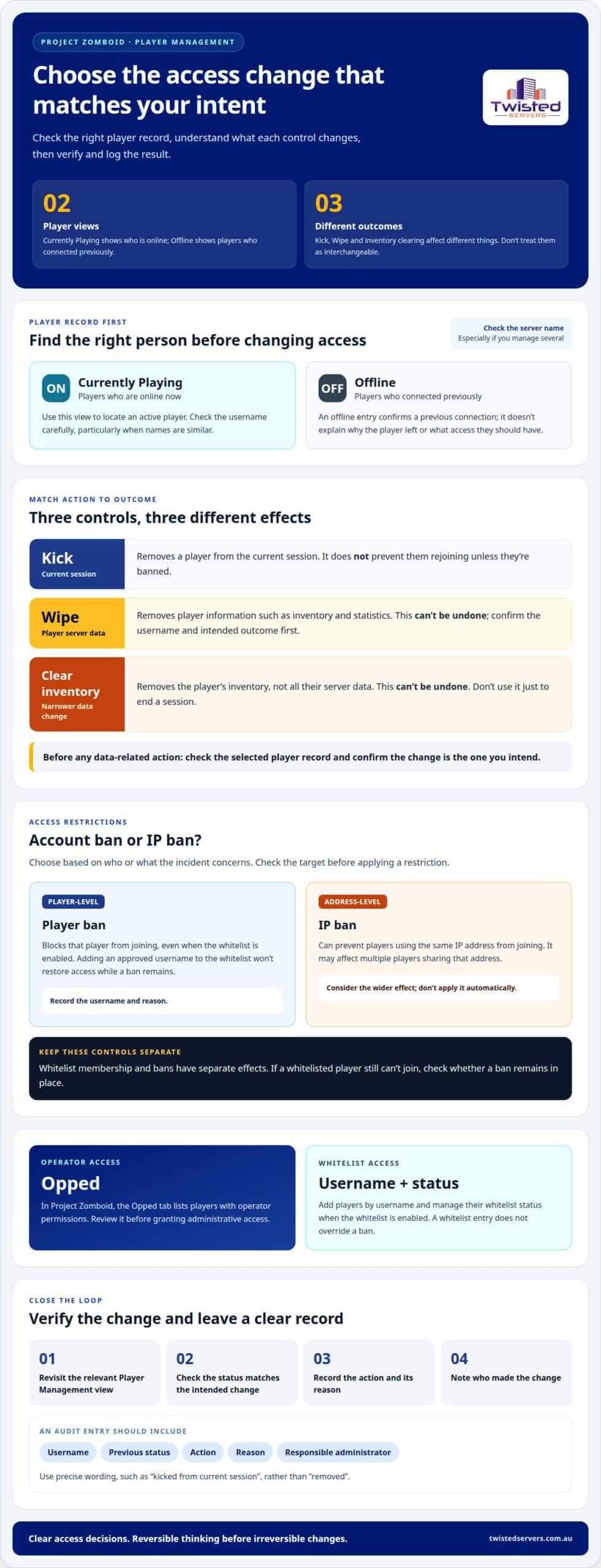
- Open the management interface for your Project Zomboid server. Select Player Management and confirm you’ve chosen the correct server. If you administer several servers, check the server name before opening player records. Available actions depend on the selected Player Management tab, so identify your current view before making changes.
- Choose Currently Playing to see who is online and locate an active player’s record. For example, if someone reports a problem during a session, find their username here first. Check the spelling carefully, especially if players have similar names. This tab shows current players, not everyone who has connected.
- Open Offline to review players who connected previously but aren’t online now. Compare the username with your community records before selecting an action. An offline entry confirms a previous connection, but doesn’t explain why the player left or what access they should have.
- Select a player record and review the available actions before choosing one. Consider the effect of each option. Kick removes a player from the current session, but doesn’t prevent them from rejoining unless they’re banned. For a brief interruption, distinguish this session action from a lasting access restriction.
- Use Wipe only when you intend to remove that player’s server data. It removes information such as inventory and statistics, and can’t be undone. Before proceeding, check the selected username and confirm that this is the intended action. Don’t use a wipe simply to remove someone from an active session.
- Choose inventory clearing only when you intend to make that narrower change. It removes the player’s inventory, not all their server data, and can’t be undone. Compare the effect with your intended outcome before confirming. For example, don’t select it if you only want to end someone’s current session.
- After taking action, revisit the relevant Player Management view and check that the player’s status reflects the intended change. After a kick, confirm they’ve left the active session. Before taking any further data-related action, verify the selected record. Update your log with the result.
- Keep an audit record that another administrator can understand. Include the username, previous status, action, reason, and responsible administrator. For example, write “kicked from current session” rather than “removed”. Compare the entry with the player’s status during later reviews. Clear records let you trace changes without relying on memory.
Bans and IP bans
- Open Player Management and locate the relevant player record. Check the username against the incident details before applying a restriction. Similar names can belong to different players, so tie the decision to the account involved rather than acting on a report without an identifiable username.
- Choose a player ban when you need to prevent that player from joining. Project Zomboid bans block access even when the whitelist is enabled. Keep these controls separate: adding an approved username to the whitelist won’t restore access while a ban remains in place.
- Consider an IP ban when the concern involves connections from an IP address. It can prevent players using that same address from joining, so consider the wider effect before applying it. Unlike a username-based decision, an IP ban can affect multiple players sharing the address.
- Match the restriction to the behaviour and its target. If an incident identifies one player, assess whether a player ban addresses it. If several players using one address are involved, consider whether an IP ban is appropriate. Don’t apply both automatically. Give each restriction its own clear reason.
- Review the incident details before confirming your choice. Check the username, player record, and reported behaviour. If you’re unsure which account is involved, pause rather than restricting a similar name. A mistaken ban can block the wrong player, while an IP ban can affect others sharing the address.
- After applying a restriction, review the player’s access settings. If a whitelisted player still can’t join, check their ban status too. Whitelist and ban controls have separate effects. Don’t change whitelist membership as a substitute for reviewing a restriction that remains in place.
- Record the type and reason for each restriction. For an account ban, identify the username. For an IP ban, note that it applies to an address. Include the responsible administrator and incident context. Clear notes help your team distinguish an individual account decision from an address-level restriction.
- When reviewing an existing restriction, compare its target with the original incident. Check whether the issue concerned a particular player or people connecting from one address. Keep your decision consistent with that distinction. If the restriction no longer fits the documented concern, review it deliberately rather than changing unrelated access settings.
Operator permissions
In Project Zomboid, the Opped tab lists players with operator permissions. Review the list before granting administrative access, then use the checks below to make each change deliberately.
-
Understand server permission systems
First, check how your game separates ordinary player access from administrator controls. In Project Zomboid, use the Opped tab to identify players with operator permissions. Other games may use roles, individual permission settings, or both. Check the server’s interface and configuration before assuming the same terms or controls apply. Operator status isn’t an ordinary player role.
A permission system determines which actions an account can perform. Access may be grouped by role, granted directly, or managed through an admin panel. The options depend on the game and its server tools. Identify the available controls, then decide which responsibilities each administrator needs.
-
Create roles and assign permissions
Define the tasks each role needs before adding people. For example, a moderator may need tools for handling player conduct, while a server administrator may need broader configuration access. Create roles only if the game or its management tools support them. Assign only the permissions needed for each role’s duties.
To assign access, select the intended account and use the server’s supported controls to apply the relevant role or permissions. Review the account’s resulting access. If the game offers only operator status, don’t describe it as a custom role system. Record who received access and why.
-
Configure permissions for your server
Open the permission controls for the specific game you’re administering. Minecraft, Rust, and Project Zomboid don’t share a universal permission setup. Identify whether the game uses operator status, configurable roles, or another system. Follow the labels and settings in that server’s tools. Don’t copy commands or settings from another game.
For a Minecraft server, use its supported permission controls and check what each status allows. For Rust, review the available controls before assigning administrative access. In Project Zomboid, consult the Opped tab to see the operators. These checks keep your decisions specific to the server you’re managing.
-
Use plugins or admin panels
Choose a permission plugin or admin panel only if it supports your game and server setup. Use its interface to review existing roles, accounts, and permission grants. Read each control before applying it, particularly if it affects multiple users. A panel can help organise access, but you still need to understand what each permission allows.
After changing a setting, inspect the affected account in the same tool. Confirm the intended access appears and unrelated privileges remain unchanged. Record the account, permission, and reason. This helps you trace changes when several administrators use the panel.
- Protect access and resolve conflicts. Limit operator access to people who need it, and review the Opped list when responsibilities change. Don’t share administrative credentials among staff; use individual accounts where the server’s tools support them. Remove access that no longer matches someone’s duties, then record the change. To troubleshoot inherited or conflicting permissions, inspect the account’s direct grants and every assigned role. Compare the intended permission with the effective result, then adjust the source of the conflict and test again.
Whitelist management
- Open Player Management and select the whitelist controls for the correct Project Zomboid server. When enabled, the whitelist determines who can join. It doesn’t grant operator permissions or replace bans. Review these settings separately when managing a player’s access.
- To add someone who hasn’t joined yet, choose the option to add a player. Enter their username in the popup box and apply the change. Check the spelling against the username they provided. A typo can leave the intended player without access, even if you’ve added a similar-looking account.
- Open the Whitelisted tab to review its entries. Find the exact username before making a change, and compare the list with your community’s access plan. For example, confirm a new member’s entry before telling them they’re approved to join.
- To allow a listed player to join, keep their username on the whitelist and make sure the server whitelist is enabled. Both conditions matter. If it isn’t enabled, membership alone doesn’t control who can join. Check the setting and the player’s entry when troubleshooting access.
- To remove whitelist access, select the correct username and use the removal option. This changes their ability to join while the whitelist is enabled. Confirm the selected account before applying the change, especially if usernames are similar. Note the reason so another administrator can understand the decision.
- After editing an entry, return to the Whitelisted tab and check the result. Confirm an added username appears or a removed one is gone. If the list doesn’t reflect your action, revisit the entry and correct it. Don’t add another username to work around a spelling error.
- Keep whitelist membership separate from a ban. A ban prevents a player from joining even when the whitelist is enabled. If an approved player can’t connect, check both their whitelist entry and ban status. Adding the username again won’t remove a ban or restore access on its own.
- Record whitelist decisions in an administrator log. Include the username, whether access was added or removed, the reason, and who made the change. For example, note when a community member is approved before their first visit. This gives administrators a clear record when that player’s access needs to change.
- A consistent process makes managing player permissions on a game server easier, especially as community membership changes. Review entries when someone joins, leaves, or takes on new responsibilities. Keep whitelist access focused on joining, and manage operator status and bans through their separate controls.
A player can be whitelisted or removed from the whitelist to control whether they can join when the server whitelist is enabled. Administrators can add a player who has not joined the server by entering the player’s username in a popup box. This allows access to be set before that player’s first connection; check that the entered username is the one intended.
How do player permission systems work on game servers?
- First, identify the permission controls your game provides. A server may separate ordinary player access from administrator powers. In Project Zomboid, for example, the Opped tab lists players with operator permissions. It shows operator status, not a complete role editor or permission breakdown.
- Separate access to the server from authority within it. When enabled, a whitelist controls who can join. Operator permissions identify players with elevated server privileges. A ban can block a player even if they’re whitelisted. Treat these as distinct settings: changing one doesn’t automatically change the others.
- Check whether your game uses roles, individual permissions, or a simpler operator status. These are different ways to organise access, not a universal system shared across games. Project Zomboid’s Opped list identifies operators. Don’t assume it offers the same role controls as Minecraft, Rust, or another game.
- Assign access according to the task someone needs to perform. A community moderator, for example, may need authority to address player conduct, while a server operator may need broader controls. Use the permissions available in your game’s management tools. Don’t grant elevated access solely because someone is an active player.
- Review direct permissions and group membership if your server’s tools support both. A player may receive access through an assigned role, an individual setting, or both. If their effective access seems unexpected, compare each source. Change the setting that grants the unwanted permission, then review the result.
- Use the game’s admin panel or a supported permission plugin to make changes. Interfaces and labels vary, so confirm the selected account and setting before saving. Don’t copy a command or configuration from another game. A Minecraft permission instruction, for example, may not apply to Project Zomboid.
- Grant administrator access only to people who need it. Use separate accounts where the game supports them, and don’t share login details among administrators. Review the Project Zomboid Opped list when responsibilities change, and remove operator status when it no longer matches someone’s role.
- Record each access change, including the account, permission, reason, and responsible administrator. For example, note when a player moves from ordinary access to operator status. If a later change causes unexpected access, review the record. Clear notes help your admin team understand how the setting was applied.
- For a server where you need to manage these controls, explore Australian game server hosting as a hosting option.
For Minecraft, Rust, or another game, configure permissions through that game’s admin panel or a supported permission plugin. Controls and labels vary by title. Check whether the game uses roles, individual permissions, or both, then grant only the access each player needs.
Twisted Servers: Game Server Hosting
Twisted Servers offers Game Server Hosting for multiplayer communities. Manage player permissions, bans, and whitelist settings through the game’s own tools. Hosting provides the server environment; it doesn’t replace careful administrator decisions or record-keeping.
If you’re planning a server or reviewing your current setup, consider whether Game Server Hosting fits your community’s needs. VPS Hosting and Dedicated Server Hosting are also available for different hosting requirements, but they don’t replace learning the game’s permission controls.
For an Australian community, server location can affect latency, alongside players’ locations, internet providers and routing. To discuss your hosting needs, contact Twisted Servers.
Build a permission process that grows with your server
Your community may change as players join and administrator responsibilities shift. Set a regular review routine, keep clear records, and make permission checks part of ongoing server administration. This gives your team a consistent way to manage access as the community develops.
When managing player permissions on a game server, match each setting to a clear purpose and review who can change it. If your current setup needs a different hosting environment, Twisted Servers offers Game Server Hosting, VPS Hosting, and Dedicated Server Hosting. The right option depends on how you plan to run and manage your server.
You don’t need to work out every infrastructure detail alone. Discuss your server requirements with Twisted Servers and consider a practical next step for your community. With a clear permission process and suitable hosting, you can keep building a well-managed server experience.
Frequently Asked Questions
How to grant or revoke player permissions safely?
Use the server’s permission controls and change only the access needed for a specific task. Before saving, confirm the username and intended permission. For example, if a volunteer stops moderating, remove their moderation access rather than changing unrelated settings. Then review the account’s effective access and record who made the change, when, and why.
What is the difference between server operator, admin, moderator, and player permissions?
These labels describe different access levels, but their exact powers depend on the game and its tools. A player generally has ordinary gameplay access; a moderator may handle community conduct; an admin may manage server settings; and an operator may have elevated game controls. In Project Zomboid, the Opped tab identifies operators. Check your server’s controls before treating these titles as interchangeable.
Disclaimer
Game titles, trademarks, logos and related assets are the property of their respective owners. Twisted Servers is an independent hosting provider and is not affiliated with or endorsed by the developers or publishers of the games mentioned unless otherwise stated. Information is provided as a general guide and may change as games, software and hosting services are updated.

