
Recommended Services


Supported Scripts


Valheim server permissions are managed through player lists and in-game admin commands. You can control who may join, assign administrator access, address disruptive behaviour and restore access when a ban should end. Match each action to the access decision you need to make.
A failed connection can have several causes, so identify the problem before changing access. A player’s entry may need correcting, an administrator setting may need review, or a moderation action may be appropriate. A clear process helps you avoid changing unrelated settings while resolving the issue.
This guide walks through the practical workflow, from deciding what access a player needs to making and testing a change. You’ll learn how the permitted list affects entry, how to work with permission files and how to use commands to manage players. It also covers a methodical approach to connection and access problems, helping you make informed changes and keep your community running smoothly.
Key Takeaways
- Use the permitted list to restrict server entry to approved players; adding names changes who can join.
- Keep each player’s Platform User ID on its own line in the relevant permission file, and match its case exactly.
- Restart the server after editing permission files so the access changes take effect.
- Use the admin commands to kick or ban a player, review the ban list, and unban someone when needed.
- If an approved player still can’t join, check the ID and file contents before troubleshooting further.
Admin console commands for kicking and banning players
Use Valheim’s admin commands to remove disruptive players or block their access. Choose the command that matches the action you need.
-
Use in-game admin commands
Open the server’s admin console and enter the command for the action you intend to take. Use
Kickto remove a player from the server, orBanto prevent them from returning. Check the player’s identity before submitting either command, especially when names are similar. A kick removes someone from the current session; a ban changes their future access. -
Manage the admin, banned and permitted lists
Use the three permission files for separate access decisions.
adminlist.txtassigns administrator privileges,bannedlist.txtrecords banned players, andpermittedlist.txtcontrols who may join when permitted-list access is active. Check the relevant file before changing access: administrator status and permission to join are different. - Choose
Kickwhen a player needs to leave the current session but doesn’t necessarily need to be excluded later. ChooseBanwhen you intend to prevent them from rejoining. For example, a temporary disruption may call for removal, while repeated unwanted entry may warrant a ban. Consider the impact before taking the stronger action. - Enter the target player’s name or identifier in the format required by the server console. Don’t act on a name alone if you can’t confidently identify the player. Check the connected-player list first, then select the intended person. This helps prevent removing or blocking someone else by mistake.
- Use
Bannedto display the server’s list of banned players. Review the entries before deciding whether a player should remain blocked. If a ban was accidental or no longer applies, useUnbanfor that player. Confirm their identity carefully so you don’t restore access to the wrong account. - Limit administrator access to people who need to manage the server. Administrators can use commands that affect other players, while permitted players are simply allowed to join. When investigating an access problem, compare the player’s status across the admin, ban and permitted lists. Each file answers a different question.
- After running a command, check the result before taking another action. Confirm that the intended player was removed, banned or unbanned, then update the relevant list if needed. Keep the decisions separate: removal affects the current session, a ban blocks access, and unbanning lifts that ban.
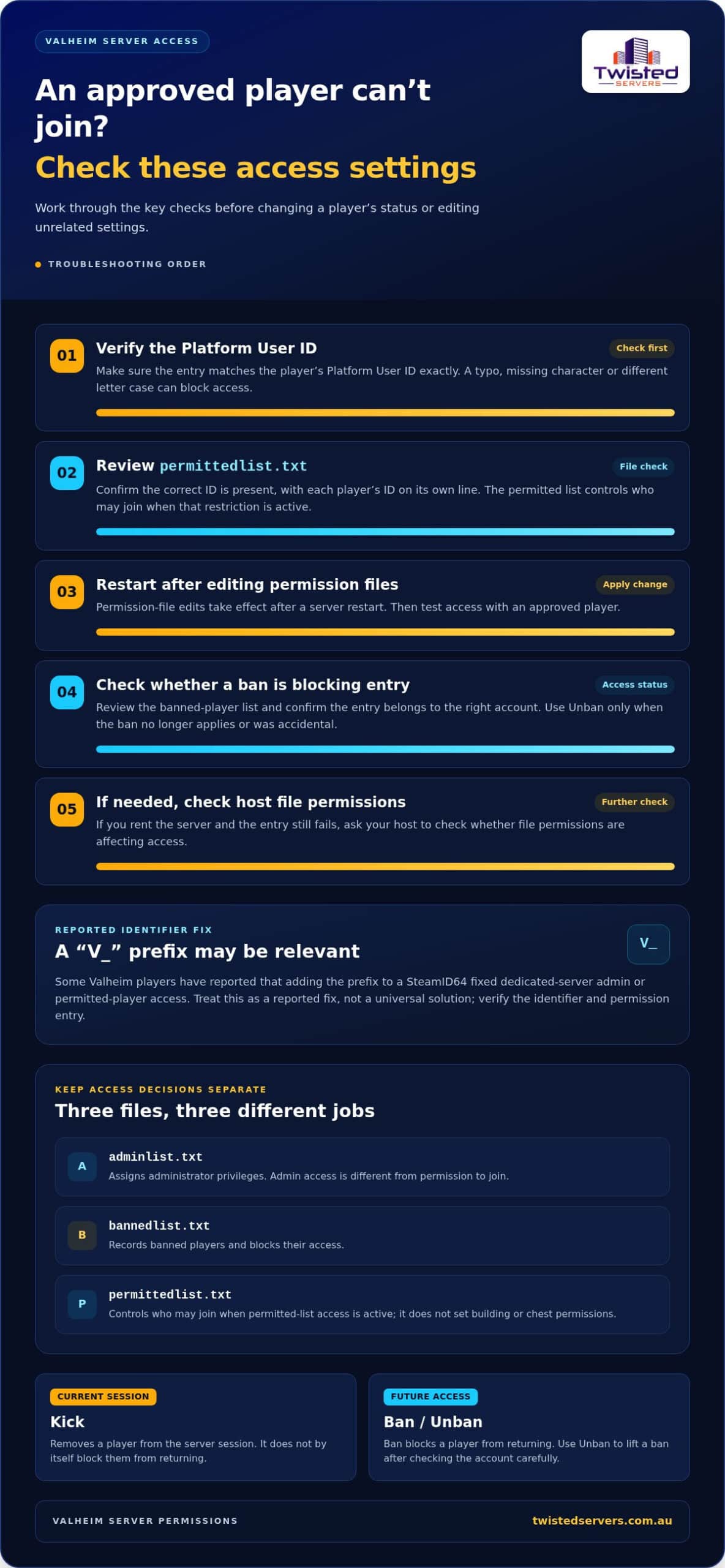
If an admin or permitted-player entry still fails, account formatting may be worth checking: Valheim players reported that adding the prefix “V_” to a SteamID64 fixed dedicated-server admin or permitted-player access problems. Treat this as a reported fix rather than assuming every access issue has the same cause; verify the identifier and recheck the relevant permission entry.
If you rent a game server, ask your host to check whether file permissions are causing the access problem. If you run your own hardware and are banned, remove your Steam ID from the ban list. These checks can help distinguish a permission-file issue from an identifier-format or ban-list problem before you change a player’s status again.
How permitted-list access works
To whitelist players, add each approved player’s Platform User ID to permittedlist.txt, one ID per line, then restart the server. The permitted list controls who can join; it doesn’t set separate building, chest or world permissions.
-
Whitelist players for server access
Open
permittedlist.txtand add the Platform User ID for every player who should be able to join. Put each ID on its own line and preserve its exact case. With the permitted list active, everyone else is prevented from joining. Add all intended players before restarting, or anyone omitted will be unable to connect. - Get the correct identifier before editing. A display name may not match the account format expected by the server file, so use the player’s Platform User ID. Put each entry on a separate line rather than combining several IDs. For example, enter one player’s ID, press Enter, then add the next ID on a new line.
- Review the entire permitted list, not just the newest entry. When the restriction is active, a player must match an entry to join. A typo, missing character or changed letter case can prevent the intended person from connecting. Keep a clean copy of the approved IDs to compare against if access fails.
-
Check permission limits for building and world access
Use the permitted list to manage entry, not in-game activities. Valheim’s admin, banned and permitted lists cover administrator status, bans and joining access; they don’t create separate permissions for building, opening chests or entering parts of a world. Don’t add someone to the permitted list expecting it to restrict their gameplay once they’re inside.
- Decide whether you need to control server access or gameplay rules. For example, if a friend may join but shouldn’t build, the permitted list won’t create that restriction. It determines who may connect to the server. Explain this distinction clearly so players don’t mistake a whitelist for building controls.
- After updating the file, restart the server and test access with an approved player. Ask them to connect using the account represented by the listed ID. If they’re blocked, compare the ID character by character, including its case, then check that the server restarted after the edit. Don’t remove every entry as a first fix: that changes the permitted-list configuration and can alter who may join.
- Plan list changes before a group session. Add incoming players before they try to join, and remove an entry when someone should no longer have access. Tell the group when the rules change. This keeps the approved-player list aligned with your community and reduces confusion between entering the server and permissions inside the world.
Editing permission files and restarting the server
Edit the relevant file, check each Platform User ID, then restart the server. Australian hosting doesn’t change Valheim’s permission-file rules: server location affects connection routing, not how these files assign access.
-
Edit permission files
Open the server’s permission files and add one Platform User ID per line. Use
adminlist.txtfor administrators,bannedlist.txtfor banned players andpermittedlist.txtfor permitted players. Match each ID’s case exactly. Before saving, check for spaces, missing characters and duplicate entries that could cause access problems. -
Make a player an admin
Add the player’s Platform User ID to
adminlist.txtto grant administrator status on a dedicated server. Put the ID on its own line and preserve its case. Then restart the server for the change to take effect. Don’t add the player only topermittedlist.txt, which controls joining rather than administrator privileges. -
Configure permissions with a hosting provider
On a rented server, use the file access provided by your hosting service to edit the Valheim permission files. Save the changes and restart the server. Crossplay doesn’t replace these files: the Crossplay startup argument lets players from any platform join, while the Steam backend without that argument is visible and joinable only to Steam users.
-
Troubleshoot admin permissions
If an admin edit doesn’t work, check that the ID is in
adminlist.txt, not just the permitted list. Compare its case and characters, save the file, then restart the server. Some players have reported resolving SteamID64 access issues by adding theV_prefix. Treat that as a troubleshooting clue, not a substitute for checking the correct ID format. - For a rented server, make sure you saved the file change in the server’s active directory. Editing a local copy won’t change the live server’s permissions. If the file looks correct but the administrator still lacks access, check whether the server restarted after the edit. Your hosting provider can investigate file permissions if you can’t edit or save the server files.
- Check for a restrictive permitted list if players suddenly lose access. When
permittedlist.txtcontains entries, everyone else is prevented from joining. Review the file for missing player IDs before changing it. Removing all its lines has been reported as a way to restore access, but it also changes the server’s entry rules. - Test one change at a time. For example, correct an ID, save the file, restart the server, then ask that player to reconnect. This makes it easier to tell whether the problem came from the identifier, the file or a missed restart. For crossplay access, also check that the server’s startup argument matches the platforms your group uses.
Changing a Valheim server’s difficulty preset requires a restart. Treat this as a separate change from editing access lists, and restart the server after changing the preset. The new difficulty takes effect only after the restart; saving the preset alone doesn’t complete the change.
Listing and unbanning banned players
Use the Banned command to review bans, then Unban to restore a player’s access.
- Enter
Bannedin the server’s admin console to list banned players. Review the entries before changing access, especially when responding to a player’s report. The list helps identify whose ban needs review. Don’t confuse it withadminlist.txtorpermittedlist.txt; those files control different access settings. - Match the listed entry to the right player before acting. A display name may not distinguish accounts, so compare the ban entry with the player’s identifier. If you’re unsure which entry belongs to them, pause rather than unbanning someone else. Accurate identification keeps the review focused on the intended account.
- Use the
Unbancommand for the player whose ban you intend to lift. Check the identifier carefully before submitting it. Unbanning reverses that player’s ban; it doesn’t grant administrator status or add them to a restricted permitted list. Treat each as a separate access decision. - Check the ban list again after running
Unban. Confirm that the intended player no longer appears as banned, then ask them to try joining. If they still can’t connect, review their permitted-list status too. Removing a ban alone won’t make an unlisted player eligible when permitted-list access restricts the server. - If you manage the dedicated server’s files, inspect
bannedlist.txtwhen a console command doesn’t resolve the issue. Find the matching Platform User ID, then remove only that player’s entry. Preserve the other entries: deleting the whole list would affect every recorded ban. - Keep the file format intact while editing. Valheim permission files use one Platform User ID per line, and IDs are case sensitive. Compare the entry character by character before saving. A partial edit or changed case can leave the intended ban in place or affect another player’s access.
- Restart the server after changing
bannedlist.txt, then check the result. A file edit won’t take effect until the server restarts. Once it’s available, runBannedagain and test access with the player whose entry you removed. This helps distinguish an incomplete file change from another access restriction. - If you run the server on your own hardware and have banned yourself, remove your Steam ID from the ban list. Save the change and restart the server before trying to reconnect. For a rented server, use the available file controls to edit the live server’s ban list, not an unrelated local copy.
How do Valheim server permissions work?
- First, identify where the connection fails. If the server doesn’t appear in the browser, investigate discovery and connectivity before changing access rules. If players can see it but can’t join, review their eligibility and the server’s access configuration. Separating visibility from entry helps pinpoint the problem without changing several settings at once.
- Check the server’s startup options and port configuration if players can’t find it. Valheim dedicated servers use the port entered in their startup options and the next port in sequence. The default range is 2456-2457. A connection issue at this stage can look like a permissions problem, even when the player’s access setting hasn’t changed.
- Compare the experience of two accounts when diagnosing an access problem. Ask one player who should be allowed in and one who should be excluded to try joining. Record whether each can see the server and what happens during connection. This controlled test can show whether the issue affects everyone or only a particular player.
- Change only one relevant setting between tests. For example, if an approved player is refused, review their access entry, save the change and test again. Don’t alter startup options, platform settings and access records all at once. Separate tests make the results easier to interpret and reduce the risk of creating another problem.
- Let the server’s behaviour guide your next check. If nobody can connect, focus on server availability and connection settings. If one account fails while others join normally, focus on that player’s identity and access. This comparison narrows down the cause without assuming every failed connection is a permissions issue.
- Keep a brief record of the player affected, the setting changed and the test result. For instance, note that one account could see the server but couldn’t join after an access update. This gives you a clear baseline for later troubleshooting and helps distinguish a new access issue from an existing connection problem.
Twisted Servers: Game Server Hosting
If you want to run a multiplayer community without maintaining server hardware yourself, Twisted Servers’ Game Server Hosting is a natural next step. It gives you a hosting option for your game server while you manage player access and community rules. The permission files and commands described above are Valheim features, not hosting-provider tools. Choose hosting if you’d rather run your server on hosted infrastructure; self-hosting may suit you if you prefer managing the hardware and server files yourself.
For help considering your hosting needs, contact Twisted Servers to discuss your setup.
Plan the next stage of your Valheim server
As your community changes, make access management part of your regular server routine. Decide who should manage the server, who should join and how you’ll handle future access changes. This helps keep Valheim server permissions aligned with your community, without relying on memory whenever a player’s access needs to change. Consider how much server management you want to handle yourself and choose an arrangement that suits your priorities.
Twisted Servers offers Game Server Hosting for multiplayer communities, alongside VPS Hosting and Dedicated Server Hosting for different hosting needs. If you’re considering a hosted game server or want to discuss which option suits your setup, contact Twisted Servers about hosting. Share what you’re planning to run and the level of control you need, then take the next step with a clearer view of your options. You’ve got a practical foundation for managing access, and can build your server community with confidence.
Frequently Asked Questions
What are the Valheim adminlist.txt, permittedlist.txt, and bannedlist.txt files for?
They record administrator status, permitted entry and bans, respectively. For a useful audit, compare an affected player’s Platform User ID with the relevant entry rather than relying on their display name. The ID is case sensitive. For an Xbox player, look up their ID in Valheim’s in-game player list before reviewing the server files.
How to ban, unban, kick, or remove players from a Valheim server?
Choose the action that matches the access change you intend, then verify you’ve identified the right player. If a player remains unable to join after a ban is lifted, consider whether the server’s permitted-list restriction also applies. For a file-based correction, inspect the player’s entry carefully; reports of a V_ prefix helping with SteamID64 access issues can guide troubleshooting.
What admin commands are available in Valheim multiplayer?
The relevant commands for managing player access are Kick, Ban, Banned and Unban. They handle moderation and ban status, not permissions for activities such as building or opening chests. Use the permission files to review stored access records, and the in-game commands to manage players through the server console.
Disclaimer
Game titles, trademarks, logos and related assets are the property of their respective owners. Twisted Servers is an independent hosting provider and is not affiliated with or endorsed by the developers or publishers of the games mentioned unless otherwise stated. Information is provided as a general guide and may change as games, software and hosting services are updated.

