
Recommended Services


Supported Scripts

More RAM or a faster CPU won’t automatically fix Natural Selection 2 server lag. Start by identifying whether the cause is server-side workload or a player’s network connection, then investigate the relevant server activity before changing settings.
Stuttering and delayed actions can have several causes, so the right fix depends on when they occur and who experiences them. This guide explains how to compare player reports with server activity, identify performance patterns and test configuration changes carefully, without assuming that more hardware will solve the problem.
Key Takeaways
- Use TPS and milliseconds per tick to assess performance: Minecraft targets 20 ticks per second, with 50 milliseconds to process each tick.
- Profile the server during normal play and lag spikes to identify which tasks are consuming tick time.
- Look for workload bottlenecks such as excessive entities, chunk processing and busy hoppers before assuming you need more RAM or a faster CPU.
- Compare server performance with player symptoms to distinguish tick delays from network latency or packet loss.
- Adjust settings such as view distance, simulation distance and entity limits carefully, then observe how each change affects gameplay.
Common performance bottlenecks
Separate server workload from player-side symptoms before changing settings. For a Natural Selection 2 server, compare performance during ordinary play and busy combat, then investigate the load that changes.
-
Identify CPU and single-thread limits
Check CPU use during a busy Natural Selection 2 match. A CPU bottleneck can delay the work needed to advance each server tick. Slow single-thread performance matters because one heavily loaded thread can limit progress, even when other CPU capacity remains available. Compare the server’s behaviour during quiet periods and crowded fights. If stutters align with intense combat, investigate processing load before adding RAM.
-
Assess player, entity and world loads
Compare tick performance as player numbers and activity change. More players can mean more movement, combat events and state updates for the server to process. Active entities can add further work, particularly when they interact. A large or busy world may also require more updates or loading. For example, if a match slows when several players and effects converge, record that pattern rather than assuming player count alone is responsible.
- Track workload changes across a match. Record when players report stuttering, which map is active and what is happening in-game. A slowdown during map loading points to a different workload than one during sustained combat. Note whether everyone is affected or only players in one area. These comparisons can connect performance changes to a particular event, map or concentration of activity.
- Separate memory pressure from processing pressure. Monitor memory use alongside CPU activity and tick behaviour. High memory allocation alone does not prove that memory is causing slow ticks. For example, if memory use remains steady while CPU load rises during a fight, investigate the server’s processing workload first. If slowdowns occur during map loading or as a session continues, compare those moments with memory and other system activity before changing hardware.
- Change one setting or workload at a time. Once you identify a repeatable trigger, adjust a relevant server setting or reduce the workload causing it. Retest on the same map in a similar match scenario. Changing several settings at once makes it harder to tell which affected performance. Record the original setting and the result, and keep a change only if it improves the issue without disrupting play.
Profiling constant lag and lag spikes
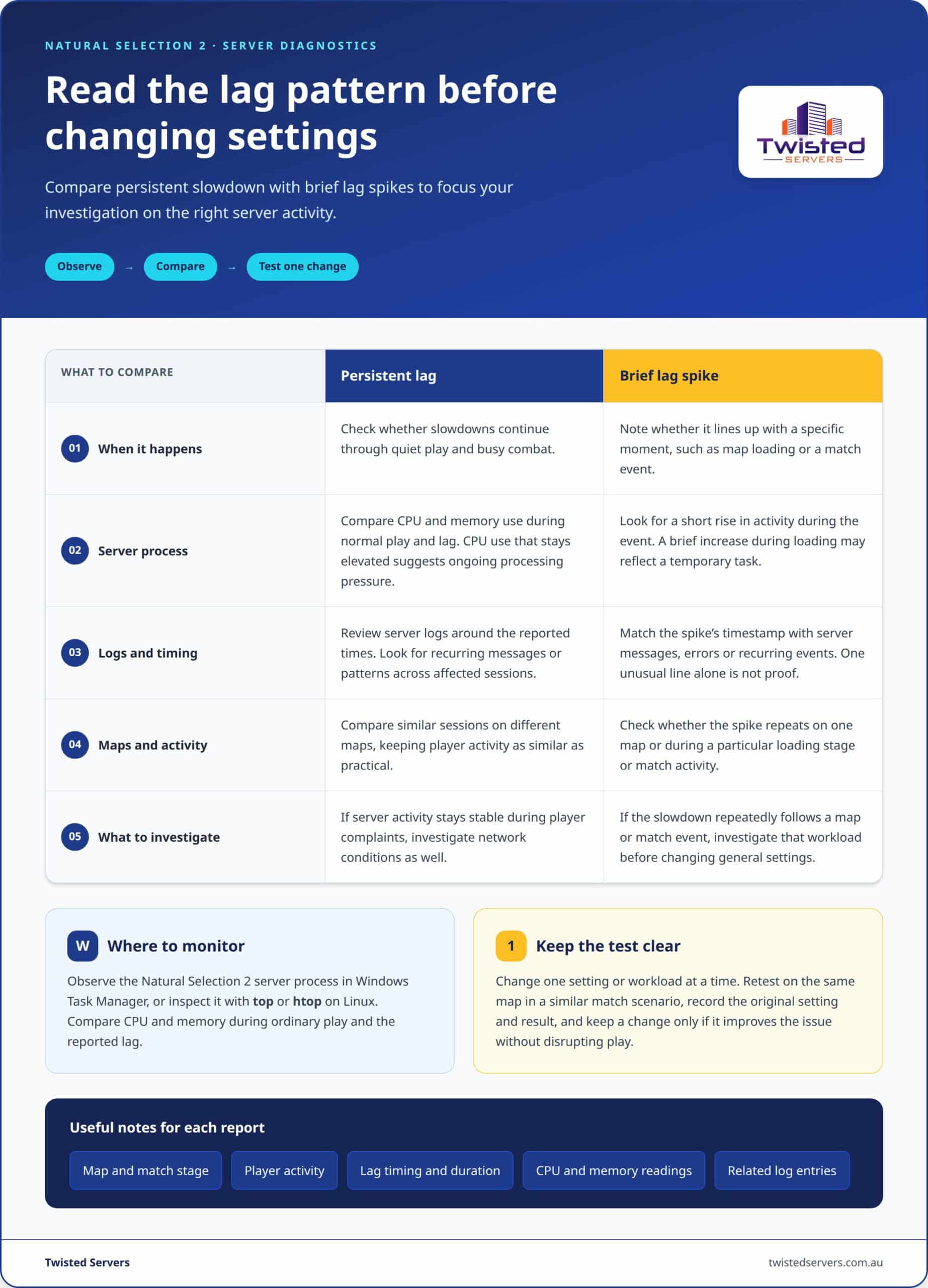
Use Natural Selection 2 server logs and operating-system monitors, such as Windows Task Manager or Linux top, to investigate lag. Minecraft’s Spark profiler is designed for Minecraft, so its commands don’t diagnose a Natural Selection 2 server.
- Record when the slowdown occurs. Note the map, match stage, player activity and whether the issue is constant or brief. A spike during map loading, for example, differs from repeated stutters during combat. Compare reports from players in the same match and note whether the delay starts at the same time. This timeline is useful when reviewing server logs and system activity.
- Monitor the server process during a spike. In Windows Task Manager, observe the Natural Selection 2 server process; on Linux, inspect it with
toporhtop. Compare CPU and memory use during normal play against the same measures during lag. A rise that matches player reports points towards server workload. Stable process activity during complaints suggests you should also investigate network conditions. - Review logs around the recorded time. Match the reported spike’s timestamp with server messages, errors or recurring events. Look for patterns, such as delays after a map change or during a particular match event. Don’t treat one unusual line as proof. A recurring message across affected sessions is stronger evidence than an isolated entry.
- Compare maps and loaded activity consistently. Run comparable sessions on different Natural Selection 2 maps, keeping player activity as similar as practical. Note the map, loading stage, entity activity and any visible distance or area changes associated with the slowdown. If one map repeatedly produces spikes while another does not, investigate map-specific workload before changing general server settings.
- Separate persistent load from isolated spikes. Check system activity during quiet play, busy combat and map transitions. CPU use that stays elevated suggests ongoing processing pressure, while a brief rise during loading may reflect a temporary task. Record the time, map and readings for each event. Change one setting at a time, then compare similar sessions to see whether the pattern changes.
Minecraft server ticks and TPS
Minecraft’s TPS terminology doesn’t establish a performance target for Natural Selection 2. Assess Natural Selection 2 using its own server behaviour and available measurements instead.
-
Understand server ticks and TPS
Treat TPS as a Minecraft-specific measure, not a universal score for every game server. For Natural Selection 2, compare server performance during similar match conditions and note when players report delayed actions or inconsistent updates. Use the server’s own logs and monitoring information where available; don’t interpret Minecraft metrics as Natural Selection 2 readings.
-
Compare recommended tick rates
Use a tick-rate target only when Natural Selection 2’s server software documents one. Don’t apply Minecraft’s 20 TPS target or its configuration values to this game. Instead, establish a baseline from comparable Natural Selection 2 sessions, then track changes during map loading, quieter play and busy combat. This helps you assess whether a setting affects the game without assuming an unsupported target.
- Keep measurements tied to the game. Record the map, match activity and the time players notice a problem. Compare those observations with Natural Selection 2 server logs and available system monitoring. A repeatable slowdown during the same type of activity is more useful than a Minecraft TPS reading, which describes a different game’s performance.
- Check the meaning of each metric. Before changing configuration, identify what a Natural Selection 2 server measurement represents and whether it reflects processing, network delivery or another condition. Don’t treat a general update rate as proof of server overload. Match the measurement to player symptoms and test any supported change under comparable conditions.
- Keep game-specific settings separate. Minecraft settings such as simulation distance and random tick speed do not tune Natural Selection 2. Use only configuration options documented for the relevant Natural Selection 2 server software. Change one option at a time and compare the result with your recorded baseline, so you can reverse a change that harms stability or gameplay.
Minecraft examples can help explain why a tick measurement needs context, but they are not Natural Selection 2 targets. A Minecraft server warning example reports that the server was running 22840ms, or 456 ticks, behind; the example warning said the server was 456 ticks behind. For Minecraft, the page describes performance as smooth when TPS stays above 19.5 and MSPT stays below 50 milliseconds. It also says sustained performance below 18 TPS is noticeable as lag. These values describe Minecraft, not Natural Selection 2, so they should not be used as pass-or-fail criteria for this game.
The examples also show why TPS alone can mislead: a Minecraft server averaging 65 milliseconds per tick is described as already being in trouble even if it maintains 19.8 TPS. Short, occasional drops to 18-19 TPS are usually considered acceptable for a Minecraft server, while sustained drops below 18 TPS are a different pattern. For Natural Selection 2, use such comparisons only to understand the limits of cross-game metrics. Keep conclusions grounded in the game’s own logs, monitoring and repeatable player symptoms, rather than importing Minecraft thresholds or warning interpretations.
Network lag versus server-side lag
Compare player symptoms with server activity before changing settings. In Natural Selection 2, delayed commands can come from network delivery or slow server processing.
- Compare reports from different players. Find out whether several players notice the same delay during the same match. If players using different connections experience it together, inspect server activity and network conditions. If one player reports delayed movement while others act normally, investigate that player’s connection first. For example, note whether their commands arrive late while nearby teammates see events update normally.
- Look for dropped packets and unstable latency. Use an in-game network display, if available, or connection statistics from the player’s system. Check for packet loss, sharp latency changes or an inconsistent connection during the incident. Even a stable server can feel unresponsive if updates arrive late or are dropped. Record when it happened and who was affected rather than relying on a single reading after the match.
- Compare network readings with server load. Match the time of a player’s report against CPU use, server logs and available performance monitoring. If several players report delayed commands as server activity rises during combat, processing may be contributing. If server activity stays steady but one player has unstable latency, focus first on that connection path. This comparison can prevent an unnecessary setting change from obscuring the cause.
- Check whether symptoms follow a location or route. Players in Australia may experience different latency depending on their location, ISP, routing and the server’s location. Compare reports from players on different connections, taking the match and timing into account. If the same player has trouble across matches, their connection may be relevant. If reports cluster around one server event, examine server-side activity at that time.
- Test one change at a time. If the evidence points to network conditions, don’t change server tick or simulation settings as your first response. If several players experience the same delay alongside increased server load, test one relevant server adjustment in a comparable match. Record the old and new settings, map and player symptoms. A repeatable improvement is more meaningful than a brief difference seen once.
Server configuration tuning
Tune settings only after identifying a repeatable cause in Natural Selection 2. RAM, storage and database changes help only when those resources limit the server.
- Match each change to measured resource pressure. Compare memory use, storage activity and CPU load under the same match conditions. More RAM won’t fix slow processing if memory isn’t under pressure. Likewise, faster storage won’t resolve a CPU bottleneck if storage activity remains steady. Record symptoms and measurements before editing the configuration, so each adjustment is based on evidence rather than assumption.
- Keep storage and database work in context. Identify whether the Natural Selection 2 server’s observed workload involves repeated disk access or database activity. Don’t tune a database that the server doesn’t use for the affected task. If storage activity rises during loading, compare that period with normal play. Separate loading delays from ongoing gameplay lag before considering storage changes.
- Preserve a known-good configuration. Save a copy of the current configuration before changing settings. Record the original value, why you changed it and the match conditions used for testing. Adjust one relevant setting at a time, then compare results under similar conditions. This makes it easier to reverse a change if it causes instability or worsens gameplay.
- Leave the tick rate unchanged unless the server supports a documented control. Tick rate is an application-level behaviour, not a general operating-system setting. Don’t force a new update frequency through an unrelated configuration value. For Natural Selection 2, retain the existing update behaviour unless its server software provides a supported setting and explains its effect on gameplay and stability.
- Test vanilla settings before adding complexity. Start from the server’s standard configuration, then apply one measured adjustment. Avoid copying values from Minecraft guides: Minecraft settings such as simulation distance and random tick speed belong to that game. They aren’t Natural Selection 2 tuning controls. After each change, compare loading, active play and any reported lag, then restore the previous configuration if performance or stability declines.
These steps help distinguish resource limits from unsupported configuration changes. A measured, reversible test is safer than changing several settings at once or trying to raise the server’s tick rate without an application-supported control.
Twisted Servers
Twisted Servers offers game server hosting, VPS hosting and dedicated server hosting for different hosting requirements. Game server hosting is available for supported games listed on our website; check the catalogue before choosing a service. Your findings, including when lag occurs and which resources are under pressure, can help guide the right direction. For Australian players, server location may also affect latency, depending on player location, ISP and routing. If you’re weighing up hosting after diagnosing performance issues, explore our game server hosting options. For help with your next step, contact Twisted Servers.
Make your next server change count
Keep a brief record of each adjustment, why you made it and what changed during a comparable session. This gives you a clearer basis for keeping a setting, reverting it or investigating another cause. A measured approach to reducing server tick rate lag can also help you avoid adding RAM or CPU capacity before confirming that it addresses the problem.
If your findings point to hosting capacity, Twisted Servers offers VPS Hosting and Dedicated Server Hosting. The right option depends on your setup and what the performance evidence shows. When seeking help with your server, share the symptoms and checks you’ve completed so the discussion can focus on the issue you need to solve.
Contact Twisted Servers for server help and take the next step with a clearer understanding of your server’s needs. A careful change, supported by useful observations, is a sound place to start.
Frequently Asked Questions
Do more RAM and a better CPU always fix Natural Selection 2 lag?
No. More memory helps only if the server is short of available memory, and extra CPU capacity helps only if processing is the limit. Check whether the slowdown coincides with memory pressure, sustained processor activity or another condition. If the issue began after a software update, compare the same map and workload before and after the update. This can help distinguish a resource limit from a new software-related problem.
How do I know if Natural Selection 2 lag comes from the server or my connection?
Compare your experience with another player using a different connection during the same match. If they can act normally while your inputs feel delayed, investigate your connection and route to the server. If several players notice the same effect at once, check server-side events and logs around that time. Record what happened before restarting, because a restart may remove useful diagnostic context.
What tick rate should a Natural Selection 2 server maintain during normal play?
Use a target only if it is documented for the Natural Selection 2 server software and version you run. A figure intended for Minecraft or another game doesn’t establish the right target here. Keep the server version and any relevant configuration details with your performance notes. That makes it easier to interpret measurements against the correct software rather than an unrelated game’s settings.
What tick-rate value is considered good for a Natural Selection 2 server?
There isn’t a universal value that can be applied to every Natural Selection 2 setup without reference to its server software. Assess whether gameplay remains consistent and whether the server’s own indicators stay within documented expectations. If a measurement changes after an update or configuration edit, compare it with a baseline from the same software version. Don’t label a value as good solely because it matches another game’s target.
Why does Natural Selection 2 lag only when specific players are online?
A player joining may coincide with an activity, map state or connection condition that affects the session. Their arrival alone doesn’t establish the cause. Note whether the issue begins when they join, after a map transition or during a particular sequence of play. Compare sessions under similar conditions and review relevant server messages. This keeps diagnosis grounded in observable events rather than assumptions about an individual player.
What causes server tick-rate lag in Natural Selection 2?
The cause may be server workload taking longer to process, a resource constraint, software behaviour or network delivery problems that feel like server lag. Updates can also change server behaviour, so note the version running when investigating a new issue. Treat each as a possible cause, not a diagnosis. The next useful step is to connect the reported symptom with a repeatable event or measurement.
How do you measure Natural Selection 2 server performance and identify lag spikes?
Use monitoring and log information that applies to the Natural Selection 2 server software, alongside operating-system resource readings. Keep timestamps for player reports, map changes, server messages and noticeable performance changes. Reviewing those records together can show whether a spike coincides with a specific event. Store observations from separate sessions so you can distinguish a recurring pattern from an isolated disruption.
How can you optimise Natural Selection 2 settings and plugins to reduce lag?
Use only configuration options documented for the Natural Selection 2 server software you run. Don’t apply Minecraft settings or assume this server supports a particular plugin system. If the setup includes add-ons, assess their role and compatibility with the current server version before changing them. Keep a copy of the existing configuration and test one documented adjustment at a time, so any unwanted effect can be traced and reversed.
Disclaimer
Game titles, trademarks, logos and related assets are the property of their respective owners. Twisted Servers is an independent hosting provider and is not affiliated with or endorsed by the developers or publishers of the games mentioned unless otherwise stated. Information is provided as a general guide and may change as games, software and hosting services are updated.

