
Recommended Services


Supported Scripts

A dedicated server can give your convoy a consistent place to meet and let you manage how sessions are set up. American Truck Simulator’s Convoy mode supports up to 8 players, making it a practical option for groups who want to travel together regularly.
Choosing a plan isn’t just about picking a server and starting the game. You’ll want to match the hardware to your session, understand how mods affect setup, and configure access so your group can connect smoothly. This guide explains why you might host a server, how to select and configure a plan, what to consider when comparing prices, and how network settings, ports and hardware fit together. With those basics in hand, you can make a clear choice for your Australian convoy and set up a server that suits the way your group plays.
Key Takeaways
- Decide whether a dedicated session suits your group, then plan how you’ll manage mods and keep players’ mod versions aligned.
- Configure the server name, password, welcome message and session settings to match how you want your convoy to play.
- Compare hosting plans by their included resources, location and any add-on costs, not price alone.
- Set the required network rules so players can find and join the server, with separate ports and logon tokens for simultaneous server instances.
- Choose RAM, CPU and storage based on your server workload, including the extra space mods may need.
Why Host an American Truck Simulator Game Server?
Rent a server if you want a shared session without maintaining the host machine yourself. Self-hosting suits someone comfortable managing software, network access and updates. Your choice depends on how much control you want and who will handle server tasks.
- Choose who manages the dedicated server. Renting gives your group a server hosted separately from a player’s gaming computer, while self-hosting means you manage the server environment. A virtual private server is one option for a self-managed setup, with the required resources and server software configured for your use. virtual private server hosting is relevant if you want to manage a server environment yourself. Factor in updates, configuration and troubleshooting, not just the initial setup. For a small group that plays occasionally, Convoy may be enough: American Truck Simulator supports up to 8 players travelling together. A dedicated server can suit a group wanting a consistent session that does not depend on one player hosting from their game.
- Plan mod management before inviting players. Community-created mods can change gameplay, but compatibility depends on everyone using matching mod versions. Agree on the mod list and versions before a session. When you add or remove mods, generate the server package files again so the server reflects the updated setup. For a migration, keep a copy of the existing configuration and mod list, then transfer the required files and test the new setup before players join. This reduces confusion when a familiar session behaves differently after moving.
- Set clear rules and access controls. The main practical risks are mismatched game or mod versions, incorrect configuration, and network settings that stop players connecting. Decide who can administer the session and assign moderators only to trusted players. Use a password if you want to limit access, and write down the server name and session details for your group. These steps help keep a private convoy organised without promising that every connection issue can be prevented.
- Use support and community resources for specific problems. Match the help source to the issue: game settings and Convoy behaviour belong to American Truck Simulator resources, while server installation or hosting environment problems need server support. Steam community discussions can help with game-specific questions, but compare advice with your current game version before applying configuration changes. If you depend on help outside your usual play hours, 24/7 customer support can matter when a server problem interrupts a session. Keep a concise record of the error, recent changes and affected players to make troubleshooting more focused.
Purchasing and configuring a server plan
A suitable American Truck Simulator server hosting plan should fit your convoy and the level of control you want. Before opening the server to players, plan the software installation, file locations and settings.
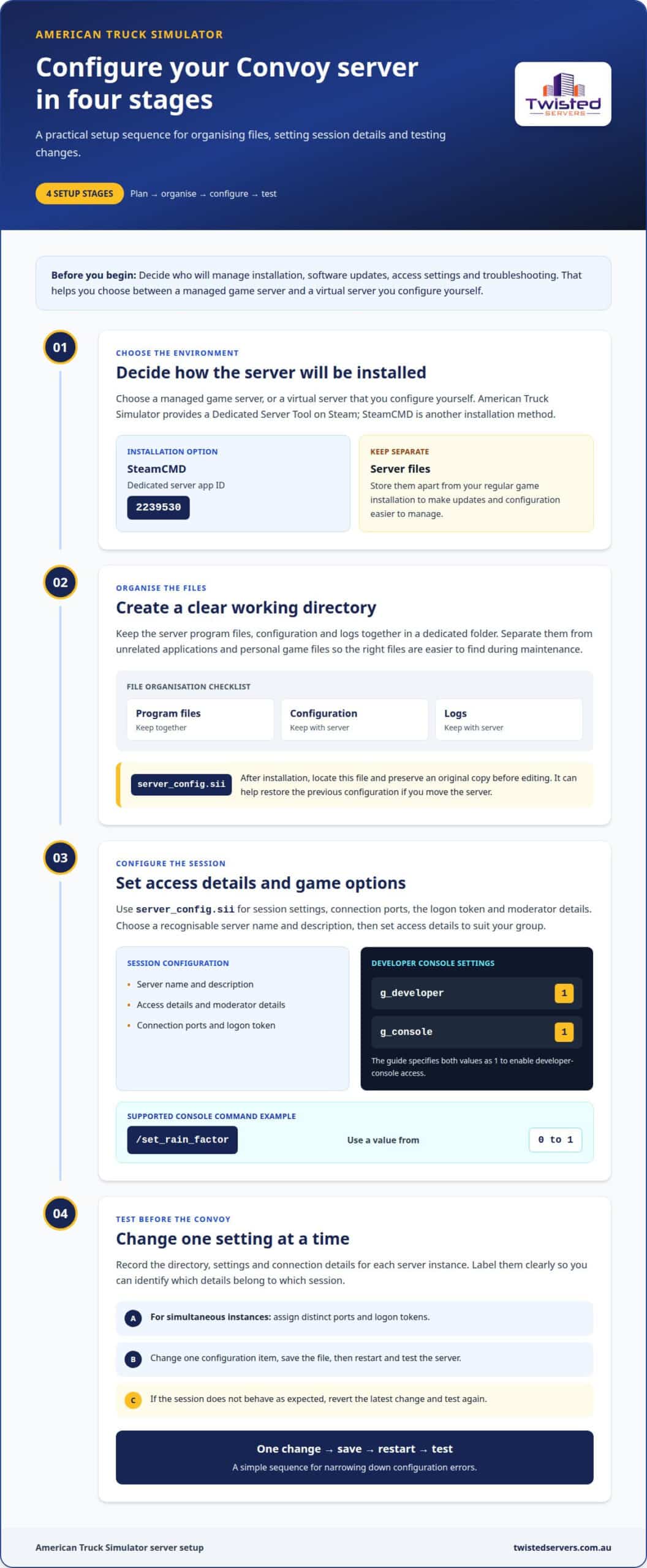
- Choose the environment and installation method. Decide whether you want a managed game server or a virtual server that you configure yourself. American Truck Simulator provides a Dedicated Server Tool on Steam. SteamCMD can also install the dedicated server using app ID 2239530. Keep server files separate from your regular game installation. This makes updates and configuration changes easier to manage. Before purchasing, consider who will handle installation, software updates, access settings and troubleshooting. Those responsibilities help determine which plan suits your group.
- Organise the server’s files and working directory. Create a dedicated folder for the server program files, configuration and logs. Keep it separate from unrelated applications and personal game files. A clear folder structure helps you identify the correct files during maintenance. Once installed, locate
server_config.siiand preserve an original copy before editing. If you move the server, that copy can help restore its previous configuration. Keep downloaded server files together so updates don’t leave you working from an outdated directory. - Set the session details and game configuration. Use
server_config.siifor session settings, connection ports, the logon token and moderator details. Choose a recognisable server name and description, then set access details to suit your group. The game configuration file also controls developer-console access: the guide specifiesg_developerset to1andg_consoleset to1. With the console enabled, moderators can use supported commands, including/set_rain_factorwith a value from0 to 1. - Test each change before the convoy uses it. Before committing to American Truck Simulator server hosting, record the directory, settings and connection details for each instance. Simultaneous instances need distinct ports and logon tokens, so label these clearly in your notes. Change one configuration item at a time, save the file, then restart and test the server. If the session doesn’t behave as expected, revert the latest change and test again. This method helps identify configuration errors without changing several settings at once.
Recommended hosting providers and prices
Compare plan costs, billing periods, server locations and support terms before choosing an ATS host. For Australian players, location and network routing can affect how responsive a convoy feels.
-
Compare Hosting Plans and Prices
Compare the monthly rate with the plan’s billing period and included resources. A monthly figure may apply only when you commit to a longer subscription, so read the renewal terms before selecting it. Check whether the plan is for game server hosting or a general-purpose virtual server. Those options can differ in how much setup and ongoing management you handle. Also identify optional extras, such as a dedicated IP or management add-on, and include them in your comparison. Avoid judging value from a low introductory rate alone. For a stable convoy, the useful comparison is the full recurring cost against the resources and management features you need.
-
Review Server Locations
Shortlist providers that publish Australian or Asia-Pacific server locations. That is the direct answer for an Australian convoy: compare hosts with infrastructure in Australia or nearby regions, rather than assuming every provider offers local coverage. Server distance can affect latency, but player location, internet service provider and network routing also matter. A location label alone cannot predict the experience for every player. Compare the listed region with where your group usually connects from, then consider whether a nearby alternative could suit players travelling across Australia or Asia-Pacific. Choose based on your group’s routes and connection needs, not the landscapes shown in promotional screenshots.
-
Assess Reviews, Uptime and Refund Policies
Read recent reviews for details about server stability, support responses and recurring connection problems. Give more weight to reviews describing actual ATS sessions than broad claims about general hosting. Read the wording of any uptime guarantee, including what it covers and how service interruptions are handled. Then find the refund policy and note its eligibility conditions, time limits and exclusions. These terms help you understand the commitment before subscribing. Avoid treating a guarantee as proof that downtime cannot happen. Check whether reviews mention billing changes or cancellation experiences, as these can reveal practical issues that a performance rating may not capture.
- Match the rental period to your convoy. Compare monthly billing with longer subscription periods, and note when each term renews. A shorter commitment can suit a new session while you test player interest; a longer term may suit an established convoy that uses the server regularly. Work out the full cost across the chosen rental period, including optional features, before deciding. Check cancellation and refund conditions alongside renewal dates. This makes it easier to switch plans if your group’s schedule, preferred landscapes or hosting needs change.
Port forwarding and firewall rules
For a self-hosted ATS server, router forwarding and firewall rules help direct connection traffic. Set them to match the server’s network configuration.
- Identify the server’s configured ports. Check your server’s documentation for the ports and protocols it requires, then configure forwarding accordingly. Another setup guide recommends opening UDP ports 27015 and 27016. Treat these as the documented ports to consider, then match the rules to your server configuration. Don’t open unrelated ports as a shortcut. If you run multiple instances, use each instance’s configured ports, rather than forwarding every connection to one server.
- Forward the required traffic through your router. Sign in to the router and navigate to its port-forwarding or virtual-server settings. Create rules for the relevant protocols and ports, pointing to the local network address of the computer running the server. For example, a UDP rule for port 27015 must direct traffic to the server machine, not another device. Save the changes and keep a note of each rule, so you can review it after network or hardware changes.
- Allow matching traffic through the device firewall. Router forwarding and a computer firewall are separate controls. If the router sends traffic to the server, the operating system firewall must also allow the relevant server application or ports. Add only the rules needed for the configured session. An overly broad rule can expose services unrelated to ATS. After installing or updating server software, review firewall prompts and confirm they refer to the correct application and network profile.
- Check public access and network address translation. A server needs public IP access or port forwarding to appear in the session browser. Direct search can still work behind NAT, but that does not guarantee browser visibility. NAT translates between a private network address and an internet-facing connection. If players can’t find the session, check that forwarding targets the server’s current local address and that the public connection reaches your router. A changed local address can leave an old rule pointing at the wrong device.
- Test connections after each network change. Start the server after saving the router and firewall rules, then have a player outside your local network try joining. Testing from the same home network may not show whether external forwarding works. If the connection fails, check the configured ports, protocols, firewall permissions and destination address in that order. Re-test after router changes or a server update. Change one rule at a time, so the cause of a connection problem stays clear.
RAM, CPU and NVMe storage specifications
- Size RAM for the server workload. A listed minimum for an ATS or ETS2 dedicated server is 2 GB of RAM. The listed recommendation is 4 GB or more. Treat the minimum as a starting point, not a target for every setup. Mods, extra server processes and other applications also use memory. If you plan to run more than the game server, include those workloads when choosing a plan. Leave enough headroom for normal operation, rather than allocating all available RAM to the server. If memory becomes constrained, reduce other workloads or adjust the plan’s resources.
- Match the processor to the tasks. A quad-core processor is the listed CPU recommendation for an ATS or ETS2 dedicated server. Processor capability matters alongside core count, particularly when the same machine runs other applications. Don’t treat a powerful processor name as a complete performance measure. Look at the server workload, concurrent processes and available memory together. For example, a quad-core processor may suit a dedicated game server, while additional applications can change the overall resource demand. Keep the operating system and server software workload in your plan.
- Allow storage for files and mods. The listed minimum storage requirement is 5 GB. Recommended storage is 10 GB or more when using mods. These figures help set a baseline, but the server’s actual files and other installed software also take space. NVMe SSD storage describes the storage type, not the total capacity. Check both the drive technology and the amount of space provided. A 100 GB NVMe storage option is listed in some server plans, but compare the complete plan rather than assuming that capacity comes with every host.
- Review usage, then adjust resources. Start with the listed 4 GB or more of RAM, quad-core CPU recommendation and 10 GB or more storage guidance for mods. Then consider what your friends will run alongside the ATS server. Monitor resource use during a typical session, especially after adding mods or other applications. If memory or storage becomes tight, remove unused files or increase the relevant resource. Avoid paying for capacity your setup won’t use, but don’t plan around minimum requirements if your workload exceeds them. For an option without self-managing the hardware, compare game server hosting options against these requirements.
Twisted Servers
Twisted Servers offers Game Server Hosting, VPS Hosting and Dedicated Hosting. Consider how much control you want, who will manage configuration, and whether the machine needs to run other applications. These factors can help you choose an arrangement suited to your convoy without taking on more administration than you need.
If you’re planning a new convoy or moving an existing setup, bring your priorities and configuration needs into the conversation. We can help you understand which hosting approach fits your plans. Contact Twisted Servers to discuss your requirements.
Plan your next convoy session
Decide how much setup you want to manage and what your convoy needs from the server. American Truck Simulator server hosting can suit different approaches, from game server hosting to a more self-managed server. Your preferred configuration, workload and willingness to handle ongoing administration can guide your choice.
Before choosing, write down who will handle updates, access and routine troubleshooting. If you’re moving an existing setup, note what your group needs to keep consistent. These details give Twisted Servers a useful starting point for helping you choose a suitable hosting option.
Contact Twisted Servers about hosting to discuss your requirements and take the next step with confidence.
Frequently Asked Questions
What’s included?
Distinguish the game’s dedicated server software from the hosting service: the software runs the server, while hosting provides an environment for it. Before choosing, review the plan details for access, resource allocation, billing and management. Don’t assume backups, mod installation or ongoing maintenance are included unless the plan states so.
Does American Truck Simulator support dedicated servers or multiplayer hosting?
A dedicated server can run without owning the game, but obtaining its Steam gameserver logon token requires game ownership. These are separate requirements: running the server software and obtaining the token it uses. Keep this distinction in mind if one person manages the server while another handles the Steam account and token.
What are the best American Truck Simulator server hosting providers?
Choose hosting that specifically lists American Truck Simulator rather than assuming a general game server plan supports it. Twisted Servers lists American Truck Simulator in its game server catalogue. Consider who will manage updates, account access and troubleshooting, and choose according to your convoy’s needs and preferred level of control.
How many players can an American Truck Simulator server support?
The game’s convoy limit determines session size; hosting cannot increase it. If your community exceeds the limit for one session, coordinate separate departures and decide who joins each. Estimate attendance before selecting hosting, rather than assuming additional server capacity creates more places in the game.
What hardware and bandwidth are recommended for hosting an ATS server?
Consider the full workload, not just the server application. Operating system tasks, file transfers and other software also use resources. Bandwidth allowance refers to how much data can be transferred, while network capacity refers to how quickly it can move. For a mod-heavy setup, account for file distribution as well as player connections, and consider whether other applications will share the server.
How do you set up and configure an American Truck Simulator multiplayer server?
Make sure the server and players use compatible game versions. If your group needs a different version, select the matching Steam beta branch for both the server and players. Agree on the version before a scheduled convoy, then test access with a small group to avoid players joining on different branches.
What ports, firewall settings and network requirements does ATS hosting need?
Network setup depends on where the server runs. A home-hosted server may require router configuration, while a hosted server uses its hosting network. In either case, allow only the traffic needed for ATS and avoid broad firewall rules that expose unrelated services. If connections fail, identify whether the restriction is on the host computer, router or hosting network before changing settings.
How much does American Truck Simulator server hosting cost in Australia?
The base hosting price depends on the plan.
Disclaimer
Game titles, trademarks, logos and related assets are the property of their respective owners. Twisted Servers is an independent hosting provider and is not affiliated with or endorsed by the developers or publishers of the games mentioned unless otherwise stated. Information is provided as a general guide and may change as games, software and hosting services are updated.

