
Recommended Services


Supported Scripts

To let friends join a Left 4 Dead 2 dedicated server, make it reachable from their connection and share the server address and required connection details privately. You can host from home by configuring your network, use a private network for invited players, or run the server remotely. The right approach depends on your connection, the access you want to manage and how much server administration you’re comfortable handling.
Getting the server online is only the first step. You’ll also need to organise its files, manage access, install updates and test custom content before a co-op session. A little preparation can help you catch connection and configuration problems before your friends are ready to play.
This guide walks through the setup process, including the choice between hosting at home and using a remote server. It also covers practical maintenance so you can build a co-op server that suits your group and keep it ready for future sessions.
Key Takeaways
- Make your server reachable by sharing the correct connection details, and learn what to do if home port forwarding isn’t suitable.
- Choose Minecraft RAM based on the server’s player activity and whether you plan to add plugins or mods.
- Customise gameplay carefully by checking that your server software and chosen mods or plugins are compatible.
- Protect your world and manage access with a backup routine, a whitelist and a clear update process.
- Compare running a server at home with using game server hosting, a VPS or a dedicated server.
How do I let my friends join my game server?
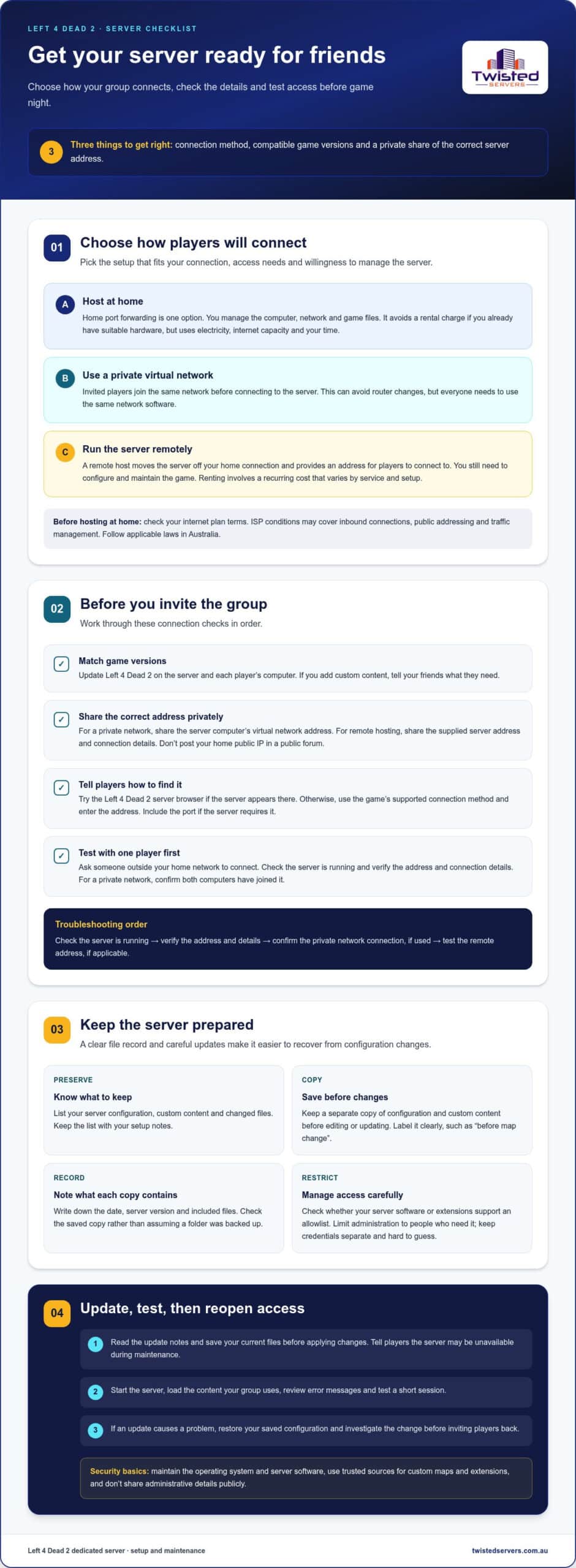
For a game server setup for beginners, first choose how friends will reach the Left 4 Dead 2 server. Home port forwarding is one option; a private virtual network or remote host can avoid forwarding through your router.
Hosting at home avoids a rental charge if you already own suitable hardware, but it uses electricity, internet capacity and your time. Renting involves a recurring cost that varies by service and setup. In Australia, check the terms of your internet plan and follow applicable laws. ISP conditions may cover inbound connections, public addressing and traffic management.
- Choose a connection method. A private virtual network can connect the computers of invited players. Each person joins the same network before connecting to the server. Alternatively, use a remote host outside your home network, which provides an address for players to connect to.
- Consider how much administration you want. With a home server, you manage the computer, network and game files. A remote host moves the server off your home connection, but you still need to configure and maintain the game. Choose the approach that fits your technical comfort and available time.
- Set up a private network for a trusted group. Choose network software that allows invited devices to connect privately. Each player installs it and joins your network. Share access details directly with your co-op group. This can avoid router changes, but everyone needs to use the same network software.
- Keep the game versions compatible. Update Left 4 Dead 2 on the server and each player’s computer. If you add custom content, tell your friends what they need. Test with one player first. This game server setup for beginners is easier to troubleshoot when you change one setting at a time.
- Share the right address privately. For a private network, give friends the server computer’s virtual network address. For remote hosting, share the supplied server address and connection details. Don’t post your home public IP in a public forum. Share it only with invited players.
- Help friends find the server. Use the Left 4 Dead 2 server browser if the server appears there. Otherwise, use the game’s supported connection method and enter the address. Include the port if the server requires it. Ask a friend to join while the server is running.
- Test and troubleshoot before game night. Ask someone outside your home network to connect. Check that the server is running, then verify the address and connection details. For a private network, make sure both computers have joined it. For remote hosting, test the supplied address before inviting the group.
Backups, whitelists and updates
Use a simple maintenance routine for your Left 4 Dead 2 server: preserve its files, manage who can access it and apply updates carefully. Avoid relying on a whitelist or security setting unless your chosen server software or installed extension supports it.
- Identify the files you need to preserve. For Left 4 Dead 2, make a list of your server configuration, custom content and any files you’ve changed. Keep the list with your setup notes. That makes it easier to find the right material if you need to rebuild the server.
- Copy the files before making changes. Save a separate copy of your current configuration and custom content before editing or updating. Store it away from the active server files, and give it a clear label, such as “before map change”, so you know why you saved it.
- Keep a simple backup record. Write down the date, the Left 4 Dead 2 server version and the files included in each copy. This helps you choose a suitable set of files if a later change causes trouble. Don’t assume a folder is backed up unless you can see it in the saved copy.
- Check whether access controls are supported. Review the documentation for your chosen Left 4 Dead 2 server software and any installed extensions. If an allowlist is supported, add only the players you intend to admit. If it isn’t supported, use the access controls the software actually provides.
- Limit who can administer the server. Give management access only to people who need it, and use separate, hard-to-guess credentials for administration. Don’t share administrative details in a public gaming forum. Remove access when someone no longer helps manage the server.
- Reduce common security risks. Outdated server files, weak credentials and untrusted downloads can expose a Left 4 Dead 2 server or its host computer to problems. Keep the operating system and server software maintained. Use custom maps and extensions from sources you trust.
- Prepare before applying an update. Read the update notes for the Left 4 Dead 2 server software and note any changes affecting your setup. Save the current files first. Tell your players before maintenance, so they know the server may be unavailable while you apply and test the update.
- Test the updated server before reopening access. Start Left 4 Dead 2, check that the server launches and load the content your group uses. Review any error messages and test a short session. If the update causes a problem, use your saved copy to restore the previous configuration and investigate the change.
How much RAM does a Minecraft server need?
- Plan around Left 4 Dead 2, not a generic game estimate. The memory needed depends on the server software, operating system and other processes running on the same machine. Don’t assign a fixed amount based on a Minecraft guide. Use the requirements for your chosen Left 4 Dead 2 server setup.
- Choose how you’ll run the server. A dedicated machine running only the server has different resource demands from a computer also used for gaming or everyday tasks. List what else will run alongside Left 4 Dead 2. Leave enough memory for those applications and the operating system.
- Start with a clean configuration. Install the Left 4 Dead 2 server files and run the server without custom content first. This gives you a useful baseline. Avoid adding plugins, custom campaigns and other changes before you know how the original configuration behaves.
- Watch memory during a co-op session. Use your operating system’s process monitor to see how much memory the server process uses. Check while the server is idle and again during play. Compare both readings with the total available memory and the needs of other active processes.
- Check for memory pressure, not one isolated reading. A computer may slow down when the operating system has little free memory or begins using storage as temporary memory. Look for repeated slowdowns during a Left 4 Dead 2 session. Close unrelated applications, then test again before changing the server configuration.
- Add custom content in separate tests. Install one campaign or server modification, restart Left 4 Dead 2 and monitor resource use during play. Record what changed. If the server’s memory use or stability shifts after that addition, test without it to help identify the cause.
- Allow room for the whole machine. Don’t allocate every available resource to the server process. Left 4 Dead 2 runs alongside the operating system and any required background services. A home computer may also run a browser, voice chat or other games, each competing for memory.
- Adjust only after testing your group’s setup. Compare resource use across typical sessions, including the maps and custom content your group actually plays. If memory pressure continues, reduce other processes or move the server to a machine with more available capacity. Retest after each change.
Customising servers with mods and plugins
- Decide what you want to change. Left 4 Dead 2 customisation can affect maps, rules, campaigns or server administration. Write down the intended changes before installing files. For example, a co-op group might want a custom campaign, while an administrator may want extra server controls. This keeps unrelated changes out of the setup.
- Separate custom maps from server plugins. A map changes the playable environment; a plugin changes server behaviour. Steam Workshop is one route players use to find Left 4 Dead 2 addons. SourceMod and MetaMod:Source are server-side frameworks used for plugins. These are different tools, so don’t treat a map addon as a server plugin.
- Check each addon’s instructions first. Read the installation notes for the exact Left 4 Dead 2 addon. Confirm whether it needs files on the server, players’ computers, or both. Note required dependencies and configuration changes. If an addon names a specific SourceMod or MetaMod:Source version, follow that requirement rather than guessing.
- Keep a clean copy of the server files. Before installing an addon, copy the current configuration and relevant folders. Use a separate test installation where possible. Add one item at a time, then start the server and test a co-op session. If the server fails after a change, you can isolate the cause more easily.
- Install server-side plugins in their documented locations. SourceMod plugins generally belong in the server’s plugin directory, with configuration handled as the plugin documentation directs. Follow the instructions for each plugin. Don’t place files based only on their names, as incorrect placement can prevent a plugin from loading.
- Tell players what custom content they need. Share the campaign or addon name, its source and any setup steps. For a Steam Workshop item, give players its exact title so they can find the intended content. Test with a friend before the session to catch missing files or mismatched content before the group joins.
- Test gameplay after every change. Launch Left 4 Dead 2, load the intended campaign and check the server console for errors. Ask a player to join and confirm the map loads correctly. If a plugin changes gameplay, test its effect during a real co-op round. Remove or disable the latest change if it causes problems.
- Update custom content deliberately. Record the addon name, version and installation steps in a simple text file. Before updating Left 4 Dead 2 or a plugin framework, check the addon’s documentation for compatibility notes. Keep the previous working files until the updated server launches and your group can complete a test session.
Finding a public IP and forwarding ports
A game server setup for beginners often starts with a home connection, a server computer and a router. For friends to connect to your Left 4 Dead 2 server from outside your home, they need a reachable public address and the server’s connection port.
- Find the server computer’s local address. Open its network settings and note its private address. This address works within your home network, but friends elsewhere can’t use it to reach your server over the internet.
- Find your public IP address. Check the internet or status page in your router settings for its external address. Compare it with the address shown by an internet address lookup. If they differ, your connection may use carrier-grade NAT, which can prevent incoming connections.
- Check your router and internet plan. Find the router’s port-forwarding settings and review your ISP’s terms for inbound connections and public addressing. A forwarding rule alone won’t resolve carrier-grade NAT. If your connection can’t receive incoming traffic, a private network or remote server may work better for your group.
- Identify Left 4 Dead 2’s listening port. Check the dedicated server’s startup settings or documentation for its configured port and protocol. Forward those details, not a port used by another game. For example, Minecraft’s default port is 25565, but that number isn’t a Left 4 Dead 2 setting.
- Forward the required traffic to the server. In your router, direct the game’s incoming traffic to the server computer’s local address. Reserve that address in the router if the option is available. Otherwise, the address could change, leaving the forwarding rule pointed at the wrong device.
- Allow the server through the computer firewall. Create a rule for the dedicated server application or the specific traffic it needs. Keep the firewall enabled instead of turning it off entirely. A game server setup for beginners should allow only the traffic the server requires.
- Test the connection from outside. Ask a friend using another internet connection to join with your public address and the server port. Testing from the server computer itself may not reveal whether outside connections work. If the test fails, review the address, port, protocol and firewall rule.
- Check upload capacity and data use. A guide recommends at least 5 Mbps upload speed for hosting a game server. Upload capacity is shared with activities such as video calls and cloud backups. Check your Australian internet plan’s data allowance and monitor usage during play and game updates.
- Consider remote hosting if home access is blocked. A remote server avoids forwarding incoming game traffic through your home router. If you’d prefer that route, compare game server hosting with managing the connection yourself.
Twisted Servers: Game Server Hosting
Twisted Servers offers Game Server Hosting for players who’d rather not manage server hardware and home-network settings themselves. If you want more control over the server environment, VPS Hosting and Dedicated Hosting are also available, but they require you to manage more of the setup.
For a Left 4 Dead 2 co-op server, consider how much server administration you want to handle, and whether running it at home suits your internet connection and routine. Hosting location can affect connection latency for Australian players, depending on their location, ISP and network routing. Compare the Game Server Hosting details with your preferred setup to see which approach fits.
If you’d like to discuss a hosting option for your co-op server, contact Twisted Servers.
Choose a setup that suits your next session
Your first server doesn’t have to be your final setup. Start with the game and configuration your group wants, then decide how much time you can spend maintaining the machine and network. A game server setup for beginners works best when you choose a manageable starting point and add complexity only when it benefits your group.
If you’d rather not run a server at home, Twisted Servers offers Game Server Hosting, VPS Hosting and Dedicated Hosting. These options provide different levels of control and administration. Consider whether you want game hosting or are prepared to take more responsibility for configuring the server environment.
Take the next step with a clear picture of your game, group and hosting preference. Contact Twisted Servers to discuss your setup, then make a plan that lets you focus on playing together. Your first co-op session can be the start of a server that grows with your community.
Frequently Asked Questions
What hardware and internet connection do beginners need to host a game server?
You need a computer or hosted server that can run the chosen game’s dedicated server software, plus a stable internet connection with suitable upload capacity. Requirements depend on the game, player activity and added content. For a home setup, check your connection’s upload performance and data allowance, then leave enough computer resources for its operating system and other tasks. A computer running both the server and your game may need more capacity.
How do you set up a dedicated game server step by step?
Start by choosing the game and checking its dedicated-server instructions. Prepare a separate installation folder, install the server files using the game’s supported method, then set the map, mode and access options. Configure the firewall and network path if players will connect over the internet. Launch the server, test it from another device, and record the working settings. For Left 4 Dead 2, test your chosen campaign before inviting your co-op group.
What are typical game server hosting prices in Australia?
Australian hosting costs vary by game and the resources or administration included in a plan. Compare options using the same game and requirements, and check whether the plan covers the server environment you need. For Twisted Servers, the price depends on the selected game and requirements, with pricing provided after a quote request. Avoid comparing a game-specific hosting plan directly with a virtual or dedicated server unless their included resources match.
How do you configure port forwarding and firewall rules for a game server?
First, identify the port and protocol used by the game server from its configuration or documentation. In your router, forward that traffic to the server computer’s local network address. Then allow the required traffic through the computer’s firewall instead of disabling it. Keep the local address consistent and test from a separate internet connection. A router rule won’t resolve restrictions on incoming connections imposed by your internet service.
How can players connect to a privately hosted game server?
Give invited players the server’s reachable address, connection port and any password they need. For Left 4 Dead 2, they can look for the server in the game browser or use the game’s supported direct-connect method. Make sure the server is running and players have compatible game versions and required content. Share access details privately, especially when using a home network’s public address.
How do you back up, update, and maintain a game server?
Keep copies of the server configuration, custom content and other files that define your setup. Store backups separately from the active server, and note which game version each one matches. Before updating, stop the server and preserve its current files. After the update, launch the server and test a map with a player. Keep a brief maintenance record of changes, errors and restored files to make future troubleshooting easier.
Which games are easiest to host a server for beginners?
The guide presents Left 4 Dead 2 as a game server setup for beginners, but does not compare which games are easiest to host.
Is it cheaper to host a game server at home or rent one?
Hosting at home avoids a rental charge if you already own suitable hardware, but it uses electricity, internet capacity and your time. Renting involves a recurring cost that varies by service and setup.
Disclaimer
Game titles, trademarks, logos and related assets are the property of their respective owners. Twisted Servers is an independent hosting provider and is not affiliated with or endorsed by the developers or publishers of the games mentioned unless otherwise stated. Information is provided as a general guide and may change as games, software and hosting services are updated.

