
Recommended Services


Supported Scripts

To learn how to manage a Palworld server, install the dedicated server, set its connection port to 8211 UDP, and configure your network so players can reach it. A dedicated server supports up to 32 players; save data lives in Pal/Saved/SaveGames/, which you should copy at least daily. For a server running on your own computer, connect using 127.0.0.1:8211.
Can’t connect? The server may be running, but a blocked firewall rule or router setting can still stop players from joining. This guide covers setup, access settings, local IP connections and troubleshooting, then explains how to back up and restore your world.
You’ll also learn the practical differences between self-hosting and managed game server hosting. Self-hosting gives you direct control over the machine and its configuration, while managed hosting can reduce the hands-on work of running a server. Follow the steps in order to bring your server online and protect saved progress.
Key Takeaways
- Set the server’s port and privacy options, then restart it to apply configuration changes.
- Use the local IP and port to test a server on your own computer, and troubleshoot connection blocks through firewall and router settings.
- Copy the world’s save data at least daily so you have a recent backup to restore if needed.
- Install the dedicated server through SteamCMD, then configure access and network settings for players.
- Compare self-hosting’s hands-on control with managed hosting’s reduced server administration to choose the approach that suits your group.
Setting startup options for private and public servers
Choose access settings before inviting players, then configure the server for your group. For a small group, start with a private server and test its settings before opening access more widely.
Set startup options for server access
Set the startup port to 8211 UDP and choose a player limit. The private and public startup examples use a limit of 4 players. A dedicated server can support up to 32 players, so set a limit that suits your group. Keep the port and limit consistent with your server config, and avoid exposing a private session without password protection.
- Choose a private or public setup, then set the player limit for your intended group.
- Use
8211UDP as the server port and record it for connection setup. - For small-group PvP, agree on difficulty, XP and drop-rate settings before play. These options affect progression and collected items, so choose them to suit your group’s rules.
Pocketpair recommends 16GB of RAM for a Palworld dedicated server and 32GB or more for stable operation on larger servers. A recommended setup also includes a 4-core CPU running at 3.5 GHz or faster. These are recommendations, not minimum requirements. A stable 10 Mbps upload is sufficient for a small group self-hosting.
Configure server settings and passwords
Edit PalWorldSettings.ini in the server’s configuration directory. Palworld stores settings such as XP rates, drop rates and difficulty in a single OptionSettings line. Set the ServerPassword parameter to protect a private server, then share the password with invited players. Change only the values you intend to adjust, and preserve the line’s structure.
- Open the config file and locate the
OptionSettingsline before editing gameplay values. - Set
ServerPasswordfor private access; leave the password field empty only when public access is intended. - For example,
DayTimeSpeedRateset to2.0makes daytime pass twice as fast.SupplyDropSpansets the interval between supply drops, measured in minutes.
For administrator access, enter /AdminPassword followed by the admin password in chat. The server password controls who can join; the admin password authenticates administrator access.
Adjust settings and restart the server
Save the edited config, then restart the Palworld server to apply the changes. Settings edited while the server is running won’t take effect until it restarts. Before changing several values, record the original settings so you can restore them if the new configuration doesn’t suit your group. Check the server’s startup output after restarting.
- Stop the server cleanly before editing its configuration file.
- Change the required value, save the file and retain the single
OptionSettingsline. - Restart the server, then test the password and gameplay settings before inviting players.
- To remove the per-player building limit, set
MaxBuildingLimitNumto0. Restart before testing the change.
Connecting to a server using its local IP and port
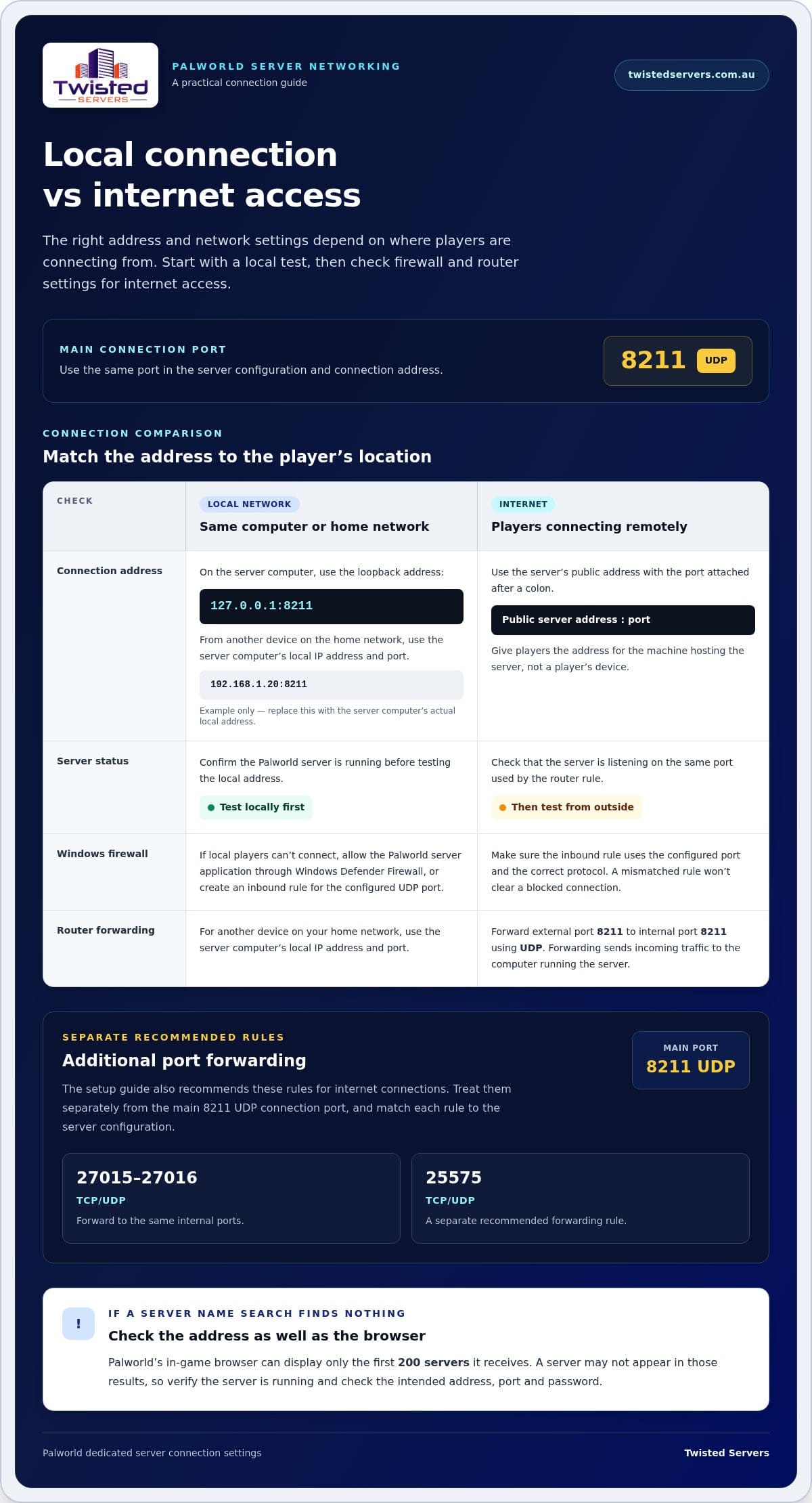
Use the server’s local address for players on the same network. For remote players, check the server’s public address, firewall and router forwarding before testing access.
- Confirm the Palworld server is running before players try to join. On the same computer, enter
127.0.0.1:8211as the connection address. This loopback address sends the connection back to that computer. For another device on your home network, use the server computer’s local IP address with its port. - Give Steam players the correct IP address and port. The address must point to the machine hosting the Palworld server, not a player’s device. Keep the port attached after a colon, such as
192.168.1.20:8211on a local network. Replace that example IP with the server computer’s actual local address. - If local players can’t connect, check the Windows firewall. Allow the Palworld server application through Windows Defender Firewall, or create an inbound rule for the server’s configured UDP port. Match the rule to the port in the server config. A rule for the wrong protocol or port won’t fix a blocked connection.
- For internet connections, configure the router to forward external port
8211to internal port8211using UDP. Forwarding sends incoming traffic to the computer running the server. Also check that the server is listening on the same port; router forwarding cannot correct a mismatch in server settings. - The setup guide recommends forwarding ports
27015-27016to the same internal ports using TCP/UDP. It also recommends forwarding port25575using TCP/UDP for internet connections. Treat these as separate rules from the main8211UDP connection port, and match each rule to the server configuration. - Check the server browser when a name search returns no result. Palworld’s in-game browser can display only the first
200servers it receives, so a server may not appear in those results. Xbox and PlayStation players can join community servers by searching for the server name. - Check platform compatibility before troubleshooting a failed cross-platform join. Palworld
1.0crossplay allows Steam, Xbox, PS5 and Mac players to join the same dedicated server. Confirm each player is selecting the intended server, using its current name or address, and entering the correct password if prompted. - If players still can’t connect, verify the server is running, then review its network settings, Windows firewall rules and router forwarding. Test the local connection first, then try from outside the home network. For a hosted setup, Australian game server hosting is an alternative to managing router access yourself.
Autosave backups and restoration
Palworld saves progress in the server’s save directory, but an autosave isn’t a separate backup. Copy the save data to another location at least daily.
Set up autosave backups
Locate Pal/Saved/SaveGames/ in the Palworld server files. Copy its contents to secure storage on your computer or an external storage device. Repeat the copy at least daily to keep a recent version available if the active save becomes unusable.
- Stop the server before copying files. This prevents the save from changing during the copy and helps preserve a consistent set of files.
- Open the server’s
Pal/Saved/SaveGames/directory and copy the save data. Keep the backup outside the active directory, such as in a separate folder on your computer or on external storage. - Label each copy with its date and identify which Palworld server it belongs to. For example, distinguish a private server used by friends from a public server. Clear labels make it easier to select the right version during restoration.
Back up saves before server updates
Before updating the dedicated server, make a fresh copy of the save data and configuration files. Store it separately from the live server files. If an update causes a problem, you can restore the saved files instead of relying only on the current directory.
- Stop the Palworld server before creating the pre-update copy. Copy
Pal/Saved/SaveGames/and the configuration files to secure storage, then leave those copies unchanged during the update. - Update the server files, then start the server and check that the world loads. If the save fails to load or progress appears missing, stop the server before restoring files.
- Move the affected save data out of the active
Pal/Saved/SaveGames/directory. Copy the selected backup into that directory, preserving its folder structure. Avoid merging an older backup with newer save files. - Restart the server and check the restored world before inviting players. Ask friends to confirm their characters and shared progress appear as expected. Keep the backup until you’ve tested the restored server.
A daily copy protects against loss between backups, but it won’t include progress made afterwards. Keep multiple dated copies if you need a choice of restore points, and store backups separately from the server’s active files. After each server update, make another copy once the world loads successfully.
Installing the Palworld Dedicated Server through Steam
Install the dedicated server using Steam or SteamCMD, then run it to create its files. Keep each server instance’s files and settings separate.
Install the dedicated server tool through Steam
Open Steam and find the Palworld Dedicated Server tool in the Tools section. Install it in a directory with enough room for the server files. Install and open Palworld at least once before setting up the dedicated server. After installation, launch Palserver.exe once to create configuration folders and files, then close it before editing anything.
- Choose a dedicated server directory that’s easy to identify. Avoid mixing its files with unrelated games or other Palworld instances.
- Run
Palserver.exeonce, then allow about2 minutesfor configuration files to appear. Close the process before changing settings. - If configuration folders are missing, start the server once to generate them. Check the installation directory again before creating files manually.
Install the server with SteamCMD
Use SteamCMD when you want to install or update the server through command-line tools. The Palworld dedicated-server setup guide identifies app ID 2394010. Set an installation directory, log in anonymously, then install or validate that app. Keep the selected directory consistent across updates, so SteamCMD updates the intended server files.
- Open SteamCMD and set the destination directory for the Palworld server.
- Enter
login anonymous, then install app2394010with SteamCMD’s app-update command. - Run the same update command again when updating the server. Check that SteamCMD completes without errors before starting Palworld.
Keep the server stopped while updating files. Back up the save data and configuration first so you can restore them if an update affects the world.
- Install server mods only after confirming they support dedicated servers. A Workshop mod must be marked server-compatible by its author for the Palworld server to attempt loading it.
- For manual mods, use a file manager to place supported
.pakfiles in the server’s relevant mod directory. The server won’t update manually installed mods, so update those files yourself when mod versions change. - Use UE4SS-supported mods only with a Windows-based Palworld Dedicated Server. Check that each mod matches the server setup before copying its files.
- To run multiple server instances on one machine, give each instance different ports and settings. Keep separate installation directories where practical, and label each config clearly. Starting two instances with identical connection settings can cause conflicts, so verify the settings before launching them.
Self-hosting versus managed hosting
Choose an approach based on who will maintain the machine, server files and access. A Palworld world needs configuration, updates and save protection under either approach.
- List the work you’re prepared to handle. With self-hosting, you run the dedicated server on your own computer or server. You manage its installation folder, configuration, network access, updates and restarts. For example, changing difficulty means editing the server config and restarting Palworld before players see the change.
- Factor in ongoing maintenance. A self-hosted server needs attention when Palworld server files or manually installed mods require updates. You also need to keep save copies separate from active files. If you’re comfortable scheduling updates, checking logs and restoring a save, self-hosting gives you direct control over these tasks.
- Decide how much machine administration you want. Managed hosting runs the server environment on a hosting provider’s infrastructure instead of your home computer. The provider operates the hosting environment, while you decide how your Palworld world is configured and who can join. Understand which tasks you’ll handle before choosing a plan.
- Consider access and connection needs. Self-hosting for friends often means keeping the computer running and arranging router access for players outside your home network. A managed server runs outside your home network, so your own computer doesn’t need to run Palworld continuously. Players still need the correct server address, port and password.
- Match the approach to your group. A private world for friends may suit self-hosting if one person can maintain the files and network. A public server brings more ongoing administration, including access settings, updates and backups. With either setup, record configuration changes and test the server after each restart.
- Use a practical decision test. If you want direct access to server files and can maintain the machine, self-hosting may suit you. If you’d rather not run the game server on your own hardware, managed hosting may be a better fit. For a larger Palworld community, decide who will handle player access, save recovery and updates before making the switch.
- Review the workload after launch. Track how often you need to restart the server, change settings or troubleshoot connection issues. If you schedule maintenance every
6-12 hoursto help manage memory use, include those restarts in your community’s play schedule. The right hosting approach is the one that supports your server routine without leaving essential tasks unattended.
Twisted Servers: Game Server Hosting
Twisted Servers offers Game Server Hosting for communities that prefer a hosted option to maintaining a server machine at home. If you want greater control over the operating system and server files, VPS Hosting or Dedicated Server Hosting may suit your needs better. The right choice depends on how much server administration you want to handle, including updates, configuration and save management.
For Australian players, server location can affect latency, along with each player’s location, ISP and network routing. Consider these factors when deciding where your community’s server should run. Game Server Hosting lets you choose a hosted option instead of managing the server on your own computer, while VPS and dedicated servers suit different levels of hands-on administration.
Contact Twisted Servers to discuss which hosting approach best fits your community.
Choose a hosting approach that fits your community
Decide who will manage routine tasks as your Palworld community grows. Set clear expectations about who maintains the server, communicates planned restarts and informs the group about setting changes. A consistent approach helps players know where to get updates and who manages access.
How to manage a Palworld server depends partly on how much control you want over its files and operating environment. If you’d rather not run it on your own computer, compare hosted options with the administration you’re comfortable handling. Twisted Servers offers Game Server Hosting, VPS Hosting and Dedicated Server Hosting, giving you different approaches to consider for your setup.
Talk through your requirements and preferred level of control with Twisted Servers. Contact Twisted Servers about hosting and take the next step towards a setup that works for your players.
Frequently Asked Questions
Can’t connect?
Work out whether the issue affects one player or the whole group. If one player is affected, ask someone else to try the same server details; if nobody can join, check the server’s status and recent changes. Note the exact error message and when it appears. This gives you a useful starting point for distinguishing an address or access problem from a server process failure.
How many players can join?
A Palworld co-op session supports 4 players, while a dedicated server supports up to 32. Choose the type of session based on your group size and whether you want a persistent shared world. Palworld 1.0 crossplay allows Steam, Xbox, PS5 and Mac players to join the same dedicated server, so your community can include players on different platforms.
How do you set up a Palworld dedicated server?
A practical part of learning how to manage a Palworld server is choosing an installation method that suits your setup. Steam provides a graphical route, while SteamCMD installs the dedicated-server app using app ID 2394010. Whichever method you use, keep the server’s files in a clearly named directory. That makes it easier to distinguish the game server from other files on the same machine.
How do you configure Palworld server settings and world rules?
Use the configuration file to tailor the world to your group’s preferred pace and rules. Progression settings affect how quickly players gain experience and collect items; world settings can also change the rhythm of play. Before changing values, agree on the intended experience with the players. For a small PvP group, for example, discuss difficulty and resource rates together instead of changing the rules without notice.
How do players join a Palworld server using its IP address and port?
Players enter the server’s address and port in the game’s join interface, using the format IP:port. Make sure they use the address suited to their network: a local address works within the same network, while remote players need the public address. Console players can also try searching for the community server’s name.
How do you back up and restore a Palworld dedicated server world?
Keep backups separate from the live world, and retain the previous copy until you’ve tested a restoration. After restoring, check that the expected world and player progress load before treating the recovery as complete. If the restored files don’t produce the expected result, stop the server and try another dated copy. This lets you compare recovery points without overwriting your remaining options.
How do you update a Palworld server without losing world progress?
Protect world progress by keeping save data separate from the server program files during maintenance. After updating, confirm the server loads the existing world before players resume. Check manually installed mods separately: those files need manual updates, and Workshop mods must be marked server-compatible by their authors for the server to attempt loading them. Keeping mod versions aligned helps isolate update-related issues.
How do you troubleshoot Palworld server connection, lag, and crash problems?
To manage a Palworld server experiencing performance issues, first distinguish a slow connection from a stopped or crashed process. Ask affected players whether the problem occurs at the same time and during the same activity. If the server has stopped, review what changed immediately beforehand, such as a configuration edit or mod update. Test one change at a time to identify what resolves the issue.
Disclaimer
Game titles, trademarks, logos and related assets are the property of their respective owners. Twisted Servers is an independent hosting provider and is not affiliated with or endorsed by the developers or publishers of the games mentioned unless otherwise stated. Information is provided as a general guide and may change as games, software and hosting services are updated.

