
Recommended Services


Supported Scripts


A stable Euro Truck Simulator 2 server depends on more than installation alone. Choose a hosting approach that suits your convoy, configure the environment carefully, and plan how the server will recover when something goes wrong. These decisions shape how easily your group can join and how much ongoing administration you’ll need to handle.
Getting the setup right can feel demanding when hosting, configuration and troubleshooting all compete for your attention. A clear plan helps you make those choices in order, understand what each one affects, and avoid treating every connection problem as the same fault.
This guide covers automatic crash restarting, player capacity, network access and memory planning. It also explains what running a dedicated server on a VPS involves, helping you weigh control against the work required. By the end, you’ll have a practical path for setting up and maintaining a convoy server, and a clearer idea of which hosting option may suit your needs.
Key Takeaways
- Set up a restart process so a crash doesn’t leave your convoy waiting for someone to relaunch the server manually.
- Use the 128-player configuration limit as a ceiling, then plan capacity around your group and server resources.
- Allow the required TCP and UDP traffic through your firewall, and arrange public IP access or port forwarding so the session can appear in the browser.
- Match memory to your convoy: plan 2 GB for up to 4 players, 4 GB for up to 8, or 6 GB for a larger group using map mods.
- Choose between a VPS and game server hosting based on how much server management and configuration you want to handle.
Automatic crash restarting
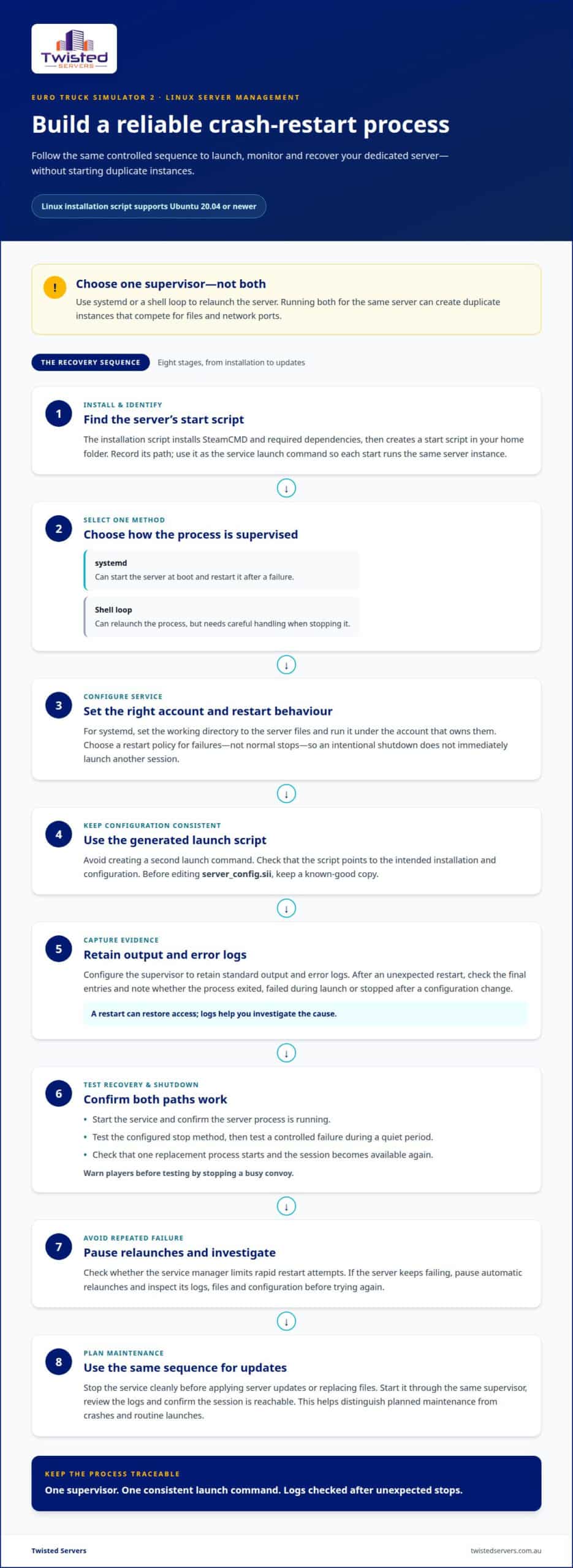
- Install the dedicated server and identify its startup script. The Linux installation script supports Ubuntu 20.04 or newer. It installs SteamCMD and required dependencies for Euro Truck Simulator 2 or American Truck Simulator. After installation, it creates a start script in your home folder. Record that script’s path and use it as the service’s launch command. A stable restart process depends on starting the same server instance each time.
- Choose one process manager to supervise the server. On Linux, systemd can start the server at boot and restart it after a failure. A shell loop can also relaunch a process, but requires careful handling when stopping it. Don’t run both methods for the same server: two supervisors can start duplicate instances that compete for the same files and network ports.
- Create a systemd service for the start script. Set its working directory to the folder containing the server files and run it under the account that owns those files. Use a restart policy for failures, not normal stops. This distinction lets you shut down the convoy deliberately without immediately launching another session.
- Keep the launch command and configuration consistent. Use the generated start script rather than creating a second launch command. It should point to the intended server installation and configuration. Before editing server_config.sii, keep a known-good copy. Restarting with the same configuration makes faults easier to trace.
- Record output so you can diagnose repeated crashes. Configure the supervisor to retain standard output and error logs. After an unexpected restart, inspect the final log entries before changing settings. Note whether the process exited, failed during launch or stopped after a configuration change. Restarting can restore access, but the logs help you address the cause.
- Test both failure recovery and intentional shutdown. Start the service, confirm the server process is running, then test its configured stop method. Next, test a controlled failure during a quiet period. Confirm the supervisor starts one replacement process and the session becomes available again. Warn players before testing by stopping a busy convoy.
- Prevent repeated failures from becoming an endless loop. Check whether the service manager limits rapid restart attempts. If the server fails repeatedly, pause automatic relaunches and inspect its logs, files, and configuration. A Linux VPS can run a persistent process under systemd; the VPS hosting environment is one option for that arrangement.
- Plan updates around the restart process. Stop the service cleanly before applying server updates or replacing files. Start it through the same supervisor, review its logs and confirm the session is reachable. Using the same sequence helps distinguish crashes from planned maintenance and routine launches.
Maximum player capacity
- Set the player limit with the game’s ceiling in mind. Euro Truck Simulator 2 supports a maximum of 128 players in its server configuration. Treat this as the upper limit, not a recommended target for every convoy. A setting below the ceiling can better match your group’s expected attendance and available server resources. Choose a limit for the players you plan to host, rather than increasing it without a reason.
- Estimate your usual attendance before choosing a limit. List who regularly joins your convoy and who might attend occasionally. For example, a private group with a small regular roster may not benefit from a limit near 128. A community that hosts public events may need more room. Your estimate gives you a practical starting point and helps avoid planning around unlikely peak attendance.
- Separate the configuration maximum from real-world capacity. The 128-player figure describes the server configuration’s maximum, not a promise of smooth play at that size. Actual results depend on the server’s available resources, network conditions and what players are doing. Treat each factor as part of capacity planning. A large configured limit cannot compensate for a server that lacks the resources to support its workload.
- Choose a limit that fits the convoy’s purpose. A private session for familiar drivers has different needs from a public community event. For a scheduled convoy, base the limit on expected sign-ups and leave room for late arrivals. For an open session, consider how you’ll manage a busy lobby. Start with a realistic figure, then adjust after observing actual sessions.
- Test changes with a controlled group. Set your chosen limit and invite a representative group to join. Observe whether the session stays responsive as players connect and travel. Track connection issues, interruptions and driver feedback. Change one setting at a time and compare the next session to see whether the limit affected the experience.
- Account for mods and other server demands. Map mods can add workload and affect server performance. Don’t assume a limit that works for an unmodified convoy will work the same way with additional content. Test your intended mod setup with the expected group size. If performance changes, reduce the limit or review server resources before inviting more players.
- Keep an eye on peak sessions, not just quiet ones. A session that works with a few drivers may behave differently as more players join. Record attendance and note when problems occur, such as during a busy convoy or after a change. Use those observations to make measured adjustments, rather than raising the limit simply because the configuration permits it.
- Review your limit when the community changes. A growing group, new map mods or a different event format can alter demand. Reassess the setting when those circumstances change, then test it with the intended convoy. The practical target is the largest group your setup can support reliably, not automatically the 128-player ceiling.
Port forwarding and firewall rules
ETS2 needs public IP access or port forwarding to appear in the session browser. For connection, mod mismatch or timeout errors, check that the server is running, required ports are allowed, and players use the expected game and mod setup.
- Identify where the dedicated server runs. A computer on a home network needs router port forwarding and suitable computer firewall rules. A VPS uses its operating system firewall and any network firewall provided for that VPS. Record the server’s address before changing settings, so you direct traffic to the right host.
-
Set port forwarding and firewall rules
Forward TCP ports 27015-27016 and UDP ports 27015-27016 to the server. Create matching inbound rules in the host firewall for both protocols. On a home network, direct the router rules to the server computer’s local address. On a VPS, allow the traffic through its network firewall and operating system rules. Avoid opening unrelated ports.
- Check each network layer separately. A router rule cannot override a blocked computer firewall, and a VPS operating system rule cannot override a block at the provider’s network layer. Confirm each rule specifies the correct protocol, port range and destination. If the server’s address changes, update the forwarding destination before testing again.
- Start ETS2 before testing browser visibility. Confirm the dedicated server process is running, then check whether its session appears in the browser. The server needs public IP access or port forwarding for browser visibility. A server that is stopped cannot respond to joining players, even when its firewall rules allow the listed traffic.
-
Troubleshoot connection and mismatch errors
Check reachability before changing mods. For a timeout, check that the server is running and that network settings allow traffic to reach it. If the session is missing from the browser, review public IP access or forwarding. For a mod mismatch, compare the host’s required mods with the joining player’s installed mods and align them before reconnecting.
- Test from outside the server’s local network. A successful connection from the same home network doesn’t prove public access works. Ask a convoy member on another network to test the session. If they can’t see or join it, review the public address, forwarding destination and firewall rules. Change one setting before testing again.
- Use the error type to guide the next check. A timeout may point to server availability or network reachability, so inspect the process and port rules first. A mod mismatch calls for checking the game content required by the host. Record the error and the setting you changed, so each retest narrows down the cause instead of changing several things at once.
RAM requirements for convoy sizes
Choose RAM based on your expected convoy, then check the requirements for each multiplayer session. The figures below guide server planning, not every player’s PC requirements.
- Join an ETS2 Convoy session through the game. Open Euro Truck Simulator 2, select the Convoy multiplayer option, then use the session browser or an invitation. Follow the host’s session details, including any required content. TruckersMP uses its own multiplayer client, so follow its sign-in and launch steps instead.
- Use a stable connection and a PC that runs ETS2. There isn’t a single internet-speed figure that suits every player and session. Prefer a steady connection, use a wired link where practical, and close downloads competing for bandwidth. Your computer must also meet the game’s requirements; RAM assigned to the server is separate from memory used by your PC.
- Plan 2 GB of server RAM for a private convoy of up to 4 players. This recommendation suits a small group without the larger workload of map mods and extra attendance. Use it as a starting point for that group size. If your convoy grows or adds content, review the allocation rather than assuming the same setup will remain suitable.
- Allow 4 GB of server RAM for a crew convoy of up to 8 players. This gives a standard group a larger allocation than the small private setup. Match the plan to the group that actually joins, not the game’s maximum configured player capacity. Keep the player limit and RAM plan aligned as attendance changes.
- Choose 6 GB for a larger crew using map mods with 8 or more players. The added memory accounts for the stated combination of a bigger group and map modifications. If you use that setup, check that the server has the full allocation available. Don’t treat the recommendation as a universal requirement for every mod or convoy.
- Check DLC and mod requirements before joining a session. A route using map content from DLC requires access to that content. For a modded session, use the same required mod setup as the host. Ask the host which content the route uses and match it before connecting to avoid a preventable mismatch.
- Separate server RAM from player PC memory. The 2 GB, 4 GB and 6 GB recommendations describe the server allocation for different convoy setups. They don’t state how much RAM an individual player’s computer needs. Check the computer requirements for ETS2 separately, and close other demanding programs if the game struggles.
- Review memory after changing the convoy setup. A move from a small group to a larger crew changes the relevant recommendation. Adding map mods also matters: the guidance pairs 6 GB with map mods and 8 or more players. Make one change at a time, then observe whether the server handles the new session reliably.
Running the server on a VPS
ETS2 includes Convoy, its official in-game multiplayer mode. A dedicated server is separate, letting you host a session independently of a player’s computer.
- Choose a VPS if you want to manage the server environment. A virtual private server gives you an operating system where you install and run the dedicated server. You’ll also manage its files, configuration and routine maintenance. This approach suits organisers comfortable with command-line administration. Consider whether you want that control before choosing this route for your Euro Truck Simulator 2 server.
- Start with a compatible Linux operating system. The ATS and ETS2 installation script is intended for Ubuntu 20.04 or newer. It installs SteamCMD and required dependencies, then downloads and sets up the dedicated server. Select Euro Truck Simulator 2 during the script’s setup. Let the installation finish before changing files or starting the server.
- Install the dedicated server using SteamCMD. The installation command uses Steam app ID 1948160. Run it from the intended server account and installation directory. Keeping the files together helps you locate configuration and server components later. Avoid placing unrelated applications in the same directory, so updates and troubleshooting remain easier to manage.
- Obtain and configure the Steam gameserver logon token. Steam’s gameserver management page provides the token, and the guide says game ownership is required. Enter it in the configuration expected by the dedicated server. Treat the token as a credential: keep it out of public posts, screenshots and shared configuration files.
- Generate the server package files from the game. Run
export_server_packageswhen preparing the dedicated server. This command createsserver_packages.datandserver_packages.sii. Place both files where the server installation can read them. Repeat the export when relevant game content changes to keep the server package data aligned. - Launch the installation’s generated start script. The installer creates a start script in your home folder. Use that script rather than guessing the executable path or writing a different launch command. Check that the script points to the intended installation. This keeps the launch process clear when you manage your Euro Truck Simulator 2 server.
- Keep the VPS environment organised as you maintain it. Record the installation directory, server account and configuration location. Apply updates through the same installation, then review the server output for errors. An Australian VPS can provide a closer hosting location for Australian players than distant overseas hosting, though actual latency depends on player location, ISP and routing.
ETS2 has Convoy as its official in-game multiplayer mode; dedicated servers are separate and let you host a session independently of a player’s computer.
Twisted Servers: Game Server Hosting
Twisted Servers offers Game Server Hosting for players who want a hosted option instead of running the server on a personal computer. If you prefer to manage the operating system, server files and configuration yourself, VPS Hosting may suit your approach. Dedicated Server Hosting is another option for communities seeking a separate server environment. The right fit depends on how much setup and ongoing administration you want to handle.
For Australian convoy organisers, local infrastructure can help reduce latency compared with distant overseas hosting, though results depend on each player’s location, ISP and routing. Choose the level of control that matches your technical confidence and community needs. If you’d like to discuss hosting options for your setup, contact Twisted Servers.
Choose the setup that fits your convoy
Your next step is to decide how much server administration you want to manage. A self-managed setup gives you direct control over the operating system, configuration and maintenance. If you’d rather use a hosting option for your community, explore which level of control and support fits your experience and convoy plans.
Twisted Servers offers Game Server Hosting, VPS Hosting and Dedicated Server Hosting. These options serve different hosting needs, so choose the one that best matches how you intend to run your Euro Truck Simulator 2 server. Australian infrastructure may also help reduce latency for local players compared with distant overseas hosting, although results depend on player location, ISP and routing.
Share your intended setup and hosting requirements with our team to discuss a suitable direction. Ask Twisted Servers about hosting, then take the next step towards a server setup that works for your convoy.
Disclaimer
Game titles, trademarks, logos and related assets are the property of their respective owners. Twisted Servers is an independent hosting provider and is not affiliated with or endorsed by the developers or publishers of the games mentioned unless otherwise stated. Information is provided as a general guide and may change as games, software and hosting services are updated.

