
Recommended Services


Supported Scripts

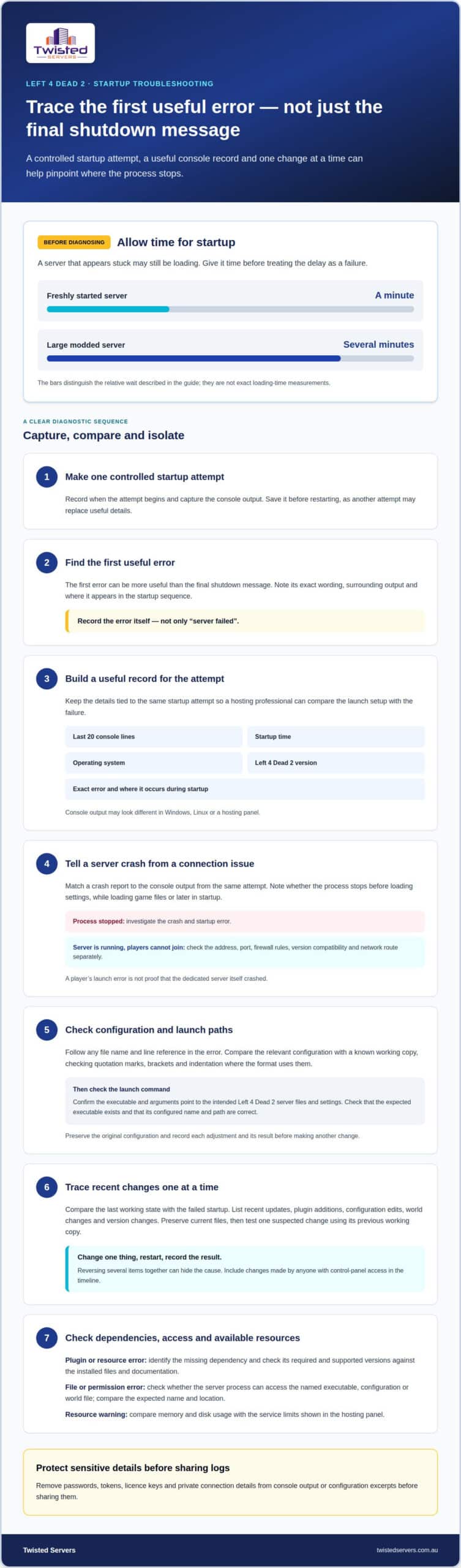
Could a game server that looks stuck simply need more time? Give a freshly started server a minute to start, while a large modded server may take several minutes. Troubleshooting game server startup issues starts with checking whether the server is still loading before treating the delay as a failure.
It’s frustrating when players can’t get online, especially when the server appears to be running. But a connection problem isn’t always a startup failure, and the final error message may not explain what went wrong.
This guide explains how to read startup errors, record useful console details and trace problems to recent changes, configuration or file paths. You’ll also learn to distinguish a server that hasn’t finished starting from one that’s running but can’t be joined, and what information can help a professional investigate.
Key Takeaways
- Capture the console output and note when the startup attempt began; the first error can be more useful than the final shutdown message.
- Trace failures to recent changes by reviewing plugins, settings, worlds and versions, and preserve a backup before altering files.
- If the server is running but players can’t join, check the address, port, version compatibility and whitelist rather than treating it as a startup failure.
- For missing-file errors, confirm the expected server executable exists and that its configured name and startup path are correct.
- Give a fresh server a minute to start, and allow large modded servers several minutes before deciding they’re stuck.
Capturing startup errors in the server console
For a Left 4 Dead 2 dedicated server, use one controlled startup attempt to capture the first useful error. Troubleshooting game server startup issues starts with identifying where the process stops, rather than relying on a final shutdown message.
Hosting professionals compare console output with the operating system and hosting environment. They also review configuration files and launch arguments, keeping changes separate so each result is clear.
-
Capture startup console output
Ask the technician to capture the console during one startup attempt and record its time. Save the output before restarting, as another attempt may replace useful details. Include the last 20 console lines when requesting support, alongside Left 4 Dead 2, the server version and the exact error message.
On Windows, Linux or a hosting panel, console output may appear differently. Record the error, where it occurs in the startup sequence and the time of the attempt. Remove passwords, tokens, licence keys and other sensitive information before sharing logs.
-
Inspect startup crashes and error messages
Have the technician match a crash report to the console output from the same Left 4 Dead 2 startup attempt. Note whether the crash occurs before the server loads its settings, while loading game files, or later in startup. This helps distinguish a process crash from a message that reports an unsuccessful operation.
Record the exact wording and surrounding output, not just a summary such as “server failed”. Don’t treat a player’s launch error as proof that the dedicated server itself crashed.
-
Troubleshoot configuration parse errors
Ask the technician to follow any file name and line reference in the error, then compare that part of the configuration with a known working copy. Check quotation marks, brackets and indentation where the file format uses them. A misplaced character can prevent settings from loading.
Review the launch command separately. Confirm that its executable and arguments point to the intended Left 4 Dead 2 server files and settings. Record any adjustment and its result before making another change, so the cause remains traceable.
- Keep each diagnostic record tied to one attempt. Include the operating system, Left 4 Dead 2 version, startup time, exact error and relevant console output. For troubleshooting game server startup issues, this context lets a hosting professional compare the launch configuration with the failure without guessing which attempt produced the log.
- When an error identifies a configuration parse issue, preserve the original file before editing it. Share the named file and relevant lines, removing credentials or private connection details. A hosting professional can compare the syntax with a working copy and assess the launch arguments without exposing sensitive data.
Checking recent changes to plugins, configuration, worlds and versions
A hosting professional compares the last working state with the failed startup. The sequence helps isolate changes to plugins, settings, worlds, versions, permissions or network access.
-
Review recent server changes
Ask the technician to list changes since the last successful start, including updates, new plugins, configuration edits and world changes. They should preserve the current files, then reverse one suspected change using its previous working copy. If the server starts, that change is a strong lead. Avoid reverting several items together, which can hide the cause.
After a game or mod update, the technician checks the developer notes for known version issues. The client and server need matching versions to connect. If a friend or clan member has control-panel access, include their changes in the timeline rather than assuming only the primary administrator made edits.
-
Inspect server status and console output
Have the technician compare the panel’s server status with the startup console from the same attempt. A stopped process with an error is different from a running server that players can’t reach. They should match the error to the time of the change and check whether the process reached its ready state.
For a running server with connection trouble, investigate the assigned address, port and firewall rules separately. A VPN or network restriction can affect the route between player and server, while a firewall may block required traffic. Check these paths without treating a connection symptom as proof of a failed startup.
-
Check plugin and resource dependencies
Ask the technician to inspect any missing-dependency message and identify the plugin or resource that requests it. They should compare the required dependency and supported version with the installed files, then consult the plugin’s documentation for compatible versions. A missing or incompatible dependency can stop a plugin loading, even if the main server files remain intact.
To isolate a plugin conflict, test a clean configuration where practical, then restore plugins individually. Restart after each change and record the result. This controlled sequence identifies a conflicting resource more reliably than updating or replacing every plugin at once.
- Have the technician diagnose permission and file errors by matching the console message to the named path. They can check whether the server process can access the required executable, configuration and world files. A missing file, incorrect ownership or restricted access can prevent startup. Compare the expected file name and location before changing permissions broadly.
- Ask for memory and disk usage to be compared with the service limits shown in the hosting panel. An out-of-memory message and a full-disk message point to different limits, so the technician should save logs and backups before removing unnecessary files. If memory is already high immediately after startup, review the allocation before testing further changes.
Distinguishing startup failures from connection problems
A server that has reached its ready state but rejects players has a connection problem, not necessarily a startup failure. Hosting professionals distinguish the two by checking process status, player symptoms, network paths and service errors.
For database or network failures during startup, check whether the database service is available, then verify the configured host, port and account details. Never post passwords or connection strings in shared logs.
- Confirm whether the Left 4 Dead 2 server process is running before investigating player reports. A stopped process or repeated startup exit points towards a launch failure; a ready server that players can’t reach points towards access, version or network checks. Record the exact status and message from the hosting panel or console.
Make one controlled connection attempt after the server reports ready. This distinguishes an incomplete start from a failed connection without changing several settings at once.
- Run a 30-second connection check: confirm the server status, address and assigned port, then check version compatibility and startup time. Give a fresh server a minute to start before players troubleshoot further. If the address or port differs from the one supplied to players, correct that detail first.
Check whether the problem affects one player or the whole group. For one player, review their address entry, game version and whitelist status. If several players fail together, investigate server access and network conditions.
- For timeouts or repeated disconnections, note when the failure occurs. A timeout before the server appears in the browser differs from a disconnection after joining. Record the player’s error text, the time and whether gameplay began, then compare these details with server-side status at that moment.
Ask whether the player uses a VPN or restricted network. Where practical, test from a different network, without treating one successful attempt as proof of a permanent fix. Routing, player location and internet service provider can affect the connection path.
- Have the technician inspect firewall rules and the server’s assigned port. Confirm that the address and port players use match the server configuration, and check whether a firewall blocks relevant traffic. Avoid disabling the firewall broadly. Identify the specific rule or route associated with the error.
An Australian server can provide lower latency for Australian players than a distant overseas server, but results depend on player location, ISP, routing and server location. Latency can affect play without preventing the server process from starting.
- If startup output names a database connection error, check whether the database service is available. Then verify the configured host, port and account details against the intended database. A typo or unavailable service can stop an application from connecting even while the game server process appears active.
Keep credentials private during diagnosis. Redact passwords and full connection strings before sharing logs, screenshots or error reports.
- If Left 4 Dead 2 players cannot join, record the exact connection error and whether the server reports itself ready. Compare the address, assigned port, game version and whitelist status with the details used by the affected player. This helps distinguish a player-specific access problem from a server-wide connection issue.
Note whether other players can connect at the same time. This gives a technician useful context about the scope of the failure without assuming every join error means the server failed to start.
Diagnosing missing files and incorrect startup paths
Have the technician compare the configured startup path with the actual server files, then check for damaged or missing files. Before backing up and restoring the server, provide its game and version, recent changes, affected files, and the configuration, world and mods that need to be preserved.
- Ask the technician to verify that the expected server executable or file exists at the configured path. They should compare its exact name with the startup command, including spelling and file extension. A file in the wrong folder or with a different name can make the launch command fail even when the server files are present.
-
Update and repair server files
Have the technician run a manual server update or file validation when logs point to damaged or missing game files. An update can validate and repair files even when no new version is available. Preserve modified configuration files and installed mods first, then compare the repaired files with the startup path before launching again.
If the server starts with its default map, investigate the selected map file and custom map path. A faulty map or incorrect path can prevent that world from loading, while the default map working narrows the problem to the selection or its files.
-
Inspect crash dumps and log files
Ask the technician to collect the crash dump and game logs created during the failed launch. Pair them with the startup time and console output so the failure can be traced to the same attempt. Preserve the original files before another restart or repair changes them.
Use the dump and logs to identify whether a missing file, failed load or other crash preceded shutdown. Keep the relevant error details, but remove passwords, tokens, licence keys and private connection strings before sharing diagnostic files.
-
Check quarantined game files
Have the technician review the security software’s quarantine history when an essential executable or server file appears to be missing. Compare any quarantined item’s name and location with the file named in the startup error. Don’t restore files blindly. First establish that the quarantined item belongs to the server installation.
If a required file was removed, restore it only through a safe, trusted process, then validate the server files and retry startup. Record the file name and action taken so later errors can be compared with the repaired installation.
- Before reinstalling, back up modified server files containing configuration, world data or installed mods. Tell the technician which copies to restore and which changes preceded the failure. A clean reinstall may replace damaged defaults, but restoring altered files selectively helps avoid bringing the original fault back.
Allowing time for server startup
Give a freshly started game server a minute to start, while a large modded server may take several minutes. A hosting professional judges progress by the ready message and startup activity, not elapsed time alone.
- Start one controlled attempt and note its start time. Give a freshly started server a minute before treating a delay as a failure. During that time, check whether the console advances through startup messages or stops at the same point. A server still loading is different from a process that exits with an error.
Don’t issue repeated restarts while the current attempt shows progress. Each restart begins the loading sequence again and can obscure whether the server was close to ready.
- Use the game’s ready message as the clearest sign that startup has finished. Before it appears, the software may still be loading its world, applying settings or preparing server resources. A panel showing the process as running does not, by itself, prove that players can join.
After changing a setting or updating software, restart once and wait for the normal ready message before testing the affected feature. This separates a slow load from an error that persists after startup completes.
- Allow large modded servers several minutes to start, especially when they load extensive world data or multiple mods. Compare the server’s normal startup behaviour with its current configuration, rather than assuming a universal time. A new mod or changed world can alter what the server needs to load.
Watch for continued console activity during this period. If loading messages continue, let the attempt proceed. If the process exits or reports an error, investigate the failure instead of waiting indefinitely.
- Compare repeated startup attempts only when the game, world and configuration remain the same. If one attempt reaches the ready message and another stops at a particular loading stage, give the hosting professional both times and outcomes. The contrast can show whether the delay is consistent or tied to a recent change.
For a server that appears online but can’t be joined, wait until it reports ready before checking player connections. Testing too early can create connection errors that don’t identify a startup fault.
- Keep the distinction clear: a slow start still shows progress, while a startup failure exits or stops before readiness. Give a fresh server a minute, allow a large modded server several minutes, then use the ready message as the practical test. The game, world, mods and server software all affect the loading work.
When a server remains unready after its normal loading sequence, preserve the attempt’s timing and final status. Those details help a hosting professional decide whether to investigate a blocked load, software error or separate connection problem.
Twisted Servers: Game Server Hosting
Twisted Servers provides Game Server Hosting for communities that need a place to run multiplayer servers. If repeated startup failures continue after you’ve checked the console, recent changes, file paths and loading status, hosting support can help investigate the server environment and configuration.
When requesting help, include the game and version, the time of the failed attempt, the exact error message and relevant console lines. Note recent changes and checks already completed. Remove passwords, tokens and other sensitive details before sharing logs. This context helps narrow down whether the issue involves server setup or a separate player connection problem.
If you’re ready to discuss your hosting issue, contact Twisted Servers.
Make your next server decision with confidence
Treat each startup fault as useful information for planning your server’s next stage. A clear record of what happened can help you decide whether to keep the current setup, adjust how it’s managed or move to a hosting option better suited to your community. A measured approach to troubleshooting game server startup issues can also help you avoid rushed changes that create new problems.
If your hosting requirements are changing, Twisted Servers offers Game Server Hosting, VPS Hosting and Dedicated Server Hosting. The right option depends on how you plan to manage the server and what your setup requires.
Discuss your next step with Contact Twisted Servers. With a clear picture of your needs, you can move forward with greater confidence.
Frequently Asked Questions
What are the common causes of game server startup failures?
Common causes include a launch command pointing to the wrong working directory, a damaged installation or a setting the game’s server software cannot parse. The failure stage helps narrow down the category: an immediate exit differs from a process that stops while loading a world. A server that reaches its ready state but rejects players has a separate fault to investigate, not necessarily a startup failure.
How do hosting professionals check game server startup logs and error messages?
Hosting professionals compare the game console with hosting-panel activity from the same attempt. This can show whether the server process started before another event interrupted it. A useful report identifies the server, game and version, failure time and time zone, exact message, recent changes and checks already tried. That context makes the error easier to interpret without sharing complete logs containing private player information.
How do hosting professionals diagnose port conflicts and firewall issues on a game server?
Professionals distinguish a port-binding error from a connection timeout by considering where the failure appears. A binding error means the server can’t claim its configured port; a timeout suggests traffic isn’t completing the route to the running process. Comparing the server’s startup status with the player’s connection result helps identify which side needs investigation, without changing unrelated network settings.
What system requirements and dependencies does a hosting professional check before starting a game server?
A professional checks the requirements for the exact dedicated-server build and operating system, rather than relying on the game client’s requirements. They review the server software’s documented prerequisites, supported platform and any required runtime components. This matters because a game may launch on a player’s computer while its separate server package needs different supporting software. The exact game and server build determine which prerequisites apply.
How do hosting professionals diagnose crashes caused by mods, plugins or incompatible updates?
Professionals look for a repeatable link between a crash and a particular server build or add-on state. For example, if the same world loads without a recently changed mod but crashes with it enabled, that comparison narrows the investigation. They can then assess the mod’s compatibility notes alongside the game’s update history. Preserve the affected world and configuration during testing so a diagnostic attempt doesn’t replace the original setup.
How do game server startup troubleshooting steps differ across Windows, Linux, and hosting providers?
Console output may look different on Windows, Linux or in a hosting panel, but the same details matter: the exact error, where it occurs during startup and the attempt time. Hosting professionals can compare those details with the operating system, hosting environment, configuration file and launch arguments.
Disclaimer
Game titles, trademarks, logos and related assets are the property of their respective owners. Twisted Servers is an independent hosting provider and is not affiliated with or endorsed by the developers or publishers of the games mentioned unless otherwise stated. Information is provided as a general guide and may change as games, software and hosting services are updated.

