
Recommended Services


Supported Scripts

Why can players see your Mordhau server but still fail to join? A listing doesn’t confirm that the server is ready to accept connections, or that you’re using its game address rather than a query or beacon port. Effective Mordhau server troubleshooting starts by checking these separately instead of treating every connection failure as the same problem.
It’s frustrating when a server looks available but won’t let you in. A methodical Mordhau server troubleshooting process can help narrow down whether the issue involves server readiness, browser filters or connection details. Check these in order to make the next step clearer.
This guide explains how to check the server console for readiness, distinguish its connection address from other ports, clear browser filters and find the server IP. You’ll also learn how to connect directly and what to check if the server appears in the browser but the connection still fails.
Key Takeaways
- Check the server console for “Session GameSession successfully created” to confirm it has finished starting.
- Use the game connection address, not a query or beacon port, when joining directly.
- Clear browser filters if the server isn’t appearing in the list, then try connecting by IP.
- Find the server IP in the Mordhau.log file under %localappdata%MordhauSavedLogs.
- Allow for the initial dedicated server setup to download and install about 6 GB of files and create configuration files.
Distinguishing the game address from query and beacon ports
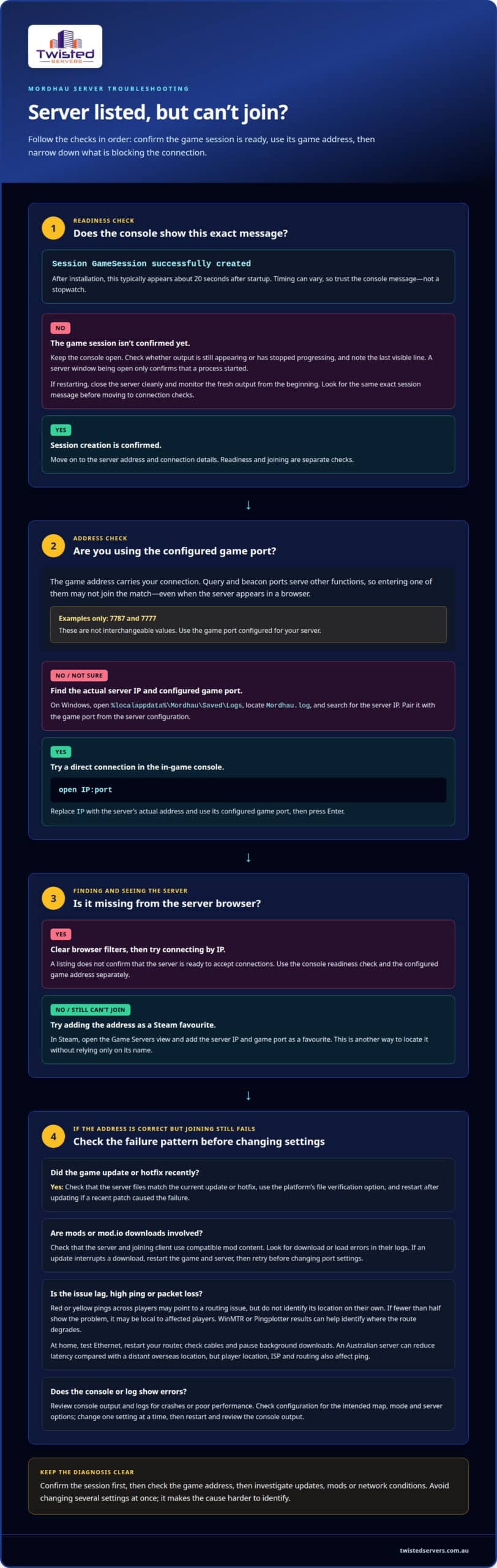
- Separate the connection port from the listing ports. A game address tells MORDHAU where to send your connection. Query and beacon ports serve other server functions, so entering one of them may not join the match. The supplied examples use both
7787as a game address port and7777in connection instructions. These are examples, not interchangeable values. Use the game port configured for your server. - Connect through the in-game console. Open the console in MORDHAU, enter
open IP:portusing your server’s address and game port, then press Enter. ReplaceIPwith the server’s actual address and use its configured game port. If you enter a query or beacon port instead, direct joining may fail even when the server appears in a browser. - Find the address in the game log. On Windows, open
%localappdata%MordhauSavedLogsand locateMordhau.log. Search the log for the server IP, then pair it with the correct game port from the server configuration. In Steam, open the Game Servers view and add the IP and port as a favourite. This provides another way to locate the server without relying only on its name. - Check high ping, lag or packet loss by comparing players. A pattern of red or yellow pings across players may point to a routing issue, though it does not identify its location on its own. If fewer than half do, the issue may be local to affected players. WinMTR or Pingplotter results can help identify where the route degrades. At home, test Ethernet, restart your router, check cables and pause background downloads.
- Update or verify dedicated server files. Check that the server files match the current game update or hotfix, then use the platform’s file verification option. If a recent patch caused the failure, restart the server after updating. For crashes or poor performance, review the server console and logs for errors. Reduce server load or investigate the reported fault before changing several settings at once.
- Review settings, maps and game modes in the configuration. Check the relevant configuration files for the intended map, mode and server options, then restart and review the console output. To advertise a dedicated server through Steam, set
bAdvertiseServerViaSteamtotrueinGame.ini. Change one setting at a time so you can identify its effect. - Troubleshoot mods and mod.io downloads methodically. Check whether the server and joining client use compatible mod content, and look for download or load errors in their logs. If an update interrupts a download, restart the game and server, then retry before changing the port configuration. Test the connection address and mod download separately.
- Choose a server location that suits Australian players. An Australian server can reduce latency compared with a distant overseas location, but your location, ISP and network routing also affect ping. If only some players have poor connections, compare their routes rather than changing the server’s game port.
Checking server readiness in the console
- Open the dedicated server console after launching MORDHAU. Watch the output as the server starts instead of assuming it’s ready because its window has opened. The console records startup progress and provides a clear readiness signal to look for before testing a connection. Keep the window visible so you can read new messages.
- Allow the initial startup to finish. Once the server is installed, the console typically displays
Session GameSession successfully createdabout 20 seconds after startup. Treat that message as the key indication that the game session has been created. Startup time can vary, so use the console message rather than timing the launch with a stopwatch. - Look for the exact session message. Read the console output and check for the full text, including
GameSessionandsuccessfully created. Similar-looking startup lines don’t confirm the same state. If the exact message appears, note that session creation completed before moving on to connection tests. - If the message hasn’t appeared, keep the console open. Check whether new output is still appearing or startup has stopped progressing. Avoid closing the window immediately, as you’ll lose the output needed to identify where launch paused. Note the last visible line so you can compare it after another controlled start.
- Separate a running process from a ready game session. A visible server window only shows that a process has started. It doesn’t provide the same confirmation as
Session GameSession successfully created. Use the session message as your readiness check, then test joining separately. This distinguishes startup trouble from a connection issue. - Repeat the check after restarting the server. Close the server cleanly, launch it again and monitor the fresh console output from the beginning. Look for the same session message after startup. Comparing launches can show whether the failure is repeatable or limited to one attempt.
- Keep a short record of the output. Note whether the session message appeared, roughly when it appeared, and which line came immediately before any pause. These details make it easier to describe the startup problem accurately when seeking help. Don’t treat the roughly 20-second timing as a strict deadline.
- Continue to connection checks only after session creation. If the console confirms the game session, move on to testing the server address and whether players can join. If it doesn’t, focus first on startup output rather than changing connection details. This keeps the readiness check separate from network diagnosis.
Once the session is confirmed, the recommended way to connect is through the in-game console: enter the open command with the server IP and port, then press Enter to connect. If home connection problems persist, restart the router, check that all cables are seated correctly, and check whether background applications are downloading updates.
Connecting directly by IP
- Use direct joining to compare connection outcomes. Record whether you, the host and another player can enter the same MORDHAU session. If everyone fails, investigate the server or a shared connection issue. If a friend joins but you can’t, focus on differences between your connection paths before changing server settings.
- Compare the host’s result with a remote player’s. In a reported MORDHAU case, friends could join through the server list while the host couldn’t join using either local or external IP. This split result suggests the server may be reachable to other players while the host’s connection behaves differently.
- Test from another device on the host’s network. Ask another player in the same household to try joining, then compare their result with the host’s. If that device joins but the host doesn’t, note the difference before changing settings. If neither joins, compare the results with a friend connecting from elsewhere.
- Try a loopback test only as a separate diagnostic. A MORDHAU player reported that localhost connections worked during Patch 21 and earlier. Treat that as a clue from a particular setup, not a guarantee for every current server. If a loopback test succeeds but other attempts fail, record the contrast for further diagnosis.
- Keep a simple result table. Note who attempted to join, whether they used the server browser or a direct connection, and whether they entered the match. For example, record “host: direct attempt failed” and “friend: browser join succeeded”. This makes the pattern easier to explain without confusing server discovery with successful access.
- Repeat one failed test after another player succeeds. Use the same game session and avoid changing multiple settings between attempts. If the results remain different, the comparison is more useful than a single failed attempt. Note whether the host is playing on the machine running the dedicated server.
- Separate LAN play from public access. A server owner who only wants to play over a LAN may choose not to forward router ports for public access. Keep this intent in mind when interpreting remote-player results. A LAN-only setup and a server intended for outside players have different access goals.
- Share the outcome pattern when seeking help. Include whether friends can join, whether the host can join, and whether a localhost test succeeds. Mention if joining through the server list and direct joining produced different results. These details help narrow down the fault without repeating attempts or changing unrelated settings.
Getting the server IP
- Open the log created by the MORDHAU session you’re investigating. The game log can contain the server IP, but it may also include other network details. Start with the log file associated with the relevant session instead of copying an address from an old note or unrelated file. This keeps the investigation tied to the server activity you’re troubleshooting.
- Use the text editor’s search function. Search within
Mordhau.logfor terms such asIPor a recognisable part of an address. Review the surrounding text for each result before copying anything. A search match alone doesn’t show which address belongs to the server you want. - Match the entry to the server activity. Compare the log entry with the time you launched or joined the relevant MORDHAU session. If the file contains several addresses, use nearby messages to determine which entry relates to that activity. Don’t assume the first search result is correct.
- Copy only the address value. Select the IP itself, leaving out punctuation, quotation marks, labels and spaces from the log line. Paste it into a plain text field and inspect it character by character. A small copying error can make an otherwise correct address unusable.
- Keep a note of where the address came from. Record that it came from
Mordhau.logand note the session or log entry that identified it. If you later find another address, you can compare them without losing track of which one related to each test. - Don’t mistake a server name for an IP. A community server’s displayed name helps identify it in a listing, but it isn’t the numeric network address. Keep the name as a label beside the IP in your notes. This makes it easier to identify an address when managing several MORDHAU sessions.
- Share the relevant log detail, not the whole file by default. If you need help interpreting an entry, provide the surrounding lines that identify the session and address. Remove unrelated personal information before sharing log text. A focused excerpt is easier to review and avoids exposing details that don’t help diagnose the issue.
- Refresh your notes after a server change. If the server has moved or its network configuration has changed, don’t rely on an address saved from an earlier session. Use the current MORDHAU log to identify the address again, then label the new entry clearly. This prevents an old address from being mistaken for the active server.
How to set up and configure a Mordhau dedicated server?
- Prepare for the first launch. Start the MORDHAU dedicated server and allow its initial setup to finish. The first start downloads and installs about 6 GB, then creates configuration files. Keep the server process open during this stage. Interrupting the download or closing the process early can leave setup incomplete, so review the console before moving to configuration.
- Let the setup create its files before editing. After the initial installation, locate the generated configuration files and make a copy before changing settings. This gives you a clean reference if a later change prevents the server from starting. Label each backup clearly so you can identify the original settings and the version you last edited.
- Make one configuration change at a time. Edit the relevant MORDHAU server setting, save the file and restart the server to apply it. Changing several options together makes it harder to identify the cause if the next launch fails. Record each adjustment and its result, especially when tuning the server for a particular community or play style.
- Set the intended map and game mode. Use the server’s configuration options to select the experience you want players to join. Check the selected map and mode after restarting rather than assuming a saved edit took effect. If the server starts with an unexpected selection, check the edited file for a misplaced value or unsaved change.
- Choose whether the server should appear through Steam. To advertise a dedicated server through Steam, set
bAdvertiseServerViaSteamtotrueinGame.ini. Save the file and restart the server, then check whether the listing appears. This setting controls advertising; it doesn’t replace the server’s connection address or game port. - Read the console after each restart. Watch for startup errors or messages showing that the server has stopped progressing. Compare the output with your previous launch. If a new error follows a configuration edit, restore the last working copy, restart, then test that change separately.
- Recheck settings after a game update. Updates can affect server operation, so confirm the dedicated server files are current before investigating configuration changes. If the server worked before an update but now fails, update the server, launch it again and inspect the console before altering several settings. This helps separate update problems from configuration mistakes.
- Keep a working setup record. Save the map, mode and advertising choices alongside notes about the last successful launch. When troubleshooting, compare the current configuration with that record and revert only the change linked to the failure. A clear record makes repeatable setup easier and gives you specific details to share when seeking technical help.
Twisted Servers
Twisted Servers can help if you’d rather run a multiplayer community on hosted infrastructure than maintain a dedicated server at home. Our Game Server Hosting, VPS Hosting and Dedicated Server Hosting address different levels of server management, while the right option depends on the control and setup your community needs. For Australian players, server location can affect latency, alongside each player’s ISP and network routing. We can help you consider hosting options for your requirements without treating a connection issue as proof that the game or server files are at fault.
If you’re weighing up hosted infrastructure for your community, contact Twisted Servers to discuss your requirements.
Keep your Mordhau community moving
A reliable troubleshooting process helps distinguish a one-off connection fault from a problem that needs a change to your server setup. Keep notes on what you tested and what happened. That record can make the next decision clearer, whether you continue hosting the server yourself or move it to hosted infrastructure.
Twisted Servers offers Game Server Hosting, VPS Hosting and Dedicated Server Hosting for different needs. The right option depends on how much server management you want to handle and the level of control your setup requires. If recurring issues are taking time away from your community, explore Twisted Servers’ hosting options to identify a practical next step.
Talk with Twisted Servers about your hosting needs, and keep building your MORDHAU community with confidence.
Frequently Asked Questions
Why can players see my server but not join?
A visible listing doesn’t establish that the server and each player are running compatible game versions. If joining started failing after a MORDHAU update, check that the dedicated server has the current update or hotfix. Ask an affected player to note the exact error and when it occurred, then compare it with the server console output from that attempt. This can help distinguish an update mismatch from a server-side interruption.
How to fix Mordhau server not showing in the server browser?
Check whether a MORDHAU update has left the dedicated server on an older build, then update its files and restart it. Also check the server configuration for the Steam advertising option and review the console for errors after launch. If the listing is still absent, note the server name and when you checked. These details help establish whether the issue persists after restarting the server with its current files.
What ports must be open for a Mordhau dedicated server?
Allow the game traffic on the port configured for that dedicated server. Connection examples use 7777 and 7787, but these are examples, not a complete port list for every setup. Check the server’s own configuration and make matching rules in any relevant firewall or router. Don’t treat query or beacon ports as game ports, or open unrelated ports without a configuration reason.
How to fix Mordhau server connection timeout or failed to join errors?
Record the exact error and whether it appears before or after the connection attempt reaches the server. A sharp change in scoreboard pings may indicate a connection problem, but it does not establish that a DDoS is the cause. Check reliable server and network diagnostics to investigate the cause. After the interruption, enter reconnect in the MORDHAU console to try rejoining. If that fails, use the browser or matchmaking to find another server while the issue is investigated.
Disclaimer
Game titles, trademarks, logos and related assets are the property of their respective owners. Twisted Servers is an independent hosting provider and is not affiliated with or endorsed by the developers or publishers of the games mentioned unless otherwise stated. Information is provided as a general guide and may change as games, software and hosting services are updated.

