
Recommended Services


Supported Scripts


Before adding more RAM or changing a setting, find out what is causing Minecraft server lag. A slow session can point to server performance, network latency or both, and guessing can make the cause harder to identify. This minecraft server optimization guide 2026 starts with a practical approach: record what is happening before you make changes.
If players report rubber-banding, delayed actions or slow chunk loading, changing several settings at once makes it difficult to tell what helped. The right steps also depend on your Minecraft version, server software and plugins or mods.
Use the steps below to distinguish likely server-side problems from connection issues, build a useful baseline and test changes one at a time. You’ll learn what to measure, where to look for bottlenecks and how to assess whether a suggested fix suits your setup. We’ll also cover when hosting location may affect latency for Australian players and how Twisted Servers’ dedicated expert support can help with hosting concerns.
Key Takeaways
- Separate server-side tick or chunk-loading issues from network latency before changing settings.
- Use the minecraft server optimization guide 2026 to understand how CPU load, memory pressure and chunk generation can point to different bottlenecks.
- Compare server software, plugins and settings against your Minecraft version, compatibility needs and preferred gameplay.
- Record a baseline, make one change at a time, then compare results and revert changes that don’t help.
- Review hosting resources and location when your findings point beyond configuration. Australian infrastructure may reduce latency for Australian players, depending on their connection and network route.
Minecraft server optimisation: identify what kind of lag players are experiencing
Optimisation means improving measured server behaviour while preserving the gameplay your players expect. It doesn’t mean lowering settings at random. Start by defining the problem: when it happens, who notices it and what players are doing at the time.
Server-side lag is a delay or slowdown caused by the server struggling to process game activity or load the world as expected. Several players may experience it at once, but reports alone can’t confirm the cause. Delayed actions, slow world loading and position snapping are symptoms to investigate, not diagnoses.
How can you tell server lag from connection latency?
Compare reports from players at the same time. If several players in different locations notice delayed actions or slow world loading, a shared server-side issue becomes more plausible. If one player is affected while others play normally, their connection or device may be involved. Neither pattern proves the cause, so use it as a clue rather than a conclusion.
Latency is the time data takes to travel between a player and the server. It can vary with the player’s location, internet service provider (ISP) and network routing, as well as the server’s location. A player far from the server may have a different connection experience from someone nearby. Position snapping or delayed interaction could therefore relate to latency, server processing or both.
Minecraft gameplay relies on the server and game processing player actions and world activity. For background on the game’s systems, see Minecraft game mechanics. Match player observations with the measurements available for your server before deciding what to change.
What should you record before changing anything?
Create a short incident log for each lag report. Record the time and time zone, which players were affected, what was happening in the game, and whether the issue was continuous or brief. Note recent changes too, such as a version update, configuration edit or plugin change. These details are more useful than a general report that “the server is laggy”.
- Player reports: who experienced the issue, where they were playing from if known, and what they saw.
- In-game activity: whether players were exploring new areas, fighting mobs, using redstone or loading into the world.
- Server observations: available performance measurements, warnings and errors. Interpret them using current documentation for your server software and version.
- Recent changes: updates or edits made before the symptoms began.
Before testing a configuration change, save a copy of the original file and note when you made the change. That gives you a comparison point and a way to restore the previous setup if the result is worse. The aim of this minecraft server optimization guide 2026 is to build evidence before choosing a fix, not to assume that one symptom has one universal solution.
Minecraft server performance explained: ticks, CPU, memory and chunks
Server performance describes how much work the game server can complete and how consistently it can do so. That work includes processing player actions, mob behaviour, redstone activity and world updates. Understanding which resource or task is under pressure helps you interpret measurements instead of treating every lag report as a request for more RAM.
What do TPS and MSPT tell a Minecraft server admin?
A tick is one cycle of the server processing game activity. Minecraft aims to run at 20 ticks per second (TPS), giving each tick about 50 milliseconds to complete. TPS reports the rate of completed ticks; MSPT means milliseconds per tick and indicates how long the server takes to process them. Measurement displays and reporting periods can vary, so check the current documentation for your server software.
Read these figures as evidence about server work, not as a player’s ping. A drop in TPS or a rise in MSPT during a slowdown can point to server-side strain, but one reading won’t identify its cause. Compare measurements from the same period as the symptoms and look for recurring patterns. Averages can also hide brief spikes, so review the detail your software reports where available.
Why can chunks, entities and plugins affect performance?
Generating or loading chunks asks the server to process world data, while active entities and game systems add ongoing work. Exploring new areas may therefore coincide with a workload spike that doesn’t occur when players stay in familiar places. Plugins and mods can add processing too, but their presence alone doesn’t prove they are causing lag. Look for a timing link between the activity, the measurements and any specific server task.
The main game loop depends heavily on CPU performance, so a CPU-bound server can struggle even when memory isn’t full. Memory pressure is a separate issue: check usage and relevant warnings before considering a memory change. Adding RAM by itself won’t fix a CPU bottleneck, and it may not improve tick performance if the server already has enough memory.
Server software matters, but no single server jar or setting suits every version and plugin combination. Paper is one server software option; its project information and documentation are available through PaperMC Server Optimization. Before changing software or configuration, check compatibility and follow the documentation for your exact version.
Use the symptom as a clue, then check the matching measurement:
- Actions feel delayed for multiple players: compare TPS and MSPT during the incident, then inspect reported server tasks.
- Slow loading while exploring: check whether the slowdown coincides with chunk generation or loading activity.
- Warnings or crashes alongside lag: review memory usage and server logs for relevant errors.
- One player reports position snapping: compare their connection experience with server measurements and other players’ reports. Tick data isn’t a ping test.
This diagnostic approach is central to a minecraft server optimization guide 2026: connect symptoms to evidence before choosing a change. If your measurements suggest the hosting setup needs review, Australian game server hosting is one part of the performance picture to consider alongside configuration and software compatibility.
Minecraft optimisation myths: why one setting or server jar is not always best
A tweak that helps one server can cause compatibility problems or change gameplay on another. Results depend on your Minecraft version, server software, world activity and installed extensions. Treat advice as a testable option, not a universal rule. Decide what you want to improve, check what might change for players, then measure the result.
Should you switch server software to reduce lag?
Paper and Spigot are server software options built around Bukkit-style plugins, while Fabric is a mod loader used with compatible mods. They aren’t interchangeable: plugins and mods are made for particular platforms and versions, and support can differ between software. Paper is a Spigot fork, but you should still check whether your existing extensions and desired gameplay features are supported. A Paper vs Spigot vs Fabric comparison should start with compatibility, not a blanket performance claim.
Before changing the server jar, list the features your players rely on. Then check the software’s current documentation and each extension’s supported versions. A switch may suit your setup, but preserve the existing world and configuration so you can restore them if the change causes problems.
Can plugins marketed as performance fixes make lag worse?
They can. A plugin or mod might reduce work in one situation, add work in another or conflict with an existing extension. Check its maintenance status and compatibility with your Minecraft version and server software. Add one at a time, then compare performance and stability during similar gameplay. If measurements worsen or new errors appear, remove the addition and test again.
Use this comparison to frame the decision:
Server software change: It may suit a different performance or feature need. Check plugin support, version compatibility and possible gameplay changes before switching.
Configuration adjustment: It may reduce workload in a specific area. Check the setting’s current documentation and consider its effect on world behaviour and player experience.
Performance plugin or mod: It may address a particular task. Check maintenance, compatibility and whether it adds workload or conflicts with other extensions.
For example, reducing world activity or changing how an extension behaves may alter the style of play your community expects. A lower workload isn’t automatically a better experience if it removes a feature players value. This minecraft server optimization guide 2026 favours changes that address a measured problem without avoidable trade-offs. If you’re reviewing your wider setup, Australian game server hosting can be considered alongside your configuration and software choices.
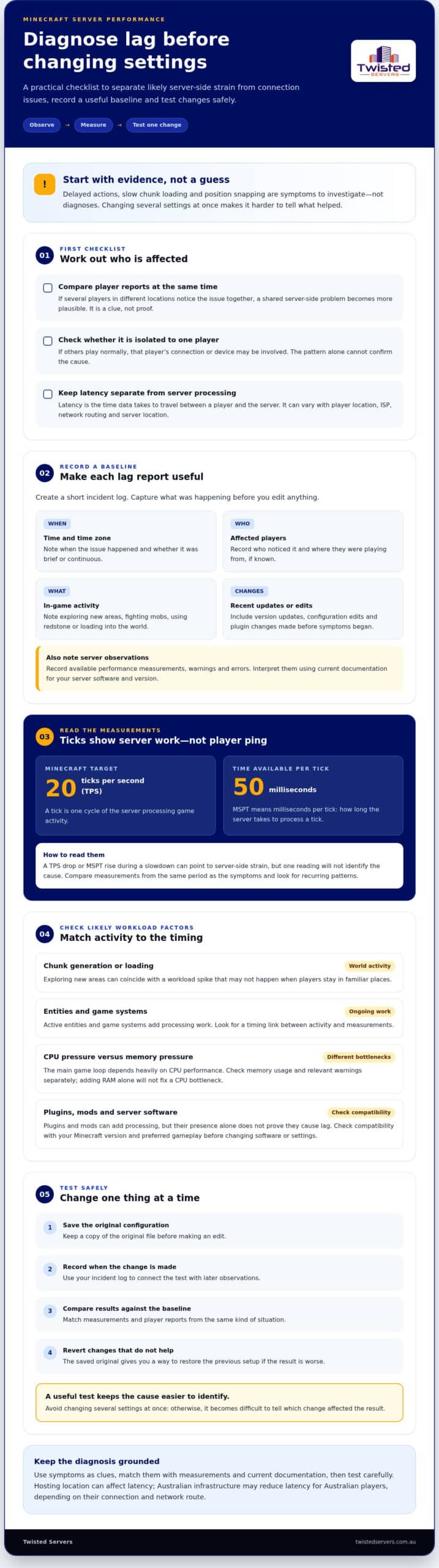
How to optimise a Minecraft server safely: a repeatable testing workflow
A controlled optimisation test changes one setting or component, then compares the result with a similar baseline. That makes it easier to tell whether a change helped, had no clear effect or introduced a new problem. The method works for configuration edits, software changes and plugins, though the safeguards vary.
- Record the baseline. Note relevant performance readings and the gameplay conditions when you collected them. Include the time, player activity and unusual events so you can make a fair comparison.
- Inspect before editing. Use server logs and available measurements to narrow down possible causes. Check the current documentation for your Minecraft version and server software before relying on a setting name, command or example value.
- Choose one change. Pick an adjustment that relates to the evidence. Write down what you intend to change and why. Avoid combining edits, as that makes the result difficult to attribute.
- Test under comparable conditions. Repeat similar in-game activity and collect the same measurements. A quiet test after a busy baseline won’t give you a reliable comparison.
- Compare and decide. Review performance, errors, stability and the effect on gameplay. Keep the change only if it helps without unacceptable side effects. Otherwise, revert it and record the outcome.
How do you test a server change without losing track?
Configuration edits are often easier to reverse than replacing server software, changing plugins or altering world data. Before editing, keep a separate copy of the original configuration and label your test notes clearly. For software or extension changes, record the previous version and the component changed. These changes can affect compatibility or require a planned rollback, so don’t treat them as simple setting adjustments.
When should you test chunks, plugins or updates separately?
World-generation work can add load, so schedule testing away from busy play periods where practical. Updates and plugin changes can also alter behaviour or introduce incompatibilities. Read the relevant release notes, confirm support for your Minecraft version and server software, and test each component separately before making it part of your regular setup.
Protect the world and configuration before higher-impact changes. Keep copies in a safe location or use a backup process you understand, then verify that it can restore the data you need. Check the documentation for any hosting plan or server tool before relying on a particular backup feature.
Use a change log with the date, purpose, exact adjustment, test conditions and outcome. If an edit causes errors, instability or worse measurements, restore the previous configuration or component before trying something else. A clear record makes troubleshooting more reliable and keeps your optimisation process repeatable.
Twisted Servers provides Australian game server hosting for Minecraft and other multiplayer games. Review the hosting option alongside your test results and the resources your server needs.
When Minecraft optimisation points to a hosting or support change
Configuration changes can only help so much if your server repeatedly runs short of available resources or takes more administration than you can comfortably manage. Use your test notes to identify whether the issue persists during normal activity, appears during busy periods or began after a software or world change. A recurring pattern is more useful than a single bad session.
- Review resources if performance measurements repeatedly show strain during expected play or logs show resource-related errors. Compare those findings with the requirements of your Minecraft version, server software and extensions.
- Review the hosting environment if the server remains constrained after you’ve checked configuration and software, or if you need more control over the environment. Adding memory alone won’t address a CPU or workload bottleneck.
- Review administration if you’re struggling to organise or update software, plugins, configuration and world data. A hosted server means you don’t have to manage the physical hosting environment yourself, but you’ll still make decisions about the game and its setup.
When is a hosted Minecraft server worth considering?
Self-hosting leaves you responsible for the machine, network connection, server software, updates and troubleshooting. It can suit an admin who wants hands-on control and is comfortable maintaining the setup. With a hosted multiplayer server, the provider supplies the hosting environment while you focus on configuring and running the Minecraft experience. Your responsibilities depend on the service, so understand what you’ll manage yourself.
Twisted Servers provides quality shared and dedicated servers for multiplayer gaming, including Minecraft server hosting. Our service is separate from Minecraft itself and third-party server software such as Paper or Fabric. Minecraft Java and Minecraft Bedrock server hosting start at $2.00 AUD/month. You can compare hosting with self-hosting using the measurements you’ve collected and the level of administration you want to take on.
What should Australian players consider about server location and support?
Server location can affect connection latency. Australian infrastructure may reduce latency for Australian players compared with a distant overseas server, but it can’t guarantee a particular ping. Results depend on each player’s location, ISP, network routing and the server’s location. If only players on particular connections report delays, investigate the network path rather than assuming the server needs more resources.
Twisted Servers’ dedicated expert support is available 24/7. Our team can help you discuss a hosting concern, though no particular fix or performance outcome is guaranteed.
If your measurements point to a hosting change, Australian game server hosting is one option. The minecraft server optimization guide 2026 approach is straightforward: use evidence to decide whether the next change belongs in your configuration, administration process or hosting setup.
Make performance reviews part of your server routine
As your community grows, the experience players value may change. Revisit your performance goals when you add a gameplay feature or expand the world. Ask players what matters most, such as longer sightlines, particular plugins or consistent performance during busy sessions. Their feedback can help you decide which trade-offs are acceptable.
Keep those goals in view as you apply this minecraft server optimization guide 2026. Your server doesn’t need every possible tweak; it needs choices that suit the way your community plays. When your review raises a hosting question, you can discuss your requirements with Twisted Servers.
Make each adjustment with a clear purpose, then ask players how it feels in practice. Small, considered changes can help you build a server experience your community wants to return to.
Frequently Asked Questions
What is TPS in a Minecraft server?
TPS is the server’s reported rate of game ticks, the processing cycles that advance the world. It isn’t the same as your client’s frame rate, which affects how smoothly the game is drawn on your screen, or ping, which relates to network delay. Treat TPS as a server-side indicator, then check whether the report concerns delayed world simulation, choppy visuals on one device or both.
Is lowering view distance always a good way to reduce Minecraft server lag?
No. First distinguish the server’s view-distance setting from a player’s client render distance. The server setting affects how much surrounding world data is sent to players, while the client setting controls how much the player’s device draws. Changing a client option won’t directly adjust server configuration. Check your software documentation to confirm the relevant setting and understand its effect before testing it with players.
Can adding more RAM fix Minecraft server lag?
Not by itself. If you’re reviewing memory, check the server’s Java startup options and the amount actually available to the process, rather than relying on a number copied from another setup. Consider what else runs on the same machine, since the operating system and other processes need memory too. Match any allocation changes to the documented requirements for your Minecraft version and server software.
Do Minecraft plugins affect server performance?
They can, and the effect may depend on which plugin features are active. Check whether the plugin has optional tasks, frequent event handling or settings that affect large parts of the world. If the slowdown occurs during a particular activity, review the plugin’s documentation for related features and configuration. This can help narrow the investigation to a specific function rather than removing extensions that may not be involved.
What should I do if Minecraft lag happens only when players explore new areas?
Note the affected area and whether the same slowdown happens when players return later. This can help distinguish a one-off first-visit event from a problem that continues in that location. Check the server log for warnings around the time of the slowdown, and avoid experimenting on your live world without a safe recovery plan. Record the affected area and test conditions for comparison.
How often should I update Minecraft server software and plugins?
Choose an update cadence that fits your server’s maintenance needs rather than following a fixed interval. For each release, look for notes about breaking changes, world data, configuration formats or plugin APIs, as these can affect the work required. Keep a record of the versions you run and review it before updating. Afterward, check essential functions such as joining, loading the world and using core community features.
For help choosing a Minecraft hosting setup, contact Twisted Servers to discuss your server hosting needs.
Disclaimer
Game titles, trademarks, logos and related assets are the property of their respective owners. Twisted Servers is an independent hosting provider and is not affiliated with or endorsed by the developers or publishers of the games mentioned unless otherwise stated. Information is provided as a general guide and may change as games, software and hosting services are updated.

