
Recommended Services


Supported Scripts


A whitelist controls who can join your Minecraft server. Creating a server whitelist limits access to approved players, making it useful for private worlds, community groups and invite-only sessions. It works through the server’s access settings, rather than a password players enter when they connect.
Setup is straightforward once you know which Minecraft edition your server runs and where to manage its settings. Java Edition uses whitelist commands and a configuration file; Bedrock Edition uses allowlist terminology and a separate file. Choosing the correct method matters, especially if you manage servers running different editions.
This guide explains how to add and remove player profiles, enable or disable access checks, view the approved list and reload file changes. It also covers using a hosting control panel, when available, to access the server console or files. Choose the method that suits your setup and keep access changes organised as your player group evolves.
Key Takeaways
- A whitelist restricts access to approved players; players not on an active list are refused entry.
- Use the server console to add or remove a player, and choose the commands that match your Minecraft edition.
- Enable access control from the console or, for Java Edition, through the server configuration file.
- View approved players with a command, or reload the list after editing its file manually.
- A hosting control panel gives you another way to manage server settings and access files.
What Is A Whitelist in Minecraft?
A Minecraft whitelist is an access list that lets a server admit approved player profiles. Minecraft doesn’t provide a server password, so a whitelist helps restrict connections to people you’ve added. The section heading identifies the game this advice covers: the commands below apply to Minecraft Java Edition dedicated servers. Keep game-specific instructions separate when managing different servers.
A player profile is the Minecraft identity recognised by the server. In Java Edition, the server resolves a player’s name to a UUID when adding them, helping identify the profile even if their username later changes. Java Edition saves whitelist entries in whitelist.json. Keep this file for server entries, not application notes or other personal details.
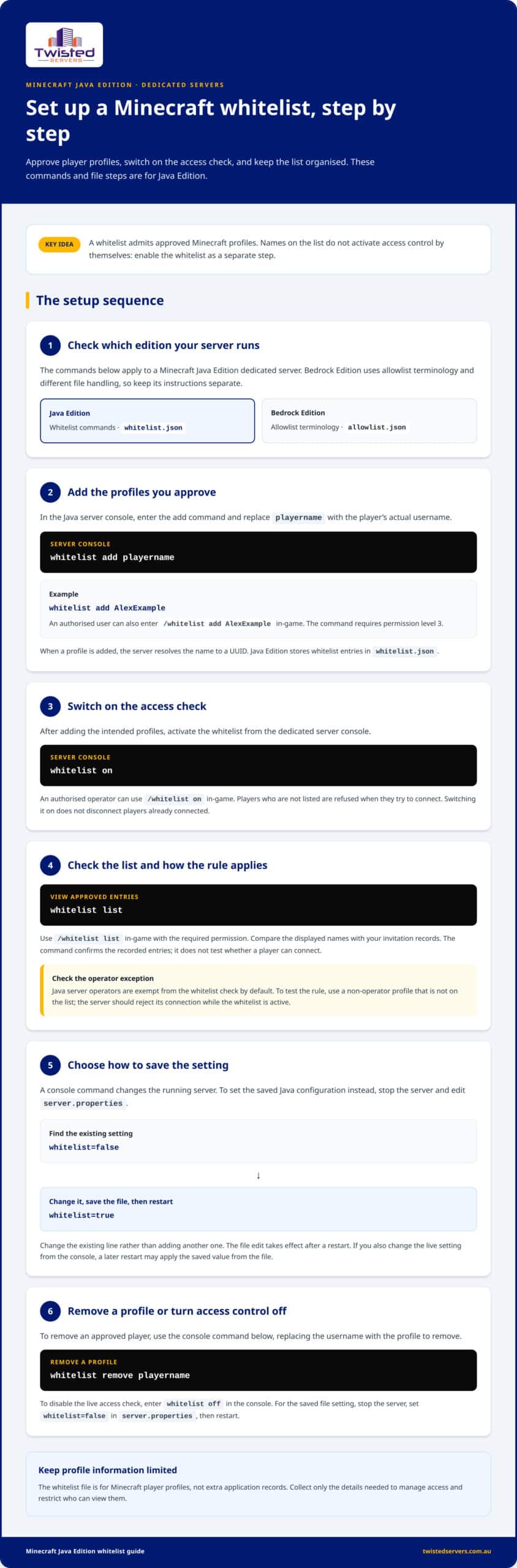
Adding a player means approving their Minecraft username for access. In the Java Edition server console, enter whitelist add playername, replacing playername with the player’s actual name. For example, whitelist add AlexExample adds that profile. The command requires permission level 3, and the whitelist command is for dedicated servers. In-game, an authorised user can enter /whitelist add AlexExample.
Removing a player means deleting their profile from the approved list. Enter whitelist remove playername in the Java console, or use the slash-prefixed command in-game. For example, whitelist remove AlexExample targets that username. Use whitelist list to view current entries. Java server operators are exempt from the whitelist check by default, so operator status affects how the list applies to them.
Bedrock Edition uses different allowlist terminology and file handling. Its player profiles are stored in allowlist.json, not Java Edition’s whitelist.json. Don’t apply Java file instructions to a Bedrock server. Commands also differ between editions, so follow instructions for your server’s edition and software.
To activate a Java Edition whitelist, add the intended profiles, then enter whitelist on in the dedicated server console. Players who aren’t on an active list are rejected when they try to connect. Adding names without enabling the whitelist doesn’t activate the access check. Enabling it doesn’t disconnect players already connected, so it applies to subsequent connection attempts.
For Australian privacy and security, collect only application details needed to manage access, and restrict who can view them. Minecraft’s whitelist file is for player profiles, not extra application records. The commands described here concern Minecraft Java Edition.
Enabling the whitelist in the server console
A console command changes the running Java Edition server’s whitelist setting. Enter whitelist on in the server console to activate the access check; the console command doesn’t need a leading slash. An authorised operator can also enter /whitelist on in-game. Use the console to change the live setting without editing the configuration file.
For a controlled change, first confirm the intended players are listed. Then run whitelist on and check the entries with whitelist list. This confirms which names are recorded, but doesn’t test whether a player can connect. A non-operator profile that isn’t listed can test the rule: the server should reject the connection while the whitelist is active.
Server configuration consists of saved options used when the server starts. Java Edition can enable its whitelist through server.properties. Stop the server, find whitelist=false, change the value to whitelist=true, save the file, then restart. Change the existing setting rather than adding another line. The edit won’t affect the running server until it restarts.
Choose one method deliberately. A console command changes the live setting; editing server.properties sets the value read at startup. If you edit the file while the server is running, a later restart may apply its saved value and replace the live setting. After restarting, inspect the configuration if the behaviour differs from what you intended.
Enter whitelist off in the console, or set whitelist=false in server.properties and restart. The console method changes the running server; the file method changes the saved configuration used at startup.
Bedrock Edition uses different allowlist conventions, so don’t apply Java Edition’s whitelist on and whitelist off instructions to it. Confirm the server edition before changing access settings. Using Java commands or files with Bedrock settings can leave the intended access control unapplied.
A Linux firewall allowlist filters network traffic by source IP address; it doesn’t approve Minecraft player profiles. It can restrict network connections, but it isn’t a substitute for the Minecraft whitelist. Incorrect firewall rules can block legitimate players, so use IP-based filtering only when it’s part of your access plan.
Whitelisting has limits. Java Edition operators bypass the whitelist check by default, and enabling it doesn’t disconnect players already connected. A misspelled username can also stop an invited player from joining. Limit operator permissions, test with a non-operator account and consider how to handle connected players before changing access during a session.
Listing whitelisted players
The whitelist list command displays approved player names on a Java Edition server. Enter it in the server console, or use /whitelist list in-game with the required permission. Compare the displayed names with your invitation records before changing access. Checking the current entries makes it easier to spot an unexpected name or missing player.
A player-name argument identifies a Minecraft profile for a whitelist command. Use the player’s actual username with whitelist add playername or whitelist remove playername. For example, whitelist remove AlexExample targets the AlexExample entry. When a player is added, the command resolves the name to a UUID, so don’t guess or substitute a display label.
A target selector is a shortcut such as @a for selecting entities in commands that support selectors. Use a player’s actual name with whitelist add or whitelist remove. To remove a specific entry, run whitelist remove playername, then use whitelist list to review the remaining names.
Whitelist enforcement determines whether the server checks its list during connection attempts. On Java Edition, enter whitelist on to enable the check, then test with a non-operator profile that isn’t listed. The connection should be rejected. Operators are exempt by default, so an operator account isn’t a reliable test.
The enforce-whitelist setting determines whether players removed from the list are kicked when the list reloads. It was added in Java Edition 1.17 and is off by default. Set enforce-whitelist=true in server.properties if you want that behaviour. After changing the list, run whitelist reload to apply it. With enforcement enabled, removed players are kicked on reload.
To reduce unintended access, keep the whitelist active and grant operator status only to trusted administrators. Java operators bypass the whitelist check, so making someone an operator changes how the list applies to them. A whitelist controls who may join; it doesn’t replace careful management of server permissions.
If an invited player can’t connect, run whitelist list and compare their exact username with the entry. Check that the Java server’s whitelist is enabled and that the player is joining the matching edition. If you edited the file manually, run whitelist reload. A listed non-operator should then be able to connect.
Since Java Edition 1.7.10, Minecraft servers have automatically resolved a player’s name to a UUID when the player is added to the whitelist.
Use the account name the player provides, not a nickname or assumed variation. When reviewing an entry later, confirm an uncertain identity with the player before adding or removing it. Keeping invitation details consistent with the name entered helps prevent mistakes as you maintain the approved-player list.
Reloading the whitelist file
Reloading applies saved Java Edition whitelist changes without restarting the server. After editing whitelist.json, enter whitelist reload in the server console. The server reads the file again, allowing changes to take effect while it runs. This command is for Java Edition; Bedrock Edition stores its list in allowlist.json.
Use this sequence when editing the Java file manually:
- Locate
whitelist.jsonin the server’s files. - Save a copy before making changes.
- Edit the existing file, keeping its JSON structure intact.
- Save the edited file in the same location.
- Enter
whitelist reloadin the server console. - Run
whitelist listto review the entries.
The reload command reads the file but doesn’t make or save your intended changes. Save the edit before running it. If you edit a local copy instead of the server’s active whitelist.json, the running server won’t read that copy. Confirm the file location in your server’s file manager first.
Java Edition stores approved player profiles in whitelist.json. Keep the JSON formatting valid when editing the file by hand: a missing comma, quote or bracket can alter its structure. If you’re unsure about a manual edit, use whitelist add playername or whitelist remove playername in the console instead.
Reloading whitelist changes is separate from enabling the whitelist. whitelist reload reads the updated file; whitelist on activates access checks. If the list is off, reloading alone won’t activate it. Check the server setting before testing a changed entry.
Enforcement also determines what happens to connected players. Java Edition’s enforce-whitelist setting kicks players who are no longer on the list when it reloads. With enforcement off, removing a profile and reloading won’t immediately disconnect that player. Keep this difference in mind when changing access during a live session.
If a newly added profile doesn’t appear, confirm you edited the server’s Java whitelist.json, saved it and ran whitelist reload. Use whitelist list to inspect the loaded entries. If a removed player remains connected, check enforce-whitelist; reloading kicks removed players only when that setting is enabled.
Bedrock uses allowlist.json, not Java Edition’s whitelist.json. Don’t edit the file for one edition on a server running the other. Match the file and commands to the server edition, then use its supported controls to reload. For Java, the direct reload command is whitelist reload.
For Bedrock Edition, keep the version distinction in mind: in Minecraft Bedrock Edition version 1.18.10, the former whitelist file and command still exist but are deprecated. Their continued existence does not make them the same as Java Edition’s whitelist workflow, which uses whitelist.json and whitelist reload. Bedrock’s list is stored in allowlist.json, so avoid treating the old whitelist names as a reason to follow Java file instructions. When working with a Bedrock server, identify its edition and version before applying guidance about whitelist files or commands; the old names are present in that version, but deprecated.
Managing a whitelist through a hosting control panel
A hosting control panel is a web interface for managing a game server. Available controls depend on the host and panel setup. If the panel provides a server console, you can enter Minecraft whitelist commands there; if it provides a file manager, you can edit the relevant list file. The panel provides access, while Minecraft server software handles whitelist rules.
Minecraft Java Edition dedicated server software supports the whitelist commands and stores entries in whitelist.json. Bedrock Edition uses allowlist terminology and stores entries in allowlist.json. A hosting panel can manage either server when it provides console or file access. The panel doesn’t determine which edition’s commands or files apply.
For a Java server, use the panel console to enter commands such as whitelist add playername, whitelist remove playername and whitelist list. Replace playername with the player’s Minecraft username. Use whitelist on to enforce the list. Console commands are useful for individual changes and avoid manual JSON edits.
For file-based management, open the server’s file manager and locate the file for its edition. Before editing whitelist.json or allowlist.json, save a copy. Make the change without altering the JSON structure, then save the file. For Java Edition, run whitelist reload in the console to load manual edits without restarting.
A panel workflow can help keep each change clear:
- Confirm the server edition in its settings or files.
- Open the console or file manager provided by the panel.
- Use Java whitelist commands, or edit the matching edition’s list file.
- Reload Java Edition after manually editing
whitelist.json. - Run
whitelist listto review Java entries.
The whitelist list command displays Java Edition entries; it doesn’t confirm that a player can connect. Test access with a non-operator profile, since Java operators are exempt by default. If a panel shows a changed file but the server behaves as before, confirm you edited the active server’s file and reloaded it.
Control panel features vary, so don’t assume every interface has a dedicated whitelist screen. Some provide console access only, while others also expose server files. If there’s no list editor, Java console commands still let you manage entries directly. Choose a method that matches the server edition and the controls available.
Twisted Servers
Twisted Servers offers Game Server Hosting for communities that want a dedicated place to play. If you’re setting up a Minecraft server, the whitelist commands and files above help you manage who can join. Hosting provides the server environment; Minecraft’s own settings control access, so choose the edition and configuration that suit your group.
Choose Twisted Servers when you want hosted game server infrastructure instead of managing it yourself. We also offer VPS Hosting and Dedicated Server Hosting for different server needs. The right option depends on the software you plan to run and how you want to manage it.
If you’d like to discuss your server hosting needs, contact Twisted Servers.
Build an access process your community can maintain
Creating a server whitelist is a practical starting point, but a consistent access policy makes administration clearer as your community changes. Decide who can approve new members, how requests are handled and who can update the list. A shared process reduces confusion when administrators change or a player needs access.
If you’re planning how to run your Minecraft community, Twisted Servers offers Game Server Hosting, VPS Hosting and Dedicated Server Hosting. The right fit depends on how much of the server environment you want to manage and the setup you have in mind. Contact Twisted Servers to discuss your requirements and choose a suitable next step.
Contact Twisted Servers about your server plans, and take the next step with confidence.
Frequently Asked Questions
How do I add and remove users from a server whitelist?
For a Java Edition dedicated server, enter whitelist add playername to approve a player, or whitelist remove playername to revoke access. Replace playername with the player’s Minecraft username. In the server console, omit the opening slash; in-game, use commands such as /whitelist add AlexExample. In-game Java commands require permission level 3. Bedrock Edition uses allowlist terminology, so follow its server-specific command format.
How do I create an allowlist on a Linux server using a firewall?
A Linux firewall allowlist filters network traffic by source IP address, not Minecraft player profiles, so it doesn’t replace the Minecraft whitelist. This guide doesn’t cover firewall allowlist configuration.
Disclaimer
Game titles, trademarks, logos and related assets are the property of their respective owners. Twisted Servers is an independent hosting provider and is not affiliated with or endorsed by the developers or publishers of the games mentioned unless otherwise stated. Information is provided as a general guide and may change as games, software and hosting services are updated.

