
Recommended Services


Supported Scripts

A Mordhau server can launch and still need careful configuration before it’s ready for your community. Mordhau server management covers installing the dedicated-server files with SteamCMD and setting access, player slots and map rotation in Game.ini. The server uses Steam App ID 629800 for installation.
Configuration files and setup steps can seem like the hardest part of running a server. A clear process makes them easier to manage, whether you’re setting one up for the first time or maintaining an existing server.
This guide explains Mordhau server hosting, outlines a SteamCMD setup, and shows how Game.ini settings and internal map names affect map rotation. It also covers mods, updates, support and restarts, helping you plan a practical routine for your players.
Key Takeaways
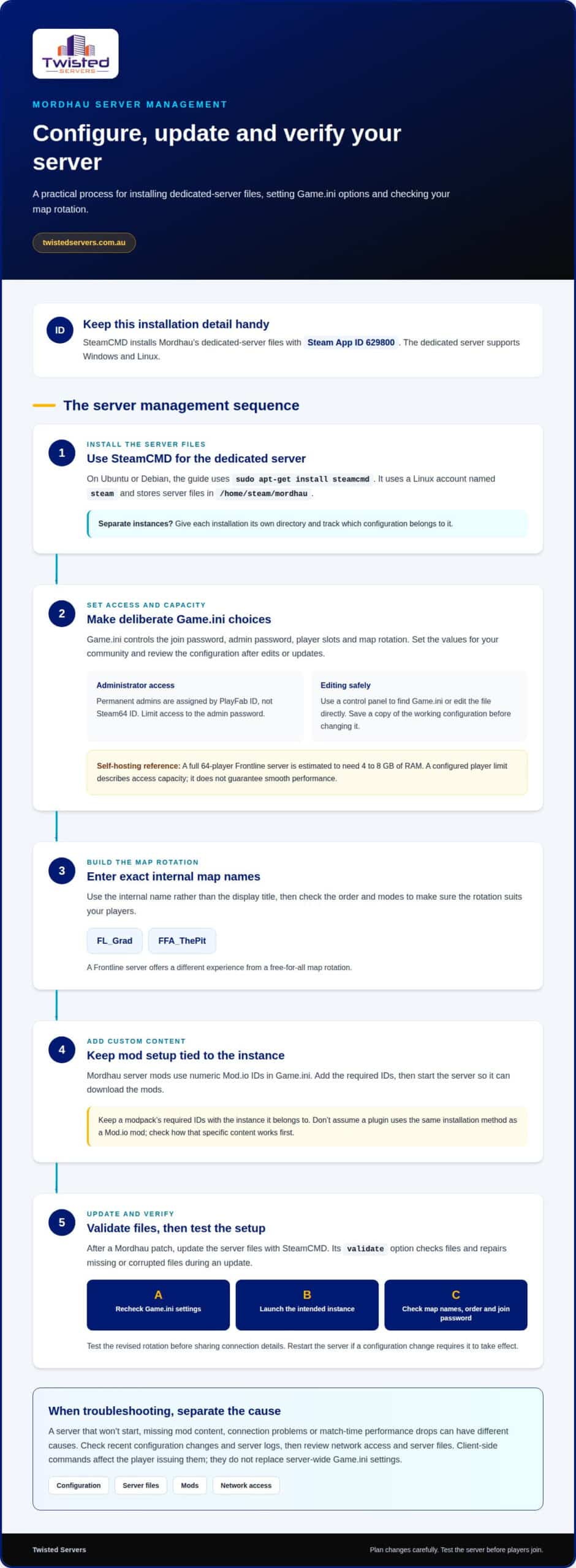
- Use Game.ini to configure access, player slots and map rotation, using internal map names such as FL_Grad and FFA_ThePit.
- SteamCMD installs the dedicated-server files with App ID 629800; a clear setup process makes it easier to manage server instances.
- Plan support and reliability around how you’ll handle server issues and keep your community informed.
- Build updates and restarts into your server routine, and use SteamCMD’s validate option to check and repair files during an update.
- Choose between Game Server Hosting, VPS Hosting and Dedicated Server Hosting based on how much server management you want to handle.
Game.ini server settings and map rotation
Game.ini controls key Mordhau server options, including the join password, admin password, player slots and map rotation. Set each value deliberately, and review the configuration after edits or updates.
Set the join and admin passwords in Game.ini, assign permanent admins by PlayFab ID, and use admin controls to manage bans and enforce player conduct rules.
Panel-Based Configuration
A control panel can provide access to server settings and configuration files, while editing files directly lets you adjust individual values. Use the panel to find Game.ini, make the change, then restart the server if required for it to take effect.
Save a copy of the working configuration before editing. It gives you a reference if you mistype a setting or a later change affects the server.
Map Rotation and Game Modes
Map rotation uses internal map names such as FL_Grad and FFA_ThePit. Enter the exact name rather than relying on the display title, then review the order to make sure it suits your players.
Choose maps and modes that fit your community. For example, a Frontline server offers a different experience from a free-for-all map rotation.
Player capacity is also configured in Game.ini. Set the slot value to suit your intended audience, but remember that a configured limit describes access capacity, not a guarantee of smooth performance. A full 64-player Frontline server is estimated to need 4 to 8 GB of RAM when self-hosted.
Keep the settings consistent with your community’s rules. For example, make the join password clear to invited players, limit access to the admin password, and record which PlayFab IDs have permanent administrator access. PlayFab IDs are used for that access, not Steam64 IDs.
After a Mordhau patch, update the server files and validate them through SteamCMD. Its validate option checks the files against SteamCMD and repairs missing or corrupted files during an update. Afterwards, recheck Game.ini, especially if you changed the map list or player limit.
Client-side commands are separate from server configuration. For example, m.ShowCrosshair 0 disables the crosshair for the client issuing it; it does not replace Game.ini settings for passwords, slots or rotation. Keep that distinction clear when troubleshooting a player’s settings against a server-wide issue.
Before finalising a revised rotation, test it. Check the spelling of each internal map name, confirm the intended modes appear in the right order, and make sure the join password still works for your players.
What Is Mordhau Server Hosting?
Mordhau hosting runs the dedicated-server software so players can join a shared match without relying on a player’s game client to host it. The server supports Windows and Linux, and SteamCMD installs its files using Steam App ID 629800.
Which Mordhau server hosting providers have Australian locations? Look for game servers hosted in Australia, which can suit Australian player communities. The connection also depends on each player’s location, ISP and network route.
What ping and hosting regions are best for Mordhau players in Australia? An Australian region is a sensible starting point for players here, but no single ping suits everyone. Distance, ISP routing and the server’s location all affect latency.
For a self-managed setup, organise each server instance around its own installation directory and configuration. To switch instances, stop the running server, select the intended installation and settings, then launch it. Keeping files separate helps prevent changes for one community from affecting another.
Installing on Linux with SteamCMD
On Ubuntu or Debian, install SteamCMD with sudo apt-get install steamcmd. The installation guide uses a Linux account named steam, adds it to the sudo group, and stores the Mordhau server files in /home/steam/mordhau.
Use SteamCMD to install the dedicated-server files with App ID 629800. Keep the install directory consistent when you update or launch the server. If you run separate instances, use a distinct directory for each installation and track which configuration belongs to each one.
Mods and custom content
Mordhau server mods use numeric Mod.io IDs in Game.ini. Add the required IDs to the configuration, then start the server so it can download the mods. You can manage a modpack as a group of required IDs, keeping the list with the instance it belongs to.
Don’t assume a plugin uses the same installation method as a Mod.io mod. Confirm how the specific content works before adding files or changing server settings. Keep a copy of the working configuration so you can restore it if the content change prevents startup.
After a Mordhau patch, use SteamCMD’s validate option to check the server files against SteamCMD and repair missing or corrupted files during an update. Once updated, launch the intended instance and confirm it loads the expected configuration and content before sharing connection details with players.
Support and server reliability
Reliable Mordhau hosting involves more than keeping the process running. Hardware capacity, server files, network access, configuration changes and mod compatibility can all affect whether players connect and stay in a match. A practical support plan helps you identify which part needs attention.
Common setup problems include a server that won’t start, missing mod content, players being unable to connect, or performance dropping during a busy match. Check server logs and recent configuration changes first, then review network access and server files. For self-hosted servers, UDP ports 7777, 15000 and 27015 carry game, beacon and query traffic.
For performance issues, look at hardware load alongside player reports. Mordhau’s dedicated server is CPU-bound and benefits from a high-clock CPU. A full 64-player Frontline server is estimated to need 4 to 8 GB of RAM when self-hosted. If players report lag or rubber-banding, note when it occurs and compare that with server load and network conditions.
Dedicated expert support is available 24/7. When reporting an issue, include the error message, affected server instance and recent changes. For example, noting that a server stopped starting after a configuration edit gives support a useful starting point. Keep operational troubleshooting separate from requests to change custom settings.
Modded servers need extra care. Mordhau downloads mods listed by numeric Mod.io IDs in Game.ini the next time the server starts. If clients can’t join after a mod change, compare the current ID list with the intended modpack, then check startup logs for download or loading errors. Keep a known-working configuration so you can restore service if an edit causes problems.
Back up server files before changing them or adding custom content. Preserve the configuration and administrator data you need, then make changes in a controlled sequence. If an update or mod installation causes a fault, restore the last working files before trying another change. This helps you identify whether the cause was a patch, setting or custom content.
Refund periods are separate from technical support. Their length and eligibility depend on the hosting service’s purchase terms, so review those terms before buying and keep your transaction details. Refund conditions don’t replace the support process for resolving server issues.
For routine reliability, keep an incident record with the time, affected players, error text and action taken. Patterns, such as connection failures after a patch or errors after a modpack change, can help you choose the next troubleshooting step without making unnecessary edits.
Automatic updates and scheduled restarts
Treat updates and restarts as separate tasks. Updates replace or repair Mordhau server files; restarts stop and relaunch the running process. Keeping the steps distinct helps you identify whether a problem followed a patch, a configuration change or a restart.
Schedule maintenance for a time when fewer players are likely to be in a match. Notify your community through its usual announcement channel, then stop the server before changing its files. Run the update through SteamCMD and check the startup output before reopening access. If the server fails to load, review the logs and recent configuration changes.
Automation requires a schedule and a clear sequence. On Linux, an administrator can use a scheduled task such as cron to run a script. On Windows, Task Scheduler can start a script at a chosen time. The script should stop the Mordhau process cleanly, run the update, record the result and launch the server again.
Test the sequence manually before scheduling it. A script that starts a second server process without stopping the first can cause conflicts. Check that it uses the correct installation directory, preserves the expected configuration and returns the server to its normal running state. Keep a copy of the previous script in case an edit breaks the sequence.
Schedule restarts around player activity rather than at an arbitrary interval. A community that organises matches can announce a restart between events. Give players notice, allow the current match to finish where practical, then restart and confirm the server appears as expected. Avoid restarting during a tournament or scheduled community night.
Updates can affect how server files behave, so keep a brief change record. Note the patch, update time, whether the server started and any error message. If the same failure returns after a later update, these notes can help narrow down the cause without repeating unrelated configuration edits.
DDoS protection addresses hostile network traffic, not patch installation or restart scheduling. Treat it as a separate part of server operations. After a traffic incident or update, check whether players can connect and whether the server remains responsive. Network protection cannot prevent every cause of downtime, such as a failed update or incorrect launch setting.
A practical runbook can keep the sequence consistent:
- Announce the maintenance window to players.
- Stop the server before running the update.
- Record the SteamCMD result and any errors.
- Restart the server, then confirm it is available to players.
Use the same steps for manual maintenance and automated tasks. Recording the result helps you spot whether an update failed, a restart did not complete or the server returned with an unexpected configuration.
Dedicated-server setup with SteamCMD
SteamCMD provides a direct way to install Mordhau’s dedicated-server files. A repeatable workflow is central to Mordhau server management because it keeps the installation directory, server settings and network rules organised. Consistent setup also makes routine maintenance easier to track for communities running their own servers.
On Ubuntu or Debian, install SteamCMD with sudo apt-get install steamcmd. The setup guide uses a Linux account named steam and adds it to the sudo group. Server files go in /home/steam/mordhau. Use the same directory to install, update and launch the server.
SteamCMD installs the Mordhau dedicated-server files with Steam App ID 629800. Decide where the files will live and record that path with the instance settings. Separate install directories help distinguish multiple instances, especially when each serves a different community or uses its own configuration.
- Install SteamCMD on Ubuntu or Debian using the package command above.
- Use the
steamaccount and the planned install directory. - Install the dedicated-server files with App ID
629800. - Set the launch settings and network access, then start the server.
Network access is configured separately from SteamCMD. Self-hosted Mordhau servers use UDP ports 7777, 15000 and 27015 for game, beacon and query traffic. When configuring a router, forward those ports to the local IP address of the server machine.
After installation, start the server and check its output for errors. Confirm it accepts connections using the intended method before sharing details with players. If it doesn’t appear or players can’t connect, check the launch settings, installation path and port forwarding in sequence. Changing one item at a time helps isolate the cause.
SteamCMD’s validate option checks server files against SteamCMD and repairs missing or corrupted files during an update. Use it if an update leaves the installation incomplete or you suspect damaged files. Once validation finishes, launch the server and review its output before opening it to players.
Keep a setup record with the App ID, install directory, account name and forwarded ports. Recording /home/steam/mordhau alongside UDP 7777, 15000 and 27015 gives you a useful reference during maintenance. Good Mordhau server management starts with repeatable records as well as a working installation. If you want a dedicated environment for this setup, dedicated server hosting is one option to consider.
Twisted Servers
Twisted Servers offers Game Server Hosting, VPS Hosting and Dedicated Server Hosting for different levels of server control. If you’re planning a Mordhau community, consider how much configuration, updating and maintenance you want to manage yourself. VPS or Dedicated Server Hosting gives you a server environment to manage directly. Check with us whether our Game Server Hosting supports Mordhau.
Share your setup goals and the level of control you need, and we can help you understand the relevant hosting options. For questions about your next step, contact Twisted Servers.
Plan your next Mordhau setup
Turn your server requirements into a practical hosting plan. Consider how much control you want over the operating system, configuration and ongoing maintenance, then choose an approach that fits your community’s capacity to handle those tasks. A clear plan also helps determine who will manage updates, troubleshooting and changes as your setup evolves.
Mordhau server management involves hands-on administration and decisions about the hosting environment. Twisted Servers offers Game Server Hosting, VPS Hosting and Dedicated Server Hosting, giving you different options for your broader server requirements. The right fit depends on the level of control and management you want, not just the game you plan to run.
Bring your intended setup and management priorities into the conversation. Contact Twisted Servers to discuss your hosting requirements and consider the next step with clarity. A considered setup gives your community a sound foundation to build on.
Frequently Asked Questions
Can I schedule automatic server restarts?
Yes. Set a recurring restart schedule through the host operating system or management tools available to your setup. Keep restarts separate from patching: a restart reloads the running server, while an update changes files. Choose a quiet period for your community, announce the maintenance window in advance, and review the first scheduled run. If you run multiple instances, make sure each task identifies its intended server.
What amount of resources do you suggest starting with?
Choose resources based on expected player activity, the selected game mode and any custom content, rather than assuming one configuration suits every community. During a representative match, watch for CPU or memory pressure alongside reports of poor performance. If demand grows, use those observations to guide adjustments. Record the server configuration so you have a useful comparison point for later changes.
How do I set up a Mordhau dedicated server?
First decide who will maintain the operating system, server configuration and routine upkeep. Document the intended game mode, access policy, administrator responsibilities and connection details. This gives the setup a clear purpose before deployment. After launch, keep ownership and administrative access organised, and give moderators a simple way to report technical issues without sharing sensitive account credentials.
What are the minimum hardware and network requirements for a Mordhau server?
Plan hardware and connectivity around the expected workload rather than assuming one minimum suits every server. Player activity, the selected mode and custom content can change resource demand. Network quality also affects multiplayer, because the route between each player and the host influences latency. Test conditions that resemble normal community sessions, then use your observations to assess whether the setup meets its needs.
How do I configure Mordhau server settings, maps, game modes, and player limits?
Make configuration changes in a controlled way: record the current setup, change one area, then review the result with a small group before making it the community default. For a new map or mode, tell players what’s changing and gather feedback after a session. This helps distinguish a technical fault from a preference issue and gives administrators a clear basis for keeping or reverting the change.
How do I manage Mordhau servers using the console, RCON, or admin tools?
Treat the console, RCON and in-game administration tools as separate interfaces, and use only methods supported by your setup. Give administrative access only to trusted moderators, keep credentials private, and record important actions such as changing a match or altering server access. A written moderation process also helps admins apply community rules consistently when handling disputes or disruptive behaviour.
How do I install and manage mods on a Mordhau server?
Agree on a mod policy with your community before adding custom content. Decide who can request additions, how changes will be announced and what happens if a mod disrupts play. Test each change with a small group before including it in regular sessions. Keep a record of active content and the reason for each addition, so administrators can review the setup when players report compatibility problems.
How do I update, back up, and secure a Mordhau dedicated server?
Store recovery copies separately from live server files, and document how to restore the configuration and administrator records. Test the process away from the live instance before relying on it during an incident. Limit operating-system and server administration access to trusted people, protect credentials, and remove access when an administrator no longer needs it. Let players know when planned maintenance may make the server unavailable.
Disclaimer
Game titles, trademarks, logos and related assets are the property of their respective owners. Twisted Servers is an independent hosting provider and is not affiliated with or endorsed by the developers or publishers of the games mentioned unless otherwise stated. Information is provided as a general guide and may change as games, software and hosting services are updated.

