
Recommended Services


Supported Scripts
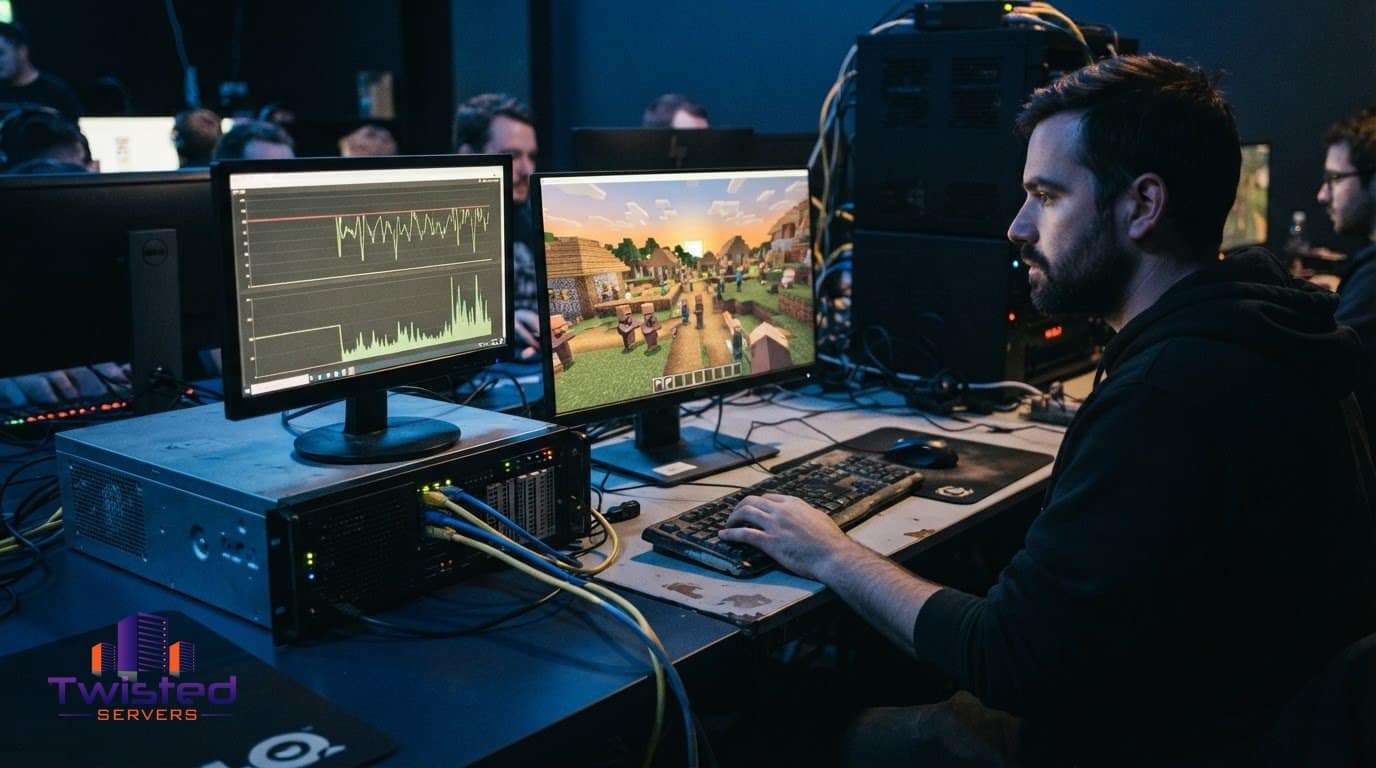

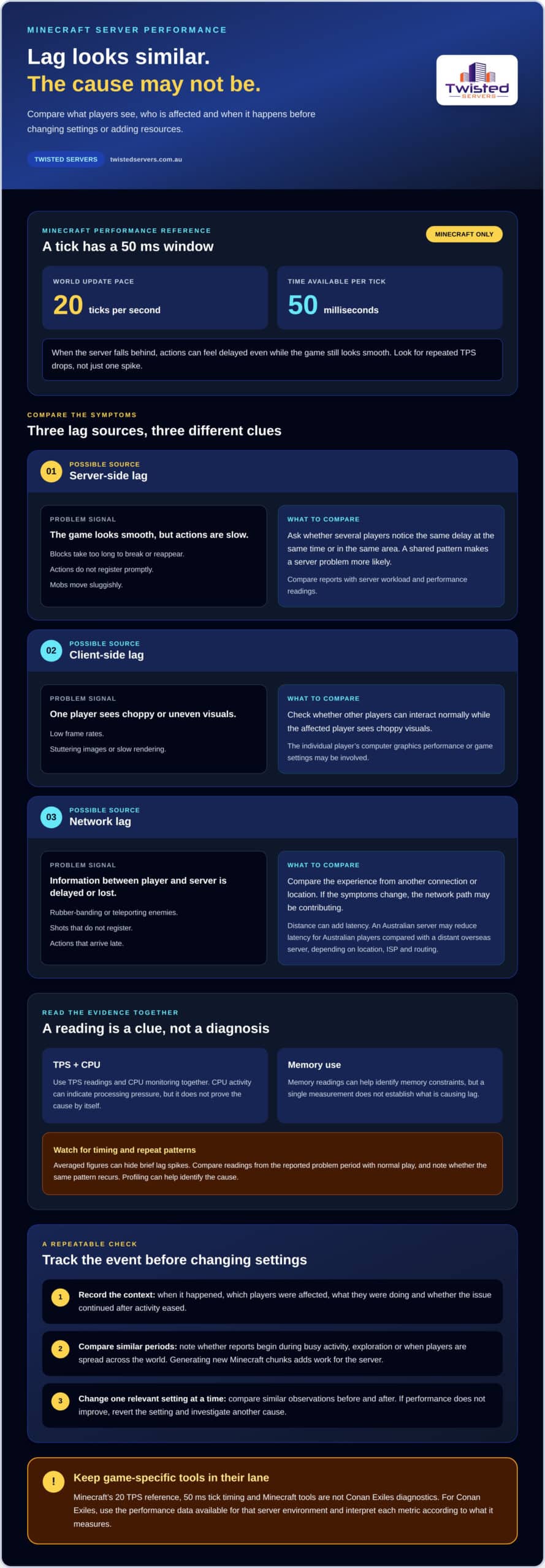
More RAM and a faster CPU don’t automatically fix lag. To understand what server-side lag is, look at the work the game server must complete: in Minecraft, it updates the world 20 times per second, so each tick has 50 milliseconds to finish. When it falls behind, actions can feel delayed even if your game still looks smooth.
It’s reasonable to suspect the server when blocks take too long to break or mobs move sluggishly, but similar symptoms can come from a slow connection or an overloaded computer. Adding resources without first finding the bottleneck may leave the real cause untouched.
This guide explains how to distinguish server-side lag from network and client issues, what TPS and CPU usage can reveal, and which common sources of server load to investigate. You’ll also learn how world activity, chunk loading, plugins and configuration can affect performance, and when a hardware change may help. Consistently low TPS can point to server workload, while brief lag spikes may be harder to spot in averaged readings. The goal is to diagnose the problem before changing settings or upgrading resources.
Key Takeaways
- Use Minecraft’s 20 ticks per second as a performance reference, and look for repeated TPS drops rather than reacting to a single spike.
- Compare what players experience: smooth visuals with delayed in-game actions can point to server workload, while rubber-banding may indicate a network issue.
- Watch for lag when players explore new areas, as generating chunks adds work for the server.
- Use TPS readings and CPU monitoring together; averaged figures can hide brief lag spikes, so profiling can help identify the cause.
- Consider a hosting change only when evidence points to a persistent capacity bottleneck, since more RAM or a faster CPU won’t fix every source of lag.
How can I improve my server’s performance/TPS?
For a Conan Exiles dedicated server, start with its own performance data and configuration rather than applying Minecraft-specific tick guidance. A setting change is useful only if it targets a measured bottleneck and preserves the gameplay experience you want.
Conan Exiles server workload
Server performance reflects the work the dedicated server is handling, but Minecraft’s game-tick model is not a reliable guide to Conan Exiles settings. In particular, don’t assume Minecraft’s 20 TPS target or its 50-millisecond tick timing applies to Conan Exiles. Redstone ticks, Spigot’s /tps command and Minecraft profiling tools are game-specific examples, not Conan Exiles diagnostics.
Instead, connect reports of slow play to what was happening on the Conan Exiles server. Record the time, affected players, their in-game activity and whether the issue continued after activity eased. For example, note whether reports began during a busy encounter or persisted when players were spread across the world. These observations help distinguish a brief workload increase from an ongoing performance problem without assuming a particular game mechanic is responsible.
Keep a record of configuration changes, too. Adjust one relevant setting at a time, then compare similar observations from before and after. If you change several settings together, it becomes harder to identify which adjustment affected performance or gameplay.
Measure performance before changing settings
Use the performance measurements available for the Conan Exiles server environment, and interpret each metric according to what it measures. CPU activity can indicate processing pressure, while memory use can help identify memory constraints. Neither measurement alone proves what is causing lag. Compare readings from the reported problem period with those from normal play, then see whether the same pattern recurs.
TPS is useful only if the server software or monitoring tools provide a meaningful tick-rate measure for Conan Exiles. Don’t rely on Minecraft commands or assume a Minecraft TPS threshold describes Conan Exiles performance. If a tool reports response delays or missed updates, record the metric’s name, its trend and when it changes, alongside player reports.
Use your records to choose what to investigate next: review settings related to the observed pressure, assess whether the workload matches the server’s available resources, then measure again after a controlled change. If performance doesn’t improve, revert the setting and investigate another cause. This keeps Conan Exiles troubleshooting grounded in evidence, not assumptions borrowed from another game.
Differences between client-side, network and server-side lag
Similar delays can have different causes, so identify what changes and who experiences it. In Minecraft, compare a player’s screen, connection and in-game actions before changing settings.
Symptoms of server-side lag
Server-side lag occurs when the game server struggles to process and update the shared game state. It matters because players can see smooth graphics while the server responds slowly. In Minecraft, blocks may take time to break, actions may not register promptly, and monsters can move sluggishly.
Look for patterns across players. If several report delayed actions in the same area or at the same time, a shared server problem becomes more likely. For example, ask whether others also see blocks reappear after breaking them. One player’s report alone doesn’t identify the cause.
Client-side lag occurs on an individual player’s device. Low frame rates, stuttering images or slow rendering can make movement look uneven, even while other players interact normally. If one player sees choppy visuals but others experience responsive gameplay, their computer’s graphics performance or game settings may be involved.
Network lag affects the connection between a player and the server. Delayed actions, rubber-banding, teleporting enemies and shots that don’t register can happen when information takes longer to travel or packets are lost. Compare the experience using another connection or from another location. If the symptoms change, the network path may be contributing.
These causes can overlap. A player may experience low frame rates while the server is also struggling, so note whether the issue affects one screen or the whole group. Record who is affected, their location and their activity, such as exploring or fighting. Those details help separate local rendering problems from shared server delays.
Server load, traffic and distance
Server load is the work required to process players, world activity and game systems. A sudden increase in activity can slow server responses if the workload exceeds available processing capacity. Compare reports from a quiet period with those from a busy event. A repeatable difference points towards a load-related cause.
Traffic spikes can also affect the network path, but they aren’t the same as server overload. Server-side delay affects game processing; network congestion delays communication between the player and server. Check whether players in different locations report the same slow actions or whether symptoms mainly affect one connection.
Geographic distance can add network latency because information has farther to travel between a player and server. An Australian server may reduce latency for Australian players compared with a distant overseas server, depending on each player’s location, ISP and routing. This can improve connection responsiveness, but it won’t resolve server-side lag caused by heavy game processing.
Australian server locations matter when distance contributes to delays, but location alone won’t resolve every cause. First separate the symptoms: shared slow actions suggest server workload, while rubber-banding on one route may point to network conditions. Compare reports from players across Australia to see whether the issue is local, shared or tied to a particular connection.
Lag caused by generating new chunks
Unexplored terrain can create extra work for a Minecraft server. As players travel into new areas, the server generates chunk data while continuing to manage the existing world. That processing may coincide with stutters or delayed actions, particularly during exploration. Check whether performance changes as players enter fresh terrain, rather than staying poor in familiar areas.
To distinguish a generation-related slowdown from other activity, compare similar play periods. Note where players travelled and whether they had visited that terrain before. If performance dips repeatedly during exploration but settles at an established base, new chunk generation may contribute to the load. If symptoms continue in familiar locations, investigate other possible sources of work.
Minecraft’s world structure helps explain the scale of that work. A region contains 32×32 chunks, and each chunk covers a 16×16 block area from the bottom to the top of the world. Generation can therefore involve more world data than the nearby surface a player sees. Areas that have already been generated provide a useful comparison against unfamiliar terrain.
Settings also influence how much surrounding terrain the server handles. Minecraft added the view-distance property in version 1.6.1 and the simulation-distance property in version 1.17. These settings affect different aspects of the world: view distance controls terrain sent for display, while simulation distance relates to active processing. Review which setting matches the symptoms before making a change.
Change one relevant setting at a time, then compare exploration with play in an established area. A lower distance setting can reduce how much surrounding terrain the server handles, but it can also change what players see or what remains active around them. Record the setting and observed result to see whether performance changed alongside the intended gameplay effect.
World layout offers another useful diagnostic clue. If one player reports a slowdown while travelling alone, compare their experience with that of players in explored areas. If several encounter the same delay while reaching new terrain, a shared workload becomes more plausible. If lag continues after exploration stops, chunk generation may not be the only cause. Keep location and activity notes separate, because players in different areas can create different server workloads.
For communities that explore frequently, weigh the performance effect against the experience you want. Reducing distance settings may ease the work of handling surrounding terrain, while leaving them unchanged preserves the current range of visibility or activity. Make the choice based on repeated observations from your world, not a single incident. That helps keep exploration playable without changing unrelated settings.
Checking TPS and CPU usage
TPS indicates whether a Minecraft server is keeping up with its update cycle, while CPU monitoring can reveal processing pressure. Read both alongside player reports and server activity; a single figure rarely identifies the cause.
In Spigot, the /tps command gives a basic view of server TPS over the last 15 minutes. Treat that as a trend, not a record of every moment. A healthy average can conceal a brief drop, particularly if players report a sudden hitch during a fight or while exploring.
Match readings to the time and activity when players noticed trouble. For example, record TPS when several players report delayed actions, then compare it with a quieter period. If the reading falls during busy activity and recovers afterwards, investigate what the server was processing. Repeat the comparison before changing settings.
CPU use needs context, too. Check the server process in the operating system’s process monitor and compare its activity with the same lag reports. A high reading during a slowdown can support a CPU bottleneck diagnosis, but it doesn’t identify the task responsible. A low overall reading also doesn’t rule out a processing limit on the thread handling the game’s main work.
Look beyond CPU. Memory pressure can affect stability, and a Minecraft server trying to use 4.5gb with only 4gb of memory can cause an OutOfMemoryError crash. Check whether the server is slowing down, restarting or stopping, since those symptoms point to different issues. Don’t treat extra memory as a direct fix for every TPS drop.
Distinguish brief spikes from sustained load. Averaged profiling data can hide a short slowdown if other samples offset it. Compare the time of the reported incident with monitoring logs, player activity and any server changes. A slowdown that recurs during a particular activity gives you a clearer lead than an isolated CPU reading.
Use a focused diagnostic sequence:
- Record the Minecraft server’s TPS and the time players report lag.
- Compare CPU and memory use during that same period.
- Note active players, entities and recent world activity.
- Repeat the observation during a quieter period, then compare the results.
Entities or world activity may coincide with high CPU use, but timing alone doesn’t prove they caused it. Consider the full pattern before changing server settings or hardware. If the same task repeatedly coincides with TPS drops, investigate that workload first. This keeps troubleshooting evidence-based rather than speculative.
What causes server-side lag in online games and websites?
Server-side lag occurs when a server can’t process requests or game updates promptly. The cause may be processing load, limited memory or software activity, so identify the bottleneck before changing hardware.
In Minecraft, active players, entities and world activity all create processing work. A server handling players in separate areas may need to manage more of the world than one serving players gathered together. Claims that 10 players spread across 10 areas always place more load than 10 players together are not a reliable measure; actual load depends on server activity and configuration. Player distribution can matter as much as the headcount.
CPU capacity is another factor. Minecraft runs mostly on 1 thread, so a server can struggle with its main processing task even when total CPU use looks moderate. More RAM won’t resolve that bottleneck by itself. Memory pressure can cause a different failure: a Minecraft server with 4gb trying to use 4.5gb can encounter an OutOfMemoryError crash.
Network performance should be considered separately from game processing. A claim that a server’s network interface was loaded at 1/10 of 1% with 40 players connected should not be treated as a general benchmark. A high player count doesn’t automatically mean the network interface is overloaded. Compare connection symptoms with server performance readings before treating network capacity as the cause.
Websites can also feel slow when a server takes too long to process a page request. A request may involve application code, database queries and stored files. If one part is delayed or overloaded, the page can take longer to return even when the visitor’s connection is working normally. To diagnose it, identify whether the delay occurs during server processing, data retrieval or transfer to the visitor.
Traffic spikes can increase demand on both game and website servers. For a game, increased activity can add simulation work; for a website, more simultaneous requests can raise application and database load. Compare the timing of reports with server activity and recent configuration changes. A recurring slowdown during a particular event or request pattern offers a stronger lead than one busy period.
Use evidence to guide the next change: correlate player reports with CPU and memory readings, inspect the work running during the slowdown, then adjust the relevant setting or capacity. If the evidence points to game-server capacity, review your game server hosting options as a possible next step. A server upgrade won’t correct a software task or network route that’s causing the delay.
Twisted Servers
Once you’ve identified whether lag comes from server workload, software or the connection, consider whether your hosting suits the task. Twisted Servers offers Game Server Hosting for multiplayer communities, VPS Hosting and Dedicated Hosting for workloads that need a server environment, and Web Hosting for websites. The right option depends on what you’re hosting and the control your setup requires. Changing hosting won’t fix a lag source in game settings, client hardware or network routing.
If you’re weighing up a hosting change after diagnosing persistent server-side performance issues, contact Twisted Servers to discuss your requirements.
Turn your diagnosis into a practical next step
Understanding what server-side lag is gives your next performance review a useful starting point. Keep a brief record of recurring issues and the changes you make, so you can build on what you learn instead of revisiting the same uncertainty.
Use that record to refine your server maintenance. Note which changes improve the experience and which have no clear effect. Over time, these observations can help you make more considered decisions as your community and server setup evolve.
Good troubleshooting is a process, not a single upgrade. Stay curious, make deliberate adjustments and learn from each result. You’ll be better placed to support a smoother game for your players.
Frequently Asked Questions
Do more RAM and a better CPU always fix lag?
No. Extra RAM helps only when memory pressure is the bottleneck, and a faster CPU helps only when processing capacity limits performance. Adding memory, for example, won’t resolve a slow server task or a network problem. Compare performance readings with the activities happening during lag, then profile the server to locate the work causing delays. Make changes that address the evidence, not just the most visible hardware limit.
How do I know if my lag is from the server or my connection?
Compare reports from players experiencing the same event. If players in different locations notice delayed actions at once, a shared server issue is more likely. If one player is affected while others play normally, investigate that player’s connection or device. Ask them to note whether the delay changes after reconnecting. The timing and scope of symptoms help distinguish a server-wide issue from one affecting a single connection.
What TPS value is considered “good” for a Minecraft server?
For Minecraft, 20 TPS is the target rate. Readings of 18-19 TPS may have little noticeable impact in some circumstances, but the effect depends on the server and what is happening in-game. Repeated readings below 17 TPS can warrant investigation, though the impact also varies by server and circumstances. Don’t judge performance from one measurement alone. Compare readings across busy and quiet periods, and note what players were doing when TPS fell. A consistent pattern can help identify whether a workload is affecting server performance.
What type of lag is there?
Lag is commonly grouped into client-side, network and server-side issues. Client-side lag affects how smoothly the game runs on an individual device, while network lag delays communication between that player and the server. Server-side lag happens when the server takes too long to process game activity. These causes can overlap, so note whether symptoms affect one player, several players or the whole session.
What does server-side lag mean?
Understanding what server-side lag is starts with the server’s workload: it’s delay caused when the server can’t process game activity promptly. In Minecraft, that can mean actions take longer to update in the shared world. For a website, it can mean a slow response while the server processes a request. The practical distinction is that the delay occurs during server work, not solely on a player’s device.
How is server-side lag different from client-side lag and network latency?
Server-side lag comes from delayed processing on the host, client-side lag from performance on the player’s device, and network latency from communication time between them. For example, a player seeing choppy graphics while others act normally may have a local device issue. If several players experience delayed actions, investigate shared server performance. If rubber-banding affects only one connection, look at the network path.
How can you tell whether lag is server-side or caused by your internet connection?
Check whether other players experience the same delay at the same time. If they do, server performance may be involved; if the problem is isolated to you, look at your connection or device. Compare the experience using another connection if practical, and note whether the symptoms change. Rubber-banding or delayed updates affecting one player can point to a network issue, but patterns across players provide stronger evidence.
How do developers measure server-side lag, including response time and tick rate?
Developers use measurements suited to the application. For a Minecraft server, TPS shows how many game ticks it completes per second, while profiling helps identify tasks using tick time. Websites are assessed through request response times and server-side monitoring. CPU and memory readings add context, but don’t explain the cause by themselves. Comparing these metrics with when users report delays helps developers trace slowdowns to specific workloads.
Disclaimer
Game titles, trademarks, logos and related assets are the property of their respective owners. Twisted Servers is an independent hosting provider and is not affiliated with or endorsed by the developers or publishers of the games mentioned unless otherwise stated. Information is provided as a general guide and may change as games, software and hosting services are updated.

