
Recommended Services


Supported Scripts

To change a Valheim server, first work out whether the adjustment involves startup settings, player permissions, world data or a mod. Make the change in the right place, then test it before your community returns. Keeping these areas separate makes Valheim server management easier and helps you trace unexpected behaviour.
This guide offers a practical reference for maintaining your server and adapting it as your group’s needs change. It explains how to manage player access, protect world progress, configure joining options and approach customisation carefully. You’ll also find ways to diagnose common problems and decide which upkeep tasks you want to handle yourself. Refer to the relevant section when an issue comes up, and record changes that affect your community. A clear record helps you make adjustments deliberately, explain them to players and avoid retracing steps later.
Key Takeaways
- Use the admin, permitted and banned lists to control who can join and who can run server commands.
- Know the default save and automatic backup schedule before importing a world or changing save settings.
- Set a server name and world name, choose a password that meets Valheim’s rule, and account for the default UDP ports.
- Choose the Crossplay backend for supported platform connections, and set whether your server appears in the browser.
- Learn where server settings are changed and what to consider when configuring ValheimPlus.
Admin, permitted and banned player lists
Self-host if you want to operate the server yourself, use game hosting to have a provider run it, or join an existing community server. To limit unauthorised access and griefing, use the permitted-player list to control entry and reserve admin rights for trusted players.
Admin and permitted-player lists
The admin list grants command access, while the permitted-player list controls who can join. Add each player’s Platform User ID to the relevant text file, with one ID per line. To grant admin status, add the player’s ID to adminlist.txt.
Admins can use the F5 console to run server commands after their ID is added. This role gives someone authority over server administration, so keep the list limited to people you trust. A permitted entry is different: it allows a player to access the game server but doesn’t make them an admin.
For a private group, add each invited player to the permitted list. Other players will be denied access. Review the file whenever membership changes, keeping each Platform User ID on its own line. These lists control permissions; they don’t record player sessions or playtime.
Kicking, banning and unbanning players
Kicking removes a player from the current session, banning blocks access to the server, and unbanning reverses a ban. Valheim’s dedicated-server guide lists kick, ban, unban and banned as in-game server admin commands.
A player must be on the admin list before using commands through the F5 console. For example, an admin can kick someone disrupting a session, then decide whether to apply a ban. The distinction matters: a kick ends the current session, while a ban prevents that player from returning until an admin unbans them.
Use banned to check a player’s ban status and unban to restore access. Keep moderation proportionate to the issue and explain the action to the affected player. This helps clarify whether they were removed from one session or blocked from future access.
Server access and griefing protection
Access controls determine who can join a server and who can administer its world. Use the permitted list to restrict entry, and give admin access only to trusted players who need moderation authority.
If someone griefs, an admin can use the listed kick or ban commands. If circumstances change, an admin can remove the ban. Before changing permissions, identify the player by their Platform User ID and edit the appropriate text file, with one ID per line. This keeps access decisions separate from command privileges.
Review the lists when a player leaves or an admin no longer needs elevated access. Remove outdated entries from the relevant file, while ensuring trusted admins retain the access they need. This makes membership straightforward to manage without granting unnecessary admin privileges.
Backup storage, save imports and backups
A world save contains the current state of a Valheim world; a backup is a copy kept for recovery. Understand how each works before importing a save or changing backup settings.
Backup storage and world saves
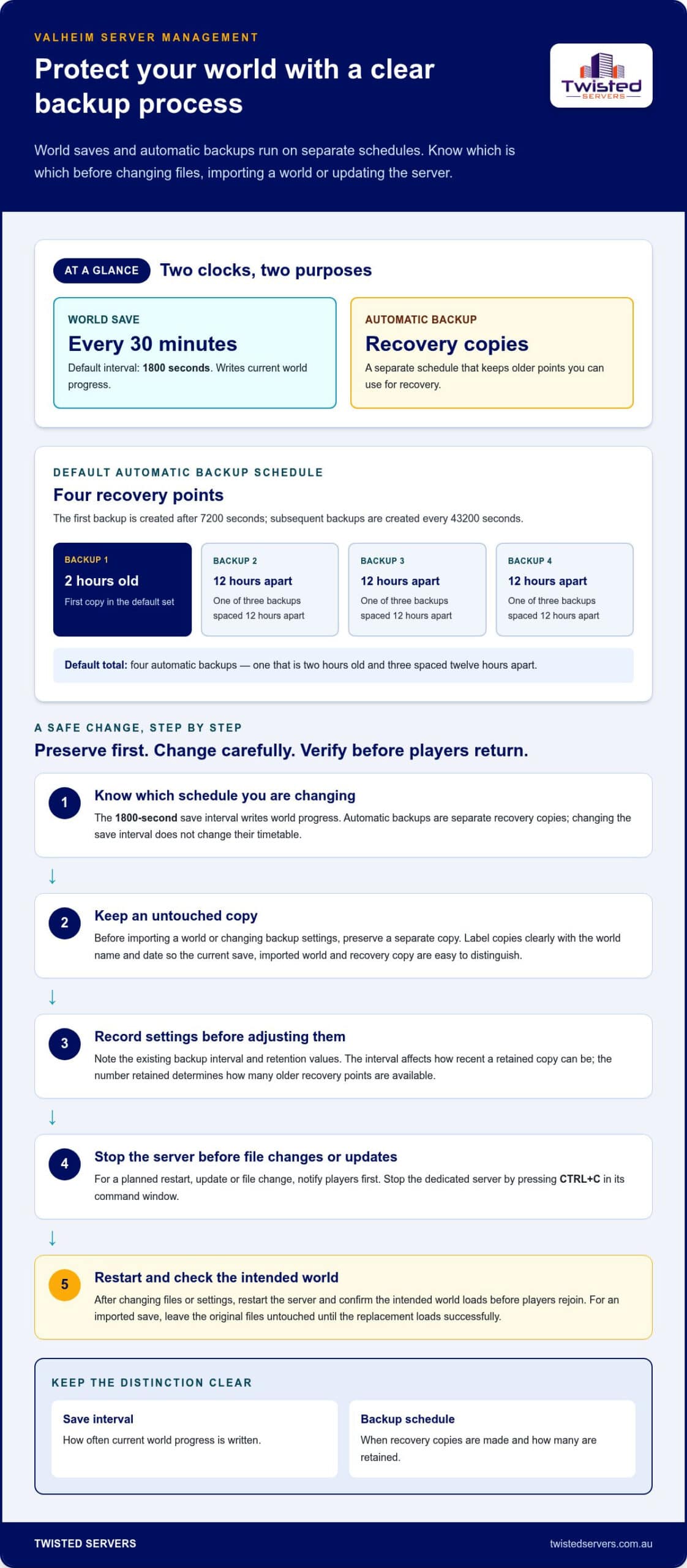
Valheim dedicated servers save the world every 1800 seconds by default, which is every 30 minutes. Automatic backups are separate recovery points, so a recent world save doesn’t mean a recent backup already exists.
Before importing a world, preserve an untouched copy of the existing save. Place the intended world files in the location used by your server setup, then configure the server to load that world. Make sure the configured world name matches the save you want to use. If it doesn’t, the server may load a different world.
Label copies clearly with the world name and date so you can distinguish the current save, an imported world and a recovery copy. Keep a separate copy before an update or significant configuration change instead of relying only on automatic retention.
Automatic backup configuration
Automatic backup settings control when copies are created and how many are retained. Valheim dedicated servers keep four automatic backups by default. The first is created after 7200 seconds, and subsequent backups are created every 43200 seconds.
The default set consists of one backup that is two hours old and three backups spaced twelve hours apart. These timings describe the server’s default backup schedule, not the world-save interval. Before changing the settings, note the existing values and review the configuration after restarting the server.
Choose backup settings according to your recovery needs: the interval affects how recent a retained copy can be, while the number retained determines how many older recovery points are available. Keep a separate copy before changing either setting. This gives you a fallback if the new configuration doesn’t behave as intended.
Backup schedules and save intervals
A save interval controls how often current world progress is written; a backup schedule determines when recovery copies are made. Valheim’s -saveinterval startup option can be set to 1800 seconds, given as an example value. Changing it affects saves, not the separate automatic-backup timetable.
Before an update or planned restart, notify players and make a separate copy of the world. Stop the dedicated server by pressing CTRL+C in its command window before changing files or applying an update. Restart it afterwards and confirm the intended world loads before players rejoin.
When importing a world, leave the original files untouched until the server has loaded the replacement successfully. If the wrong world appears, stop the server and review the selected world name and files. This process preserves a recovery point and helps distinguish save-selection problems from backup-schedule issues.
Server name, password, world name and ports
A Valheim dedicated server is a separate game instance that players can join online. To set one up, install Valheim Dedicated Server, configure its launch settings with the server name, world and password, then launch it. Choose the Steam or Crossplay backend according to who needs to connect.
Server configuration sets the values used when the dedicated server starts. The server name identifies it in Valheim’s browser, while the world name selects which world loads. Use clear, distinct names, especially if you run several worlds.
A server password controls entry, and Valheim requires at least 5 characters. It cannot match the server name. For example, if your server is called “Southern Shore”, choose a different password with at least 5 characters. Share it only with the players you want to join.
Ports are the network endpoints used by players’ connections. A Valheim dedicated server uses UDP ports 2456-2458 by default. Steam-backend servers use the default port range 2456-2457. Keep the backend distinction in mind when reviewing settings: the ranges refer to different descriptions in the server information, not interchangeable labels.
World modifiers change the rules that shape a world’s challenge and resource gathering. Valheim’s resource modifier options include rates from 0.5x to 3x. Select a rate that suits your group: a lower resource rate means resources are gathered less often, while a higher rate increases the gathering rate.
Difficulty presets and individual modifiers let you tune the experience without changing the world name. Admins can also change modifiers on an existing world with the setworldmodifier command, without installing a mod or creating a new world. Apply changes deliberately, then check in-game how they affect play.
World save intervals control how often current progress is written to the world save. The save interval is configured separately from the server name, password and modifiers. In the startup options, -saveinterval accepts an interval value; 1800 seconds is an example value. The previous section covers Valheim’s default save and automatic backup schedule.
Before changing launch settings, record the current values and identify what you intend to adjust. Change one item at a time, then restart the dedicated server and check its name, loaded world and browser visibility. This makes errors easier to spot, such as a world name that points to a different save.
Crossplay and public server listing
Crossplay lets players on supported platforms join the same Valheim dedicated server. The public-listing setting determines whether the server appears in Valheim’s browser or requires a direct connection. Configure these separately: the backend affects who can connect, while the public setting affects how players find the server.
Valheim crossplay supports connections from Xbox, PlayStation 5, Switch 2 and Game Pass, with five listed in the crossplay support details. If your group uses different supported systems, choose the Crossplay backend in the dedicated server’s startup configuration. This lets players from those systems connect without relying on the Steam-only backend.
The Steam backend allows only Steam users to see and join the server, so choose it when everyone in your group uses Steam. A Crossplay server can be accessed from outside the local network without router port forwarding. This distinction matters when hosting from home and inviting friends to join remotely.
Public listing is controlled by the -public startup parameter. Set -public 1 to list the server in the browser; use -public 0 to keep it unlisted for direct connection only. Unlisted does not mean restricted to a particular player list: it changes browser visibility, while access controls remain separate.
To configure access, first decide which backend matches your players’ systems. Then set the public parameter according to whether you want browser discovery. For example, a cross-platform friends group can use the Crossplay backend and choose -public 0 if members will connect directly. A Steam-only group can select the Steam backend and use -public 1 for browser visibility.
After changing startup settings, save the configuration and restart the dedicated server so it launches with the new choices. Ask one player using the intended connection method to test access. If a Steam player can join but a player on another supported system cannot, check that the Crossplay backend is selected. If the server is missing from the browser, review -public and confirm it is set to 1.
Keep the settings’ functions clear when sharing joining instructions. Tell players whether to find the server in the browser or connect directly, and which backend supports their system. Crossplay affects connection compatibility; -public controls listing. Neither setting changes the world, so review both whenever you change how your group joins.
Server settings and ValheimPlus configuration
Server settings control how a Valheim dedicated server runs. ValheimPlus is a mod that adds configurable gameplay changes. Server requirements depend on the workload, including player numbers, selected settings and installed mods. Assess these demands together rather than relying on a single hardware figure. For practical Valheim server management, document the server configuration and mod settings together.
To troubleshoot connection, lag or crash issues, change one variable at a time. Check the server and game versions, review startup output for errors, then test without recently added mods or settings. For lag, note when it occurs and whether all players are affected. For a crash, record the last change made before the problem began.
ValheimPlus configuration involves adjusting the mod’s options to change gameplay. Start by copying the current world and configuration, then identify the specific change you want to make. Avoid editing several options at once. If the server behaves differently, changing one setting at a time makes the cause easier to isolate.
Keep mod and game versions in mind. After a Valheim update, compare the installed mod version with its compatibility information and instructions. Apply changes in a test session before inviting everyone back. Check whether a setting also affects what players need on their own installations instead of assuming it changes only the server.
Valheim’s built-in world settings can also be adjusted without ValheimPlus. Resource modifiers include rates from 0.5x to 3x, and admins can use setworldmodifier to change modifiers on an existing world. This command works without a mod or a new world, making it a direct option for changing resource rates.
Not every admin command works as a multiplayer cheat. Admin status on a dedicated server doesn’t automatically grant access to every single-player cheat command. Treat server administration commands and single-player cheats as separate functions; don’t assume admin access enables both.
The lodbias command accepts values from 1 to 5. Note its current value before making an adjustment. Test the result with players in the same area, then keep or reverse the change based on what you observe. This measured approach helps you assess the setting without changing several variables at once.
A clear Valheim server management routine records the game version, mod version and changed options together. Keep an untouched copy of the world before changing mod settings, and test updates before returning to the main session. This gives you a point of comparison if a new setting causes unexpected behaviour.
Twisted Servers: Game Server Hosting
Twisted Servers provides Game Server Hosting for multiplayer communities that want hosting separate from a personal computer. When weighing self-management against a hosted setup, consider how much control you need over configuration, updates and ongoing server tasks. VPS Hosting and Dedicated Server Hosting are also options when you need a server environment beyond game-specific hosting.
Game settings, save files and mods remain distinct from the hosting service itself. Choose an option that suits how you plan to run and maintain your game server, and keep your configuration and world backups organised. For information about our hosting options, contact Twisted Servers.
Set your server up for the next chapter
Effective Valheim server management also means planning how your community will make decisions as it grows. Decide who can approve changes, how you’ll communicate them and where you’ll keep setup notes. A shared record helps co-admins stay aligned and gives returning players a clear reference.
Use a quiet period to agree on a simple process for changes. Record the reason for each adjustment, who made it and what the group should watch for afterwards. This helps you make future decisions with your community’s expectations in mind, rather than relying on memory or scattered messages.
If you’d like to discuss hosting options for your gaming community, contact Twisted Servers. Take the next step when it suits your group, and keep building a world everyone can enjoy.
Frequently Asked Questions
How do I change the settings of my server?
Change startup options such as the server name, world name, password and visibility, then restart the server to apply them. To change a world modifier on an existing world, use the in-game admin command. Keep a copy of the original configuration before editing, and record each change so you can reverse it if the result doesn’t suit your group.
Why should I create backups, and how do I do it?
Backups provide a recovery point if an update, configuration change or accidental edit damages your world. Keep a separate copy of the world save before major changes instead of relying only on automatic copies. Label backup folders with the world name and date. To restore a world, stop the server, replace the affected files with the chosen copy, then start the server and confirm the world loads correctly.
How do you configure Valheim server settings, world name, password and player limit?
Set the server name, world name and password in the dedicated server’s startup configuration. Valheim passwords must contain at least 5 characters and cannot match the server name. Access lists decide which players can join or administer the server; they don’t set a player limit. Keep the world name consistent with the save you intend to load, and test the configuration after restarting.
How do you invite players and manage access to a Valheim server?
Share the server name and password with invited players, and explain whether they should find it in the browser or connect directly. For a restricted group, add each invited player’s Platform User ID to the permitted list, with one ID per line. Grant admin privileges separately by adding trusted players to adminlist.txt. This keeps ordinary access distinct from the ability to run server commands.
How do you back up and restore a Valheim world and character data?
Copy the world save files before updates or other significant changes, and keep the copy separate from the live server files. To restore a world, stop the server, replace its world files with the saved copy, then launch it using the matching world name. Players should also preserve their character saves from their game installation, because world files and character progress are separate data.
How do you update a Valheim dedicated server without losing progress?
Before updating, tell players the server will be unavailable, stop it cleanly with CTRL+C in its command window and copy the current world save. Apply the dedicated server update, then restart it with the existing world name and settings. Confirm the world loads and players can connect before considering the update complete. Keep the pre-update copy until the new version runs as expected.
What is the cost of Valheim server hosting in Australia, and which providers are available?
Twisted Servers offers Valheim game server hosting in Australia. The price depends on the selected setup and is provided after a quote request. When comparing hosted options, consider the game and configuration you need, where the server is located, and whether you want to manage the server yourself. These factors shape the hosting arrangement and what ongoing administration you’ll handle.
What internet speed, ports and router settings are needed to host Valheim in Australia?
Valheim dedicated servers use UDP ports 2456-2458 by default; Steam-backend servers use the default port range 2456-2457. Crossplay servers don’t require router port forwarding to be reachable outside the local network. For a Steam-backend server hosted behind a router, configure network access for the required UDP traffic. Internet performance depends on upload capacity, network stability and players’ routes to the server.
Disclaimer
Game titles, trademarks, logos and related assets are the property of their respective owners. Twisted Servers is an independent hosting provider and is not affiliated with or endorsed by the developers or publishers of the games mentioned unless otherwise stated. Information is provided as a general guide and may change as games, software and hosting services are updated.

