
Recommended Services


Supported Scripts

Your server’s location shapes the connection your players experience. For Australian communities, Wolfenstein Enemy Territory server hosting is available on Australian infrastructure at Equinix PE2.
Choosing a nearby location can help reduce latency for players in Australia compared with hosting farther away, though each player’s connection also depends on their location, ISP and network routing. A local server is a practical starting point, not a promise of a particular ping.
You’ll also want clear answers about the resources the game needs and how much control you’ll have once the server is running. This guide covers server location, requirements, customisation, backups, restarts and administration, helping you plan a setup that suits your community.
Key Takeaways
- An Australian server can offer a shorter network route for local players, though connection quality also depends on each player’s location, ISP and routing.
- Server capacity depends on configuration: official servers were set up for 16 players, while the game has been listed for up to 32.
- The published dedicated-server minimum is a 1.3 GHz Pentium IV or equivalent and 128 MB of RAM; player load and server setup also matter.
- Configuration settings let administrators tailor player limits, game modes and network behaviour to their community.
- Plan for ongoing administration, including backups and restart timing; the ET: Legacy installer’s default daily restart is at 05:00am server local time.
Game availability and community support
Wolfenstein: Enemy Territory supports multiplayer servers with configurable rules. To host one, you need compatible server software and an environment where you can configure and run it.
Game overview and player capacity
Released in 2003, this free-to-play game is an objective-based World War II first-person shooter. Players choose the Axis or Allies and play across six maps based on real-world battle locations. Capacity depends on the server software and its settings: id Software’s official dedicated servers were configured for 16 players in September 2022, with eight per team. Other configurations use different limits, so set capacity around your community’s expected turnout.
Wolfenstein: Enemy Territory became free to play on Steam on 26 April 2022. Hosting uses dedicated-server software and its own server files, separate from the player’s game client. ET: Legacy installation scripts assume a freshly installed Linux server running Ubuntu 20.xx or later.
Server types and game modes
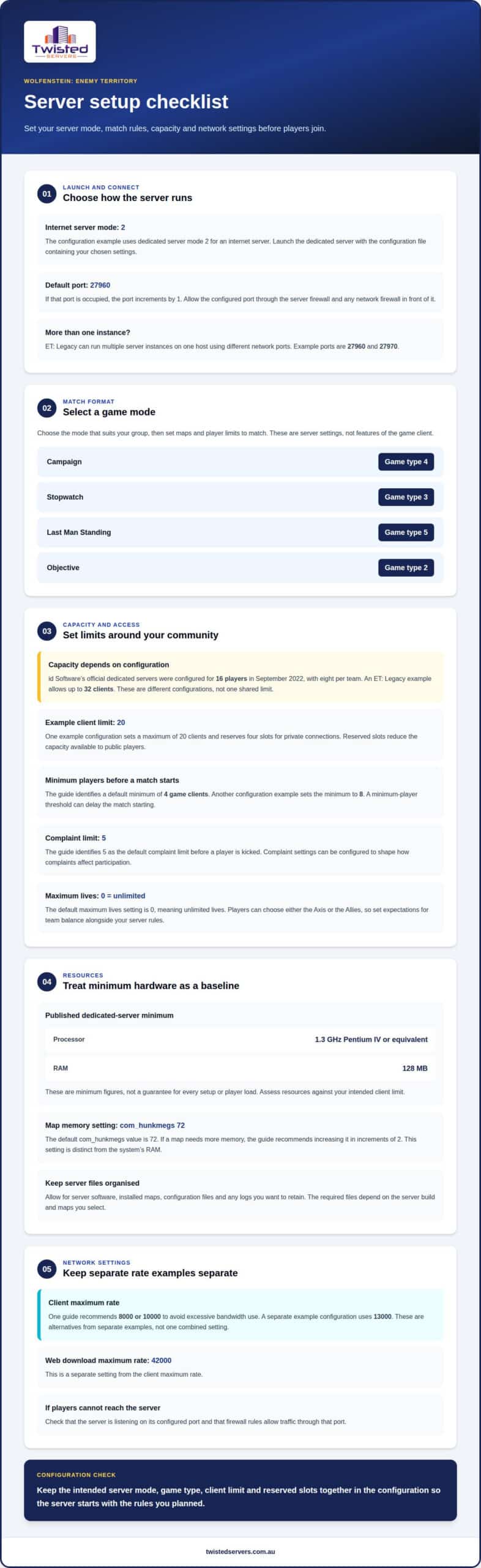
A dedicated server runs separately from a player’s game client, allowing a community to host matches. For an internet server, the configuration example uses dedicated server mode 2. ET: Legacy can run multiple server instances on one host using different network ports; examples use ports 27960 and 27970. Choose an instance setup that suits the way you organise public or private play.
Mode selection changes the match format. The configuration assigns game type 4 to Campaign, 3 to Stopwatch, 5 to Last Man Standing and 2 to Objective. Select the mode that suits your group, then configure maps and player limits to match. These are server settings, not features of the game client.
Rules are configurable. An example server configuration sets a maximum of 20 clients and reserves four client slots for private connections. The guide’s default minimum is four game clients before a server starts, while another example sets that minimum to eight. Hosts can configure complaint settings to shape how complaints affect participation. Reserved slots reduce public capacity, while a minimum-player threshold can delay a match starting.
To install the configuration, place the server settings in the file used by your server software, then launch the dedicated server with that file. Set the internet-server mode, game type, client limit and reserved slots before inviting players. The default server port is 27960; if it is occupied, the port increments by one. Keep the settings together in the configuration so the server starts with the intended rules and mode.
Community rules can also shape how a match starts and how players stay in it. The guide identifies 5 as the default complaint limit before a player is kicked. It identifies 4 as the default minimum number of game clients required before a server starts, while the configuration example sets the minimum number of game clients to 8. These settings let a host choose when a match can begin and how complaints affect participation.
The default maximum lives setting is 0, meaning unlimited lives. Players can choose to play as either the Axis or the Allies, so a community can set expectations for team balance alongside its server rules. Review the minimum-client and lives settings before a match, and make sure players understand the complaint limit. Clear expectations help a group coordinate its matches and keep the server experience consistent.
Minimum hardware and connection requirements
The game’s published minimum requirements offer a starting point, but the server workload depends on its configuration and the players connected. Consider both the server software and the network settings you intend to use when planning resources.
RAM and hardware specifications
The dedicated-server guide recommends at least an Intel Pentium IV 1.3 GHz processor or equivalent, with 128 MB of RAM. Splash Damage lists 128MB RAM as the requirement to play. These figures describe minimums, not a guarantee that every configuration or player load will run smoothly.
Plan resources around the server’s intended client limit. An ET: Legacy example allows up to 32 clients, while the dedicated-server guide’s minimum hardware recommendation remains a baseline. A larger active match places more demand on the server than a small test, so use the intended player load when assessing your setup.
The default com_hunkmegs value is 72. If a map requires more memory, the guide recommends increasing this setting in increments of 2. This is a game memory setting, distinct from the system’s RAM. If a map fails to load, review this value alongside the map and server configuration.
When planning storage, allow for the server software, installed maps, configuration files and any logs you want to retain. The required files depend on the server build and maps you select. Keep them organised so administrators can identify the active configuration and update the correct installation.
Ports and network settings
The default server port is 27960. If it is already in use, the port increments by 1. Allow the configured port through the server firewall and any network firewall in front of it. Multiple server instances need distinct ports; ET: Legacy examples use 27960 and 27970.
Client-rate settings affect network use. One guide recommends a maximum client rate of 8000 or 10000 to avoid excessive bandwidth use. An example configuration instead sets the client maximum rate to 13000. These are separate examples, not a single combined setting; choose in line with your available bandwidth and desired connection behaviour.
The example configuration also sets the web download maximum rate to 42000. This is distinct from the client maximum rate. If players can’t reach the server, confirm that the server is listening on its configured port and that firewall rules allow traffic through that port.
As a practical starting point, set the player limit according to the available hardware, choose an unused port and configure the firewall for it. Test connections with your intended setup before opening the server to players.
Control panel and server customisation
Customisation is managed through the server configuration, using a control panel or another file-access method. Focus on the settings that govern match access, game mode and connection behaviour.
The tools available in a control panel depend on the hosting setup. The configuration file remains central because it contains settings the server reads when starting. Before editing, identify the active file and save a copy of its current contents. You can then restore a working setup if a change causes unexpected behaviour.
Control panel and file access
Use file access to open the configuration for your Enemy Territory server. Make one change at a time, save the file and restart the server if needed to load the new setting. Control panels can provide server-management tools, but their features vary, so don’t assume a particular panel includes an editor, console or installer.
Keep a brief record of changes, including when and why you made each one. If the server behaves unexpectedly, the record helps pinpoint which setting to review. Separate configurations can distinguish public matches from private events, as long as each server instance uses the intended file.
Customising server settings
Set match rules to suit your players. The configuration example uses a maximum of 20 clients and reserves four slots for private connections. Those choices affect public access: reserved slots are held back from general players, so account for them when setting the overall limit.
Game mode is another direct customisation. The configuration maps game type 4 to Campaign, 3 to Stopwatch, 5 to Last Man Standing and 2 to Objective. Choose the mode that fits the event, then make sure the rest of the configuration supports that format. Changing the game type alters the match experience, not the hosting platform’s features.
Connection behaviour can be adjusted too. One example sets the client maximum rate to 13000. That value is a configuration example, not a universal target; network capacity and the experience you want to provide should guide your choice. Keep a note of the original value before editing, then test the resulting setup with your regular players.
After saving a change, check that the server starts with the intended configuration and uses the correct mode and access rules. For example, a private-event configuration might specify reserved slots, while the public setup has its own player limit. Clear file names and a change log help prevent mistakes, especially when managing multiple configurations.
The game also offers a selection of maps based on real-world battle locations, giving organisers another way to shape matches alongside the game mode and access rules.
Backups, restarts and administration
Reliable administration means keeping server files, configuration, restart schedules and network protection organised. Document each Enemy Territory setting and save a restorable copy before making changes.
DDoS defence, backups, uptime commitments and support are separate parts of a hosting arrangement. DDoS defence addresses malicious network traffic, backups preserve server data, uptime terms describe service commitments, and support helps with operational issues. These measures are distinct from Enemy Territory’s server settings.
A useful backup includes the configuration, maps and other files needed to restore your setup. Keep a copy outside the live server environment and test that you can restore it. Record when the backup was made and which configuration it contains, so it is ready to use if recovery is needed.
Restart timing also affects players. The ET: Legacy installer’s default daily restart time is 05:00am in the server’s local time. Administrators can account for that schedule when planning community events. Before a planned restart, save configuration changes and communicate the interruption to players through the community’s usual channel.
Routine administration includes reviewing the server’s status, configuration and files after changes. If a map update stops the server from starting, for example, restore the last working map files and configuration. Keep the working version separate from replacement files until the new setup starts correctly, and record what changed and when.
To move an existing server, preserve its configuration, maps and required server files, then copy them to the new environment. Install compatible server software, apply the saved configuration and test the server before directing players to its new address. Keep the original files until the transferred setup works as intended.
- Collect the existing configuration, maps and server files.
- Install the server software in the destination environment and restore those files.
- Start the server, test its settings, and update player connection details.
During a move, compare the restored configuration with the original and confirm that the intended maps load. Players can download required content only if the server setup makes those files available. Save a separate backup before replacing live files, so you can restore the previous version if an update prevents startup.
Before choosing a hosting arrangement, understand how it handles DDoS defence, backups, uptime commitments and support. For an Enemy Territory community, these operational details matter alongside the game configuration because they shape how administrators respond to disruption, recover files and keep players informed.
Wolfenstein: Enemy Territory server hosting
For Australian communities, server location matters. Hosting in Australia can give local players a shorter route than a distant overseas server, though actual latency also depends on each player’s location, ISP and routing. Consider where your regular players connect from, then assess software and administration requirements separately.
No single provider suits every Enemy Territory community. Consider whether the host supports your intended server software and operating environment, provides the configuration access you need, and explains its administration arrangements clearly. These practical criteria help you compare options without relying on broad performance claims.
Software compatibility is especially relevant for communities choosing ET: Legacy. It is described as compatible with Enemy Territory version 2.60b. Installation scripts are tested for ET: Legacy server versions up to v2.81.1-57, and the installation process assumes a freshly installed Linux server running Ubuntu 20.xx or later. Matching the server build and operating system to the intended installation path can prevent avoidable setup issues.
Keep the roles of each component clear: Enemy Territory is the game, ET: Legacy is a compatible server-software option, and the hosting environment is where the software runs. Hosting location and administration arrangements are separate from game features. This distinction helps you identify what to configure in the server software and what depends on the hosting environment.
Use these criteria to assess a setup for your Australian community:
- Choose the server location with your regular players’ locations and network routes in mind.
- Match the operating system and server-software version to your installation approach.
- Consider how much access you need to server files and configuration.
- Understand how administration, backups, restarts and network protection are handled.
- Plan a test before sharing the server address with your community.
A group running scheduled matches, for example, may prioritise configuration access and a clear restart process. A public community may place more emphasis on ongoing administration and file management. The right arrangement depends on how your group organises matches and who will maintain the server.
Once you’ve identified your server software, operating system and administration needs, choose a hosting arrangement that fits. Focus on your community’s location, the server environment and the work required to maintain it.
Twisted Servers
Twisted Servers offers hosting for gaming communities, along with VPS and dedicated server hosting for different levels of administration. For an Enemy Territory setup, consider how much control you want over configuration, files and ongoing management. Your player capacity, preferred location and maintenance needs will help guide the choice.
Our game server hosting is relevant when you want a hosting option focused on multiplayer communities. VPS or dedicated server hosting may suit setups where you need a broader server environment. The right fit depends on the software and administration approach you plan to use.
If you’d like to discuss your hosting requirements, contact Twisted Servers.
Plan your next step
Turn your community’s plans into a clear hosting brief. Consider where most players connect from, how much server control you need and who will handle ongoing administration. These decisions help match the setup to the way your group plays and organises matches.
A suitable Wolfenstein Enemy Territory server hosting arrangement should match your gameplay plans and preferred level of hands-on management. Twisted Servers offers Game Server Hosting, VPS Hosting and Dedicated Server Hosting, giving you different approaches to consider. Choose based on how you want to manage the server, rather than simply opting for the largest setup.
When you’re ready, share your intended server software, community requirements and administration preferences with us. We can discuss which hosting approach fits those needs, without making the decision more complicated than it needs to be.
Contact Twisted Servers to discuss your hosting requirements. Your community can take the next step with a setup that reflects how you want to play and manage your server.
Frequently Asked Questions
Which locations can I choose?
Choose Australian hosting if most of your community is in Australia. A closer server may reduce the distance data travels for local players, but it cannot guarantee a particular ping. For groups spread across different locations, consider where regular players connect from and how their networks route traffic. This helps you choose a location based on actual play patterns instead of assuming one server suits everyone equally.
Which Australian regions and server locations are available for Enemy Territory hosting?
Australian hosting serves communities across the country. Plan around your players’ needs rather than assuming there is a separate selectable server location for each state or territory. If your group is spread across Australia, consider where most players live and how their internet providers route connections. This gives you a practical basis for balancing a shared location with players’ needs in different parts of the country.
How do I set up and configure a Wolfenstein: Enemy Territory dedicated server?
Start by choosing compatible server software and an operating system, then prepare the game files and a configuration for your community. Add your preferred maps and match settings, then test the setup with a small group before announcing a public event. If you’re moving an established community, plan the changeover between matches to avoid leaving players with an old address or an untested setup.
What licensing, game files, and account requirements apply to hosting an Enemy Territory server?
The game is free to play. Hosting requires dedicated-server software and server files, which are separate from the player’s game client.
What are the best Wolfenstein: Enemy Territory server hosting providers available in Australia?
Twisted Servers offers Wolfenstein: Enemy Territory hosting on Australian infrastructure at Equinix PE2.
Disclaimer
Game titles, trademarks, logos and related assets are the property of their respective owners. Twisted Servers is an independent hosting provider and is not affiliated with or endorsed by the developers or publishers of the games mentioned unless otherwise stated. Information is provided as a general guide and may change as games, software and hosting services are updated.

